


Google Sheets (Google Trang tính) từ lâu đã không còn là một “bản sao trực tuyến” đơn giản của Microsoft Excel. Mặc dù Excel vẫn là ông vua trong việc xử lý các tập dữ liệu khổng lồ ngoại tuyến, nhưng Google Sheets lại sở hữu những vũ khí bí mật nhờ nền tảng điện toán đám mây và hệ sinh thái Google.
Khả năng cộng tác thời gian thực, kết nối API, và các hàm độc quyền đã biến Google Sheets thành công cụ không thể thiếu trong kỷ nguyên số. Bài viết này sẽ tổng hợp 16 thủ thuật Google Sheets từ cơ bản đến nâng cao, giúp bạn tối ưu hóa quy trình làm việc và khai thác triệt để sức mạnh của công cụ này.
1. Làm chủ các phím tắt (Keyboard Shortcuts)
Tốc độ là yếu tố then chốt của hiệu suất. Nếu bạn đã quen với các phím tắt trong Excel, tin vui là Google Sheets hỗ trợ hầu hết các tổ hợp phím đó. Tuy nhiên, Sheets còn có những phím tắt riêng biệt dành cho môi trường trình duyệt.
Để không phải ghi nhớ máy móc, Google Sheets cung cấp một bảng tra cứu phím tắt ngay trong giao diện làm việc. Bạn có thể truy cập bằng cách vào menu Trợ giúp (Help) > Phím tắt (Keyboard Shortcuts) hoặc nhấn tổ hợp phím Ctrl + / (Windows) / ⌘ + / (Mac).
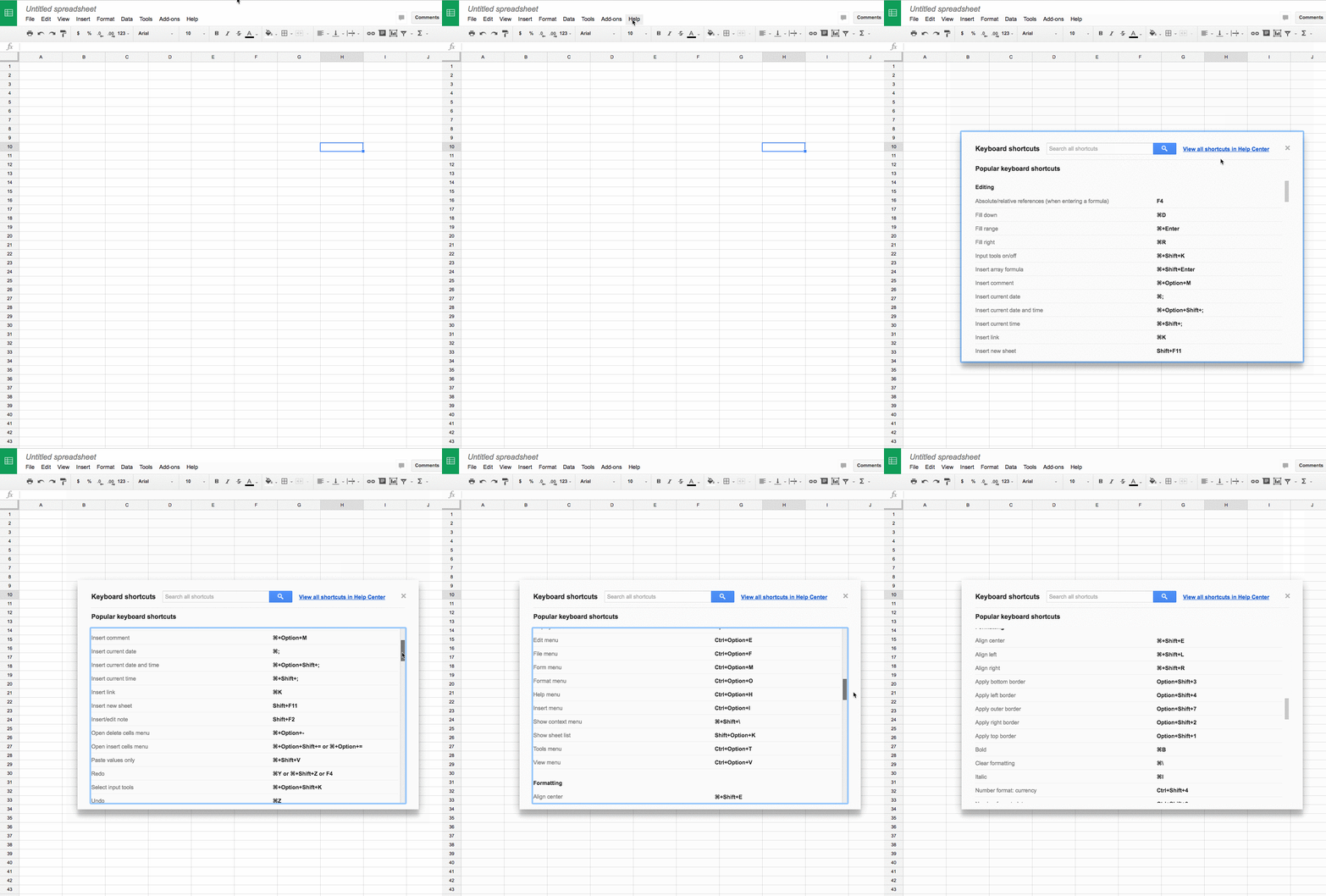 Danh sách các phím tắt hỗ trợ trong Google Sheets
Mẹo nhỏ: Hãy tập thói quen sử dụng
Ctrl + Shift + Vđể dán dữ liệu mà không kèm theo định dạng gốc (Paste values only) – một thao tác cực kỳ phổ biến khi sao chép dữ liệu từ web.
2. Chèn ảnh trực tiếp vào ô với hàm IMAGE
Khác với Excel truyền thống thường chèn ảnh dưới dạng vật thể nổi (floating object), Google Sheets cho phép bạn nhúng ảnh trực tiếp vào trong một ô dữ liệu (cell) thông qua đường dẫn URL. Điều này giúp ảnh tự động di chuyển, ẩn hiện hoặc thay đổi kích thước theo hàng/cột chứa nó.
Cú pháp hàm: =IMAGE("URL_ảnh"; [chế_độ])
Trong đó [chế_độ] có 4 lựa chọn:
- 1: Thay đổi kích thước ảnh để vừa khít với ô (giữ nguyên tỷ lệ khung hình).
- 2: Kéo giãn hoặc co ảnh để lấp đầy toàn bộ ô (có thể làm méo ảnh).
- 3: Giữ nguyên kích thước gốc của ảnh (có thể bị cắt nếu ô quá nhỏ).
- 4: Tùy chỉnh kích thước theo pixel (cần thêm tham số chiều cao và chiều rộng).
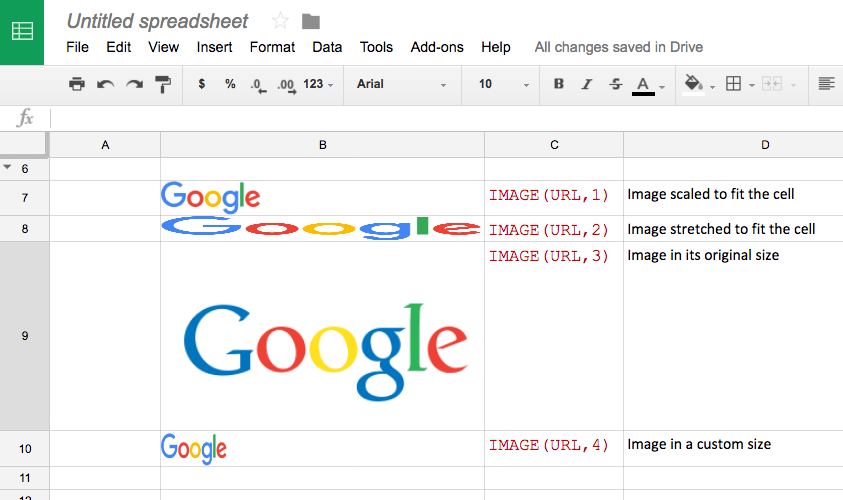 Minh họa cách chèn ảnh vào bảng tính bằng hàm Image
3. Truy vấn dữ liệu mạnh mẽ với hàm QUERY (SQL)
Đây chính là tính năng “sát thủ” khiến nhiều chuyên gia dữ liệu yêu thích Google Sheets. Hàm QUERY cho phép bạn sử dụng cú pháp tương tự ngôn ngữ SQL (Structured Query Language) để lọc, sắp xếp, và tổng hợp dữ liệu từ một bảng nguồn.
Thay vì phải dùng nhiều bước Filter hay Pivot Table, bạn chỉ cần một câu lệnh duy nhất.
Ví dụ: Bạn muốn lấy danh sách nhân viên có doanh số > 1000 và sắp xếp theo tên?=QUERY(A1:D100; "SELECT A, B WHERE D > 1000 ORDER BY A")
 Hướng dẫn sử dụng hàm Query để lọc dữ liệu nâng cao
4. Tách ngày tháng năm khỏi dữ liệu thời gian
Trong Google Sheets, dữ liệu thời gian (Datetime) thực chất là một chuỗi số, trong đó phần nguyên là ngày tháng và phần thập phân là giờ phút.
Để tách lấy phần ngày tháng và loại bỏ phần giờ, bạn có thể dùng hàm INT(). Hàm này sẽ làm tròn xuống phần nguyên gần nhất, giúp bạn chuyển đổi từ định dạng “dd/mm/yyyy hh:mm:ss” sang “dd/mm/yyyy” một cách chính xác để phục vụ cho việc tính toán hoặc so sánh ngày.
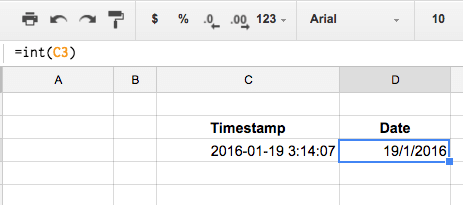 Cách tách dữ liệu ngày tháng năm bằng hàm INT
5. Tạo mã QR tự động ngay trong bảng tính
Bạn có thể tạo mã QR cho hàng loạt liên kết, văn bản hoặc số điện thoại ngay trong Google Sheets bằng cách kết hợp hàm IMAGE và Google Charts API. Đây là tính năng tuyệt vời để quản lý kho, tạo thẻ nhân viên hoặc vé mời sự kiện.
Công thức mẫu:
=IMAGE("https://chart.googleapis.com/chart?cht=qr&chs=150x150&chl=" & A2)(Trong đó A2 là ô chứa dữ liệu bạn muốn mã hóa thành QR Code).
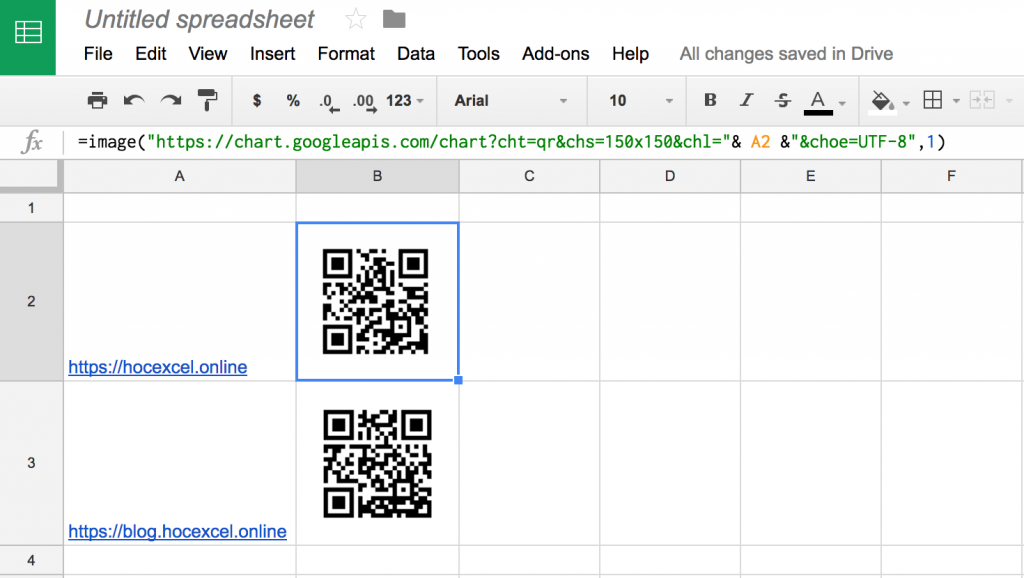 Tạo mã QR code hàng loạt trong Google Sheet
6. Tra cứu đa điều kiện với ARRAYFORMULA + INDEX + MATCH
VLOOKUP là hàm quốc dân, nhưng nó có hạn chế khi bạn cần tìm kiếm dựa trên nhiều điều kiện kết hợp (ví dụ: Tìm giá của sản phẩm “A” trong tháng “10”).
Để giải quyết bài toán này chuyên nghiệp hơn, hãy sử dụng công thức mảng. Sự kết hợp giữa INDEX, MATCH và ARRAYFORMULA giúp bạn tạo ra một khóa tìm kiếm duy nhất từ việc ghép nhiều cột lại với nhau.
Công thức ví dụ:=ARRAYFORMULA(INDEX($E$4:$E$8; MATCH($G4&$H4&$I$3; $B$4:$B$8&$C$4:$C$8&$D$4:$D8; 0)))
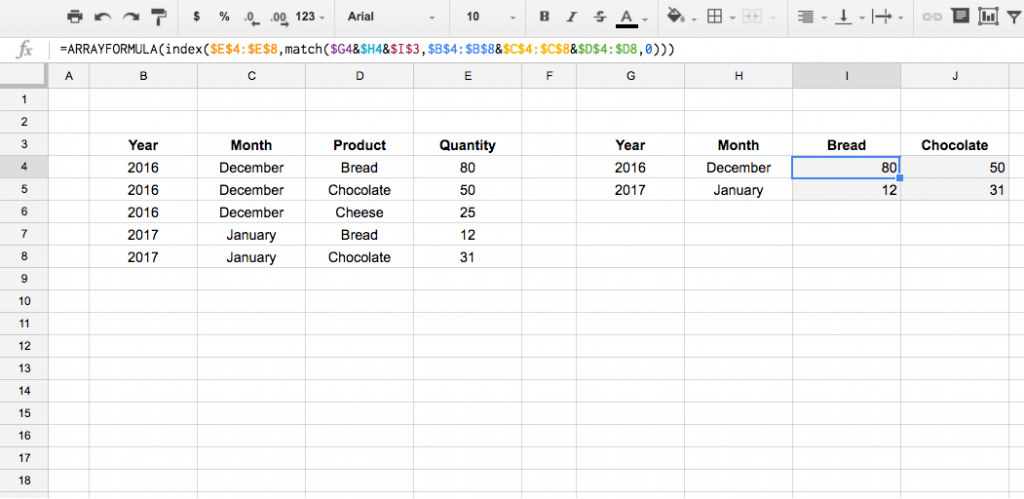 Sử dụng công thức mảng để tra cứu dữ liệu nhiều cột
Dưới đây là mô phỏng cách thức hoạt động của công thức trên:
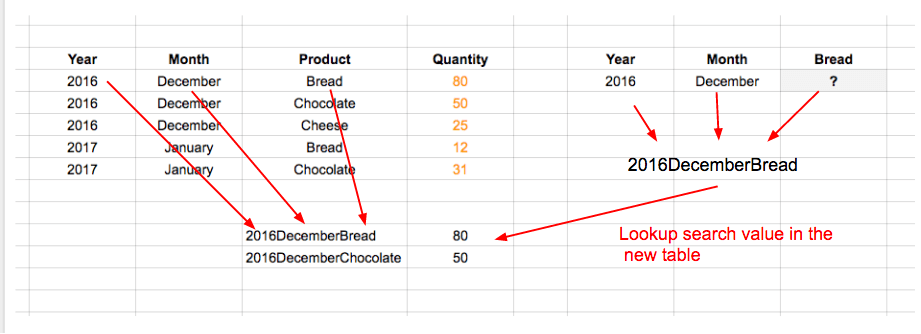 Diễn giải chi tiết công thức tra cứu nhiều điều kiện
7. Lọc dữ liệu động với hàm FILTER
Nếu như chức năng Filter trên thanh công cụ chỉ ẩn các hàng không thỏa mãn điều kiện, thì hàm FILTER() sẽ trích xuất dữ liệu thỏa mãn sang một vùng riêng biệt. Điều này cực kỳ hữu ích khi bạn muốn tạo các báo cáo phụ từ bảng dữ liệu tổng (Master Data) mà không làm ảnh hưởng đến dữ liệu gốc.
Cú pháp: =FILTER(vùng_dữ_liệu; điều_kiện_1; [điều_kiện_2]...)
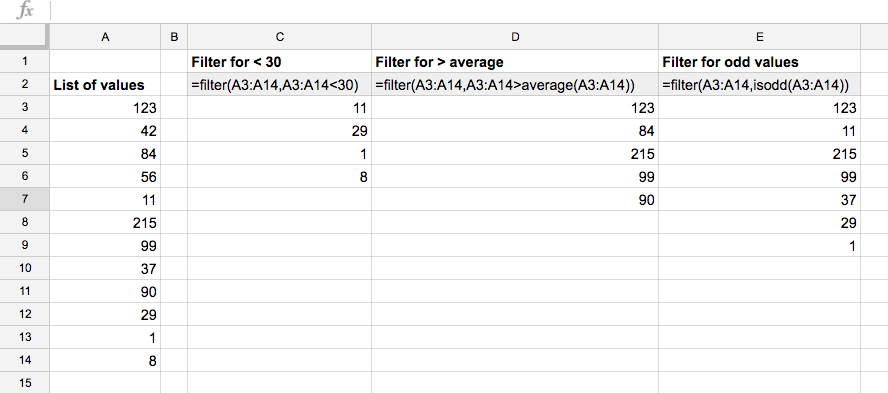 Kết quả trả về của hàm Filter trong Google Sheet
8. Lọc giá trị duy nhất với hàm UNIQUE
Việc loại bỏ các giá trị trùng lặp (Remove Duplicates) trong Excel đòi hỏi bạn phải thao tác trên menu. Trong Google Sheets, hàm UNIQUE() giúp bạn làm điều này hoàn toàn tự động.
Chỉ cần chọn cột dữ liệu, hàm sẽ trả về danh sách các giá trị duy nhất. Khi dữ liệu nguồn thay đổi, danh sách này cũng tự động cập nhật theo.
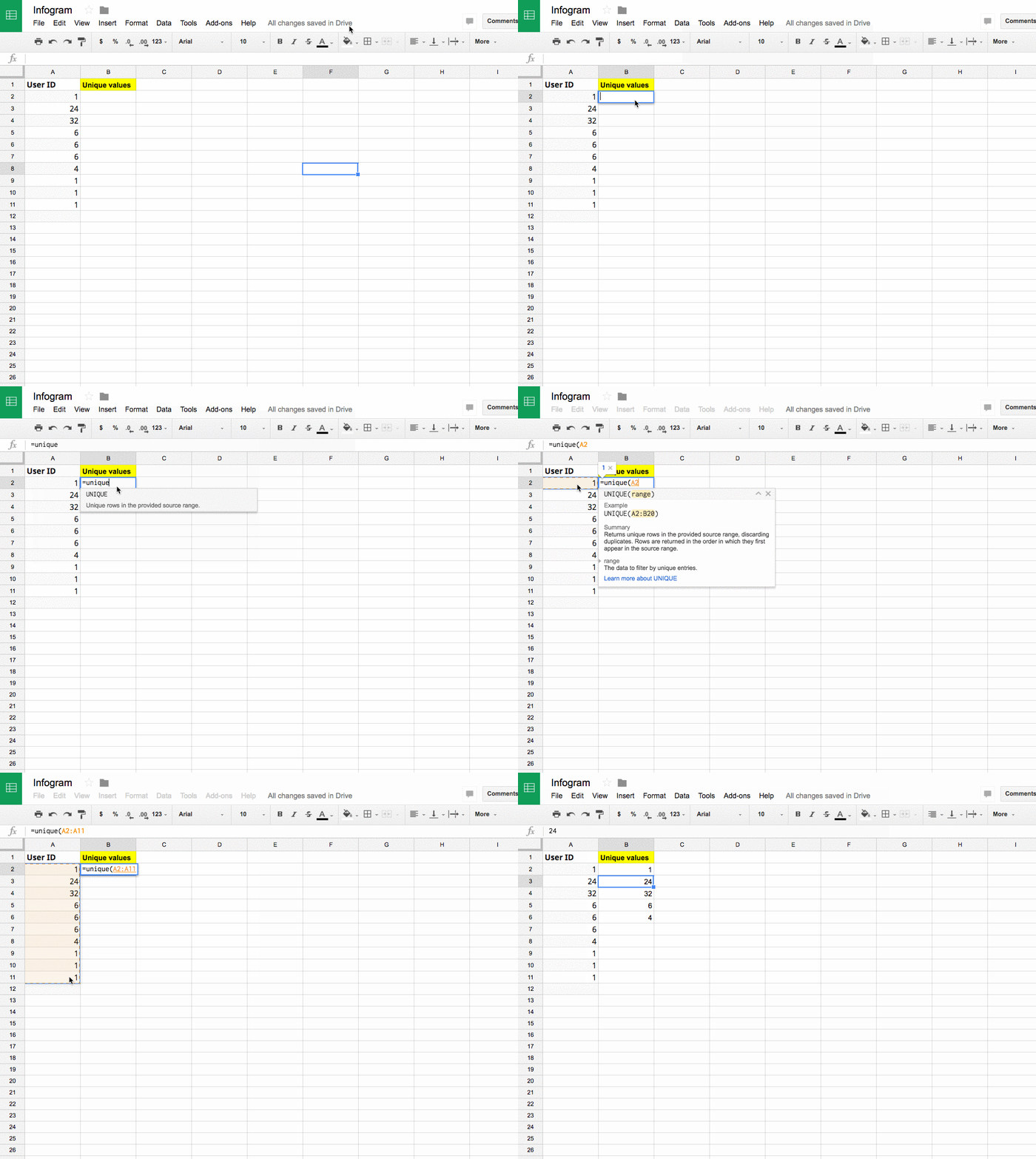 Minh họa hàm Unique lọc giá trị trùng lặp
9. Thu thập dữ liệu web (Web Scraping)
Bạn cần theo dõi giá vàng, tỷ giá ngoại tệ, hay bảng xếp hạng bóng đá? Không cần copy-paste thủ công mỗi ngày. Nhóm hàm IMPORT của Google Sheets sẽ biến bảng tính của bạn thành một công cụ thu thập dữ liệu tự động.
- IMPORTHTML: Lấy dữ liệu từ bảng (table) hoặc danh sách (list) trên website.
- IMPORTXML: Lấy dữ liệu phức tạp hơn thông qua cấu trúc XPath.
Ví dụ lấy bảng dữ liệu từ Wikipedia:=IMPORTHTML("https://en.wikipedia.org/wiki/List_of_highest-grossing_films"; "table"; 1)
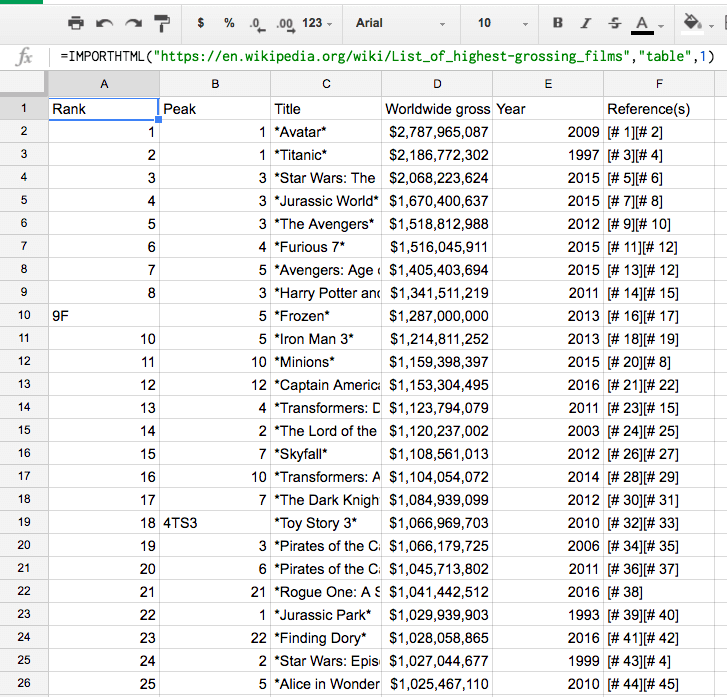 Kết quả lấy dữ liệu từ website bằng ImportHTML
10. Tự động nhận dạng ngôn ngữ
Tận dụng sức mạnh AI của Google, hàm DETECTLANGUAGE() giúp bạn xác định ngôn ngữ của một đoạn văn bản bất kỳ. Kết quả trả về là mã ngôn ngữ (ví dụ: “vi” cho tiếng Việt, “en” cho tiếng Anh). Tính năng này rất hữu ích khi bạn phải xử lý các tập dữ liệu đa ngôn ngữ lớn.
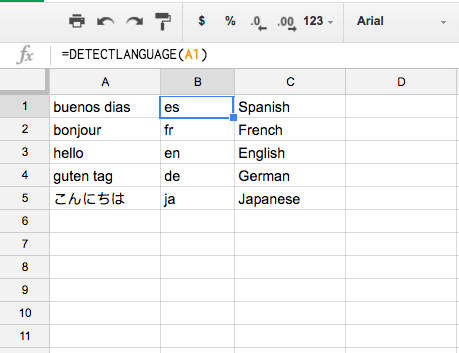 Sử dụng hàm DetectLanguage để nhận diện ngôn ngữ
11. Dịch thuật trực tiếp trong bảng tính
Đây là tính năng độc quyền mà Excel khó có thể so bì. Hàm GOOGLETRANSLATE cho phép bạn dịch hàng nghìn dòng văn bản chỉ trong tích tắc.
Cú pháp: =GOOGLETRANSLATE("văn bản"; "ngôn ngữ nguồn"; "ngôn ngữ đích")
Kết hợp với hàm nhận dạng ngôn ngữ ở trên, bạn có thể xây dựng một công cụ dịch thuật tự động mạnh mẽ.
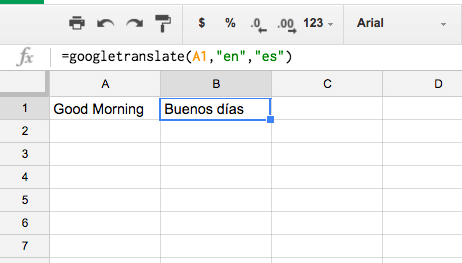 Dịch thuật tự động bằng hàm GoogleTranslate
12. Kiểm tra tính hợp lệ của Email và URL
Khi thu thập dữ liệu khách hàng, việc dính các email sai định dạng hoặc đường link chết là điều khó tránh khỏi. Google Sheets cung cấp các hàm kiểm tra nhanh (Validation):
- ISEMAIL(ô_dữ_liệu): Trả về TRUE nếu đúng định dạng email, FALSE nếu sai.
- ISURL(ô_dữ_liệu): Kiểm tra xem đường dẫn có hợp lệ hay không.
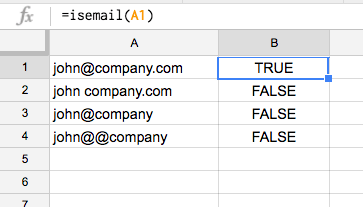 Kiểm tra định dạng email bằng hàm IsEmail
Ví dụ kiểm tra URL:
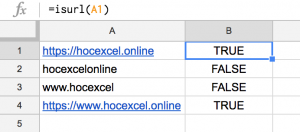 Kiểm tra đường dẫn website bằng hàm IsURL
13. Dự báo xu hướng với hàm GROWTH
Bạn muốn dự đoán doanh thu tháng tới dựa trên dữ liệu quá khứ? Hàm GROWTH() (tương tự FORECAST trong Excel) sử dụng thuật toán nội suy tuyến tính để dự đoán các giá trị tương lai theo cấp số nhân, giúp bạn có cái nhìn sơ bộ về xu hướng phát triển.
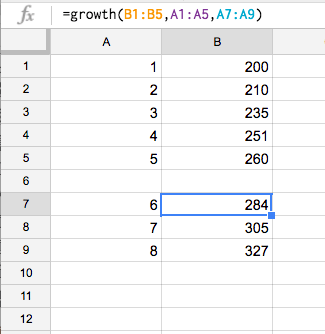 Dự báo số liệu tương lai với hàm Growth
14. Xuống dòng trong ô công thức
Một công thức lồng ghép nhiều hàm IF hoặc QUERY có thể trở nên rất dài và rối mắt. Để dễ dàng kiểm soát (debug) và chỉnh sửa, hãy ngắt dòng ngay trong thanh công thức.
Thao tác: Nhấn tổ hợp phím Alt + Enter tại vị trí muốn xuống dòng. Việc này không ảnh hưởng đến kết quả tính toán mà chỉ giúp mã nguồn (code) của bạn “sạch” và dễ đọc hơn.
15. Chèn ký tự đặc biệt với hàm CHAR
Đôi khi bạn cần chèn các biểu tượng như dấu tích (✓), bản quyền (©), hay các ký tự trang trí mà không tìm thấy trên bàn phím. Hàm CHAR() sẽ giúp bạn gọi chúng ra thông qua mã ASCII/Unicode.
Ví dụ: =CHAR(10004) sẽ trả về dấu tích đậm. Bạn có thể tra cứu bảng mã ký tự trên Google để tìm mã số tương ứng.
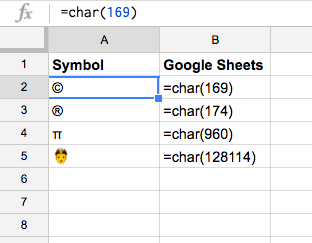 Chèn ký tự đặc biệt bằng hàm CHAR
16. Lấy giá trị ngẫu nhiên từ danh sách
Để chọn ngẫu nhiên một người may mắn trúng thưởng hoặc phân công nhiệm vụ ngẫu nhiên, bạn có thể kết hợp hàm CHOOSE và RANDBETWEEN.
Công thức:=CHOOSE(RANDBETWEEN(1;5); "Hùng"; "Dũng"; "Sang"; "Trọng"; "Nghĩa")
Hàm RANDBETWEEN(1;5) sẽ tạo ra một số ngẫu nhiên từ 1 đến 5, và hàm CHOOSE sẽ lấy tên tương ứng với số thứ tự đó.
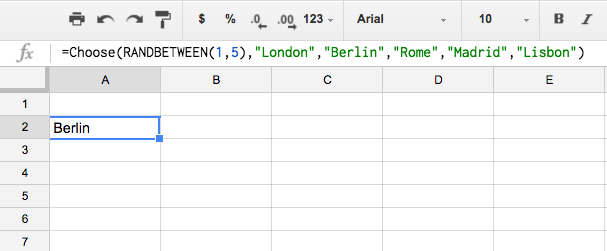 Lấy dữ liệu ngẫu nhiên với Choose và Randbetween
Kết luận
Google Sheets không chỉ là một bảng tính online, nó là một nền tảng xử lý dữ liệu linh hoạt nếu bạn biết cách tận dụng các hàm và tính năng ẩn của nó. Từ việc xử lý ảnh, kết nối dữ liệu web cho đến dịch thuật ngôn ngữ, 16 thủ thuật trên hy vọng sẽ giúp bạn “nâng trình” kỹ năng văn phòng và tiết kiệm hàng giờ làm việc mỗi tuần.
Hãy thử áp dụng ngay vào công việc của bạn và chia sẻ kết quả với Thủ Thuật nhé!
Tài liệu tham khảo:
- Support.google.com – Google Sheets function list
- Documentation for Google Charts API











Discussion about this post