

In the realm of data analysis using Power BI, handling text data precisely is crucial for accurate reporting and visualization. While mathematical functions often grab the spotlight, text manipulation functions play a vital role in data cleaning and preparation. Among these, the UNICODE function in Data Analysis Expressions (DAX) is a powerful yet often overlooked tool. In this article, Thủ Thuật will dive deep into how to effectively utilize the UNICODE function to streamline your data processing workflows.
Understanding the UNICODE Function
The UNICODE function is designed to return the numeric code (integer value) corresponding to the first character of a text string. This function is essential when you need to analyze the underlying encoding of your data.
When a computer processes text, it does not “read” letters like humans do; instead, it reads numeric codes assigned to those characters. For systems running on Windows, the character set used is typically the ANSI standard (which is a superset of ISO 8859-1). The UNICODE function allows analysts to peek behind the curtain and see exactly how Power BI interprets specific characters.
Syntax and Structure
To use the function in your DAX formulas, follow this simple syntax:
UNICODE(<Text>)Parameters
The function requires only one argument:
- Text: This is the character or text string for which you want to retrieve the Unicode value.
- If you provide a string with multiple characters (e.g., “Excel”), the function will only evaluate the first character (“E”).
- If the text is empty, the function returns an error or 0 depending on the context.
Return Value
The function returns an integer representing the code point of the first character in the provided text string.
Why Use the UNICODE Function? (Notes and Best Practices)
You might wonder why you would need to know the numeric code of a character. In real-world data scenarios, data imported from various sources (web scraping, legacy systems, user input) often contains “invisible” characters or special symbols that can break your calculations or relationships.
For example, a “space” character typed by a user might be a standard space (Code 32), while a “non-breaking space” copied from a website is Code 160. To the naked eye, they look identical, but to Power BI, they are completely different strings.
By using the UNICODE function, you can:
- Debug Data: Identify specific special characters that are causing errors.
- Clean Data: differentiate between visually similar characters to standardize text.
- Sort and Filter: Create custom sorting logic based on character codes.
Practical Example
Let’s look at a concrete example of how this works in Power BI Desktop. Suppose we have a table with a column named Column1 containing various symbols and letters. We want to determine the machine code for each entry.
We create a calculated column using the formula:
= UNICODE('Table'[Column1])
The following illustration demonstrates the results of this operation. You can see how different types of characters—uppercase letters, special symbols, and underscores—are translated into their numeric equivalents.
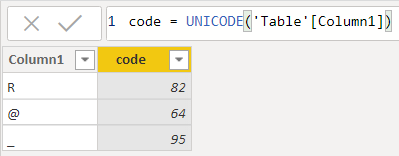 Power BI table showing Column1 with characters R, @, and underscore, alongside a calculated column displaying their Unicode values 82, 64, and 95 respectively
Analyzing the results from the example:
- The character “R”: The function returns 82. Note that uppercase and lowercase letters have different codes (an uppercase ‘R’ is 82, while a lowercase ‘r’ would be 114).
- The character “@”: This symbol returns the code 64.
- The character “_”: The underscore symbol returns the code 95.
This method confirms exactly what characters exist in your dataset, eliminating ambiguity.
Related Functions
To become proficient in DAX text manipulation, it is helpful to understand functions that work in tandem with or similarly to UNICODE. Here are a few recommendations for further study:
- UNICHAR: This is the reverse of UNICODE. You give it a number (e.g., 64), and it returns the character (e.g., “@”). This is great for inserting special symbols like stars or arrows into your visuals.
- EXACT: A case-sensitive function used to check if two text strings are identical.
- CONCATENATE: A fundamental function used to join two text strings into one text string.
Conclusion
The UNICODE function in Power BI is a specific but highly utility-driven tool within the text function group. While you might not use it in every report, it is indispensable for data diagnostics and solving complex string formatting issues. By understanding the underlying numeric codes of your data, you ensure higher accuracy and cleaner data models.
We hope this guide has clarified how to use the UNICODE function effectively. If you have any questions about DAX or run into tricky data issues, please leave a comment below!
References
- Microsoft. (n.d.). UNICODE function (DAX). Microsoft Learn.
- Microsoft. (n.d.). Text functions (DAX). Microsoft Learn.











Discussion about this post