


Managing extensive Excel workbooks with dozens of tabs can quickly become a logistical nightmare. While Excel provides basic information in the status bar, it lacks a native, one-click solution to tell you exactly how many sheets are currently in your workbook or, more importantly, how many of them are hidden.
For power users and data analysts, knowing the exact structure of a file is crucial for auditing and data integrity. Fortunately, by leveraging the power of VBA (Visual Basic for Applications) and the Record Macro feature, we can create custom keyboard shortcuts to instantly display these statistics.
In this guide, Thủ Thuật will walk you through the technical steps to build your own “Sheet Counter” tools. We will set up Ctrl + Shift + M to count total sheets and Ctrl + Shift + N to track down hidden ones, enhancing your workflow efficiency.
1. Creating a Shortcut to Count Total Worksheets
The most straightforward task is counting the total number of sheets in your active workbook. Instead of writing code from scratch, we will use the “Record Macro” trick to assign a keyboard shortcut to a blank macro, and then inject the necessary code.
Step 1: Record the Macro
- Open your Excel file.
- Go to the View tab (or Developer tab) and select Macros > Record Macro.
- In the setup dialog:
- Macro name: Enter a name like
CountAllSheets. - Shortcut key: Hold Shift and press M. Ensure the box shows Ctrl + Shift + M.
- Macro name: Enter a name like
- Click OK to start recording, then immediately click Stop Recording. We only needed this step to create the shortcut container.
Step 2: Edit the VBA Code
Now, we need to tell Excel what to do when that shortcut is pressed.
- Press Alt + F11 to open the Microsoft Visual Basic for Applications editor.
- Navigate to Modules in the left project pane and double-click the module you just created.
- Replace the existing code with the following single line of logic:
Sub CountAllSheets()
    MsgBox "The total number of Sheets is: " & Sheets.Count
End Sub
This script utilizes the Sheets.Count object property to retrieve the integer value of all sheets (visible and hidden) and displays it in a pop-up message box.
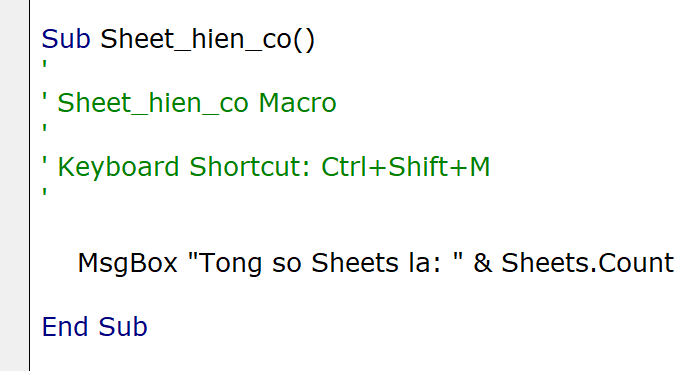 VBA code editor window showing a simple message box script to count Excel sheets
Once saved, whenever you press Ctrl + Shift + M, Excel will instantly report the total size of your workbook. This is particularly useful when receiving files from colleagues to ensure no data tabs are missing.
2. Advanced: Counting Hidden Sheets with a Loop
Counting hidden sheets is slightly more complex because Excel does not have a direct Sheets.HiddenCount property. We must write a script that iterates through every sheet in the workbook, checks its visibility status, and tallies the hidden ones.
The Setup
Repeat the “Record Macro” process described above, but this time use:
- Macro name:
CountHiddenSheets - Shortcut key: Ctrl + Shift + N
The Logic and Code
Open the VBA editor again (Alt + F11) and locate your new macro. We will implement a For Each loop. This method is highly reliable as it programmatically examines the Visible property of every worksheet object.
Here is the code structure you should implement:
Sub CountHiddenSheets()
Dim ws As Worksheet
Dim j As Integer
j = 0
' Loop through all sheets in the workbook
For Each ws In Worksheets
If ws.Visible = False Then
j = j + 1
End If
Next ws
If j = 0 Then
MsgBox "There are no hidden sheets in this file."
Else
MsgBox "Number of hidden sheets: " & j
End If
End Sub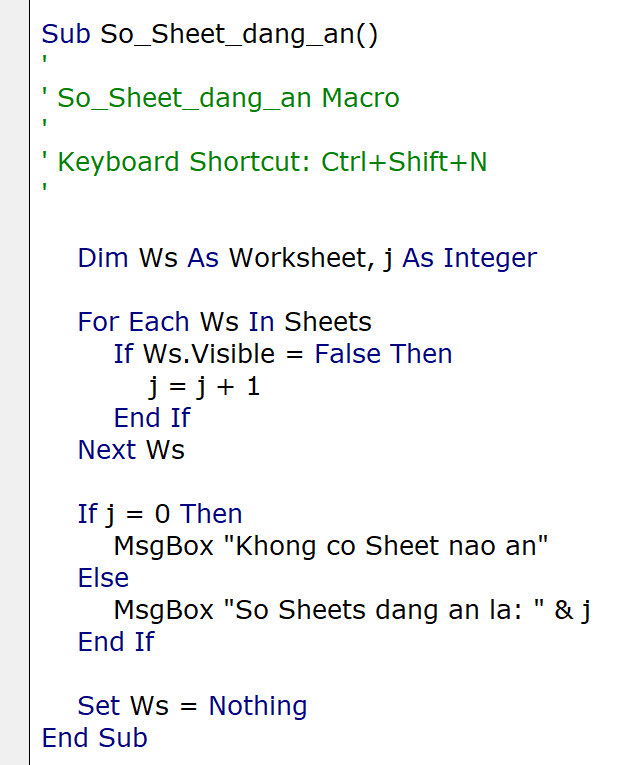 VBA code snippet demonstrating a loop to identify and count hidden worksheets
Code Explanation:
Dim ws As Worksheet: Defines a variable to represent each individual sheet.For Each... Next: This loop cycles through the entire collection of worksheets.If ws.Visible = False: This is the critical filter. If a sheet is not visible, the counter (j) increases by 1.MsgBox: Finally, the system reports the result to the user.
3. Why Automate with VBA?
Implementing these small automation scripts does more than just save a few seconds; it reduces the cognitive load of managing complex data. In professional environments, hidden sheets often contain deprecated data, calculation backends, or sensitive information. Being able to audit them instantly with Ctrl + Shift + N ensures you have full oversight of the file’s architecture.
 Animation illustrating Excel VBA automation concepts
Furthermore, mastering these basic VBA snippets is the gateway to advanced Excel proficiency. Once you understand how to manipulate Sheets.Count and visibility properties, you can expand these scripts to perform actions like “Unhide All Sheets” or “Delete All Hidden Sheets” with a single keystroke.
 Dynamic illustration of Excel spreadsheet management
Conclusion
By following this tutorial, you have successfully equipped your Excel installation with two powerful, custom diagnostic tools. You no longer need to manually check tabs or wonder if a workbook contains hidden data layers.
- Ctrl + Shift + M: Instantly reveals the total sheet count.
- Ctrl + Shift + N: Audits the file for hidden worksheets.
These shortcuts demonstrate the flexibility of Excel when combined with simple VBA scripting. We encourage you to try these out and customize the shortcuts to fit your personal workflow preferences. Just remember to ensure your chosen shortcuts do not conflict with existing system commands.












Discussion about this post