


In the realm of financial management and accounting, keeping a precise eye on cash flow is paramount. For businesses of any size, the Accounts Receivable (AR) Summary Report is not just a spreadsheet; it is a vital tool for liquidity management. This report provides a panoramic view of what your customers owe, helping you make informed decisions regarding credit policies, payment terms, discounts, and promotions.
While many enterprises rely on expensive accounting software, Microsoft Excel remains an incredibly powerful and flexible tool for this purpose. In this comprehensive guide, we will walk you through the process of creating an automated, dynamic Accounts Receivable Aging Report using standard Excel functions.
The Purpose and Strategic Value of the AR Summary
The primary objective of the Accounts Receivable Summary is to provide a snapshot of debt fluctuation for every customer over a specific period. It acts as a bridge between detailed daily transactions and high-level financial strategy.
By maintaining this report, accounting professionals can:
- Monitor Liquidity: Quickly see how much cash is tied up in unpaid invoices.
- Evaluate Customer Credit: Identify which clients pay on time and which are habitually late.
- Streamline Operations: reduce the time spent manually calculating end-of-month balances.
Technically, this report is derived from the Accounts Receivable Subsidiary Ledger. The logic is straightforward: every row in the summary represents a unique customer. If your company has 500 customers, your summary table will require 500 rows, each aggregating data from the general journal.
Designing the Report Structure
Depending on the specific management needs of your company, the columns might vary slightly. However, a standard professional AR Summary must reflect four key pillars of data:
- Opening Balance: The debt status at the beginning of the selected period.
- Debit Transactions: New invoices issued during the period.
- Credit Transactions: Payments received (or returns) during the period.
- Closing Balance: The final debt status at the end of the period.
Below is the standard template we will be building in this tutorial. It is designed to be clean, readable, and professionally formatted.
 Standard template for Accounts Receivable Summary in Excel
Essential Data Sources and Preparation
Before writing a single formula, we must ensure our input data is structured correctly. Excel automation relies heavily on “clean” data. We will be working with two primary source sheets.
1. The Transaction Data (DATA Sheet)
This is your daily journal where every economic event is recorded. For our formulas to work, this sheet must contain:
- Date: When the transaction occurred.
- Voucher Number: To track specific invoices.
- Description: Details of the transaction.
- Account Codes: Debit and Credit accounts.
- Customer ID: Crucial for linking the transaction to the specific client.
- Amount: The monetary value.
Proficiency in Excel is a non-negotiable skill for modern accountants. Understanding how to organize this data effectively can save hours of manual work.
 Animated banner demonstrating Excel skills for accounting
Below is an example of how the transaction data (DATA) should be organized. Note the clear separation of columns for Account Details and Customer Codes.
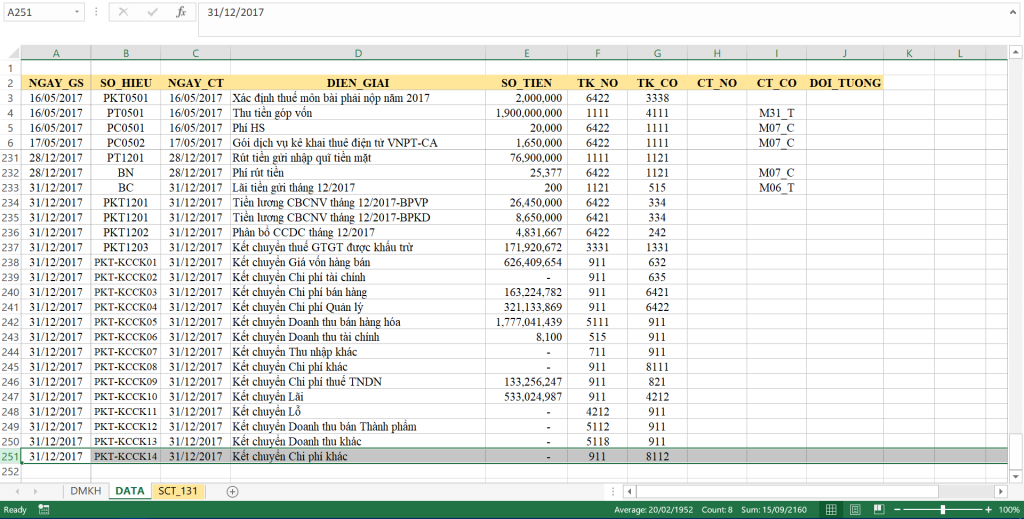 Detailed transaction data sheet layout in Excel
2. The Customer List (DMKH Sheet)
This sheet acts as your database of clients. It should include the Customer Code (matching the DATA sheet), Customer Name, and critically, the Initial Opening Balance (the balance before the fiscal year started).
 Customer list database with initial balances
For those looking to automate even further, learning Visual Basic for Applications (VBA) can allow you to generate these reports with a single button click, though today we will focus on formula-based solutions.
 Animation showing VBA automation capabilities in Excel
The Core Excel Functions
To create a report that updates automatically when you change the “From Date” and “To Date,” we will combine logic functions with lookup functions.
- VLOOKUP: Used to retrieve the static initial balance from the Customer List.
- SUMIFS: The workhorse of this report. It sums up transaction amounts based on multiple criteria (Customer ID, Date range, Account type).
- MAX and MIN: These are clever accounting tricks. Since a customer might have a debit balance (they owe us) or a credit balance (we owe them/prepayment), and these cannot be negative in their respective columns, we use MAX/MIN to separate positive and negative results into the correct Debit/Credit columns.
Step 1: Define Named Ranges
To make formulas readable and less prone to errors, you should define “Named Ranges” for your data columns. Instead of writing $A$2:$A$5000, you can simply write VOUCHER_DATE.
In our example, we have set up the named ranges as shown below. This makes the logic of our SUMIFS formulas much easier to follow.
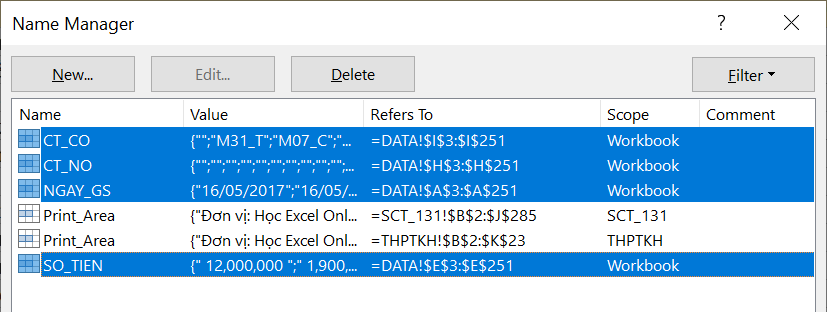 Defining Named Ranges in Excel Name Manager
Step 2: Calculating the Dynamic Opening Balance
This is the most complex part of the report. The “Opening Balance” in your report is not necessarily the beginning of the year. It is the balance at the moment just before your selected “From Date”.
Therefore, the logic is:
- Current Opening = (Initial Database Balance) + (Accumulated Increases before “From Date”) – (Accumulated Decreases before “From Date”).
Formula for Opening Debit (Cell E12):
=MAX(VLOOKUP(C12,DMKH!$A$3:$H$6,7,0) - VLOOKUP(C12,DMKH!$A$3:$H$6,8,0) + SUMIFS(AMOUNT, DB_ACCT, C12, DATE, "<"&$G$7) - SUMIFS(AMOUNT, CR_ACCT, C12, DATE, "<"&$G$7), 0)
Formula for Opening Credit (Cell E13):
=-MIN(VLOOKUP(C12,DMKH!$A$3:$H$6,7,0) - VLOOKUP(C12,DMKH!$A$3:$H$6,8,0) + SUMIFS(AMOUNT, DB_ACCT, C12, DATE, "<"&$G$7) - SUMIFS(AMOUNT, CR_ACCT, C12, DATE, "<"&$G$7), 0)
Explanation:
We calculate the net balance. If it’s positive, MAX(Value, 0) keeps it in the Debit column. If it’s negative, MIN captures it, and the negative sign flips it to a positive number for the Credit column.
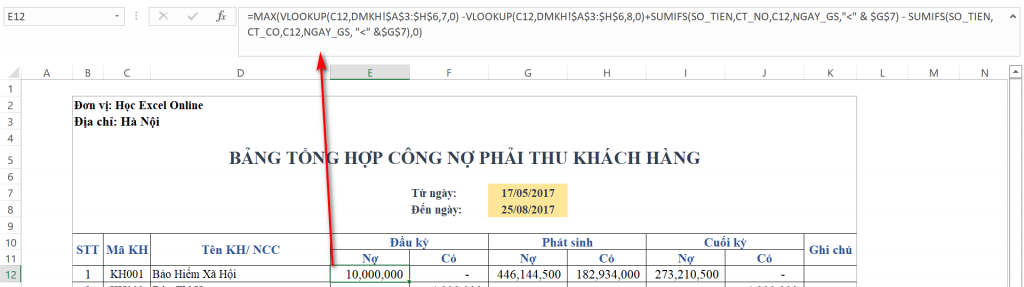 Formula bar showing the opening balance calculation
Step 3: Calculating Period Transactions
Calculating what happened during the selected period is simpler. We simply need to sum all transactions that fall between the “From Date” and “To Date”.
Formula for Period Debit (Cell G12):
=SUMIFS(AMOUNT, DB_ACCT, C12, DATE, ">="&$G$7, DATE, "<="&$G$8)
Formula for Period Credit (Cell H12):
=SUMIFS(AMOUNT, CR_ACCT, C12, DATE, ">="&$G$7, DATE, "<="&$G$8)
This formula tells Excel: “Sum the Amount column WHERE the Debit Account matches this customer AND the Date is on or after Start Date AND the Date is on or before End Date.”
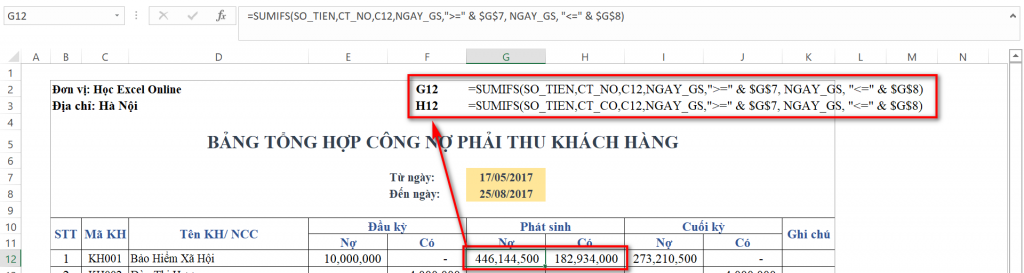 Formula bar showing SUMIFS for period transactions
Step 4: Calculating the Closing Balance
Finally, to determine the closing balance, we apply the fundamental accounting equation:
- Closing = Opening + Increase – Decrease.
However, we must again split this into Debit and Credit columns using the MAX/MIN logic to handle overpayments or prepayments correctly.
Formula for Closing Debit (Cell I12):
=MAX(E12 + G12 - F12 - H12, 0)
Formula for Closing Credit (Cell J12):
=-MIN(E12 + G12 - F12 - H12, 0)
Once you have entered these formulas for the first customer, you can simply Fill Down (copy the formula down) for all customers in your list. Add a distinct “Total” row at the bottom using a simple SUM function to verify your control totals.
The result is a robust, automated report that looks like this:
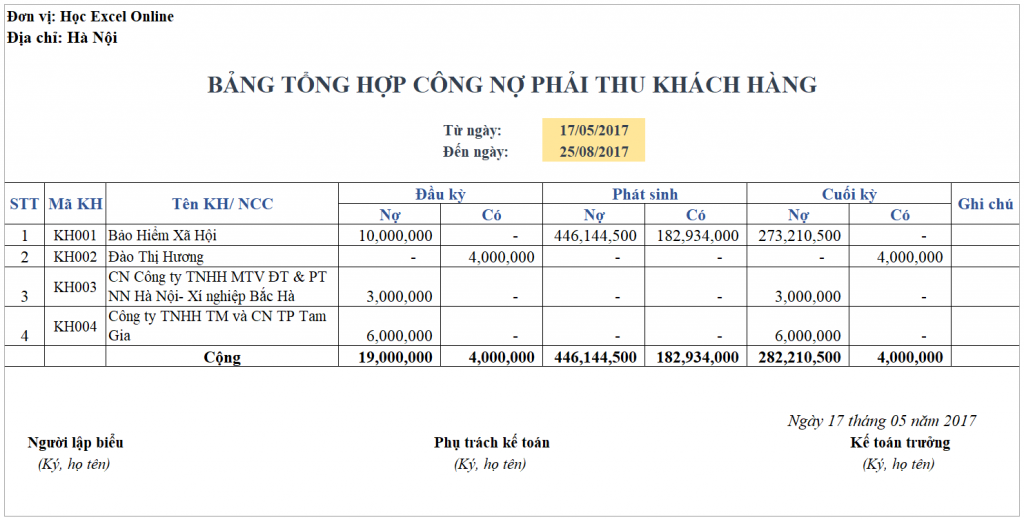 Final automated Accounts Receivable Aging Report
Conclusion and Best Practices
Creating an automated Accounts Receivable Summary in Excel allows you to move beyond simple data entry and into the realm of financial analysis. By utilizing SUMIFS combined with VLOOKUP and the MAX/MIN logic, you ensure that your report is not only accurate but also dynamic—capable of reporting on any time range you specify instantly.
Key Takeaways:
- Data Integrity: Ensure your input data (DATA sheet) is standardized. Inconsistent customer codes will break the summary.
- Date Formats: Always ensure your dates are stored as date values, not text, otherwise the logical operators (>=) will fail.
- Verification: Always cross-reference your “Total Closing Balance” with your General Ledger control account to ensure accuracy.
By mastering these techniques, you elevate your professional capability and provide better financial visibility for your organization. Excel is a powerful ally; use it to its full potential.













Discussion about this post