

![[Mastering the VBA Dim Statement: The Ultimate Guide to Declaring Variables]](https://thuthuat.com.vn/wp-content/uploads/2025/04/WP_856x550-6.png "[Mastering the VBA Dim Statement: The Ultimate Guide to Declaring Variables]")
In the world of Excel automation, efficiency and precision are paramount. At the heart of every robust VBA (Visual Basic for Applications) macro lies the humble yet powerful Dim statement. Short for Dimension, this command is the cornerstone of variable declaration, allowing developers to manage memory, define data types, and write cleaner, error-free code.
Whether you are automating a simple report or building a complex financial model, understanding how to properly utilize Dim is the first step toward VBA mastery. This comprehensive guide will explore the syntax, data types, object handling, and best practices for using variables in Excel VBA.
Quick Reference: VBA Dim Statement Cheat Sheet
For experienced developers looking for a quick syntax refresher, the table below summarizes the most common declaration patterns.
| Description | Syntax Format | Code Example |
|---|---|---|
| Simple Variables | Dim [Variable_Name] As [Data_Type] | Dim count As LongDim price As CurrencyDim userName As StringDim isVisible As Boolean |
| Fixed-Length Strings | Dim [Name] As String * [Length] | Dim code As String * 4Dim id As String * 10 |
| Variant (Implicit/Explicit) | Dim [Name] As VariantDim [Name] | Dim data As VariantDim value |
| New Objects | Dim [Name] As New [Type] | Dim coll As New CollectionDim cls As New Class1 |
| Objects (Dim + Set) | Dim [Name] As [Type]Set [Name] = New [Type] | Dim coll As CollectionSet coll = New Collection |
| Static Arrays | Dim [Name]([Start] To [End]) As [Type] | Dim arr(1 To 6) As Long |
| Dynamic Arrays | Dim [Name]() As [Type]ReDim [Name]([Start] To [End]) | Dim arr() As LongReDim arr(1 To 6) |
| Early Binding | Dim [Name] As New [Library_Item] | Dim dict As New Scripting.Dictionary |
| Late Binding | Dim [Name] As ObjectSet [Name] = CreateObject("[Library]") | Dim dict As ObjectSet dict = CreateObject("Scripting.Dictionary") |
 Animated GIF demonstrating a basic VBA concept
What is the VBA Dim Statement?
The Dim keyword stands for Dimension. Originally, in older versions of BASIC, it was used primarily to declare the dimensions of an array. In modern VBA, its role has expanded to become the standard method for declaring all variables.
When you use Dim, you are essentially reserving a specific amount of computer memory for a variable and telling Excel what kind of data to expect. Broadly speaking, Dim handles four categories of data:
- Fundamental Data Types: Variables that hold single values, such as numbers (
Long,Double,Currency) or text (String). - Variants: A special “catch-all” type that can hold any data but consumes more memory and processing power.
- Objects: Complex structures that have properties and methods. These include:
- Excel Objects: Workbooks, Worksheets, Ranges.
- Class Modules: Custom objects created by the developer.
- External Libraries: Objects from other applications, such as a Dictionary or Outlook Application.
- Arrays: A structured collection of variables or objects indexed by numbers.
Syntax and Formatting Rules
The standard syntax for declaring a variable is straightforward, but nuances exist that can trip up beginners.
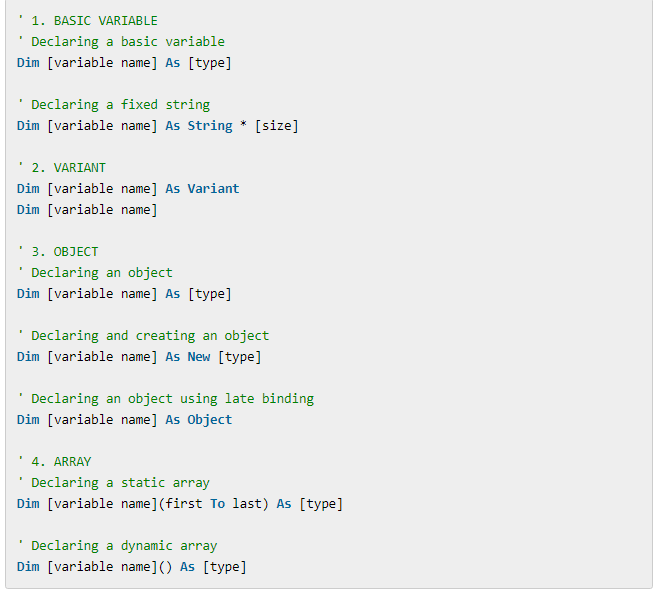 VBA Code editor showing the standard Dim syntax
Declaring Multiple Variables
VBA allows you to declare multiple variables on a single line to save vertical space. However, this comes with a specific syntactical requirement.
 Declaring multiple variables in a single line of code
The “Variant” Trap:
A common mistake in VBA is assuming that a data type applies to all variables in a list. For example:
Dim i, j, k As Long
In this case, only k is a Long. Both i and j are implicitly declared as Variant because they lack a specific type definition.
To correctly declare all three as Long, you must specify the type for each:
Dim i As Long, j As Long, k As Long
 Correctly assigning types to multiple variables
While you can declare as many variables as you like on one line, it is best practice to limit this to 3 or 4 for readability.
Placement of the Dim Statement
The Dim statement can technically be placed anywhere within a procedure (Sub or Function), provided it appears before the variable is first used. If you try to assign a value to a variable before declaring it (when Option Explicit is on), VBA will throw a “Variable not defined” error.
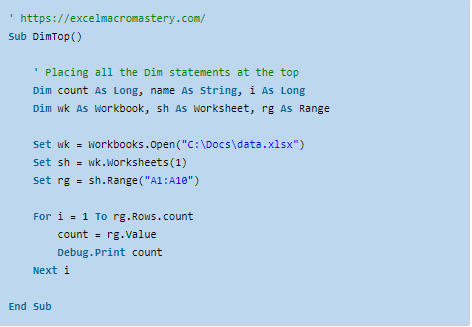 Example of declaring variables at the top of a module
Best Practice:
Most professional developers prefer one of two approaches:
- Top-Declaration: Grouping all
Dimstatements at the very top of the procedure. This makes it easy to see all variables in play. - Just-in-Time: Declaring the variable immediately before its first use.
Dim Inside Loops
A common question is whether placing a Dim statement inside a loop (like For or Do While) resets the variable or causes performance issues.
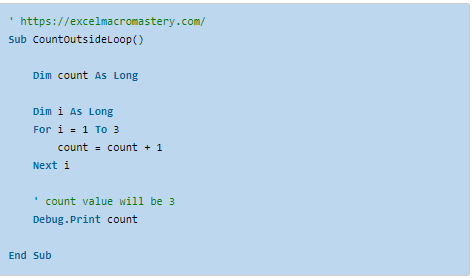 Code snippet showing Dim inside a loop structure
In reality, VBA compiles memory allocation before the code executes. Whether you place Dim inside or outside the loop, VBA creates the variable once upon entering the Sub. Placing it inside the loop does not re-initialize the variable to zero or empty; it retains its value from the previous iteration unless manually reset.
Can You Declare and Initialize at the Same Time?
In modern languages like C#, Java, or Python, it is common to write int count = 10.
VBA does not support this. You cannot Dim and assign a value in a single logical statement.
However, you can use the colon (:) operator to simulate this on a single line:
Dim i As Long: i = 10
 Using the colon operator to declare and assign in one line
This is purely a stylistic choice and functions exactly the same as writing the code on two separate lines.
Is the Dim Statement Mandatory?
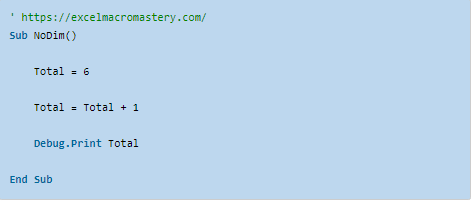
Technically, no. If you simply type x = 10 without declaring x, VBA will create a new variable named x on the fly. However, relying on this behavior is highly discouraged for two reasons:
- Performance: All undeclared variables default to the Variant type, which is memory-inefficient.
- Debugging: Typographical errors become logical nightmares.
The Importance of Option Explicit
To force yourself to declare variables, you should always use the statement Option Explicit at the very top of your code module. This instructs the VBA compiler to reject any undeclared variables.
You can enable this globally by going to Tools > Options in the VBA Editor and checking Require Variable Declaration.
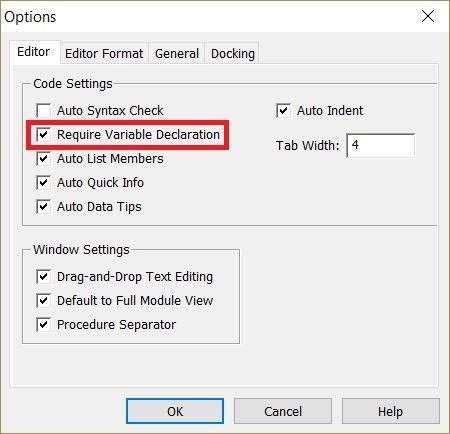 VBA Editor Options menu enabling variable declaration
The Cost of Typographical Errors
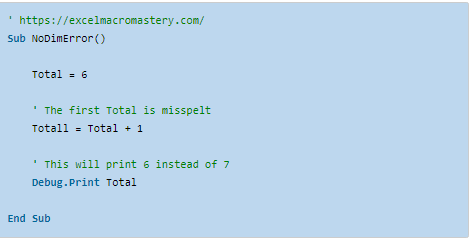
Without Option Explicit, a simple typo creates a new, empty variable instead of updating the existing one.
 Example of a typo creating a logical error in code
In the example above, if you accidentally type Totall = 10 instead of Total, VBA creates a new variable Totall. The original Total remains empty, leading to incorrect calculations that are incredibly difficult to trace. With Option Explicit enabled, VBA would immediately highlight Totall as an undefined variable.
 Error message showing Variable Not Defined
Deep Dive: Fundamental Data Types
Selecting the right data type is crucial for memory optimization and code stability. While there are many types, the following are the most essential for modern Excel VBA development.
| Type | Size | Usage Description |
|---|---|---|
| Boolean | 2 bytes | Stores True or False. Perfect for flags and conditional checks. |
| Long | 4 bytes | Stores whole numbers (integers). Note: Always use Long instead of Integer. |
| Currency | 8 bytes | Fixed-point number optimized for financial calculations (4 decimal places). Eliminates floating-point errors. |
| Double | 8 bytes | Floating-point number for very large or very small values with decimals. |
| Date | 8 bytes | Stores dates and times (from Jan 1, 100 to Dec 31, 9999). |
| String | Variable | Stores text characters. |
Why Use Long instead of Integer?
In older 16-bit systems, Integer was smaller and faster. However, in modern 32-bit and 64-bit systems, VBA converts Integer to Long internally for processing. Therefore, explicitly using Integer offers no memory benefit and creates a risk of overflow (since Integer caps at 32,767). Always default to Long for whole numbers.
String Variables: Variable vs. Fixed Length
A standard String variable is dynamic; it expands to fit whatever text you assign to it.
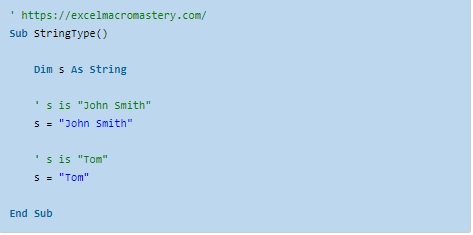 Declaring a standard variable length string
However, you can declare a Fixed-Length String. This string will always occupy the specified character count, padding with spaces or truncating as necessary. This is rarely used in standard macros but is useful for communicating with Windows APIs or legacy file structures.
Dim zipCode As String * 5
The Variant Data Type
When you declare Dim x As Variant (or simply Dim x), you are creating a chameleon variable. It can hold numbers, text, dates, objects, or arrays. The type is determined at runtime.
 Code snippet showing variant declaration
While flexible, Variants have significant downsides:
- Memory: A Variant consumes at least 16 bytes, plus the memory required for the data itself.
- Performance: VBA must constantly check and convert the data type during execution.
- Validation: It hides “Type Mismatch” errors that would otherwise be caught during compilation.
- IntelliSense: You lose the autocomplete features of the VBA editor.
When should you use Variants?
- When iterating through a Range of cells into an Array (fastest way to read Excel data).
- When dealing with generic collections where items may vary in type.
- When handling
Nullvalues from databases.
Declaring Objects
Objects require a different mindset than simple variables. When you Dim an object, you are creating a reference to an object, not the object itself (unless you use New).
Excel Objects (Workbooks, Ranges)
You do not use the New keyword for standard Excel objects because the application (Excel) generates them. You simply Set your variable to reference an existing object.
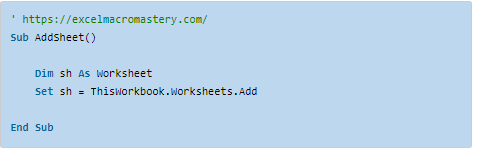 Setting a workbook object variable
Dim wb As Workbook
Set wb = Workbooks.Open("C:Report.xlsx")
If you try to assign an object without the Set keyword, VBA will try to assign the default property of that object (e.g., the value of a cell) to the variable, often leading to errors.
Custom Objects and the New Keyword
For objects that you create (like a Collection or a custom Class Module), you must instantiate the object using New.
Method 1: Auto-Instancing
Dim coll As New Collection
Pros: Concise.
Cons: The object is created implicitly when first used. If you set it to Nothing and reference it again, VBA auto-creates a new one, which can mask bugs.
Method 2: Explicit Instantiation (Recommended)
Dim coll As Collection
Set coll = New Collection
Pros: Gives you full control over when the object is created and destroyed.
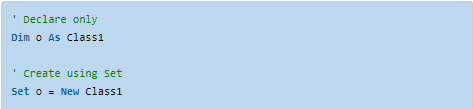 Using Set to instantiate a new class object
External Libraries (Binding)
VBA allows you to use tools outside of Excel, such as the Scripting.Dictionary or Outlook.Application.
Early Binding:
You add a reference via Tools > References (e.g., “Microsoft Scripting Runtime”). You can then declare specific types:
Dim dict As New Scripting.Dictionary
Benefit: IntelliSense support and faster performance.
Late Binding:
You do not add a reference. You declare as generic Object and use CreateObject.
Dim dict As Object
Set dict = CreateObject("Scripting.Dictionary")
Benefit: Compatibility. The code runs on any computer without worrying about missing reference versions.
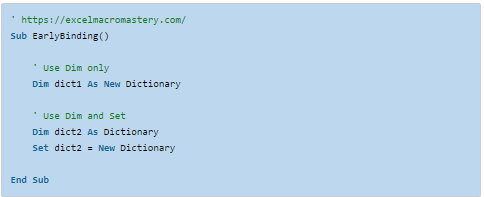 Early binding reference selection in tools menu
Working with Arrays
Arrays are powerful tools for handling lists of data.
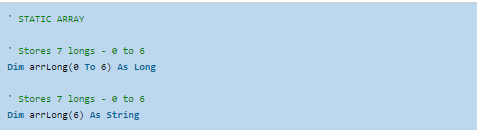
Static Arrays:
The size is fixed at declaration.
Dim arr(1 To 10) As Long
Dynamic Arrays:
The size is undefined initially and set later using ReDim. This is crucial when you don’t know how much data you will process until the macro runs.
 Using ReDim to resize a dynamic array
Dim arr() As String
' ... later in code ...
ReDim arr(1 To 100)
Note: ReDim clears data in the array. To resize an array while keeping existing data, use ReDim Preserve.
Variable Scope: Local, Private, Public, and Global
Where you place your Dim statement determines the “Scope” (lifetime and visibility) of the variable.
- Local (Procedure Level): Declared inside a
SuborFunctionusingDim.- Visibility: Only within that specific procedure.
- Lifetime: Destroyed immediately when the
End Subline is reached.
- Module Level (Private): Declared at the top of a module using
PrivateorDim.- Visibility: Accessible by any Sub within that specific module.
- Lifetime: Persists as long as the workbook is open (or until code is reset).
- Global (Public): Declared at the top of a standard module using
Public.- Visibility: Accessible by code in any module in the workbook.
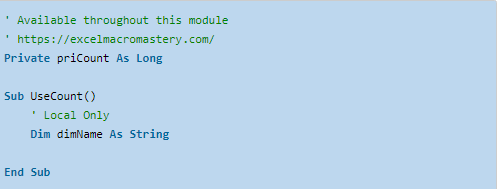 Scope hierarchy showing Private vs Public variables
Expert Advice: Avoid Global/Public variables whenever possible. They make debugging difficult because any part of your code can change their value unexpectedly. Pass variables as arguments to functions instead.
Conclusion
The Dim statement is more than just a formality; it is the framework upon which stable VBA applications are built. By enforcing variable declaration with Option Explicit, choosing the correct data types (preferring Long over Integer), and understanding the nuances of Object instantiation, you elevate your code from amateur scripts to professional-grade automation.
Remember, clear declarations lead to clear logic. Start every module with Option Explicit, and let Dim handle the heavy lifting of memory management for you.
Found this guide helpful? Share your experiences with VBA variables in the comments below or check out our other “Thủ Thuật” deep dives into Excel automation!












Discussion about this post