


Managing customer debts and payments is a cornerstone of financial stability for any business. While specialized accounting software is prevalent, Microsoft Excel remains an indispensable tool for accountants due to its flexibility and customization capabilities. For small to medium enterprises, or for professionals who want to understand the raw data behind the figures, creating a detailed accounts receivable ledger (often referred to as the “Customer Payment Schedule”) in Excel is an essential skill.
In this comprehensive guide, we will walk you through the process of building an automated ledger that tracks debts, payments, and balances for individual customers. By leveraging standard Excel functions, we can create a dynamic report that updates instantly based on the specific customer code and time range you select.
Understanding the Role of the Detailed Accounts Receivable Ledger
The accounts receivable ledger is a subsidiary ledger that records all credit sales and payments received from a specific customer. In Vietnamese accounting standards, this primarily involves Account 131 (Receivables from Customers). This account is unique because it is “amphoteric” (dual-natured)—it can have a Debit balance (customer owes money) or a Credit balance (customer has overpaid or advanced money).
An effective ledger must:
- Reflect all debts incurred (Debit side).
- Reflect all payments made (Credit side).
- Provide a clear opening and closing balance for any given period.
- Be detailed enough to trace specific invoices and vouchers.
Below is the target result we are aiming for: a clean, automated interface where changing the date or customer ID automatically refreshes the data.
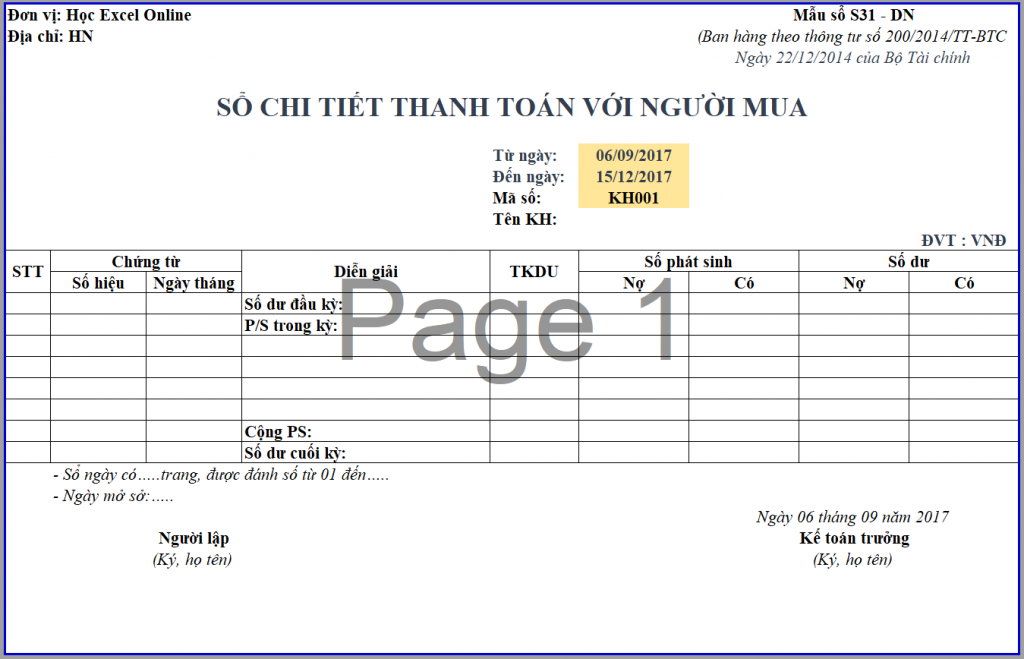 Overview of the detailed accounts receivable ledger template in Excel
Preparing the Data Structure
Before writing complex formulas, we must organize our source data. A robust Excel accounting system usually consists of three main components: the Database (Data Input), the Master List (Customer Codes), and the Report (The Ledger).
1. The Transaction Data Sheet (DATA)
This is where you record daily transactions. Every invoice issued and every payment received goes here. Essential columns include Date, Voucher Number, Description, Account Codes (Debit/Credit), and Amount.
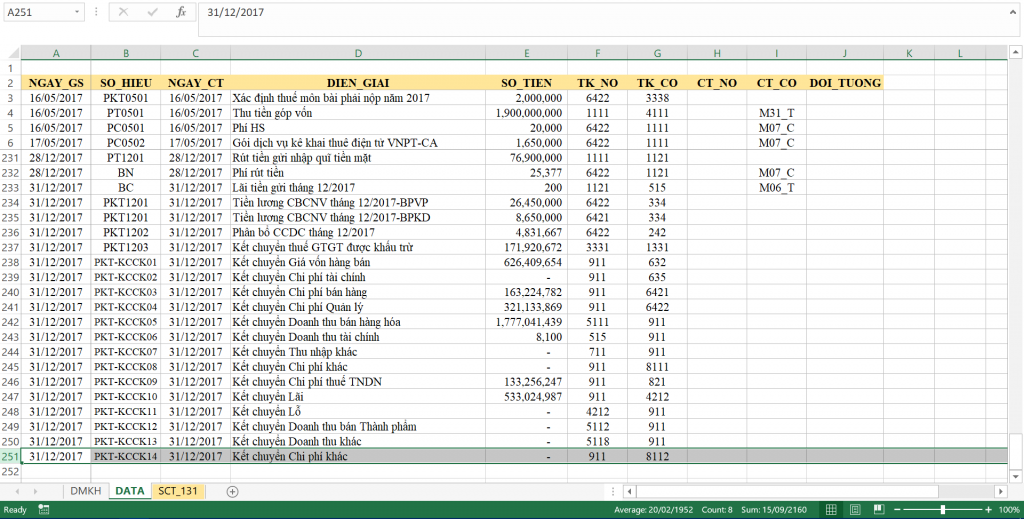 Data entry sheet for daily accounting transactions
2. The Customer Master List (DMKH)
This sheet functions as a database of your clients. It should contain the Customer Code (unique ID), Customer Name, Address, and crucially, the Opening Balance as of the beginning of the financial year.
 Customer master list with opening balances
Having a clean structure ensures that our lookup functions work accurately and prevents data duplication errors.
Essential Excel Functions for Accounting Automation
To automate this ledger, we will move beyond basic arithmetic and utilize a combination of logical and lookup functions. Here is the toolkit we will deploy:
- VLOOKUP: To retrieve static customer information (Name, Address) based on the ID.
- SUMIFS: To calculate conditional totals, such as the total amount a customer paid before a specific date.
- IF & AND: To filter transactions that fall strictly within the selected reporting period.
- MAX & MIN: Used creatively to separate positive (Debit) and negative (Credit) balances from a net total.
Step-by-Step Implementation Guide
The core logic of this ledger relies on three inputs provided by the user:
- Customer Code (Mã KH)
- From Date (Từ ngày)
- To Date (Đến ngày)
These inputs allow the report to remain dynamic. Let’s build the formulas section by section.
Step 1: Retrieving Customer Details
The first step is to populate the header information. When you select a Customer Code (e.g., in cell G10), Excel should automatically fill in the Customer Name and Address.
We utilize the VLOOKUP function for this task. It searches for the code in your DMKH sheet and returns the corresponding name.
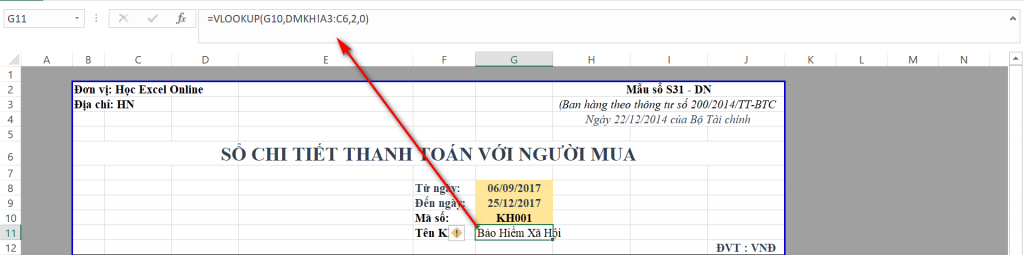 VLOOKUP formula to retrieve customer name automatically
Tip: You can also use INDEX and MATCH for more flexibility if your data structure is complex, but VLOOKUP is sufficient for this standard layout.
Step 2: Calculating Dynamic Opening Balances
This is the most technically challenging part of the ledger. The “Opening Balance” in this report is not the beginning of the year balance. It is the balance at the moment right before the “From Date” selected by the user.
Therefore, the formula must calculate:
(Initial Balance from DMKH) + (Total Debits before “From Date”) – (Total Credits before “From Date”)
Since Account 131 can have a Debit or Credit balance, we use a combination of MAX and MIN to display it correctly in the respective columns.
Formula for Opening Debit (Cell I15):
We calculate the net balance. If it is positive, it goes to Debit; if negative, it returns 0.
=MAX(VLOOKUP(...) + SUMIFS(Debit_Before_Date) - SUMIFS(Credit_Before_Date), 0)
Formula for Opening Credit (Cell J15):
We calculate the net balance. If it is negative (meaning the customer overpaid), we convert it to a positive number for the Credit column.
=-MIN(VLOOKUP(...) + SUMIFS(Debit_Before_Date) - SUMIFS(Credit_Before_Date), 0)
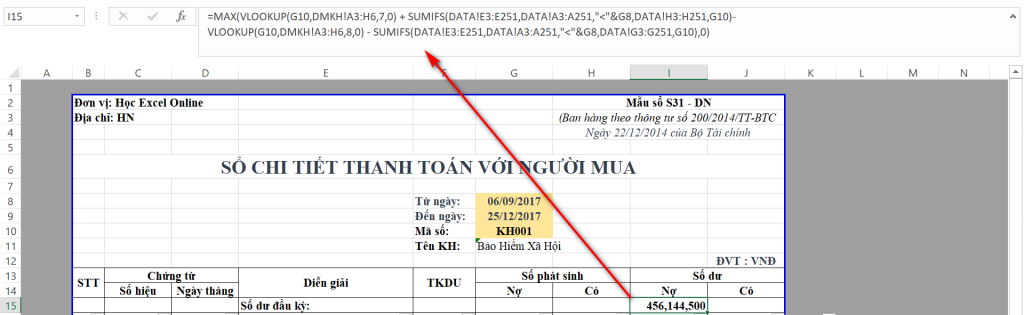 Formula setup for calculating dynamic opening balances
By using this logic, regardless of the date range you choose, the starting figure will always be mathematically accurate based on historical data.
Step 3: Automating Transaction History
Now that we have the starting balance, we need to list every transaction that occurred between the “From Date” and “To Date”.
In the date column (e.g., D17), we use a logical test. We check the DATA sheet for rows where:
- The Transaction Date is
>=From Date. - The Transaction Date is
<=To Date. - The Customer Code matches the selected client.
=IF(AND(Date>=From, Date<=To, Code=SelectedCode), Return_Date, "")
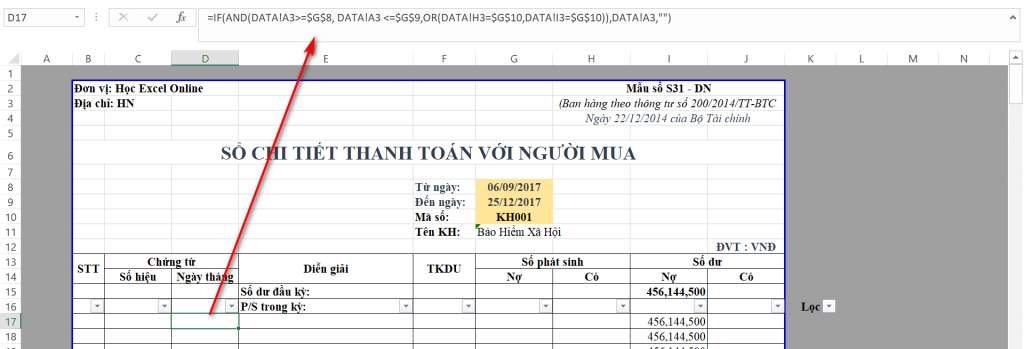 Logic for filtering transactions by date range
Once the Date column is established, other columns (Voucher No., Description, Amount) can use similar logic or lookups dependent on the Date row to populate their data. This creates a chronological list of activities.
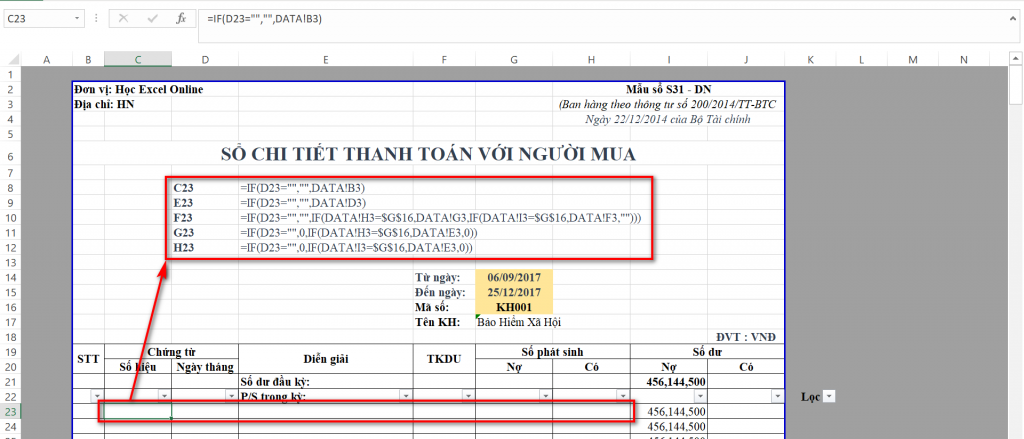 Populating transaction details based on date filter
Step 4: Determining Closing Balances
The closing balance is the running total at the end of the selected period. It functions similarly to the opening balance but includes the transactions listed in the report body.
Closing Debit:
=MAX(Opening_Debit + Period_Debit - Opening_Credit - Period_Credit, 0)
Closing Credit:
=-MIN(Opening_Debit + Period_Debit - Opening_Credit - Period_Credit, 0)
Just like the opening balance, we simply swap the MAX function for -MIN to handle the Credit side. This ensures that if a customer pays off their debt and ends up with a surplus, it correctly shifts from the Debit column to the Credit column.
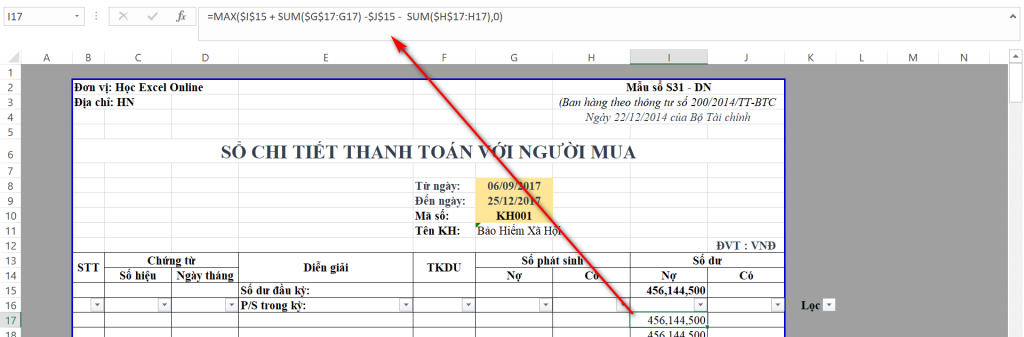 Calculating the final closing balance for the period
Step 5: Finalizing the Report with Helper Columns
Because we used formulas to pull data down a fixed number of rows, you might end up with blank rows if the customer has few transactions, or missing data if they have too many.
To make the report presentable for printing:
- Fill Down: Drag your formulas down enough rows to cover the maximum expected volume of transactions (e.g., 200 rows).
- Helper Column: Create a column (outside the print area) that checks if a row has data (e.g.,
=IF(D17="","","x")). - Filter: Simply filter the helper column to remove blank rows.
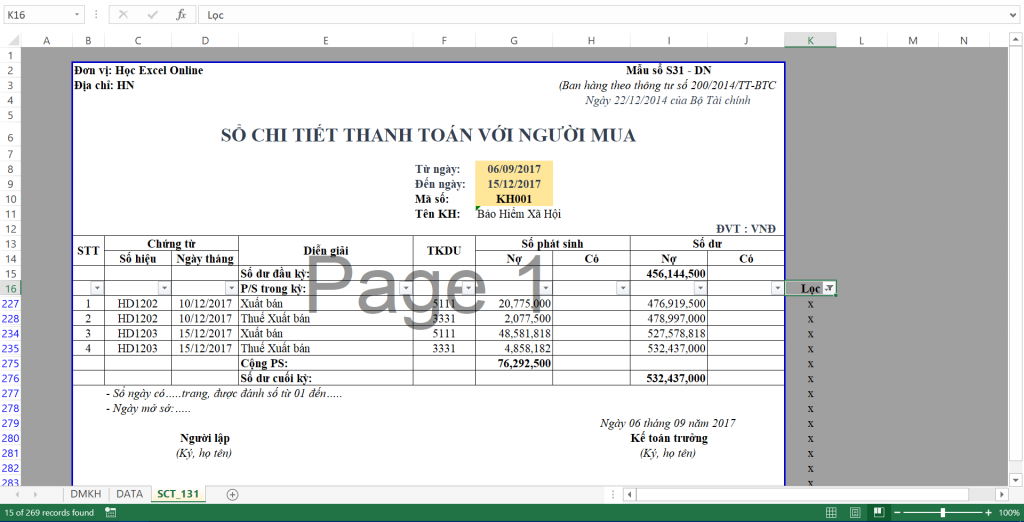 Filtering the final report using a helper column
Now, whenever you change the customer code or date range, you simply re-apply the filter to get a perfectly formatted ledger.
Important Considerations for Optimization
While this method is highly effective for small to mid-sized businesses, there are technical nuances to consider as your data grows.
Performance Impact
This method relies on “Array-like” calculations and multiple SUMIFS across potentially large datasets. If your DATA sheet contains tens of thousands of rows, Excel may calculate slowly.
- Solution: For very large datasets, consider using Pivot Tables or Power Query. However, for standard accounting requirements where a specific printed form is needed, the formula method described here offers the best layout precision.
Data Integrity
The accuracy of this report is 100% dependent on the consistency of your input data. Ensure that Customer Codes in the DATA sheet exactly match the DMKH list. A single typo (e.g., “CUST01” vs “CUST 01”) will cause transactions to be omitted from the ledger.
Conclusion
Creating an automated accounts receivable ledger in Excel is a powerful way to take control of your financial reporting. By combining logical functions like IF and AND with calculation functions like SUMIFS, you transform static data into dynamic, actionable insights.
This system allows you to:
- Instantly view the debt status of any client.
- Verify payment history within any specific date range.
- Produce professional accounting reports without expensive software.
Mastering these Excel techniques not only improves your accounting workflow but also enhances your overall analytical capabilities. We encourage you to download the practice file, experiment with the formulas, and customize the layout to fit your specific business needs.
References
- Microsoft Support. “SUMIFS function.” Microsoft Excel Support.
- Walkenbach, J. Excel 2019 Bible. Wiley.
- Corporate Finance Institute. “Accounts Receivable Ledger.” Resources.
- Investopedia. “Subsidiary Ledger Definition.”













Discussion about this post