


Are you looking for a reliable method to convert your spreadsheets into a professional document format? Converting Excel files to PDF is a fundamental skill for office workers, ensuring that data remains secure and the layout stays consistent regardless of the device or software version used by the recipient. While Excel is powerful for calculation, PDF is the standard for sharing final reports. In this guide, we will explore the most efficient, free, and built-in methods to save Excel files as PDFs, focusing on Microsoft Excel versions 2010, 2013, and 2016.
Native Method: Saving as PDF in Excel
Since the release of Excel 2010, Microsoft has integrated native support for PDF exportation. This eliminates the need for third-party plugins for most standard tasks. This method is highly recommended as it preserves the highest quality of fonts and formatting directly from the source.
Step 1: Pre-conversion Formatting and Page Setup
Before you even attempt to save the file, the most critical step is ensuring your data fits the page. Unlike Word documents, Excel sheets are infinite grids. If you do not define the print area, your columns might be split across multiple PDF pages, making the data unreadable.
You need to adjust the Page Setup settings. Navigate to the Page Layout tab to adjust margins, orientation (Portrait/Landscape), and scaling. It is best practice to view your document in Print Preview mode or Page Break Preview to visualize exactly how the data will be segmented. This step guarantees a seamless and professional-looking PDF document.
 Animation showing a user scrolling through an Excel spreadsheet to check data before conversion
Step 2: The Save As Command
Once your layout is finalized, the actual conversion process is straightforward. You can use the F12 keyboard shortcut to immediately open the “Save As” dialog box, which is often faster than navigating through the File menu.
In the Save As window, locate the Save as type dropdown menu. Scroll down and select *PDF (.pdf)** from the list. This tells Excel to process the file using its internal PDF engine.
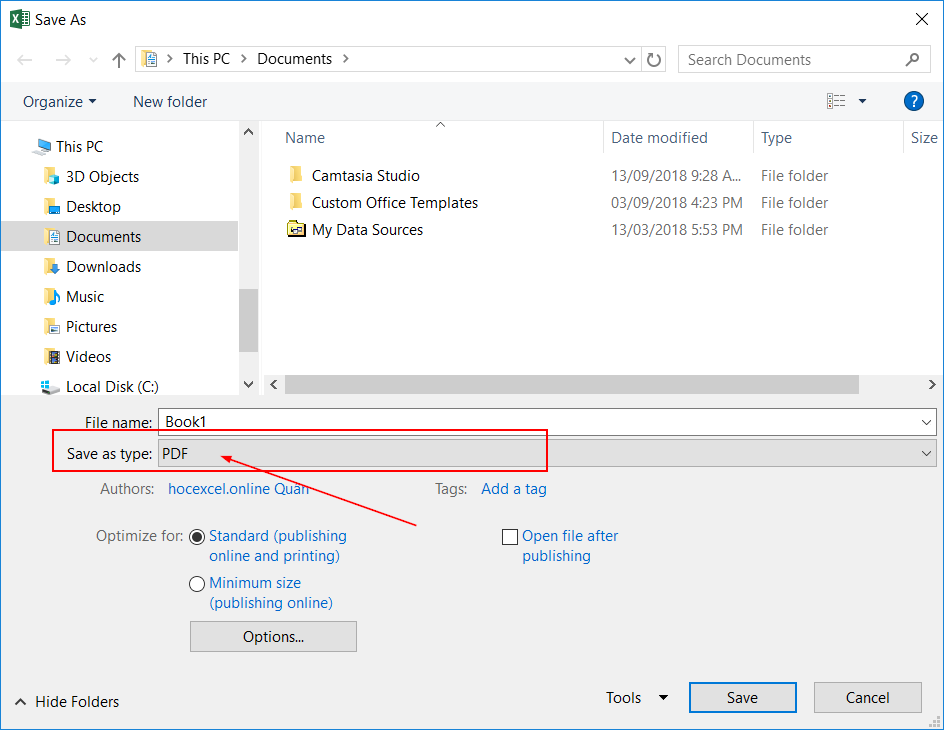 The Save As dialog box in Microsoft Excel with PDF selected as the file type
Step 3: Advanced PDF Options
Many users overlook the Options button that appears in the Save As dialog window once PDF is selected. This feature is vital if you need granular control over what gets converted.
Clicking the Options button allows you to configure specific parameters:
- Page range:
- All: Converts every page defined in the print area.
- Page(s): Allows you to specify a range (e.g., from page 1 to 3), which is useful for large reports where only the summary is needed.
- Publish what:
- Selection: Converts only the cells you currently have highlighted.
- Active sheet(s): Converts the entire current worksheet (default setting).
- Entire workbook: Converts all sheets in the file into a single PDF document.
After configuring these settings, click OK and then Save. Your PDF will be generated immediately.
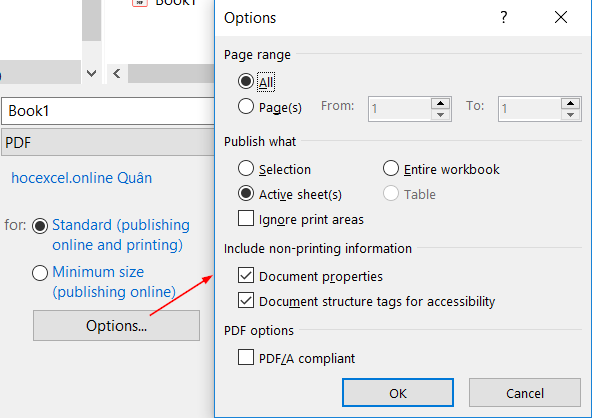 The Options window in Excel PDF saving settings showing page range and publishing scope
Alternative Solutions for Older Versions
If you are working with a legacy version of Office (pre-2010) or need specific compression features not found in the native tool, third-party software remains a viable option.
Primo PDF is a popular, free tool that functions as a virtual printer. When installed, you simply choose “Print” in Excel and select Primo PDF as the printer. The software then captures the print stream and converts it to a PDF file. This is particularly useful for batch processing or when dealing with complex driver-specific layouts.
Automating the Process with VBA
For advanced users or data analysts handling hundreds of files, manual conversion is inefficient. Excel supports VBA (Visual Basic for Applications), which can be scripted to automate the export process.
With a simple VBA macro, you can configure Excel to loop through a folder of Excel workbooks and convert them all to PDF with a single button click. While this requires a steeper learning curve, mastering VBA allows for massive productivity gains, such as automatically emailing these PDFs or saving them to specific network paths based on cell values.
Conclusion
Converting Excel to PDF is an essential workflow for maintaining data integrity and ensuring professional presentation. Whether you use the convenient built-in “Save As” feature in modern Excel versions or rely on automation tools like VBA for bulk processing, understanding these methods allows you to share information more effectively.
We recommend always checking your Page Setup before converting to avoid formatting errors. Master these simple steps, and you will ensure your reports always look perfect on any device.
References
- Microsoft Support. “Save or convert to PDF or XPS in Office Desktop apps.”
- TechRepublic. “How to save Excel sheets as PDF.”
- Adobe Acrobat. “Convert Excel to PDF online.”













Discussion about this post