


Many Excel users instinctively reach for the INT function when they need to find the integer part of a division operation. It seems logical: you want an integer, so you use INT. However, from a technical standpoint, this is often a misconception. The most accurate function for isolating the integer portion of a division is actually QUOTIENT. While these two functions often yield similar results, their underlying logic differs significantly, leading to potential errors in complex calculations. In this deep dive, we will explore the mechanics of both functions, clarify why they are different, and determine when to use the QUOTIENT function versus the INT function for maximum precision in your spreadsheets.
Understanding the QUOTIENT Function
As mentioned in the introduction, the QUOTIENT function is specifically designed to return the integer portion of a division, discarding the remainder. It does not round values; it effectively “chops off” the decimal part.
The syntax for the QUOTIENT function is straightforward:
=QUOTIENT(numerator, denominator)
Parameters defined:
- numerator: The dividend (the number to be divided).
- denominator: The divisor (the number to divide by).
If you are familiar with Excel arithmetic, you might notice that this structure pairs perfectly with the MOD function, which returns only the remainder of a division.
=MOD(number, divisor)
- number: The number to be divided.
- divisor: The number to divide by.
Together, QUOTIENT and MOD reconstruct the complete story of a division operation: one gives you the whole number, and the other gives you what is left over.
 Animated demonstration of entering QUOTIENT and MOD formulas in Excel spreadsheet
To visualize this relationship, consider how these functions appear when applied to standard data sets. The syntax is distinct, yet they share common arguments (numerator/number and denominator/divisor).
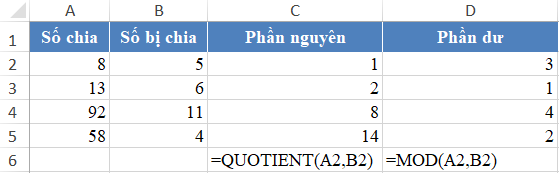 Screenshot showing the syntax comparison between QUOTIENT and MOD functions in Excel
The True Functionality of INT
The INT(number) function is frequently misunderstood as a division tool. In reality, INT is a rounding function. Its specific purpose is to round a number down to the nearest integer.
It is mathematically closer to the ROUNDDOWN function, but with a critical distinction: INT always rounds down towards negative infinity (to the next lower integer), whereas standard rounding often considers magnitude or direction towards zero.
Why does this confusion exist? In many daily scenarios involving positive numbers, “rounding down to the nearest integer” looks exactly like “taking the integer part of a division.”
Comparing INT and QUOTIENT: Positive Numbers
Let’s examine a scenario where we divide positive numbers. This is the most common use case and the primary reason why users treat INT and QUOTIENT interchangeably.
In the example below, we compare the results of INT (where the division happens inside the formula) and QUOTIENT.
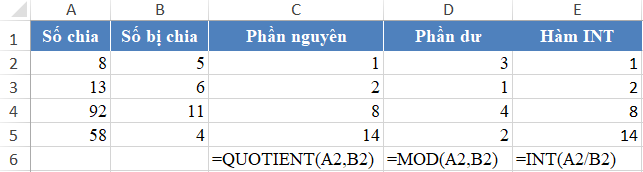 Excel spreadsheet showing identical results for INT and QUOTIENT with positive numbers
Observation:
- Syntax Difference: For INT, you must write the calculation yourself:
=INT(A2/B2). It takes a single calculatednumberas an argument. - Result: Both functions return identical results when the input is positive (Result > 0).
Because INT is shorter to type (3 letters vs. 8 letters) and handles the division expression directly, users often prefer it for simplicity. However, this habit can lead to data errors when the sign of the numbers changes.
The Critical Difference: Negative Numbers
The divergence between these two functions becomes immediately apparent when dealing with negative numbers. This is where understanding the “Search Intent” of your formula becomes vital—are you trying to round or are you trying to divide?
Let’s look at the mathematical logic:
- Calculation: $8 div (-5) = -1.6$
- QUOTIENT Logic: Takes the integer part of the division. The integer part of -1.6 is -1. It simply removes the decimal .6.
- INT Logic: Rounds down to the nearest lower integer. On a number line, “down” from -1.6 is -2.
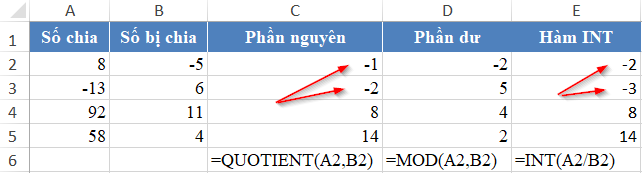 Spreadsheet demonstrating different results between INT and QUOTIENT when dividing negative numbers
As shown in the data above, the results differ significantly:
- QUOTIENT returns -1.
- INT returns -2.
Key Technical Insight: If your goal is to find the “Integer Part of a Division,” the negative sign is typically treated as separate from the value magnitude until the final result. We calculate $8/5 = 1.6$, take the integer 1, and apply the negative sign to get -1. This is how QUOTIENT operates.
Conversely, INT interprets the result strictly mathematically. Since -2 is smaller than -1.6, it rounds “down” to -2.
Conclusion
While both functions have their place in a data analyst’s toolkit, distinguishing their roles is essential for data integrity.
- QUOTIENT is the mathematically correct function for calculating the integer portion of a division operation, regardless of positive or negative signs.
- INT is a rounding function designed to move a value to the next lowest integer (flooring).
- Best Practice: For standard positive financial or inventory dashboards, INT is acceptable and often faster to type. However, for engineering, scientific, or complex financial modeling involving negative variances or coordinates, you must use QUOTIENT to avoid “off-by-one” calculation errors.
We hope this clarifies the nuances between these two essential Excel tools. By choosing the right function, you ensure your data remains accurate across all scenarios.
References
- Microsoft Support: QUOTIENT function details.
- Microsoft Support: INT function specifications.
- TechCrunch/The Verge: General technology news and updates (for context on software evolution).
- Excel Jet/MrExcel: Advanced formula usage examples.













Discussion about this post