


In the realm of data management and human resources, precision is paramount. Whether you are calculating employee tenure, processing payroll, or managing project timelines, determining the exact duration between two specific dates is a common requirement. While calculating total days is straightforward, breaking that duration down into full weeks and remaining odd days requires a specific combination of Excel functions.
In this guide, “Thủ Thuật” will walk you through the process of calculating the number of weeks and the leftover days between two time milestones using basic yet powerful Excel formulas.
Determining the Total Number of Weeks
To calculate the number of weeks between two dates, we essentially need to find the total number of days between those dates and then divide that number by 7 (since there are 7 days in a week). We will use the integer part of this division to represent the full weeks.
Step 1: Calculate Total Days with DATEDIF
First, we must establish the total count of days between the start date and the end date. While simple subtraction works in some cases, the DATEDIF function is the industry standard for stability and compatibility.
The formula syntax is:
=DATEDIF(Start_Date, End_Date, “d”)
Where:
- Start_Date (B6): The cell containing the beginning date.
- End_Date (C6): The cell containing the ending date.
- “d”: The unit parameter telling Excel to return the difference in days.
Using DATEDIF ensures that leap years and varying month lengths are handled automatically by the software.
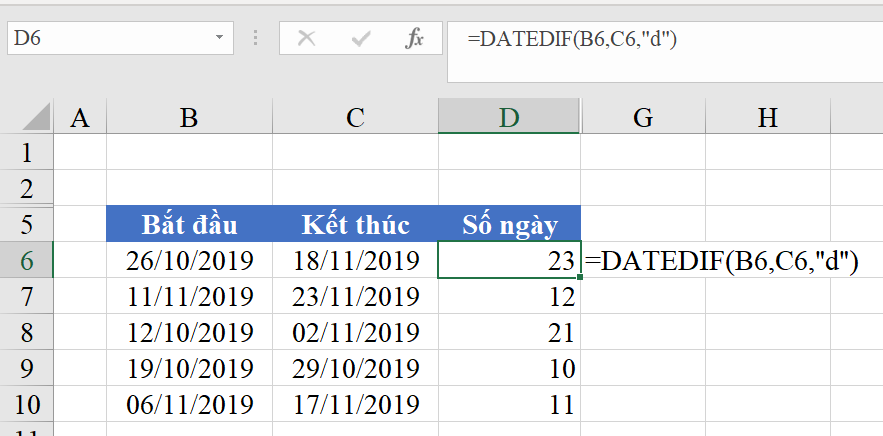 Excel spreadsheet demonstrating the DATEDIF function to calculate days between dates
Step 2: Convert Days to Weeks using INT
Once you have the total number of days (let’s assume this result is in cell D6), the next step is to convert this into weeks. Since a week consists of 7 days, we divide the total days by 7. However, a simple division might result in a decimal number (e.g., 2.5 weeks).
To get the number of full weeks, we use the INT function, which rounds a number down to the nearest integer.
The formula is:
=INT(D6/7)
By applying this formula, Excel takes the total day count, divides it by 7, and discards the decimal portion, leaving you with the exact count of completed weeks.
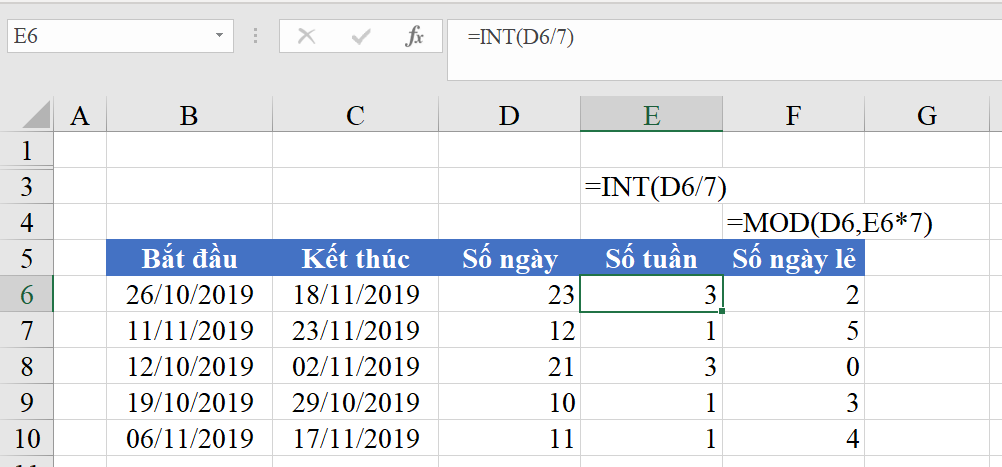 Excel spreadsheet showing the INT function used to calculate full weeks
Calculating the Remaining Odd Days
After extracting the full weeks, you are often left with a remainder—the “odd days” that didn’t complete a full week. For example, if the duration is 10 days, that equals 1 week and 3 odd days.
To calculate this automatically, we use the MOD function. The MOD function returns the remainder after a number is divided by a divisor.
The formula is:
=MOD(Total_Days, 7)
Note: While some users calculate this by subtracting the weeks converted back to days from the total, the MOD function is cleaner and less prone to error.
Formula Breakdown:
- Total_Days (D6): The total count of days calculated in Step 1.
- 7: The divisor (representing days in a week).
This formula will instantly return the number of days remaining after all full weeks have been accounted for. This is particularly useful for payroll calculations where weeks might be paid at a standard rate, and odd days are pro-rated.
 Animated banner promoting basic Excel courses for office workers
Why Master These Date Functions?
Understanding how to manipulate date and time data is a fundamental skill for any data analyst or office administrator.
- HR & Payroll: accurately calculating seniority payments or probation periods often requires breaking time down into weeks and days.
- Project Management: Sprints are often measured in weeks. Knowing the exact odd days helps in planning “buffer” time.
- Reporting: Presenting data as “5 weeks and 2 days” is often more intuitive for stakeholders than saying “37 days.”
For those looking to automate these tasks further, combining these logic steps with VBA (Visual Basic for Applications) can allow you to process thousands of rows of date data instantly.
 Animated banner promoting VBA Excel automation courses
Conclusion
Calculating the number of weeks and odd days between two dates in Excel is a straightforward process once you understand the logic behind DATEDIF, INT, and MOD. By layering these functions, you transform raw data into meaningful insights, ensuring accuracy in reporting and compensation.
Mastering these basic functions lays the groundwork for handling more complex logic in Excel. Whether you are a beginner or looking to refine your spreadsheet skills, accuracy in date calculation is a professional necessity.
References
- Microsoft Support: DATEDIF function documentation.
- Microsoft Support: INT function documentation.
- Microsoft Support: MOD function documentation.












Discussion about this post