


When working with data visualization in Excel, most users are familiar with Conditional Formatting for cells—automatically coloring a cell red if numbers are low, or green if they are high. But have you ever considered applying this same powerful logic to charts?
Imagine a sales dashboard where the column representing the highest revenue automatically highlights itself in a distinct color. This dynamic visual cue draws immediate attention to top performance without manual updates. In this guide, Thủ Thuật will walk you through the advanced technique of creating a “smart” column chart that automatically detects and highlights the maximum value.
The Scenario: Visualizing Peak Performance
Let’s assume we have a weekly revenue report. We want to plot this data on a column chart, but with a specific requirement: the bar representing the highest revenue must be colored differently from the rest to stand out instantly.
Here is the sample dataset we will be working with:
 Excel spreadsheet showing a table of weekly revenue data from Monday to Sunday
Step 1: Constructing the Base Chart
The first step involves creating a standard column chart. We need to visualize the data before we can apply any dynamic logic to it.
- Select the Data: Highlight the range
A2:B9. - Insert Chart: Navigate to the Insert tab, click on the Column/Bar Chart icon, and select 2D Clustered Column.
Once the chart is generated, we need to clean up the interface to make it professional and readable. Follow these formatting steps to strip away unnecessary elements (“chart junk”) and focus on the data:
- Apply Style: To get a sleek look quickly, select the chart and choose Style 10 from the Design tab (or a similar style that suits your preference).
- Remove the Vertical Axis: Click on the numbers on the left vertical axis (Y-axis) and press Delete. This provides more canvas space for the bars.
- Add Data Labels: Go to the Design tab, select Add Chart Element > Data Labels > Outside End. This places the exact value on top of each bar, making the axis redundant.
 Animation demonstrating how to select chart style 10 in Excel Chart Design tab
- Dynamic Title: Click the Chart Title, press F2, type
=A1, and press Enter. This links the chart title directly to cell A1, ensuring the title updates if the text in the cell changes.
After these initial formatting steps, your chart should look clean and professional, similar to the example below. However, at this stage, all columns share the same color.
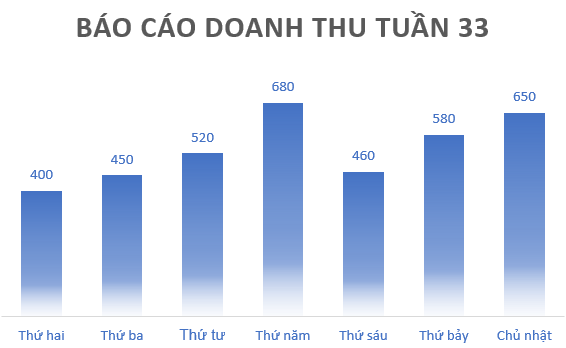 A standard clustered column chart in Excel showing revenue by day with uniform blue bars
Step 2: Creating the Logic with Helper Columns
Excel charts cannot natively “know” which bar is the tallest just by looking at it. We need to feed this logic to the chart using a Helper Column. This new column will only contain data if that data point is the maximum value; otherwise, it will remain empty.
In column C (let’s call it the “Max” column), enter the following formula starting at cell C3:
=IF(B3=MAX($B$3:$B$9), B3, "")
Formula Breakdown:
MAX($B$3:$B$9): This calculates the highest value in the revenue column. Note the absolute references ($)—this locks the range so it doesn’t shift when we copy the formula down.IF(B3=MAX...): This checks if the value in the current row (B3) matches that maximum value.B3: If it is the match, Excel returns the revenue value."": If it is not the match, Excel returns an empty text string (effectively blank).
Drag this formula down from C3 to C9. You will see that only the row with the highest value (Sunday, 720) displays a number in column C.
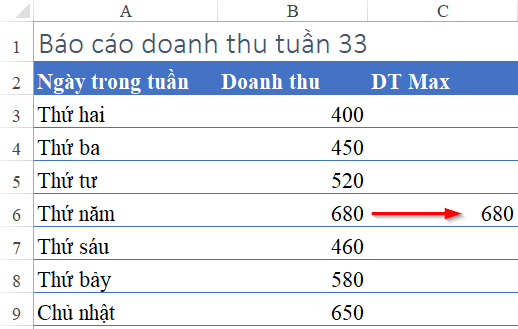 Excel spreadsheet showing the helper column C with the IF and MAX formula applied
Step 3: Integrating the Dynamic Data into the Chart
Now that we have isolated the maximum value in our helper column, we need to add this data to the chart. Essentially, we will overlay a second chart on top of the first one.
- Click on your existing chart to activate the Chart Tools menu.
- Navigate to Design > Select Data.
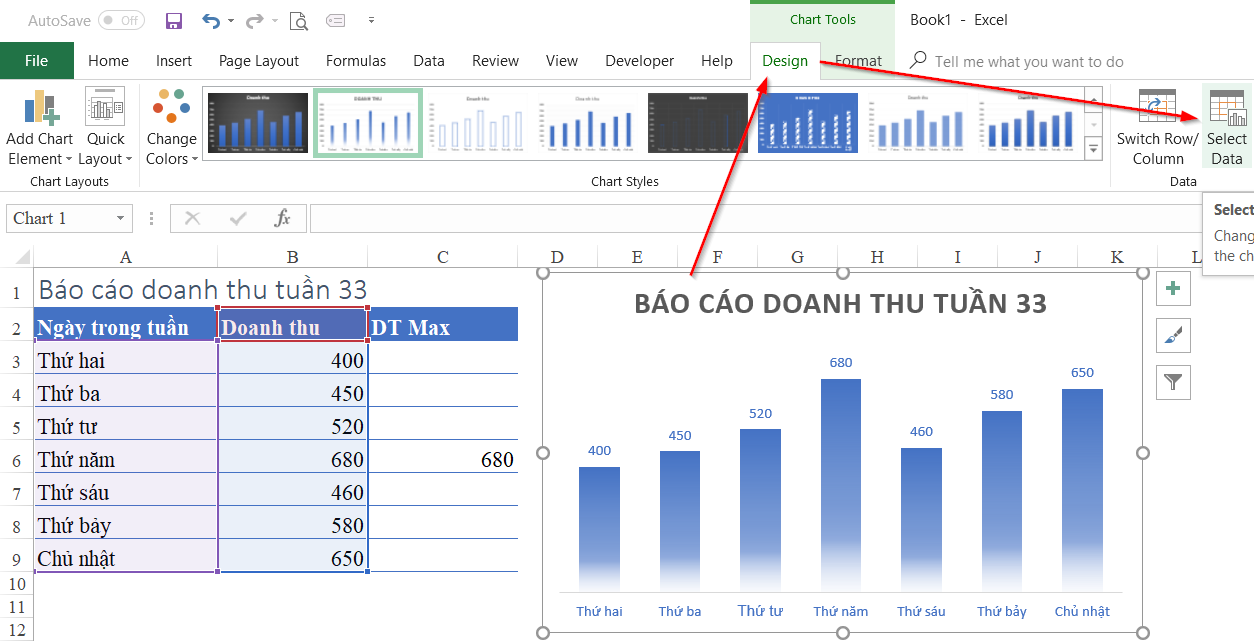 Screenshot of the Chart Tools Design tab highlighting the Select Data button
In the Select Data Source dialog box, click the Add button under the “Legend Entries (Series)” section.
- Series Name: Select cell C1 (or type “Max”).
- Series Values: Select the range of your helper column (
C3:C9).
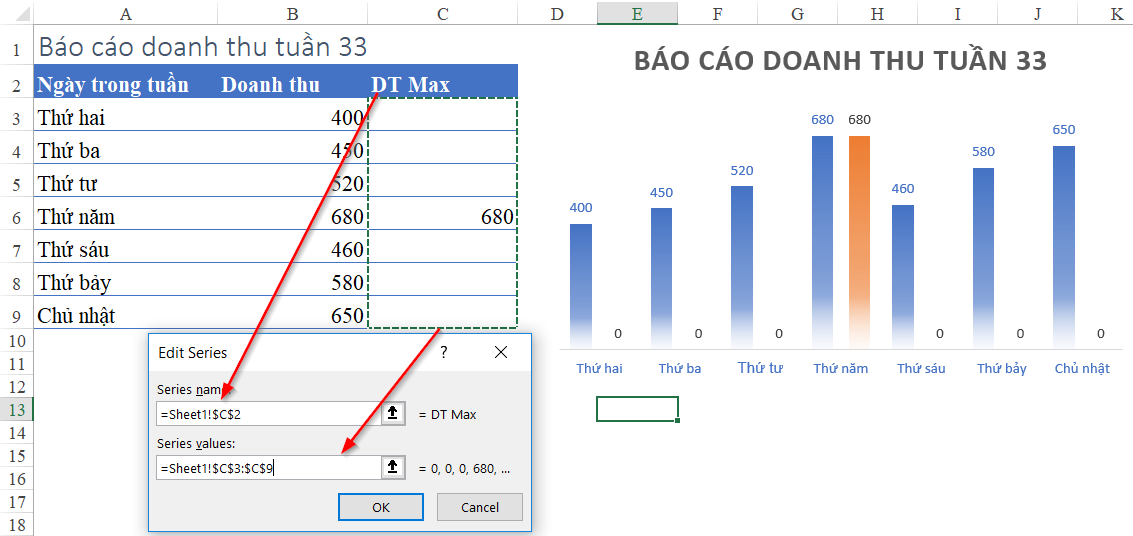 Select Data Source dialog box showing the addition of a new data series
Click OK. You will now see a second set of bars (likely in a different color, like orange) appearing next to the original bars. However, this second set only appears for the day with the maximum value.
Step 4: Overlapping Series for the “Highlight” Effect
The magic happens when we merge these two data series so they occupy the same physical space. We want the “Max” series to sit directly on top of the standard series.
- Right-click on the new bar (the highlighted one).
- Select Format Data Series.
- In the Format pane on the right, locate the Series Overlap slider.
- Change the value to 100%.
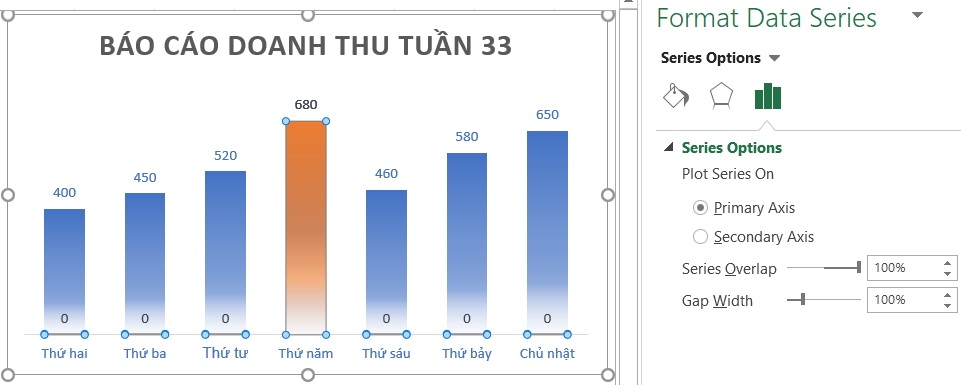 Format Data Series pane in Excel setting the Series Overlap to 100 percent
By setting the overlap to 100%, the “Max” series (which only has a value for the highest day) completely covers the underlying standard series.
Refining the Visuals:
You might notice “0” or data labels overlapping awkwardly where the helper column has blank values. To fix this:
- Click on the data labels for the new series.
- Isolate the labels that are “0” or blank placeholders and press Delete.
- Ensure only the label for the maximum bar remains, or rely on the underlying label.
Step 5: Testing the Dynamic Functionality
You now have a chart where the Sunday column is highlighted automatically. But is it truly dynamic? Let’s verify.
Go back to your data table and change the revenue for a different day to be the new maximum. For example, change Sunday to 600 and Monday to 800.
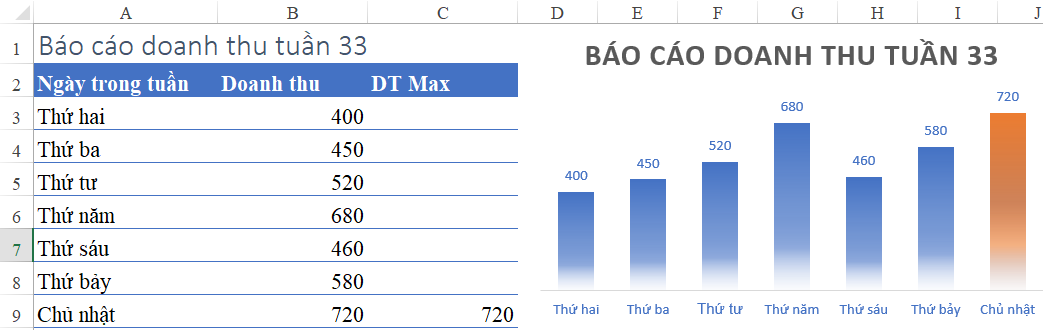 Final Excel chart showing the highest value column automatically changing color after data update
As shown in the image above, the chart instantly updates. The highlight color shifts from Sunday to Monday without you needing to touch the chart settings.
Conclusion
By combining logical functions (IF and MAX) with chart formatting techniques (Series Overlap), you have transformed a static Excel chart into a dynamic data visualization tool. This technique is invaluable for dashboards and reports where identifying the top performer at a glance is critical.
This method adheres to the principles of effective data storytelling: it reduces cognitive load for the viewer by pre-processing the analysis (finding the max) and presenting it visually. Whether you are tracking daily sales, monthly website traffic, or production outputs, this “conditional formatting” for charts will elevate your reporting skills.













Discussion about this post