


Data visualization is a cornerstone of modern reporting. When presenting growth metrics or financial comparisons in Excel, the Line Chart is often the tool of choice. However, users frequently encounter a frustrating technical glitch when dealing with incomplete or future data: the chart line suddenly plummets to zero.
This issue typically occurs when the dataset includes formulas that return empty strings (“”) or zeros for future dates. Instead of stopping the line at the current date, Excel interprets these values as zero points, causing the trendline to “crash” to the bottom of the axis. This distorts the visual representation and misleads stakeholders regarding the actual performance trend.
In this deep dive, Thủ Thuật will guide you through the technical steps to prevent this error. We will explore how to use the NA() function to create professional, dynamic charts that automatically adjust to your data without the unsightly drop-off.
Setting Up Dynamic Data for Line Charts
To understand the solution, we must first replicate the scenario. A common use case is tracking “Plan vs. Actual” performance, where the “Plan” is set for the whole year, but “Actual” data is only available up to the current month.
The Data Structure
Consider a dataset spanning from row 2 to 14. We need to configure the spreadsheet so that when a specific month is selected in a control cell (e.g., cell G1), the “Actual” data column only displays values up to that month.
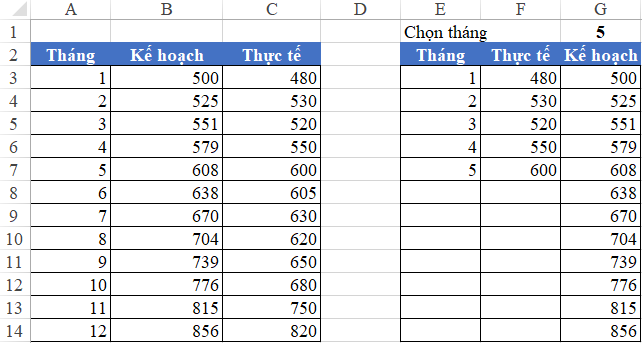 Excel data table comparing Plan vs Actual columns with a monthly selection cell
The goal is to generate a chart based on a processed table (range E2:G14) rather than the raw raw input, ensuring the visualization remains dynamic.
Implementing Data Validation
The first step in creating a dynamic report is establishing a control mechanism. We use Data Validation to create a dropdown menu for selecting the reporting month.
- Select cell G1.
- Navigate to the Data tab and select Data Validation.
- In the settings, choose List and reference the range containing your month names (e.g.,
$A$3:$A$14).
 Animation showing the process of selecting a month via Data Validation and the table updating
Once the dropdown is ready, we need to populate the “Actual” column (Column F in our processing table) based on the selection in G1.
The Common Mistake: Using Empty Strings
The standard approach most users take involves a basic logical formula. You might attempt to use the IF function to check if the row’s month is less than or equal to the selected month.
The problematic formula typically looks like this:
=IF(A3<=$G$1, C3, "")
This formula tells Excel: “If the month is past, show the data; otherwise, leave it blank.” While the cell looks empty to the human eye, Excel’s charting engine often treats that empty text string "" as a value of 0.
Creating the Chart
Let’s visualize why this is a problem.
- Select your processed data range (E2:G14).
- Go to the Insert tab, find the Charts group, and select a 2-D Line Chart.
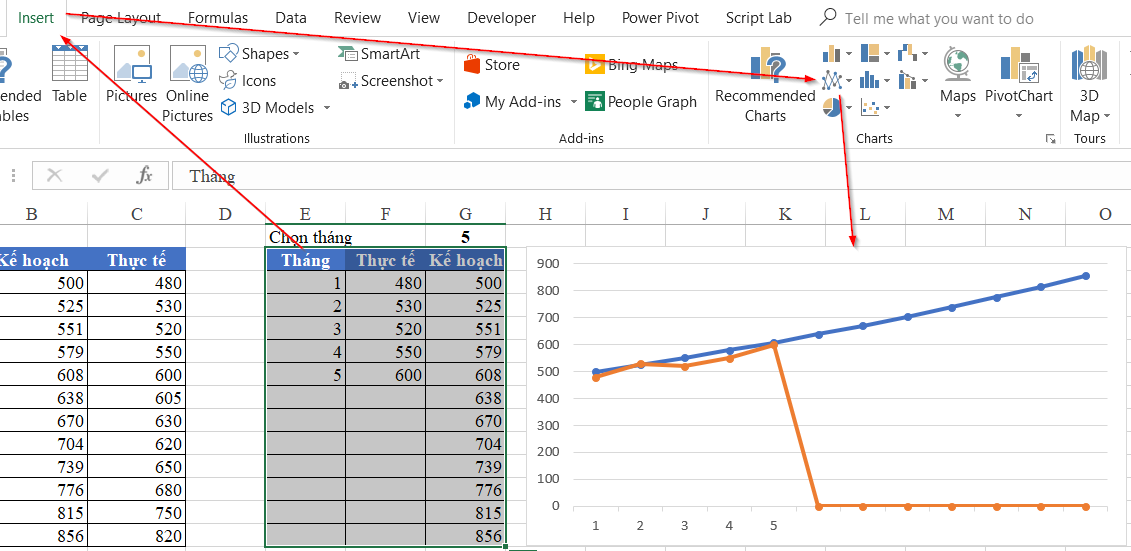 Screenshot of the Insert tab in Excel highlighting the Line Chart option
If the chart does not automatically detect the correct series, you may need to manually configure the data source. Click Select Data and ensure:
- Legend Entries (Series): Includes “Actual” and “Plan”.
- Horizontal (Category) Axis Labels: Points to the “Month” column.
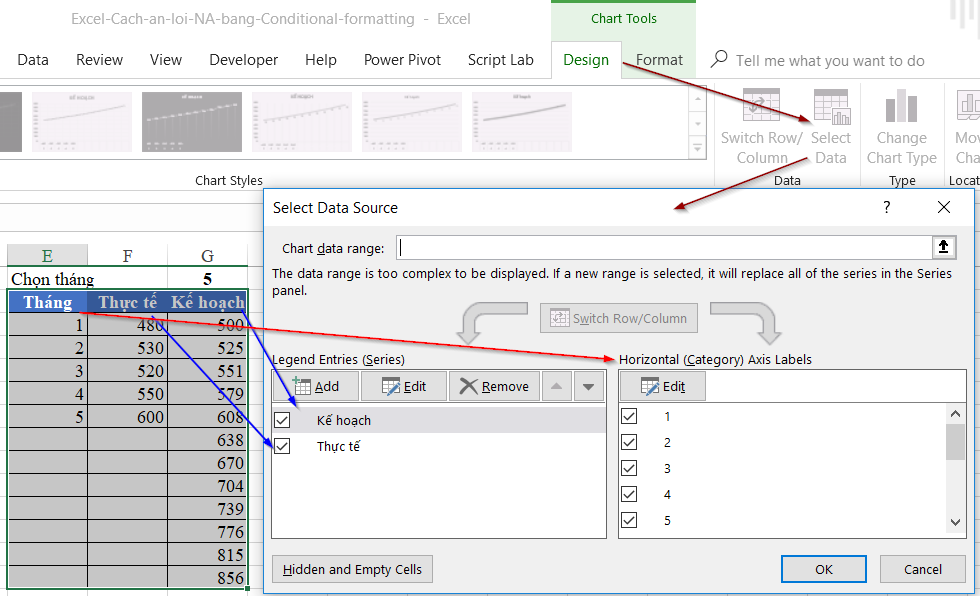 Select Data Source dialog box showing configuration for Legend Entries and Axis Labels
At this stage, you will likely see the error: from June onwards (or whichever month follows your selection), the “Actual” line drops sharply to the X-axis (value 0). This effectively implies that performance has crashed, which is factually incorrect—the data simply doesn’t exist yet.
The Technical Solution: Using the NA() Function
To fix the “drop to zero” error, we must change how Excel interprets “no data.” Instead of returning an empty string or a zero, we need to return an error value: #N/A (Not Available).
Excel charts possess a specific behavior regarding #N/A errors: they ignore them. Unlike a zero or text string, an #N/A error causes the line chart to stop plotting or interpolate the gap, rather than diving to the baseline.
Modifying the Formula
We will replace the value_if_false argument in our formula with the NA() function.
The Correct Formula:
=IF(A3<=$G$1, C3, NA())
Breakdown of the syntax:
- Logical test:
A3<=$G$1(Is the current row’s month within the selected timeframe?) - Value if True:
C3(Return the actual data). - Value if False:
NA()(Return the #N/A error).
The Result
After applying this formula to the entire column, the cells for future months will display #N/A. While this might look messy in the table, the impact on the chart is exactly what we need.
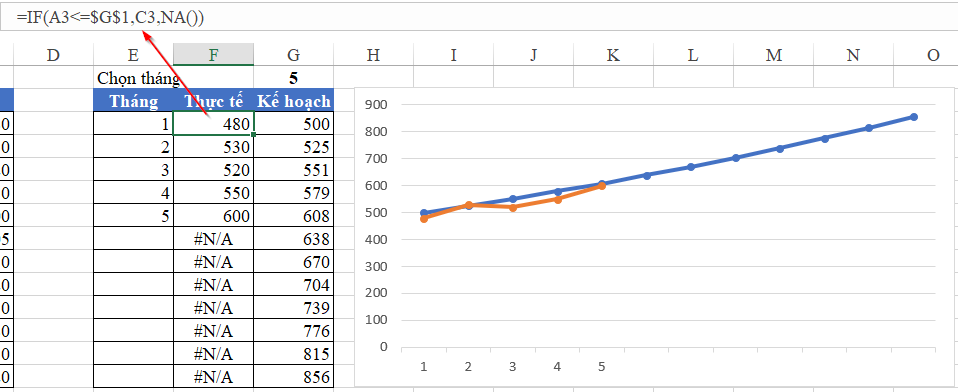 Final Excel line chart showing the data line stopping at the current month without dropping to zero
As seen in the result above, the “Actual” line now stops cleanly at May. It does not plummet to zero for June, providing a truthful representation of the data.
Advanced Optimization: Hiding the Error Codes
While the chart looks perfect, your data table now contains visible #N/A errors, which can look unprofessional in a printed report.
To maintain the functionality of the NA() function for the chart while keeping the table clean for the user, use Conditional Formatting:
- Select the cells containing the formula.
- Go to Home > Conditional Formatting > New Rule.
- Select “Format only cells that contain”.
- Set the rule to: Errors.
- Click Format and set the font color to White (or the same color as your cell background).
This technique effectively “camouflages” the error codes. The chart continues to see the #N/A and behaves correctly, but the human reader sees a clean, empty cell.
Conclusion
Mastering the nuances of Excel’s charting engine distinguishes an average user from a data expert. The “drop to zero” error is a common annoyance that undermines the credibility of performance reports. By understanding that Excel charts treat empty strings as zeros but ignore #N/A errors, you can manipulate your data to behave exactly as intended.
Key Takeaways:
- Avoid using
""for missing chart data. - Utilize the
NA()function to force Excel to ignore data points. - Apply Conditional Formatting to hide the resulting error codes in your table.
We hope this guide helps you create cleaner, more accurate dashboards. If you found this trick useful, share your experience in the comments below or explore our other tutorials on Thủ Thuật to elevate your tech skills.
References
- Microsoft Support: Create a chart from start to finish.
- Excel Functions: NA function details and usage.
- TechCommunity: Handling empty cells in Excel charts.












Discussion about this post