


In the world of data analysis and reporting, static spreadsheets often fail to engage the user. To elevate a standard report into a dynamic, interactive dashboard, Excel offers a variety of tools known as Form Controls. Among these, the Option Button (often referred to as a Radio Button) is one of the most powerful yet underutilized features.
Option buttons allow users to select a single choice from a predefined set of mutually exclusive options. When a user selects one button, it triggers a specific value change in the spreadsheet, which can then update formulas, charts, or data tables. This guide will walk you through the technical steps of creating, configuring, and applying Option Buttons to build professional-grade Excel reports.
How to Insert Option Buttons in Excel
Unlike standard formatting tools, Option Buttons are not located on the Home ribbon by default. They reside within the developer tools. There are two primary methods to access and insert these controls.
Method 1: Using the Developer Tab (Recommended)
The standard approach involves the Developer tab. If you do not see this tab in your Excel ribbon, you must first enable it by customizing your ribbon settings. Once the Developer tab is active, follow these steps:
- Navigate to the Developer tab.
- Click on Insert within the Controls group.
- Under Form Controls, select the Option Button icon (a circular button with a dot).
- Click anywhere on your worksheet to draw the button.
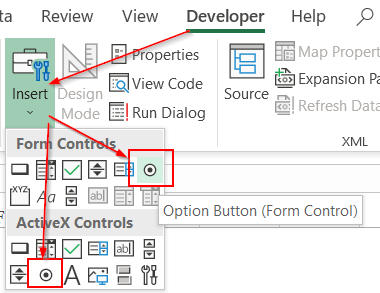 Screenshot of the Excel Developer tab showing the Insert menu with the Option Button selected
Method 2: Customizing the Quick Access Toolbar or Ribbon
If you frequently use Form Controls but prefer not to keep the Developer tab open, you can add the Option Button tool directly to your Quick Access Toolbar or a custom group on your main ribbon. This is done via File > Options > Customize Ribbon (or Quick Access Toolbar). From the “Choose commands from” dropdown, select “All Commands,” find “Option Button (Form Control),” and add it to your preferred location.
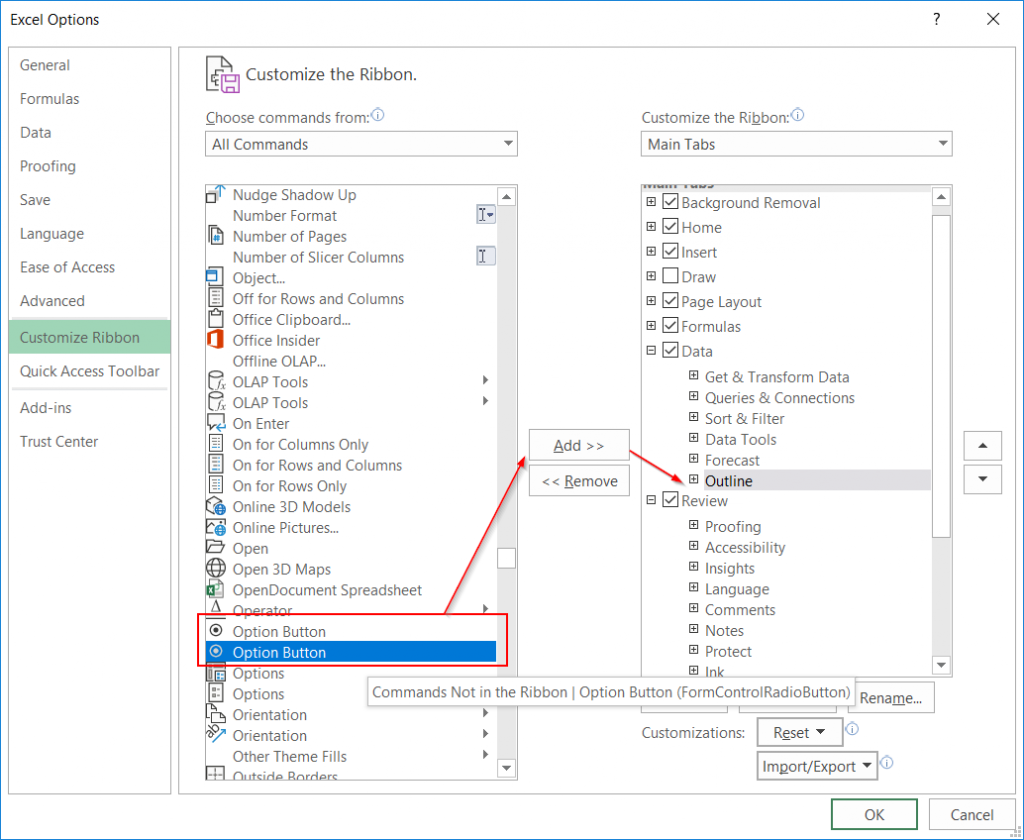 Excel Options window displaying how to add commands to the customized ribbon
Configuring the Option Button
Inserting the button is merely the visual step. To make the button functional, you must link it to the underlying data grid. This connection allows Excel to interpret the user’s visual selection as a numerical value that formulas can process.
Establishing the Cell Link
The core mechanism of an Option Button is the “Cell Link.” When linked, the group of buttons will output a number (1, 2, 3, etc.) to a specific cell, corresponding to the order in which the buttons were created or placed.
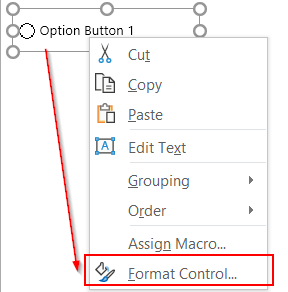
Step 1: Right-click on the Option Button you just created. From the context menu, select Format Control.
 Animation demonstrating the right-click process to select Format Control on an option button
Step 2: In the Format Control dialog box, navigate to the Control tab. This is where the logic is defined.
 The Format Control dialog box in Excel focusing on the Control tab
Step 3: Click in the Cell link field and select a cell on your worksheet (e.g., $A$1). This cell will hold the result of the user’s selection. Click OK to apply the changes.
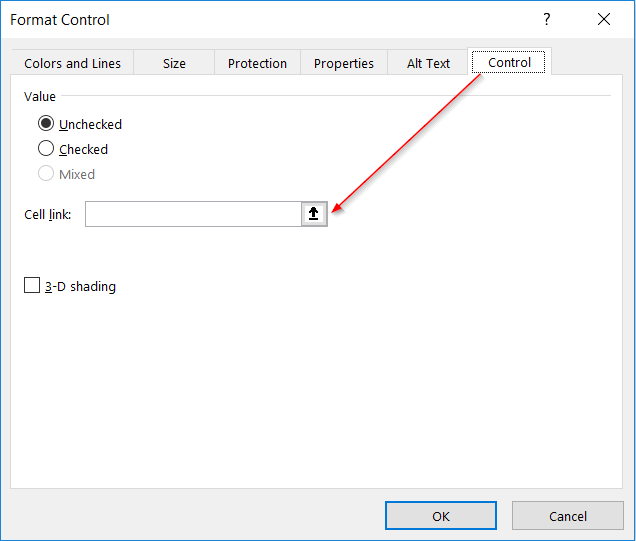 Setting the Cell Link address in the Format Control settings window
operational Principles
To ensure your dashboard functions correctly, you must understand the rules governing these controls:
- Mutually Exclusive: By design, you can only select one Option Button within a group. Selecting a new option automatically deselects the previous one.
- Sequential Output: The output value is based on the creation order. The first button created returns “1”, the second returns “2”, and so on.
- Unified Linking: You only need to set the Cell Link for one button in a group. Excel automatically applies this same cell link to all other Option Buttons in that specific group or worksheet area.
Practical Applications in Reporting
Option Buttons are indispensable for creating “What-If” analysis tools and interactive charts. Instead of displaying three separate tables for different regions or time periods, you can use Option Buttons to let the user toggle between views.
For example, in a sales report, you might use Option Buttons to switch the data source for a chart between “North,” “South,” and “East” regions. The INDEX or CHOOSE formulas can read the linked cell (1, 2, or 3) and pull the corresponding data dynamically.
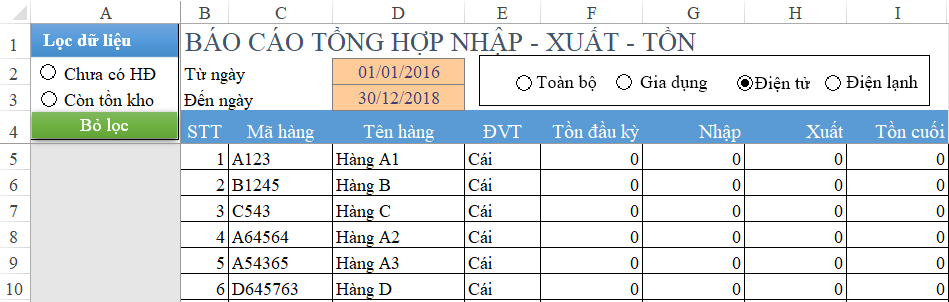 An Excel dashboard example utilizing multiple groups of option buttons for data filtering
Advanced Tip: Grouping Buttons
A common challenge arises when you need two independent sets of choices on the same sheet (e.g., one set for “Year” and another set for “Region”). By default, Excel treats all Option Buttons on a sheet as one large group.
To separate them, you must use a Group Box (also found in the Form Controls menu).
- Group 1: Draw a Group Box and place the first set of buttons inside it. These will share a unique cell link.
- Group 2: Draw a second Group Box for the next set. These will function independently and can have a different cell link.
This technique allows for multi-dimensional filtering, as seen in complex inventory reports where users can filter by “Product Category” and “Warehouse Location” simultaneously.
Conclusion
Mastering the Option Button is a significant step toward becoming an Excel power user. These controls bridge the gap between raw data and user experience, allowing for cleaner, more intuitive, and highly professional dashboards. By understanding how to insert, link, and group these buttons, you can transform static data into actionable insights that respond to user input in real-time.
We encourage you to experiment with these controls in your next report. Try combining them with conditional formatting or dynamic charts to see just how flexible Excel can be.
References
- Microsoft Support. “Add a radio button (option button) to a worksheet.” Microsoft.com.
- Excel Campus. “How to Use Option Buttons (Radio Buttons) in Excel.”
- Chandoo.org. “Form Controls vs. ActiveX Controls in Excel.”













Discussion about this post