


Imagine you are tasked with scheduling a recurring maintenance job, a marketing campaign, or a shift roster that specifically falls on every Sunday of the month. Navigating through a calendar manually to pick out these dates is not only tedious but also prone to human error. What happens if you don’t have a calendar handy, or if you need to generate this data for several years in advance?
Fortunately, Microsoft Excel offers powerful built-in functions that can automate this process entirely. By combining date logic with specific calculation functions, you can instantly determine how many Sundays exist in a given timeframe and generate a precise list of those dates. This guide will walk you through the technical steps to master this date manipulation technique.
Setting Up Your Data for Date Calculation
To begin, we need to establish the parameters of our query. In Excel, this typically involves defining a “Start Date” and an “End Date.” For this tutorial, let’s assume we are analyzing the month of August 2022.
We will place the start date (August 1, 2022) in one cell and the end date (August 31, 2022) in another. Our goal is to address two specific technical requirements:
- Quantitative Analysis: Determine the exact count of Sundays within this period.
- Qualitative Listing: Identify the specific calendar dates for each of those Sundays.
 Excel spreadsheet showing the start date of August 1st and end date of August 31st setup
By organizing your data clearly, as shown above, you create a dynamic model. If you change the month or year in the input cells, the formulas we are about to build will automatically update the results.
Part 1: How to Count the Number of Sundays
Many users attempt to solve this using complex array formulas or the SUMPRODUCT function. However, the most efficient and readable method for counting specific days of the week is utilizing the NETWORKDAYS.INTL function.
While NETWORKDAYS is traditionally used to calculate working days (excluding weekends), the .INTL version allows us to customize what defines a “weekend.” By manipulating the parameters, we can trick Excel into treating Monday through Saturday as “weekends” (non-working days) and Sunday as the only “workday.”
Understanding the Formula Syntax
The syntax for the function is:
=NETWORKDAYS.INTL(Start_Date, End_Date, [Weekend])
The key lies in the [Weekend] parameter. We can use a 7-character binary string to represent the days of the week, starting from Monday. In this string:
1represents a non-working day.0represents a working day.
To count only Sundays, we treat Monday through Saturday as non-working (1) and Sunday as working (0). The string becomes "1111110".
 Animated GIF demonstrating Excel data entry and cursor movement
Applying the Formula
Assuming your Start Date is in cell B3 and your End Date is in cell B4, the formula to count the Sundays is:
=NETWORKDAYS.INTL(B3, B4, "1111110")When you press Enter, Excel calculates the number of days between the start and end dates that match the criteria (Sunday). This method is incredibly robust because it accounts for leap years and varying month lengths automatically.
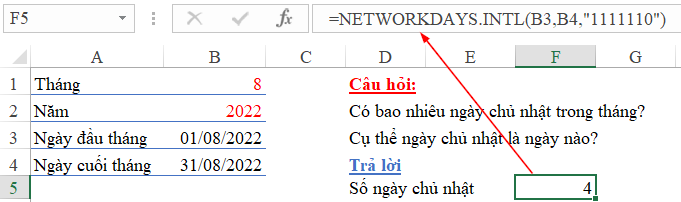 The result of the NETWORKDAYS.INTL formula showing the count of Sundays
Part 2: Listing the Specific Dates of Every Sunday
Knowing how many Sundays there are is useful, but for scheduling purposes, you usually need the specific dates (e.g., August 7, August 14). To achieve this, we need to construct a logical sequence. The most critical step is finding the first Sunday of the month. Once that anchor point is established, finding the rest is simple arithmetic.
Step 1: Finding the First Sunday
We need a formula that checks the Start Date (B3).
- If B3 is already a Sunday, we use B3.
- If B3 is not a Sunday, we calculate how many days need to be added to reach the next Sunday.
To do this, we use the WEEKDAY function. We will use the parameter 2 for the return type, which maps the days as follows: Monday = 1 through Sunday = 7.
The Logic:
- We calculate
7 - WEEKDAY(Date, 2). - Example: If the date is Monday (1),
7 - 1 = 6. We add 6 days to Monday to get Sunday. - Example: If the date is Saturday (6),
7 - 6 = 1. We add 1 day to Saturday to get Sunday. - Exception: If the date is Sunday (7),
7 - 7 = 0. However, simple math handles this, or we can use anIFstatement for clarity.
The Formula:
=B3 + IF(WEEKDAY(B3, 2)=7, 0, 7 - WEEKDAY(B3, 2))This formula effectively “fast-forwards” from the start of the month to the very first occurrence of a Sunday.
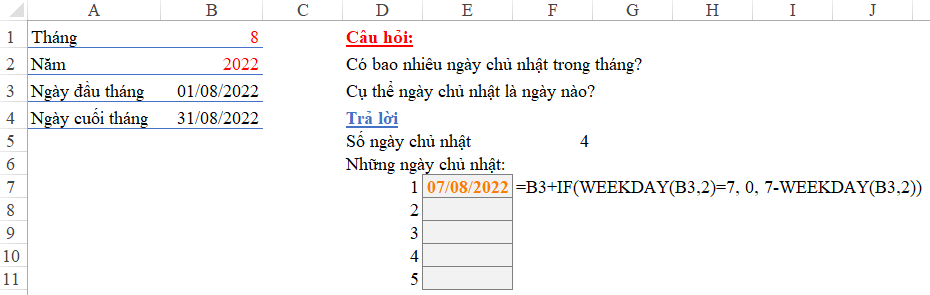 Excel screenshot displaying the calculated date of the first Sunday in the month
Step 2: Generating the Subsequent Sundays
Once you have the date of the first Sunday (let’s say it is calculated in cell D6), determining the remaining Sundays is straightforward. Since weeks are periodic, you simply need to add 7 days to the previous date.
- Second Sunday:
=D6 + 7 - Third Sunday:
=[Previous Sunday Cell] + 7
However, simply dragging this formula down might result in dates that spill over into the next month. To make your spreadsheet professional and error-proof, you should verify that the calculated date does not exceed the End Date (cell B4).
You can use a conditional formula for the subsequent rows:
=IF((D6 + 7) > $B$4, "", D6 + 7)This ensures that if the next Sunday falls in September (when you only want August), the cell remains blank.
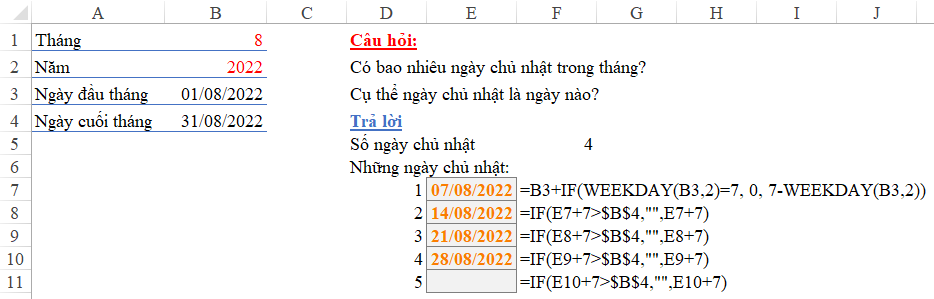 Final list showing all dates falling on Sunday within the selected month
Conclusion
Mastering date manipulation in Excel moves you beyond simple data entry and into the realm of automated reporting and planning. By using NETWORKDAYS.INTL, you can perform quick counts of specific weekdays without complex arrays. Furthermore, understanding the relationship between dates and integers allowing you to use WEEKDAY logic to dynamically generate schedules.
Whether you are planning shifts, tracking weekly milestones, or analyzing sales data by day of the week, these formulas provide a reliable foundation. We encourage you to apply these techniques to your own datasets to streamline your workflow.
References
- Microsoft Support: NETWORKDAYS.INTL function details.
- Microsoft Support: WEEKDAY function syntax and return types.
- TechCommunity: Advanced date calculations in Excel.













Discussion about this post