Thủ Thuật
  • TOP Thủ Thuật
    • Thủ Thuật Internet
    • Thủ Thuật Máy Tính
    • Thủ Thuật Tiện Ích
    • Thủ Thuật Phần Mềm
  • Chia Sẻ Kiến Thức
    • Học Excel
    • Học Word
    • Học Power Point
  • Games
  • Kênh Công Nghệ
  • Facebook
  • WordPress
  • SEO
No Result
View All Result
Thủ Thuật
  • TOP Thủ Thuật
    • Thủ Thuật Internet
    • Thủ Thuật Máy Tính
    • Thủ Thuật Tiện Ích
    • Thủ Thuật Phần Mềm
  • Chia Sẻ Kiến Thức
    • Học Excel
    • Học Word
    • Học Power Point
  • Games
  • Kênh Công Nghệ
  • Facebook
  • WordPress
  • SEO
No Result
View All Result
Thủ Thuật
No Result
View All Result
Home Chia Sẻ Kiến Thức Học Excel

How to Export File Names from a Folder to Excel: A Comprehensive Guide

How to Export File Names from a Folder to Excel: A Comprehensive Guide
6k
SHARES
19.5k
VIEWS
Share on Facebook

Nội Dung Bài Viết

Toggle
  • Method 1: The Browser Protocol Trick (No Code Required)
    • Step 1: Retrieve the Folder Path
    • Step 2: Access the Directory via Browser
    • Step 3: Transfer Data to Excel
  • Method 2: Advanced Automation using Excel VBA
    • Step 1: Access the Visual Basic Environment
    • Step 2: Implementing the Script
    • Step 3: Executing the Macro
    • Step 4: Reviewing the Output
  • Conclusion and Recommendations
  • References

For data analysts, administrative professionals, and tech enthusiasts, manually typing out a list of file names from a computer directory into a spreadsheet is an inefficient and error-prone task. Whether you are managing data archives, organizing project files, or creating an inventory of digital assets, automating this process is essential for productivity.

This article explores two distinct, effective methods to populate an Excel spreadsheet with file names directly from a Windows folder. We will cover a rapid “no-code” browser-based trick suitable for beginners, and an advanced Visual Basic for Applications (VBA) method for those seeking automation.

Method 1: The Browser Protocol Trick (No Code Required)

For users who need a quick, one-time list without configuring complex macros or installing third-party software, modern web browsers offer a surprising utility. Web browsers like Google Chrome, Mozilla Firefox, and Opera can interpret local file system directories using the file protocol, rendering them as copyable text.

This method works seamlessly across various versions of Microsoft Windows. It leverages the browser’s ability to act as a file viewer, presenting a structured list that Excel can easily interpret.

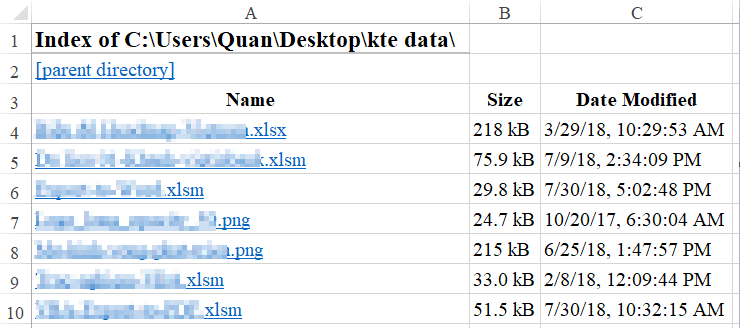
Spreadsheet showing a list of files imported from a directorySpreadsheet showing a list of files imported from a directory

Step 1: Retrieve the Folder Path

The first step involves locating the specific directory containing the files you wish to index. Precision is key here, as you need the exact system address of the folder.

Navigate to the desired folder using Windows File Explorer. Click inside the address bar at the top of the window to reveal the full path (e.g., C:UsersQuanDesktopkte data). Highlight this text and copy it to your clipboard.

Windows File Explorer address bar highlighted with a folder pathWindows File Explorer address bar highlighted with a folder path

Step 2: Access the Directory via Browser

Launch your preferred web browser. In the address bar (where you usually type URLs like google.com), paste the folder path you just copied and press Enter.

Xem thêm:  Tổng hợp Tên File trong Thư mục Google Drive vào Google Sheets

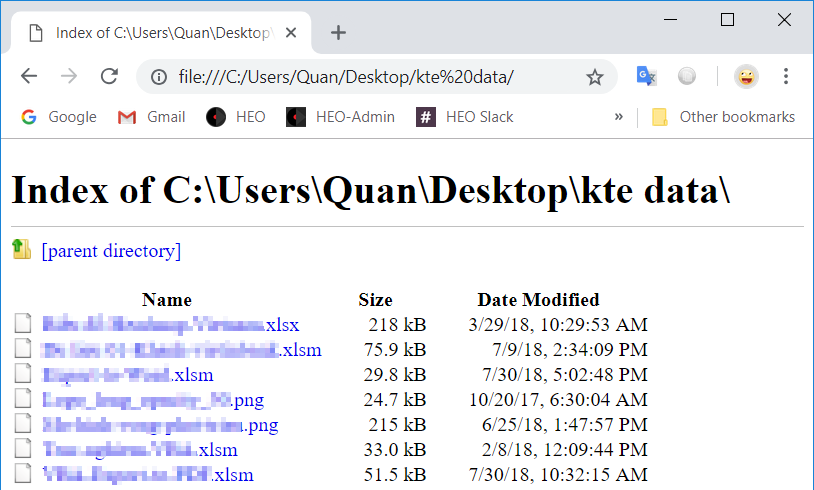
The browser will display an “Index of” page, listing all files contained within that folder as clickable hyperlinks. This view strips away the graphical interface of Windows Explorer, leaving raw text data that is perfect for Excel.

Google Chrome browser displaying the contents of a local directoryGoogle Chrome browser displaying the contents of a local directory

Step 3: Transfer Data to Excel

Once the file list is visible in your browser:

  1. Press Ctrl + A on your keyboard to select the entire page content.
  2. Press Ctrl + C to copy the selection.
  3. Open a new or existing Microsoft Excel worksheet.
  4. Select a cell (usually A1) and press Ctrl + V to paste.

Excel will automatically format the pasted data, placing the file names into rows. You may need to delete a few header rows (like “Name”, “Size”, “Date Modified”) depending on the browser used, but the core list will be accurate.

Animation showing the process of pasting data into an Excel sheetAnimation showing the process of pasting data into an Excel sheet

Technical Limitation: This method is strictly a “flat” listing tool. It will not retrieve files located inside sub-folders (directories within your main directory), nor will it provide advanced metadata in a separate column structure automatically.

Method 2: Advanced Automation using Excel VBA

For recurring tasks or when a more professional workflow is required, Visual Basic for Applications (VBA) is the industry standard. VBA allows you to write a script (macro) that interacts directly with the Windows File System Object (FSO).

This method is ideal for users who are comfortable navigating Excel’s backend developer tools. It provides a cleaner output and can be customized to include specific file extensions or additional properties.

Step 1: Access the Visual Basic Environment

To begin, you must access the Developer tools in Excel:

  1. Open your Excel workbook.
  2. Navigate to the Developer tab on the ribbon. (If hidden, you can enable it via Excel Options > Customize Ribbon).
  3. Click on the Visual Basic icon to open the VBA Editor.
  4. In the editor, go to Insert > Module to create a blank space for your code.
Xem thêm:  Hàm SUMIFS trong VBA Excel: Hướng Dẫn Chi Tiết

Step 2: Implementing the Script

At this stage, you would typically paste a specific VBA code block designed to loop through a folder. While the specific code block is customizable based on your needs (and can be found in various extensive documentation libraries online), the logic generally involves defining a Folder object and using a For Each loop to print the .Name property of every file into the active sheet.

Step 3: Executing the Macro

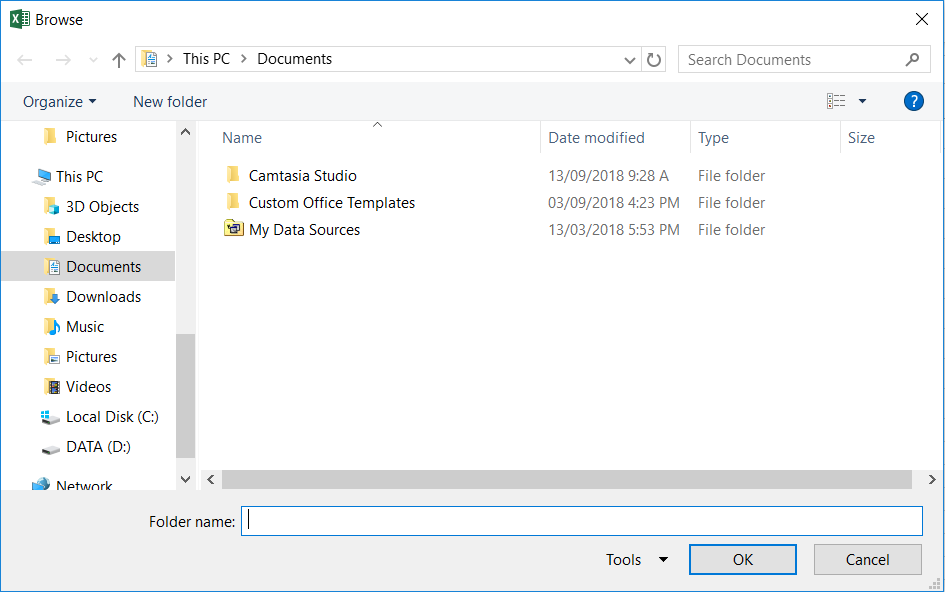
Once your code is in place, you can run the macro directly from the editor or assign it to a button. Upon execution, a standardized Windows dialog box will appear: “Please select a folder to list files from.”

This interactive element makes the script dynamic, allowing you to choose a different target folder every time you run the macro without rewriting the code.

Windows dialog box prompting the user to select a specific folderWindows dialog box prompting the user to select a specific folder

Step 4: Reviewing the Output

After selecting the folder and clicking OK, Excel will process the request. Within seconds, your spreadsheet will populate with the file names.

Technical Note: Similar to the browser method, a basic VBA script typically lists filenames. However, unlike the browser method, VBA is extensible. A skilled user can modify the script to recursively search sub-folders or extract file creation dates, providing a significant advantage for complex data management projects.

Conclusion and Recommendations

We have analyzed two primary techniques for extracting file lists from Windows directories into Microsoft Excel.

  • The Browser Method is best for Navigational and Informational intent where speed is the priority. It requires no technical setup and works universally across systems, making it ideal for one-off tasks.
  • The VBA Method suits Commercial or professional environments where precision, repeatability, and automation are valued. It transforms Excel into a powerful file management tool.

If you are a casual user needing a quick list, open Chrome or Firefox and use the drag-and-drop technique. However, if you are building a dashboard or managing large datasets regularly, investing time in setting up the VBA macro is the superior choice.

We invite you to try these methods and share your experiences. Does the browser trick save you time, or do you prefer the control of VBA?

References

  • Microsoft Support – Getting Started with VBA in Excel
  • Mozilla Developer Network (MDN) – File URIs and Protocols
  • TechCommunity – Excel File Management Best Practices
Đánh Giá Bài Viết
Tuyết Nhi

Tuyết Nhi

Tôi là Tuyết Nhi - Nữ phóng viên trẻ đến từ Hà Nội. Với niềm đam mê công nghệ, khoa học kỹ thuật, tôi yêu thích và muốn chia sẻ đến mọi người những trải nghiệm, kinh nghiệm về các lĩnh vực công nghệ, kỹ thuật... Rất mong được quý độc giả đón nhận ❤️.

Related Posts

How to Freeze Rows and Columns in Excel: A Comprehensive Guide (2025)
Học Excel

How to Freeze Rows and Columns in Excel: A Comprehensive Guide (2025)

Mastering the CONCATENATEX Function in Power BI: A Complete Guide
Học Excel

Mastering the CONCATENATEX Function in Power BI: A Complete Guide

How to Build an Automated Cash Book and Detailed Cash Accounting Book in Excel
Học Excel

How to Build an Automated Cash Book and Detailed Cash Accounting Book in Excel

How to Automatically Fit Excel Data to a Single A4 Page for Printing
Học Excel

How to Automatically Fit Excel Data to a Single A4 Page for Printing

Discussion about this post

Trending.

Trích Xuất Dữ Liệu từ Báo Cáo Power BI Đã Xuất Bản Trên Web

Trích Xuất Dữ Liệu từ Báo Cáo Power BI Đã Xuất Bản Trên Web

Hướng Dẫn Cách Livestream Trên Facebook Bằng Điện Thoại Và Máy Tính Đơn Giản, Sắc Nét Từ A-Z

Hướng Dẫn Cách Livestream Trên Facebook Bằng Điện Thoại Và Máy Tính Đơn Giản, Sắc Nét Từ A-Z

Download Your Uninstaller Pro 7.5 Full Key 2025 – Giải Pháp Gỡ Cài Đặt Phần Mềm Tận Gốc

Download Your Uninstaller Pro 7.5 Full Key 2025 – Giải Pháp Gỡ Cài Đặt Phần Mềm Tận Gốc

Day R Premium MOD APK: Sinh tồn hậu tận thế trên di động

Day R Premium MOD APK: Sinh tồn hậu tận thế trên di động

Hướng Dẫn Tích Hợp Akismet Vào Contact Form 7: Giải Pháp Chống Spam “Tàng Hình” Hiệu Quả Nhất

Hướng Dẫn Tích Hợp Akismet Vào Contact Form 7: Giải Pháp Chống Spam “Tàng Hình” Hiệu Quả Nhất

Giới Thiệu

Thủ Thuật

➤ Website đang trong quá trình thử nghiệm AI biên tập, mọi nội dung trên website chúng tôi không chịu trách nhiệm. Bạn hãy cân nhắc thêm khi tham khảo bài viết, xin cảm ơn!

Chuyên Mục

➤ TOP Thủ Thuật

➤ Chia Sẻ Kiến Thức

➤ Kênh Công Nghệ

➤ SEO

➤ Games

Liên Kết

➤ Ketquaxskt.com

➤ TOP Restaurants

➤ Here Restaurant

➤

➤

Liên Hệ

➤ TP. Hải Phòng, Việt Nam

➤ 0931. 910. JQK

➤ Email: [email protected]

Website này cũng cần quảng cáo, không có tiền thì viết bài làm sao  ” Đen Vâu – MTP ”

DMCA.com Protection Status

© 2025 Thủ Thuật - Website chia sẻ kiến thức công nghệ hàng đầu Việt Nam

No Result
View All Result
  • TOP Thủ Thuật
    • Thủ Thuật Internet
    • Thủ Thuật Máy Tính
    • Thủ Thuật Tiện Ích
    • Thủ Thuật Phần Mềm
  • Chia Sẻ Kiến Thức
    • Học Excel
    • Học Word
    • Học Power Point
  • Games
  • Kênh Công Nghệ
  • Facebook
  • WordPress
  • SEO

© 2025 Thủ Thuật - Website chia sẻ kiến thức công nghệ hàng đầu Việt Nam