

![[Excel Tutorial] How to Sum Values If Cells Contain Specific Text or Substrings](https://thuthuat.com.vn/wp-content/uploads/2025/04/Huong-dan-cach-tinh-tong-theo-cac-o-co-ky-tu-giong-nhau-trong-Excel.jpg "[Excel Tutorial] How to Sum Values If Cells Contain Specific Text or Substrings")
One of the most frequent questions we receive at Thủ Thuật concerns a common data handling scenario: How do you calculate a sum based on a condition where the criteria is merely a part of the cell’s content?
In standard Excel operations, exact matches are easy. However, real-world data is rarely clean. You might encounter an ID column where the code you need (e.g., “KD1”) is buried inside a longer string of characters, located randomly within the cell.
This article will guide you through three distinct methods to solve this problem, ranging from beginner-friendly helper columns to advanced array formulas. Whether you are a data analyst or an office administrator, mastering these techniques will significantly enhance your spreadsheet efficiency.
Understanding the Problem Scenario
Let’s look at a practical example to visualize the challenge. Suppose we have a sales dataset with two main columns: Employee ID and Revenue.
The challenge lies in the Employee ID column. The IDs are not uniform; they contain specific codes like “KD1” or “KD2”, but these codes are embedded within longer, inconsistent strings (e.g., “A-KD1-X”, “KD1-002”, “B-KD2”).
The Goal: We need to calculate the total revenue for all employees whose IDs contain “KD1” and separately for those containing “KD2”.
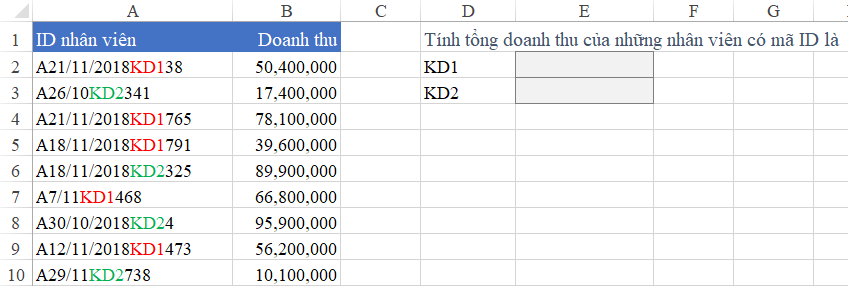 Screenshot of an Excel spreadsheet showing Employee IDs mixed with text and a Revenue column
Method 1: The Helper Column Approach (Beginner Friendly)
If you are not comfortable with complex nested formulas, breaking the problem down using a “Helper Column” is the best strategy. This method isolates the condition check from the summation, making the logic easier to trace and debug.
Step 1: Identify the Substring Location
Since the specific characters (KD1, KD2) are mixed within a text string, we first need to determine which cells contain them. We can use the SEARCH function combined with IFERROR.
Insert a new column next to your Revenue column. We will use the following logic:
- SEARCH: Looks for the value in cell C1 (“KD1”) inside cell A2. If found, it returns the position number. If not, it returns a
#VALUE!error. - IFERROR: Wraps the SEARCH function. If SEARCH returns an error (meaning the text wasn’t found), IFERROR will return 0.
The formula looks like this:
=IFERROR(SEARCH($C$1, A2), 0)
 Animation demonstrating the process of entering the SEARCH formula in Excel
By dragging this formula down, you create a column of numbers. Any result greater than 0 indicates a match found, while 0 indicates no match.
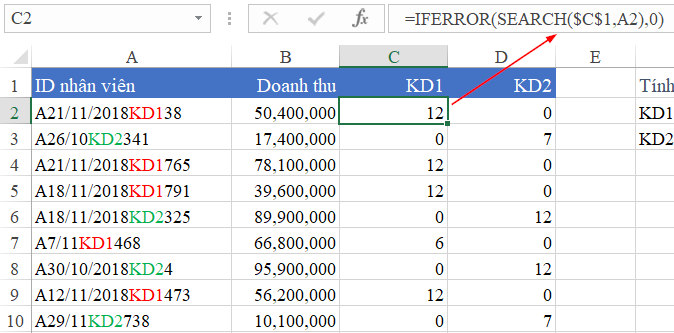 The result of the helper column showing numeric values for matches and 0 for non-matches
Step 2: Sum Based on the Helper Column
Now that the logic is simplified, we can use the standard SUMIF function. Instead of looking for text, we simply look for rows where our helper column is greater than 0.
The formula structure is:
=SUMIF(Range_Checking_Condition, ">0", Range_To_Sum)
Applying this to our example:
=SUMIF(C2:C10, ">0", B2:B10)
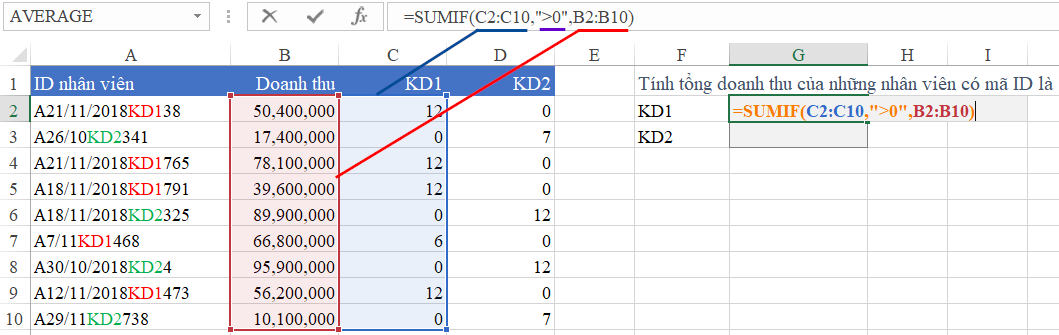 Using the SUMIF function to calculate total revenue based on the helper column results
This method is excellent for auditing data because you can visually verify which rows are being included in the sum.
Method 2: Direct Calculation using Wildcards (Efficient)
While helper columns are great for clarity, they clutter your spreadsheet. For a cleaner, more professional report, you can perform the calculation directly inside a single SUMIF or SUMIFS formula using Wildcards.
In Excel, the asterisk symbol (*) acts as a wildcard that represents “any number of characters.”
How to Construct the Formula
To tell Excel to look for “text containing KD1”, we essentially want to say: Find anything that has KD1, regardless of what comes before or after it.
The syntax is: "*KD1*"
When referencing a cell (like F3) instead of typing the text directly, we must concatenate the wildcards using the ampersand (&) symbol:
"*" & F3 & "*"
The full formula becomes:
=SUMIF(A2:A10, "*"&F3&"*", B2:B10)
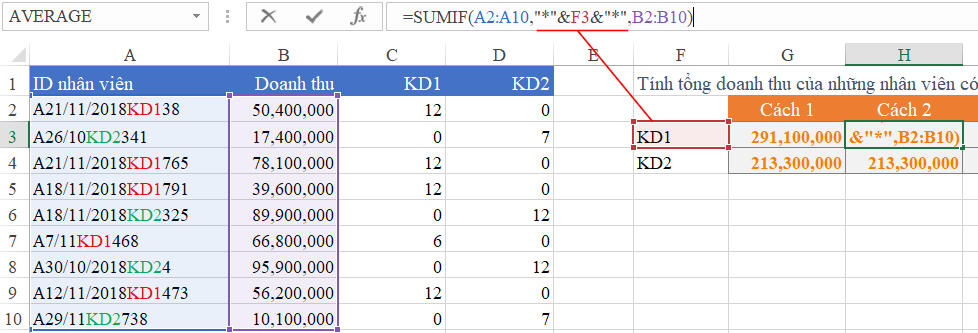 Excel spreadsheet showing the direct SUMIF formula using wildcards for partial matching
Formula Breakdown:
- Range (A2:A10): The list of Employee IDs containing mixed text.
- Criteria (“*”&F3&”*”): Adds asterisks around the value in F3. If F3 is “KD1”, Excel interprets this as “contains KD1”.
- Sum_range (B2:B10): The Revenue column to sum up.
Pro Tip: If you have multiple conditions (e.g., specific ID and specific region), switch to SUMIFS. The logic remains the same, but the argument order changes (Sum_range comes first):
=SUMIFS(B2:B10, A2:A10, "*"&F3&"*")
Method 3: Advanced Array Logic with SUMPRODUCT
For power users, SUMPRODUCT is a versatile function that can often replace SUMIF, COUNTIF, and other aggregation formulas. It is particularly useful when dealing with complex arrays or when working in older versions of Excel where SUMIFS might be limited.
However, there is a catch: SUMPRODUCT does not natively support wildcards like SUMIF does. You cannot simply use "*text*".
To make this work, we must replicate the logic used in Method 1 (Search + Check) but combine it into a single array formula.
The Logic Behind the Formula
We need to check the array of IDs, determine if the substring exists, and then multiply that result by the revenue.
The formula is:
=SUMPRODUCT(($B$2:$B$10) * (IFERROR(SEARCH(F3, $A$2:$A$10), 0) > 0))
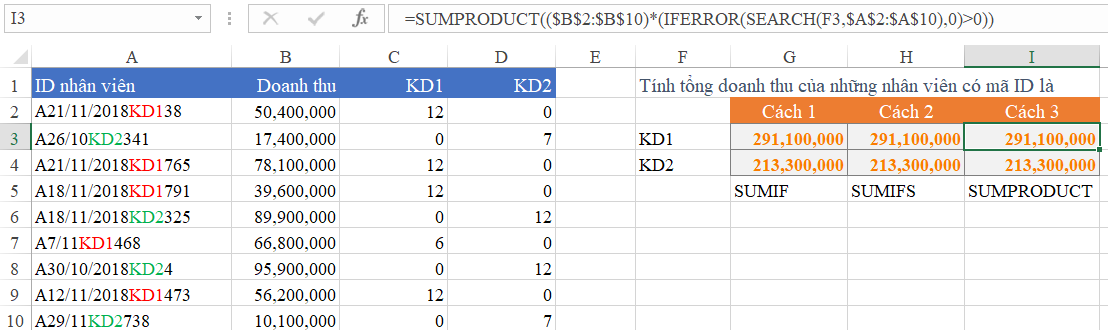 Using SUMPRODUCT combined with SEARCH and IFERROR to calculate conditional sums
Detailed Explanation:
SEARCH(F3, $A$2:$A$10): This searches for “KD1” across the entire range A2:A10 simultaneously. It returns an array of numbers (positions) and errors.IFERROR(..., 0): This converts the errors (where text wasn’t found) into 0s.... > 0: This converts the array into TRUE (match found) and FALSE (no match).- *Multiplication (``)**: In Excel math, TRUE equals 1 and FALSE equals 0.
- Row matches: Revenue * 1 = Revenue.
- Row does not match: Revenue * 0 = 0.
- Final Sum:
SUMPRODUCTadds up all these results.
Important Note: A common mistake is trying to write =SUMPRODUCT(B2:B10 * (A2:A10 = "*"&F3&"*")). This will return 0 because SUMPRODUCT interprets the wildcard literally as an asterisk character, not as a search command.
Conclusion
Calculating sums based on partial text matches is a vital skill for managing real-world data in Excel. We have explored three distinct ways to handle the “contains text” logic:
- Helper Column: Best for beginners and data auditing. It separates the “Search” logic from the “Sum” logic.
- SUMIF with Wildcards: The most efficient and standard method. Use
"*text*"to find matches anywhere in a cell. - SUMPRODUCT: The advanced method. It offers flexibility for complex array calculations but requires the
SEARCHfunction since it doesn’t support wildcards natively.
At Thủ Thuật, we recommend mastering the Wildcard (Method 2) approach for daily tasks due to its simplicity and speed. However, understanding the underlying logic of SUMPRODUCT will make you a much stronger Excel user in the long run.
Which method do you prefer for your data reports? Let us know in the comments below!
References
- Microsoft Support: SUMIF function
- TechCrunch: Excel Tips & Tricks
- The Verge: Productivity Software Guides












Discussion about this post