


In the realm of data management and office administration, professionals often encounter the tedious requirement of merging data from various disparate sources into a single, unified master table. While copy-pasting is an option for small datasets, it becomes inefficient and prone to errors when dealing with dynamic or large-scale reports.
Is there a specific function that can streamline this process rapidly? The answer lies within the versatile capabilities of Excel formulas. In this technical guide, “Thủ Thuật” will walk you through the advanced method of consolidating data from multiple tables into one using the powerful SUMPRODUCT function.
The Challenge: Merging Disparate Data Sources
Before diving into the solution, let’s analyze the specific problem we are trying to solve. Understanding the data structure is crucial for selecting the right technical approach.
Consider the following scenario: You have two separate small data tables, labeled Group 1 and Group 2. Both tables share a similar structure—listing products in rows and employees in columns—but they contain different data points. The objective is to map and aggregate this information into a consolidated Master Table based on two criteria: the Product Name and the Employee Name.
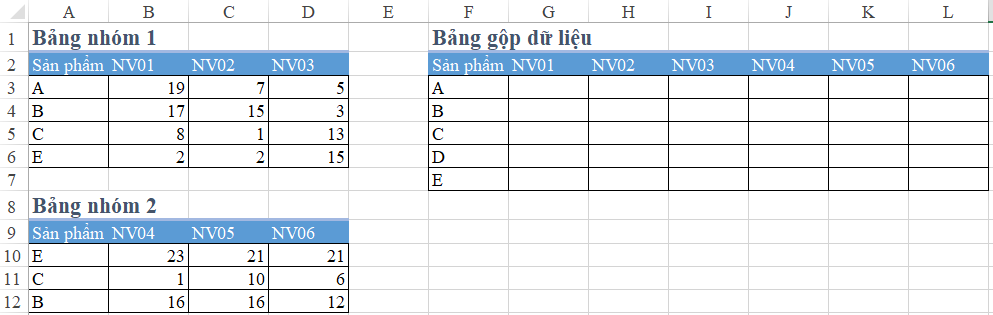 Excel spreadsheet showing two separate data tables for Group 1 and Group 2
In the illustration above, the data is fragmented. A standard VLOOKUP would fail here because it generally looks up a single value, whereas we need a two-dimensional lookup (Row and Column intersection) across multiple source ranges. This is where SUMPRODUCT shines.
Step-by-Step Guide to Consolidating Data
To achieve a seamless merge, we will employ a three-step process: defining named ranges for stability, establishing the calculation logic, and constructing the final matrix formula.
Step 1: Assigning Named Ranges
To make our formulas readable and easier to debug, we should avoid using raw cell references (like $A$3:$A$6). Instead, we will assign specific names to the relevant data ranges. This is a best practice in advanced Excel modeling.
We will define the ranges for Group 1 as follows:
- B1_Product: The range containing product names (e.g., A3:A6).
- B1_Staff: The range containing employee names (e.g., B2:D2).
- B1_Result: The data body containing the numerical values (e.g., B3:D6).
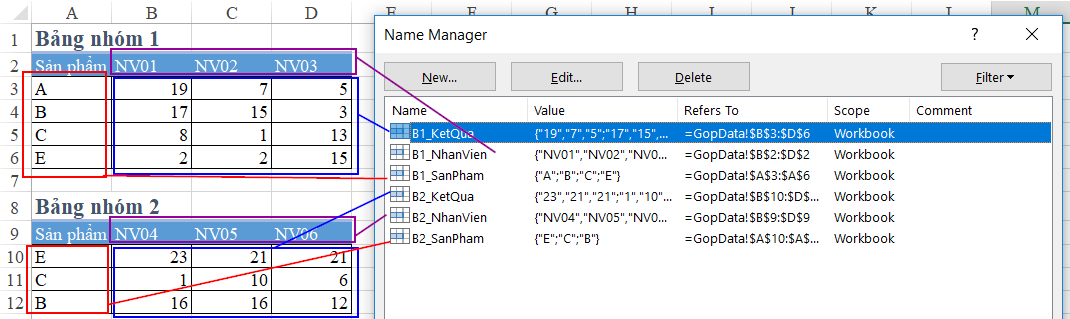 Defining specific named ranges for the first data group in Excel
You will repeat this process for Group 2 (creating names like B2_Product, B2_Staff, and B2_Result). By doing this, our formulas become semantic and much easier to write. Instead of tracking grid coordinates, we are logically asking Excel to look at “Products” and “Staff”.
 Animation demonstrating the workflow of selecting and naming ranges in Excel
Step 2: Determining the Calculation Logic
The logic for consolidation relies on a “Boolean” check. We need the formula to perform two distinct checks simultaneously:
- Row Check: Does the product name in the source table match the product name in the current row of the master table?
- Column Check: Does the employee name in the source table match the column header in the master table?
Since the data in Group 1 and Group 2 does not overlap for the exact same criteria (or if we want to sum them if they do), we can calculate the result for Group 1 and simply add it to the result for Group 2.
Step 3: Constructing the Master Formula
Now, we build the SUMPRODUCT formula. The syntax operates by multiplying arrays of True/False conditions (which Excel treats as 1s and 0s) against the data range.
The Formula for Group 1:
To extract data from the first table based on cell F3 (Product) and G2 (Staff), use:
=SUMPRODUCT((B1_Staff=G$2)*(B1_Product=$F3)*B1_Result)
How it works:
(B1_Staff=G$2): Creates an array of 1s and 0s identifying the correct column.(B1_Product=$F3): Creates an array of 1s and 0s identifying the correct row.B1_Result: The actual values.- Multiplying these arrays leaves only the value where both conditions are TRUE (11Value).
The Combined Formula:
To account for both tables, we copy the logic for Group 2 and add them together. Enter this formula in cell G3:
=SUMPRODUCT((B1_Staff=G$2)*(B1_Product=$F3)*B1_Result) + SUMPRODUCT((B2_Staff=G$2)*(B2_Product=$F3)*B2_Result)
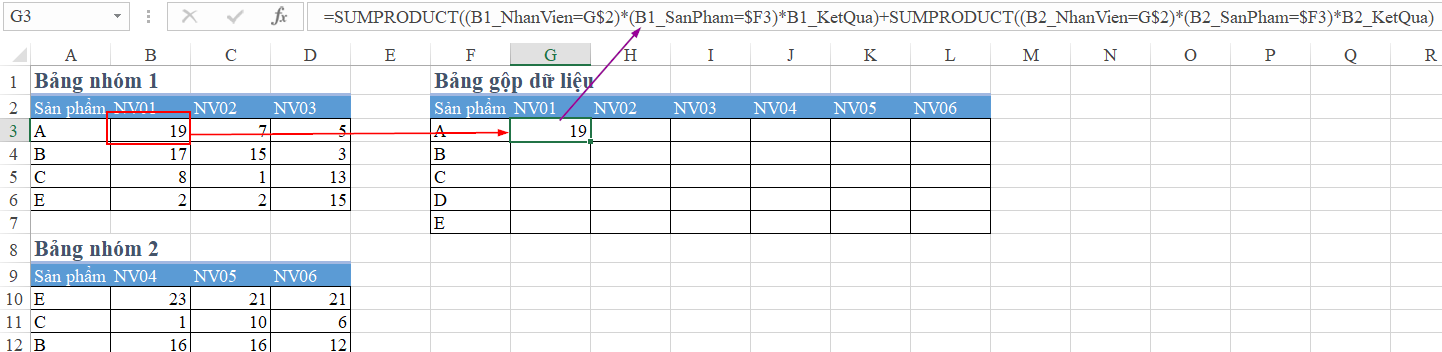 Screenshot of the formula bar showing the combined SUMPRODUCT calculation
Once the formula is entered in the first cell of your master table, you can utilize the Fill Handle to drag the formula across the remaining cells. Because we used absolute references for the named ranges and mixed references for the headers (G$2 and $F3), the formula will adjust dynamically for every cell in the grid.
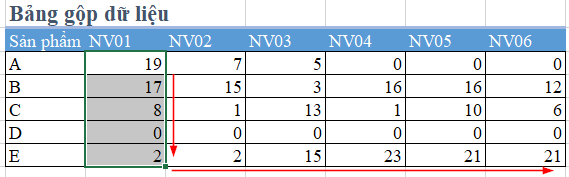 The complete master table populated with data after filling the formula
Conclusion
By mastering the SUMPRODUCT function, you have successfully merged data from two independent tables into a single, comprehensive report without using complex VBA scripts or manual copying. This method is highly scalable; whether you have two tables or ten, the logic remains the same—simply add the SUMPRODUCT array for each additional source.
This technique not only saves time but also ensures data integrity by eliminating human error during the transfer process. We encourage you to apply this logical framework to your own financial reports, inventory sheets, or HR dashboards.
Do you have other methods for merging complex data sets? Share your experiences or ask questions in the comments section below to join the discussion with the tech community at “Thủ Thuật”.













Discussion about this post