Thủ Thuật
  • TOP Thủ Thuật
    • Thủ Thuật Internet
    • Thủ Thuật Máy Tính
    • Thủ Thuật Tiện Ích
    • Thủ Thuật Phần Mềm
  • Chia Sẻ Kiến Thức
    • Học Excel
    • Học Word
    • Học Power Point
  • Games
  • Kênh Công Nghệ
  • Facebook
  • WordPress
  • SEO
No Result
View All Result
Thủ Thuật
  • TOP Thủ Thuật
    • Thủ Thuật Internet
    • Thủ Thuật Máy Tính
    • Thủ Thuật Tiện Ích
    • Thủ Thuật Phần Mềm
  • Chia Sẻ Kiến Thức
    • Học Excel
    • Học Word
    • Học Power Point
  • Games
  • Kênh Công Nghệ
  • Facebook
  • WordPress
  • SEO
No Result
View All Result
Thủ Thuật
No Result
View All Result
Home Chia Sẻ Kiến Thức Học Excel

Excel Online vs. Google Sheets: The Ultimate Cloud Spreadsheet Comparison for 2026

Excel Online vs. Google Sheets: The Ultimate Cloud Spreadsheet Comparison for 2026
6k
SHARES
19.5k
VIEWS
Share on Facebook

Nội Dung Bài Viết

Toggle
  • The Cloud Spreadsheet Landscape
  • Deep Dive: Excel Online Features
  • Deep Dive: Google Sheets Capabilities
  • Formatting Capabilities Compared
    • Structuring Data in Excel Online
    • Styling in Google Sheets
  • Critical Assessment: Pros and Cons
    • Excel Online Analysis
    • Google Sheets Analysis
  • Verdict
  • References

Choosing between Excel Online and Google Sheets is no longer just a matter of preference; it is a strategic decision for workflow optimization. In the modern digital workspace, the debate between Microsoft’s legacy powerhouse and Google’s cloud-native challenger is fierce. While both platforms offer robust solutions for data management, their underlying philosophies differ significantly. This analysis delves deep into the technical specifications, user experience, and feature sets of both tools to help you determine which platform aligns best with your productivity needs.

The Cloud Spreadsheet Landscape

At a fundamental level, both Excel Online and Google Sheets serve the same purpose: organizing data in rows and columns, performing calculations, and visualizing trends. However, the nuance lies in their execution. Excel Online is the web-based adaptation of the industry-standard desktop software, aiming to bring the familiar Microsoft ecosystem to the browser. Conversely, Google Sheets was built from the ground up for the web, prioritizing real-time collaboration and cloud agility. Understanding these core differences is essential for leveraging their full potential.

Deep Dive: Excel Online Features

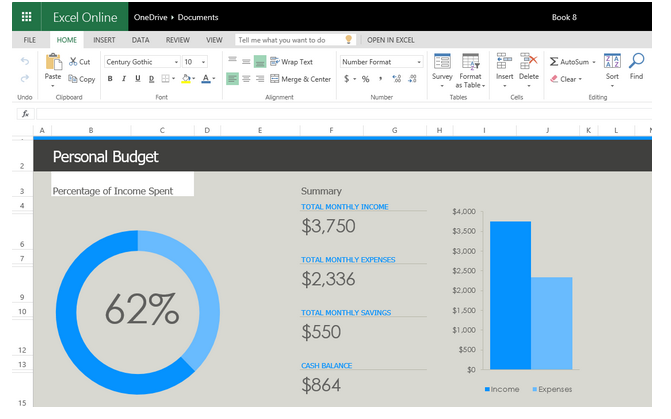
Excel Online excels in maintaining fidelity with its desktop counterpart. For users deeply entrenched in the Microsoft ecosystem, the transition is seamless. The platform retains the core logic of cell manipulation, making it incredibly intuitive for veteran Excel users.

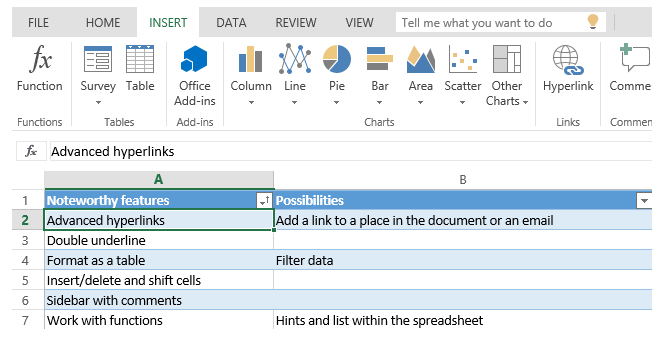
One of the standout capabilities is the handling of data movement. When inserting or deleting cells, Excel Online manages the shifting of existing data with precision, ensuring that complex models do not break. Furthermore, the integration of hyperlinks, specifically mail-to links and internal references, is streamlined. The “Cut and Paste” functionality mirrors the desktop experience, reducing the friction often associated with web-based apps. The familiar “Home” ribbon ensures that tools are exactly where you expect them to be.

Screenshot of the Excel Online interface highlighting the ribbon menu and cell manipulation toolsScreenshot of the Excel Online interface highlighting the ribbon menu and cell manipulation tools

Deep Dive: Google Sheets Capabilities

Google Sheets distinguishes itself with features designed specifically for dynamic web usage. It offers a suite of “Paste Special” options that are highly valued by data analysts, such as the ability to transpose data on the fly or paste values without carrying over borders—a frequent annoyance in other apps.

Xem thêm:  So sánh Chuỗi trong Excel: Hướng dẫn Chi Tiết

Technically, Google Sheets offers superior support for “Freeze Panes.” While available elsewhere, the implementation in Sheets is fluid, allowing users to lock multiple rows and columns effortlessly when dealing with massive datasets. For power users, the “Find and Replace” tool in Sheets is superior due to its support for Regular Expressions (Regex). This allows for complex pattern matching and bulk data cleaning that would otherwise require complex formulas.

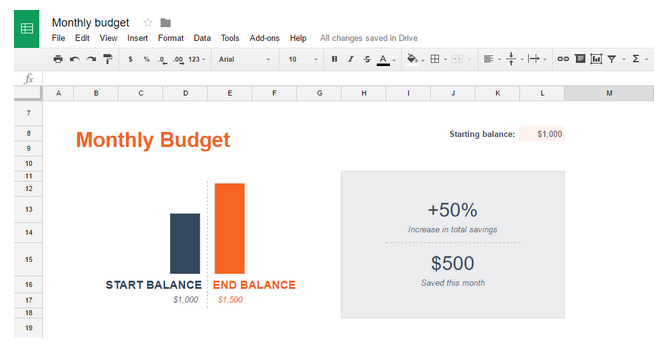
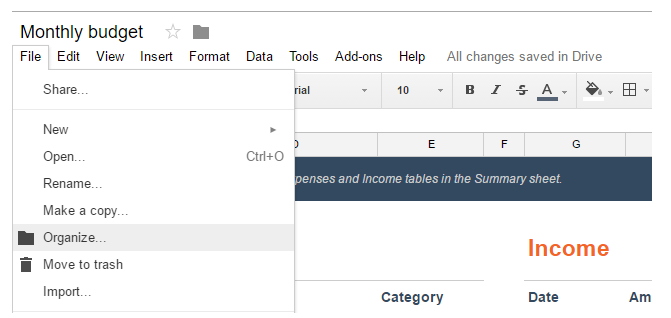
Interface display of Google Sheets showing menu options and collaborative toolsInterface display of Google Sheets showing menu options and collaborative tools

The interface of Google Sheets is often compared to the clean, functional simplicity of Excel 2003, featuring intuitive icons and dropdown menus that prioritize speed and accessibility over visual flair.

Formatting Capabilities Compared

While basic formatting (fonts, colors, borders) is standard across the board, the implementation of structural formatting reveals distinct design philosophies.

Structuring Data in Excel Online

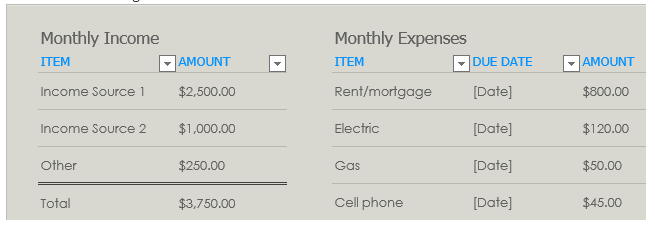
Excel Online leverages its “Format as Table” feature heavily. This is not just cosmetic; converting a range into a formal Table unlocks specific sorting and filtering capabilities. It automatically applies banded rows (alternating colors) and distinct headers, making data readability a priority. This structured approach is ideal for financial reports and official documentation.

Demonstration of table formatting options available in Excel OnlineDemonstration of table formatting options available in Excel Online

The visual feedback in Excel Online is designed to feel “heavy” and professional, reinforcing the sense of working within a robust enterprise environment.

Animation showing the process of selecting and formatting cells in a spreadsheetAnimation showing the process of selecting and formatting cells in a spreadsheet

Styling in Google Sheets

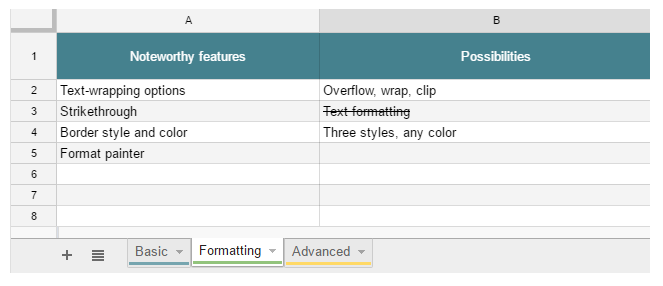
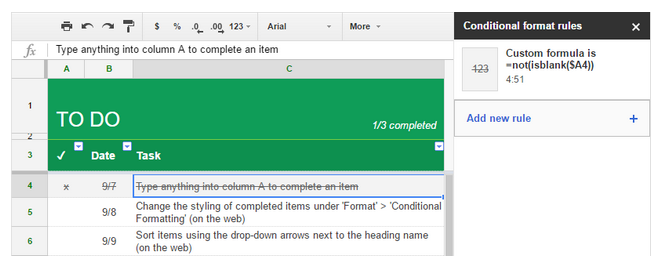
Google Sheets offers a more flexible, albeit manual, approach to styling. It provides extensive control over cell borders, offering various line styles and colors that can be applied to specific sides of a cell. Text wrapping and alignment tools are prominent, and the platform allows for “Strikethrough” formatting, which is useful for task lists.

A unique aesthetic feature in Sheets is the ability to color-code the sheet tabs at the bottom, allowing for quick visual navigation between different data categories within a single workbook.

Formatting toolbar in Google Sheets displaying border and text optionsFormatting toolbar in Google Sheets displaying border and text options

Critical Assessment: Pros and Cons

To make an informed decision, we must analyze the technical strengths and limitations of each platform based on real-world usage scenarios.

Excel Online Analysis

Advantages:

The primary strength of Excel Online is its ecosystem. It offers the highest compatibility level with Excel desktop files (.xlsx), ensuring that formatting and complex formulas render correctly. The formula suggestion engine is robust, drawing from decades of development.

Infographic listing the key advantages of using Excel OnlineInfographic listing the key advantages of using Excel Online

Furthermore, Excel Online handles comments and notes effectively, keeping them distinct. It supports a wide array of chart types that professional analysts rely on. The platform also supports Add-ins, allowing users to extend functionality through the Microsoft Store.

Xem thêm:  Master Microsoft Word Printing: All Pages, Single Page & Custom Ranges

Additional interface elements showing Excel Online extension capabilitiesAdditional interface elements showing Excel Online extension capabilities

Disadvantages:

However, Excel Online can feel sluggish. Users often report the need to reload the page to sync changes. It lacks some of the granular control found in the desktop version or Google Sheets, such as advanced sorting options and certain data validation rules. The filtering experience is often limited to formal Tables, which can be restrictive for quick data analysis.

Google Sheets Analysis

Advantages:

Google Sheets is the undisputed king of collaboration. Its Conditional Formatting is incredibly powerful and easier to apply than in Excel Online. It allows for protection at the sheet or specific range level, which is crucial for team environments.

Visual list of Google Sheets advantages focusing on collaborationVisual list of Google Sheets advantages focusing on collaboration

The platform integrates seamlessly with Google Forms and other Workspace apps. Its version control (Revision History) is granular, allowing you to revert to specific past states easily. The “Explore” button uses AI to generate instant insights and charts, democratizing data analysis.

Further advantages of Google Sheets regarding data handlingFurther advantages of Google Sheets regarding data handling

From a developer’s perspective, Google Sheets integrates with Google Apps Script (based on JavaScript), which is generally more accessible for modern web automation than VBA. It handles file management via Google Drive efficiently and is optimized for mobile devices.

Final set of Google Sheets advantages emphasizing ecosystem integrationFinal set of Google Sheets advantages emphasizing ecosystem integration

Disadvantages:

The main drawback is that Sheets can struggle with extremely large datasets (millions of cells), where Excel’s engine is superior. Additionally, while the formula list is extensive, it lacks some of the niche engineering and financial functions present in the Microsoft ecosystem.

Verdict

The choice between Excel Online and Google Sheets depends on your specific use case. If your workflow involves heavy collaboration, real-time editing with teams, and web-based automation, Google Sheets is the superior choice. Its agile nature and powerful sharing settings make it the modern standard for distributed teams.

Conversely, if you require absolute fidelity with legacy files, work with massive datasets that require the specific calculation engine of Microsoft, or prefer a structured “Table” environment, Excel Online is the better path. It serves as a reliable bridge between the desktop and the cloud.

Ultimately, proficiency in both tools is the mark of a true modern tech professional.

References

  • Microsoft Support. “Compare Excel features on different platforms.” Microsoft.com.
  • Google Workspace Learning Center. “Switching to Sheets from Microsoft Excel.” Google.com.
  • TechCrunch. “The evolution of cloud-based productivity tools.” TechCrunch.com.
Đánh Giá Bài Viết
Tuyết Nhi

Tuyết Nhi

Tôi là Tuyết Nhi - Nữ phóng viên trẻ đến từ Hà Nội. Với niềm đam mê công nghệ, khoa học kỹ thuật, tôi yêu thích và muốn chia sẻ đến mọi người những trải nghiệm, kinh nghiệm về các lĩnh vực công nghệ, kỹ thuật... Rất mong được quý độc giả đón nhận ❤️.

Related Posts

How to Generate Unique Random Numbers in Excel: A Comprehensive Guide
Học Excel

How to Generate Unique Random Numbers in Excel: A Comprehensive Guide

Master the Excel ERROR.TYPE Function to Categorize and Fix Formula Errors
Học Excel

Master the Excel ERROR.TYPE Function to Categorize and Fix Formula Errors

How to Print A5 Pages on A4 Paper: A Complete Guide
Học Excel

How to Print A5 Pages on A4 Paper: A Complete Guide

How to Create a Professional Plan vs. Actual Chart in Excel
Học Excel

How to Create a Professional Plan vs. Actual Chart in Excel

Discussion about this post

Trending.

Trích Xuất Dữ Liệu từ Báo Cáo Power BI Đã Xuất Bản Trên Web

Trích Xuất Dữ Liệu từ Báo Cáo Power BI Đã Xuất Bản Trên Web

Hướng Dẫn Cách Livestream Trên Facebook Bằng Điện Thoại Và Máy Tính Đơn Giản, Sắc Nét Từ A-Z

Hướng Dẫn Cách Livestream Trên Facebook Bằng Điện Thoại Và Máy Tính Đơn Giản, Sắc Nét Từ A-Z

World War 2: Strategy Games – Game Chiến Thuật Thế Chiến II Hấp Dẫn Trên Mobile

World War 2: Strategy Games – Game Chiến Thuật Thế Chiến II Hấp Dẫn Trên Mobile

Download Your Uninstaller Pro 7.5 Full Key 2025 – Giải Pháp Gỡ Cài Đặt Phần Mềm Tận Gốc

Download Your Uninstaller Pro 7.5 Full Key 2025 – Giải Pháp Gỡ Cài Đặt Phần Mềm Tận Gốc

Hướng dẫn Đọc Số thành Chữ trong Google Sheets với Add-on Docso

Hướng dẫn Đọc Số thành Chữ trong Google Sheets với Add-on Docso

Giới Thiệu

Thủ Thuật

➤ Website đang trong quá trình thử nghiệm AI biên tập, mọi nội dung trên website chúng tôi không chịu trách nhiệm. Bạn hãy cân nhắc thêm khi tham khảo bài viết, xin cảm ơn!

Chuyên Mục

➤ TOP Thủ Thuật

➤ Chia Sẻ Kiến Thức

➤ Kênh Công Nghệ

➤ SEO

➤ Games

Liên Kết

➤ Ketquaxskt.com

➤ TOP Restaurants

➤ Here Restaurant

➤

➤

Liên Hệ

➤ TP. Hải Phòng, Việt Nam

➤ 0931. 910. JQK

➤ Email: [email protected]

Website này cũng cần quảng cáo, không có tiền thì viết bài làm sao  ” Đen Vâu – MTP ”

DMCA.com Protection Status

© 2025 Thủ Thuật - Website chia sẻ kiến thức công nghệ hàng đầu Việt Nam

No Result
View All Result
  • TOP Thủ Thuật
    • Thủ Thuật Internet
    • Thủ Thuật Máy Tính
    • Thủ Thuật Tiện Ích
    • Thủ Thuật Phần Mềm
  • Chia Sẻ Kiến Thức
    • Học Excel
    • Học Word
    • Học Power Point
  • Games
  • Kênh Công Nghệ
  • Facebook
  • WordPress
  • SEO

© 2025 Thủ Thuật - Website chia sẻ kiến thức công nghệ hàng đầu Việt Nam