Thủ Thuật
  • TOP Thủ Thuật
    • Thủ Thuật Internet
    • Thủ Thuật Máy Tính
    • Thủ Thuật Tiện Ích
    • Thủ Thuật Phần Mềm
  • Chia Sẻ Kiến Thức
    • Học Excel
    • Học Word
    • Học Power Point
  • Games
  • Kênh Công Nghệ
  • Facebook
  • WordPress
  • SEO
No Result
View All Result
Thủ Thuật
  • TOP Thủ Thuật
    • Thủ Thuật Internet
    • Thủ Thuật Máy Tính
    • Thủ Thuật Tiện Ích
    • Thủ Thuật Phần Mềm
  • Chia Sẻ Kiến Thức
    • Học Excel
    • Học Word
    • Học Power Point
  • Games
  • Kênh Công Nghệ
  • Facebook
  • WordPress
  • SEO
No Result
View All Result
Thủ Thuật
No Result
View All Result
Home Chia Sẻ Kiến Thức Học Excel

Mastering the Excel LEFT Function: Advanced Combinations with SEARCH and LEN

Mastering the Excel LEFT Function: Advanced Combinations with SEARCH and LEN
6k
SHARES
19.5k
VIEWS
Share on Facebook

Nội Dung Bài Viết

Toggle
  • Understanding the Core Syntax
  • Dynamic Extraction: Combining LEFT and SEARCH
    • The Logic Behind the Formula
  • Data Type Conversion: Combining LEFT and LEN
  • Conclusion
  • References

In the realm of data management and spreadsheet optimization, the LEFT function stands as a fundamental tool for string manipulation. While it is widely recognized for extracting a fixed number of characters from the start of a text string, real-world data is rarely consistent enough for static extraction. This is where the true power of Excel lies: nesting formulas.

This guide by Thủ Thuật will elevate your Excel proficiency by demonstrating how to combine the LEFT function with SEARCH and LEN. These advanced techniques allow for dynamic data extraction and data type conversion, essential skills for anyone dealing with messy datasets.

Understanding the Core Syntax

Before diving into complex combinations, it is crucial to understand the base function. The LEFT function allows users to pull a specific number of characters from the left side of a string.

Syntax: LEFT(text, [num_chars])

  • text: The string containing the characters you want to extract.
  • num_chars: The number of characters you want to extract. If omitted, it defaults to 1.

However, the limitation arises when num_chars varies from row to row—such as extracting names of different lengths. This is where dynamic nesting becomes necessary.

Dynamic Extraction: Combining LEFT and SEARCH

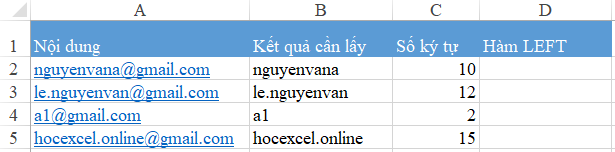
Consider a common scenario for data analysts: you have a column of email addresses, and you need to separate the username (the text before the “@” symbol) into a new column. Since every username has a different length, you cannot simply tell Excel to “take the first 5 characters.”

Xem thêm:  Nối Chuỗi Trong Excel: Hướng Dẫn Chi Tiết Từ Cơ Bản Đến Nâng Cao

Excel spreadsheet showing a column of raw email addresses for data extractionExcel spreadsheet showing a column of raw email addresses for data extraction

To solve this, we must determine the position of the separator (the “@” symbol) mathematically. We use the SEARCH function, which returns the position of a specific character as a number.

The Logic Behind the Formula

  1. Locate the Separator: Use SEARCH("@", cell_reference) to find which character number the “@” is.
  2. Adjust the Count: Since we do not want to include the “@” symbol itself in the result, we subtract 1 from that position.
  3. Extract: Feed that calculated number into the num_chars argument of the LEFT function.

The final syntax looks like this:
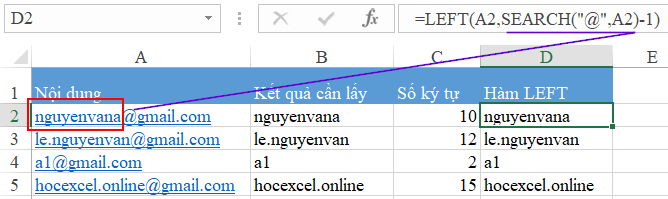
=LEFT(A2, SEARCH("@", A2) - 1)

By applying this formula, Excel dynamically calculates the length of the username for every single row, ensuring 100% accuracy regardless of how long or short the email address is.

Excel interface displaying the LEFT and SEARCH nested formula being applied to an email columnExcel interface displaying the LEFT and SEARCH nested formula being applied to an email column

In the example above:

  • A2 is the source text.
  • SEARCH finds the “@” at position 6.
  • The formula becomes LEFT(A2, 5), returning “admin”.

This method effectively automates text separation without the need for the “Text to Columns” feature, keeping your data dynamic and live.

Animation demonstrating the drag fill handle for Excel formulas to apply changes across multiple rowsAnimation demonstrating the drag fill handle for Excel formulas to apply changes across multiple rows

Data Type Conversion: Combining LEFT and LEN

Another sophisticated use case for the LEFT function is forcing a data type conversion from Number to Text. While Excel has formatting options for this, using formulas ensures the underlying data structure is changed, which is critical for lookup functions (like VLOOKUP) that require matching data types.

Xem thêm:  Hướng Dẫn Sử Dụng Hàm VLOOKUP Trả Về Mảng Giá Trị Trong Excel

To achieve this, we combine LEFT with the LEN function.

The Strategy:

  1. Use LEN(cell_reference) to count the total characters in the number.
  2. Use LEFT to extract that exact number of characters.

Because text functions (like LEFT, RIGHT, MID) always output text strings—even if the content looks like a number—the result is effectively converted to a text format.

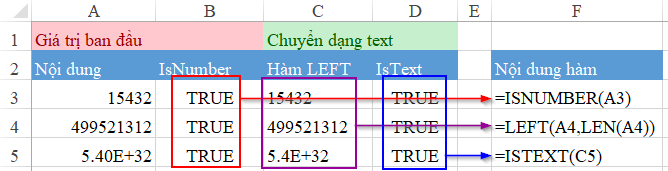
Comparison of number and text formats in Excel using the LEN function and validation checksComparison of number and text formats in Excel using the LEN function and validation checks

In the visualization above, you can see the difference in column alignment (numbers align right, text aligns left).

  • Column A: Contains raw numbers.
  • Column C: Uses =LEFT(A2, LEN(A2)).
  • Columns B & D: Use ISNUMBER and ISTEXT to verify the conversion.

This technique is particularly useful when preparing invoice numbers or IDs for database imports where leading zeros or text-matching is required.

Conclusion

Mastering the LEFT function goes beyond simple character extraction. By nesting it with SEARCH, you unlock the ability to handle variable-length strings like emails and URLs. By pairing it with LEN, you gain control over data types, ensuring your datasets are clean and compatible with other lookup functions.

These techniques represent the kind of efficiency and precision “Thủ Thuật” aims to bring to the Vietnamese tech community. We hope these Excel tips streamline your workflow. Do you have other creative ways to use the LEFT function? Share your experiences with us!

References

  • Microsoft Support: LEFT function (DAX)
  • Microsoft Support: SEARCH function
  • TechCommunity: Excel String Manipulation Best Practices
Đánh Giá Bài Viết
Tuyết Nhi

Tuyết Nhi

Tôi là Tuyết Nhi - Nữ phóng viên trẻ đến từ Hà Nội. Với niềm đam mê công nghệ, khoa học kỹ thuật, tôi yêu thích và muốn chia sẻ đến mọi người những trải nghiệm, kinh nghiệm về các lĩnh vực công nghệ, kỹ thuật... Rất mong được quý độc giả đón nhận ❤️.

Related Posts

How to Generate Unique Random Numbers in Excel: A Comprehensive Guide
Học Excel

How to Generate Unique Random Numbers in Excel: A Comprehensive Guide

Master the Excel ERROR.TYPE Function to Categorize and Fix Formula Errors
Học Excel

Master the Excel ERROR.TYPE Function to Categorize and Fix Formula Errors

How to Print A5 Pages on A4 Paper: A Complete Guide
Học Excel

How to Print A5 Pages on A4 Paper: A Complete Guide

How to Create a Professional Plan vs. Actual Chart in Excel
Học Excel

How to Create a Professional Plan vs. Actual Chart in Excel

Discussion about this post

Trending.

Trích Xuất Dữ Liệu từ Báo Cáo Power BI Đã Xuất Bản Trên Web

Trích Xuất Dữ Liệu từ Báo Cáo Power BI Đã Xuất Bản Trên Web

Hướng Dẫn Cách Livestream Trên Facebook Bằng Điện Thoại Và Máy Tính Đơn Giản, Sắc Nét Từ A-Z

Hướng Dẫn Cách Livestream Trên Facebook Bằng Điện Thoại Và Máy Tính Đơn Giản, Sắc Nét Từ A-Z

World War 2: Strategy Games – Game Chiến Thuật Thế Chiến II Hấp Dẫn Trên Mobile

World War 2: Strategy Games – Game Chiến Thuật Thế Chiến II Hấp Dẫn Trên Mobile

Download Your Uninstaller Pro 7.5 Full Key 2025 – Giải Pháp Gỡ Cài Đặt Phần Mềm Tận Gốc

Download Your Uninstaller Pro 7.5 Full Key 2025 – Giải Pháp Gỡ Cài Đặt Phần Mềm Tận Gốc

Hướng dẫn Đọc Số thành Chữ trong Google Sheets với Add-on Docso

Hướng dẫn Đọc Số thành Chữ trong Google Sheets với Add-on Docso

Giới Thiệu

Thủ Thuật

➤ Website đang trong quá trình thử nghiệm AI biên tập, mọi nội dung trên website chúng tôi không chịu trách nhiệm. Bạn hãy cân nhắc thêm khi tham khảo bài viết, xin cảm ơn!

Chuyên Mục

➤ TOP Thủ Thuật

➤ Chia Sẻ Kiến Thức

➤ Kênh Công Nghệ

➤ SEO

➤ Games

Liên Kết

➤ Ketquaxskt.com

➤ TOP Restaurants

➤ Here Restaurant

➤

➤

Liên Hệ

➤ TP. Hải Phòng, Việt Nam

➤ 0931. 910. JQK

➤ Email: [email protected]

Website này cũng cần quảng cáo, không có tiền thì viết bài làm sao  ” Đen Vâu – MTP ”

DMCA.com Protection Status

© 2025 Thủ Thuật - Website chia sẻ kiến thức công nghệ hàng đầu Việt Nam

No Result
View All Result
  • TOP Thủ Thuật
    • Thủ Thuật Internet
    • Thủ Thuật Máy Tính
    • Thủ Thuật Tiện Ích
    • Thủ Thuật Phần Mềm
  • Chia Sẻ Kiến Thức
    • Học Excel
    • Học Word
    • Học Power Point
  • Games
  • Kênh Công Nghệ
  • Facebook
  • WordPress
  • SEO

© 2025 Thủ Thuật - Website chia sẻ kiến thức công nghệ hàng đầu Việt Nam