Thủ Thuật
  • TOP Thủ Thuật
    • Thủ Thuật Internet
    • Thủ Thuật Máy Tính
    • Thủ Thuật Tiện Ích
    • Thủ Thuật Phần Mềm
  • Chia Sẻ Kiến Thức
    • Học Excel
    • Học Word
    • Học Power Point
  • Games
  • Kênh Công Nghệ
  • Facebook
  • WordPress
  • SEO
No Result
View All Result
Thủ Thuật
  • TOP Thủ Thuật
    • Thủ Thuật Internet
    • Thủ Thuật Máy Tính
    • Thủ Thuật Tiện Ích
    • Thủ Thuật Phần Mềm
  • Chia Sẻ Kiến Thức
    • Học Excel
    • Học Word
    • Học Power Point
  • Games
  • Kênh Công Nghệ
  • Facebook
  • WordPress
  • SEO
No Result
View All Result
Thủ Thuật
No Result
View All Result
Home Chia Sẻ Kiến Thức Học Excel

Mastering VAT Invoice Rounding in Excel: A Comprehensive Guide to Eliminating Calculation Errors

Mastering VAT Invoice Rounding in Excel: A Comprehensive Guide to Eliminating Calculation Errors
6k
SHARES
19.5k
VIEWS
Share on Facebook

Nội Dung Bài Viết

Toggle
  • Critical Principles for VAT Invoice Accuracy
    • 1. Chronological and Procedural Integrity
    • 2. Precision in Customer Information
    • 3. Monetary Consistency and Rounding Rules
  • Method 1: The Forward Calculation Approach
  • Method 2: The Backward Calculation Approach
    • The “Double Rounding” Trap
    • The Subtraction Method Solution
  • Conclusion
  • References

Creating a Value Added Tax (VAT) invoice—often referred to as a “Red Invoice” or GTGT invoice in Vietnam—is a critical task for accountants and business owners. One of the most persistent frustrations in this process is the “rounding error.” Small discrepancies in decimal points can lead to a mismatch between the calculated tax amount and the total payable sum, especially when automatic rounding is applied.

These minor deviations, sometimes just a single currency unit (like 1 VND), can invalidate an invoice, requiring tedious administrative adjustments. This article provides a technical deep dive into the logic of rounding numbers on VAT invoices using Microsoft Excel, ensuring your financial documents are compliant and mathematically precise.

Critical Principles for VAT Invoice Accuracy

Before diving into the Excel functions, it is essential to understand the regulatory and technical framework governing VAT invoices. An invoice is not just a request for payment; it is a legal document that must adhere to strict accounting standards.

1. Chronological and Procedural Integrity

Invoices must be issued sequentially. The timing of the invoice is strictly controlled and monitored through usage reports submitted to tax authorities (monthly or quarterly). The date on the invoice must align with the revenue recognition principles stipulated in the contract. A disruption in the sequence or a date mismatch can trigger an audit or penalties.

2. Precision in Customer Information

Accuracy extends beyond numbers. For individual buyers, the “Customer Name” field is paramount. For organizational buyers, the “Company Name” must match their business registration exactly. Address fields must be granular, explicitly stating the house number, ward/commune, district, and province/city. Any vagueness here can render the invoice invalid for tax deduction purposes.

3. Monetary Consistency and Rounding Rules

This is the technical core of the issue. When selling goods or services, the invoice must clearly detail the unit, quantity, unit price, and total amount.

The challenge arises in two scenarios:

  • Forward Calculation: Calculating tax based on a net price.
  • Backward Calculation: Deriving the net price and tax from a gross (tax-inclusive) total.

If the rounding logic is inconsistent, the sum of Net Price + Tax will not equal the Total Amount. To mitigate this, accountants should always draft invoices in Excel first, utilizing specific rounding functions to verify data before issuing the official document.

Xem thêm:  Chuyển Đổi Định Dạng Số Từ Text Sang Number Trong Excel

Method 1: The Forward Calculation Approach

The “Forward Calculation” is the standard method used for most retail and wholesale transactions where the unit price is fixed before tax.

The Logic:

  1. Amount = Quantity × Unit Price
  2. VAT Amount = Amount × Tax Rate
  3. Total Payable = Amount + VAT Amount

In this scenario, rounding usually applies to the VAT Amount to ensure the final figure does not contain decimal values (which are invalid in many currencies like VND).

Case Study:
Consider an invoice with the following line items and a 10% VAT rate:

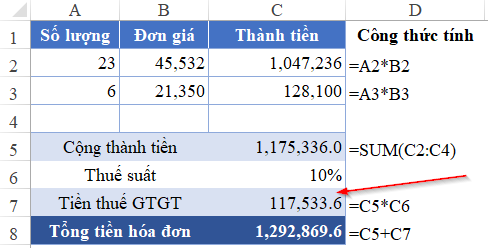
  • Item 1: Quantity: 23, Unit Price: 45,532
  • Item 2: Quantity: 6, Unit Price: 21,350

Below is the raw data input into Excel before any formulas are applied:

Excel spreadsheet displaying raw data for VAT calculation with Quantity and Unit Price columnsExcel spreadsheet displaying raw data for VAT calculation with Quantity and Unit Price columns

If we simply multiply Amount * 10%, the resulting tax might contain decimals (e.g., 117,533.6). You cannot list 0.6 currency units on a standard invoice. Therefore, we must use the ROUND function.

The Solution:
Instead of a simple multiplication, wrap your formula in the ROUND function to eliminate decimals immediately.

  • Formula: =ROUND(Number, Num_digits)
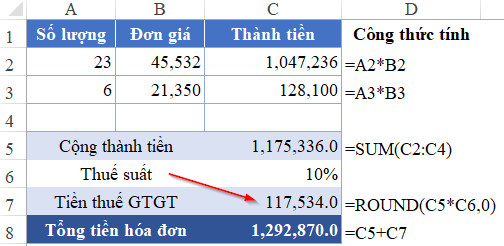
  • Applied to Tax: =ROUND(C5*C6, 0)

By setting the number of digits to 0, Excel rounds the value to the nearest whole integer.

Excel table showing the result of the ROUND function applied to the VAT calculationExcel table showing the result of the ROUND function applied to the VAT calculation

As seen in the result above, the tax amount is now a clean integer, ensuring the total payable amount is exact and valid. This method is straightforward because the flow of calculation moves linearly from left to right.

Animated GIF illustrating a successful Excel operation or task completionAnimated GIF illustrating a successful Excel operation or task completion

Method 2: The Backward Calculation Approach

The “Backward Calculation” (or Reverse Calculation) is more complex and prone to errors. This scenario occurs when a contract stipulates a fixed total price inclusive of tax, and the accountant must reverse-engineer the net price and the tax amount.

The Logic:

  • Total (Gross) is known.
  • Tax Rate is known (e.g., 10%).
  • Net Price = Total / (1 + Tax Rate).

Case Study:

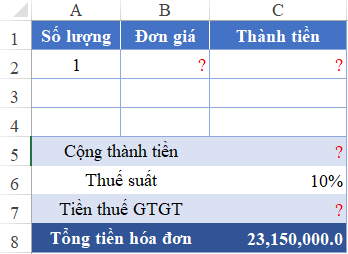
  • Total Payment: 23,150,000 (Tax inclusive).
  • VAT Rate: 10%.
  • Goal: Determine the Pre-tax Amount and the Tax Amount.
Xem thêm:  Mảng Lồng (Nested Array) trong Excel: So Sánh Xử Lý Giữa Công Thức Mảng Cũ và Mảng Động

First, let’s look at the mathematical setup in Excel:

Excel spreadsheet setup for reverse calculating VAT from a total inclusive amountExcel spreadsheet setup for reverse calculating VAT from a total inclusive amount

Mathematically, if DG is the pre-tax value:

  • Total = DG + (DG × 10%)
  • Total = DG × 1.1
  • Therefore, DG = Total / 1.1

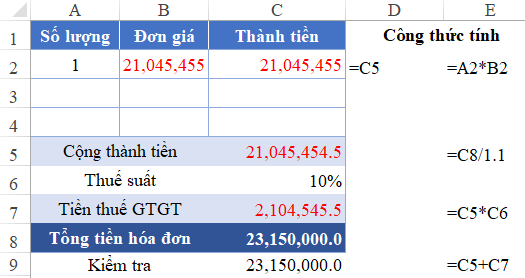
In Excel terms, the formula for the pre-tax amount is =Total / 1.1.

Excel spreadsheet showing the raw decimal results of dividing the total amount by 1.1Excel spreadsheet showing the raw decimal results of dividing the total amount by 1.1

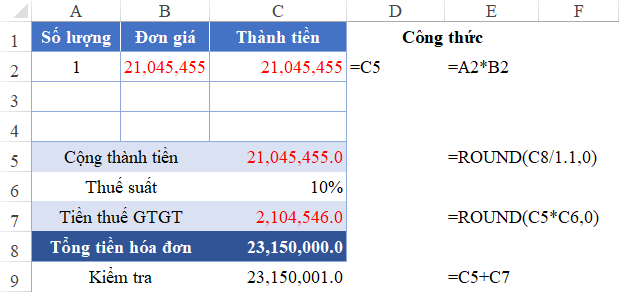
The “Double Rounding” Trap

The problem arises when both the calculated Pre-tax Amount and the Tax Amount result in infinite or long decimal numbers. A common mistake is to apply the ROUND function independently to both cells.

If you round the Pre-tax Amount UP and also round the Tax Amount UP, the sum of these two rounded numbers may exceed the original Total Amount by 1 unit.

Excel comparison showing a discrepancy of 1 unit due to independent roundingExcel comparison showing a discrepancy of 1 unit due to independent rounding

In the image above, notice how the sum of the components does not equal the original 23,150,000. It is off by 1 unit. This is unacceptable for tax reporting.

The Subtraction Method Solution

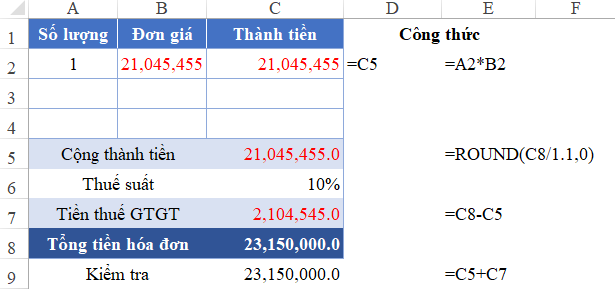
To guarantee that A + B = C, you cannot independently round A and B. You must calculate one variable, round it, and then obtain the second variable by subtracting the first from the total.

Step-by-Step Fix:

  1. Calculate Pre-tax Amount: Use the ROUND function here.
    • =ROUND(Total / 1.1, 0)
  2. Calculate Tax Amount: Do not use multiplication. Instead, use subtraction.
    • Tax = Total - Rounded Pre-tax Amount

By forcing the Tax Amount to be the difference between the Total and the Pre-tax Amount, you mathematically force the equation to balance. Even if the Pre-tax amount was rounded up, the Tax amount effectively “rounds down” to compensate, ensuring the total matches exactly.

Final Excel table showing the correct results using the subtraction methodFinal Excel table showing the correct results using the subtraction method

This technique is often called the “plug” method in accounting, where one variable is adjusted to ensure the balance sheet zeroes out.

Conclusion

Precision in VAT invoicing is not merely a preference; it is a compliance requirement. While Excel is a powerful tool, relying on its default display settings can lead to hidden decimal errors that manifest as financial discrepancies.

By mastering the two core methods—using the ROUND function for forward calculations and the Subtraction Method for backward calculations—you can eliminate the dreaded 1-unit error. These techniques ensure that your “Red Invoices” are always accurate, professional, and compliant with tax authority standards.

References

  • Microsoft Support. (n.d.). ROUND function. Retrieved from Microsoft.com
  • General Department of Taxation of Vietnam. (n.d.). Regulations on Invoices and Documents.
  • Investopedia. (2023). Value-Added Tax (VAT) Definition.
Đánh Giá Bài Viết
Tuyết Nhi

Tuyết Nhi

Tôi là Tuyết Nhi - Nữ phóng viên trẻ đến từ Hà Nội. Với niềm đam mê công nghệ, khoa học kỹ thuật, tôi yêu thích và muốn chia sẻ đến mọi người những trải nghiệm, kinh nghiệm về các lĩnh vực công nghệ, kỹ thuật... Rất mong được quý độc giả đón nhận ❤️.

Related Posts

How to Generate Unique Random Numbers in Excel: A Comprehensive Guide
Học Excel

How to Generate Unique Random Numbers in Excel: A Comprehensive Guide

Master the Excel ERROR.TYPE Function to Categorize and Fix Formula Errors
Học Excel

Master the Excel ERROR.TYPE Function to Categorize and Fix Formula Errors

How to Print A5 Pages on A4 Paper: A Complete Guide
Học Excel

How to Print A5 Pages on A4 Paper: A Complete Guide

How to Create a Professional Plan vs. Actual Chart in Excel
Học Excel

How to Create a Professional Plan vs. Actual Chart in Excel

Discussion about this post

Trending.

Trẻ 2 Tuổi Có Nên Uống Sữa Milo Không?

Trẻ 2 Tuổi Có Nên Uống Sữa Milo Không?

Share Acc The Battle Cats Miễn Phí Mới Nhất 2025: Full Uber Rare & Cat Food

Share Acc The Battle Cats Miễn Phí Mới Nhất 2025: Full Uber Rare & Cat Food

Hướng Dẫn Tích Hợp Akismet Vào Contact Form 7: Giải Pháp Chống Spam “Tàng Hình” Hiệu Quả Nhất

Hướng Dẫn Tích Hợp Akismet Vào Contact Form 7: Giải Pháp Chống Spam “Tàng Hình” Hiệu Quả Nhất

How to Generate Unique Random Numbers in Excel: A Comprehensive Guide

How to Generate Unique Random Numbers in Excel: A Comprehensive Guide

Mastering Official Document and Contract Management on Excel: A Comprehensive Guide

Mastering Official Document and Contract Management on Excel: A Comprehensive Guide

Giới Thiệu

Thủ Thuật

➤ Website đang trong quá trình thử nghiệm AI biên tập, mọi nội dung trên website chúng tôi không chịu trách nhiệm. Bạn hãy cân nhắc thêm khi tham khảo bài viết, xin cảm ơn!

Chuyên Mục

➤ TOP Thủ Thuật

➤ Chia Sẻ Kiến Thức

➤ Kênh Công Nghệ

➤ SEO

➤ Games

Liên Kết

➤ Ketquaxskt.com

➤ TOP Restaurants

➤ Here Restaurant

➤

➤

Liên Hệ

➤ TP. Hải Phòng, Việt Nam

➤ 0931. 910. JQK

➤ Email: [email protected]

Website này cũng cần quảng cáo, không có tiền thì viết bài làm sao  ” Đen Vâu – MTP ”

DMCA.com Protection Status

© 2025 Thủ Thuật - Website chia sẻ kiến thức công nghệ hàng đầu Việt Nam

No Result
View All Result
  • TOP Thủ Thuật
    • Thủ Thuật Internet
    • Thủ Thuật Máy Tính
    • Thủ Thuật Tiện Ích
    • Thủ Thuật Phần Mềm
  • Chia Sẻ Kiến Thức
    • Học Excel
    • Học Word
    • Học Power Point
  • Games
  • Kênh Công Nghệ
  • Facebook
  • WordPress
  • SEO

© 2025 Thủ Thuật - Website chia sẻ kiến thức công nghệ hàng đầu Việt Nam