


Managing large datasets effectively is a cornerstone of modern data analysis. One of the most frequent challenges users face—whether they are data analysts, accountants, or administrative professionals—is the need to compare two columns in Excel. You might need to identify missing entries, highlight matching records, or clean up a database by removing duplicates.
While Excel is a powerhouse for data manipulation, finding overlaps between two lists manually is time-consuming and prone to human error. Whether your data resides in the same worksheet or spans across different tabs, mastering the automated methods for comparison is essential for productivity.
This comprehensive guide will demonstrate how to compare two columns to find duplicates using flexible formulas, highlight them for visual analysis, and remove them safely to ensure data integrity.
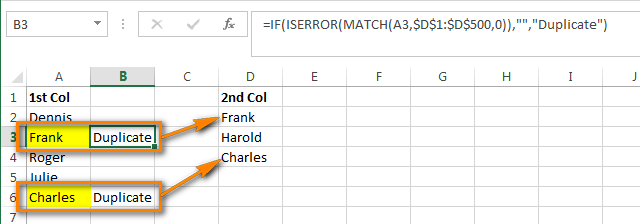 Excel spreadsheet showing two columns being compared for duplicates
Understanding the Data Scenarios
Before diving into the formulas, it is crucial to understand the structure of your data. The approach varies slightly depending on whether your columns are adjacent, on the same sheet, or on entirely different worksheets.
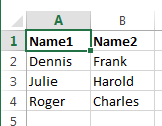
Imagine you have two lists of names: Column A (Source List) and Column B (Target List). Your goal is to determine which names in Column A also exist in Column B. In real-world scenarios, these lists often contain thousands of entries, making manual checking impossible.
Scenario A: Columns on the Same Worksheet
The most common situation is having both datasets side-by-side or separated by other columns within the same active sheet. This setup allows for the quickest comparison setup.
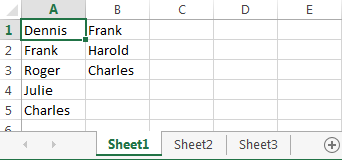 Side-by-side columns on a single Excel worksheet
Scenario B: Columns on Different Worksheets
In more complex databases, your reference data (Column B) might be stored on a separate sheet (e.g., Sheet3) to keep the main view clean. Excel formulas can easily reference data across different tabs, provided the syntax is correct.
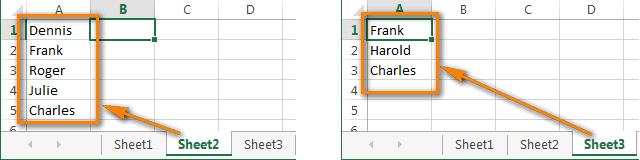 Two columns located on separate Excel worksheets
Method 1: Finding Duplicates Using Formulas
The most robust method to compare two columns is using a combination of the IF, ISERROR, and MATCH functions. This method creates a “helper column” that explicitly tells you the status of each entry.
Step-by-Step Implementation
To begin, ensure your data is clean. In this example, we will look for items in Column A that also appear in Column B.
Select a helper cell: Click on the first empty cell adjacent to your data (e.g., C1).
Enter the formula: Type the following formula to check for matches:
=IF(ISERROR(MATCH(A1,$B$1:$B$10000,0)),"Unique","Duplicate")
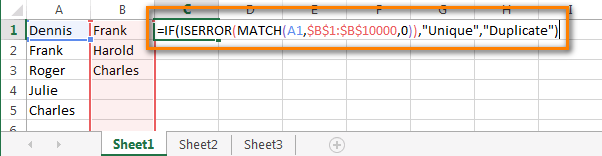 Excel formula syntax for comparing two columns
Breakdown of the Formula:
MATCH(A1,$B$1:$B$10000,0): This searches for the value of A1 within the range B1 to B10000. The0specifies an exact match.ISERROR(...): IfMATCHfinds nothing, it returns an error.ISERRORreturns TRUE if there is an error (meaning the value is unique) and FALSE if a match is found.IF(...): This translates the result into human-readable text: “Unique” or “Duplicate”.
Note: You can customize the output text. For instance, replace “Unique” with “” (blank) if you only want to see the duplicates.
Replicating the Formula
Once the formula is entered in the first cell, you need to apply it to the rest of your dataset.
Hover your mouse cursor over the bottom-right corner of cell C1. The cursor will change from a white cross to a thin black cross (the Fill Handle).
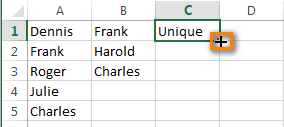 Mouse cursor changing to a fill handle on the cell corner
Click and drag the handle down to the bottom of your dataset, or simply double-click the fill handle to automatically fill down to the last row of data.
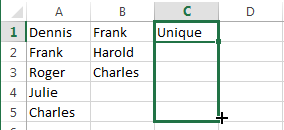 Dragging the formula down to cover all rows
Pro Tip for Power Users:
For massive datasets, dragging can be slow. Instead, select cell C1, press Ctrl + C to copy. Then, press Ctrl + Shift + End to select all cells down to the bottom of the data range, and finally press Ctrl + V to paste.
Once applied, the column will clearly indicate which values are duplicates.
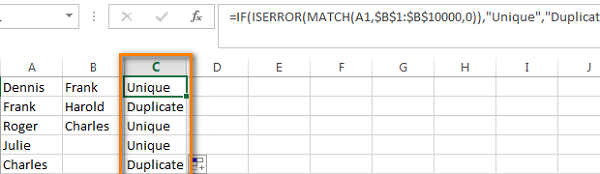 Results showing Duplicate or Unique status in the helper column
Comparing Across Different Sheets
If your reference column (Column B) is on a different sheet (e.g., Sheet3), the formula simply needs to include the sheet name reference.
In the first cell of your helper column on Sheet2, enter:
=IF(ISERROR(MATCH(A1,Sheet3!$A$1:$A$10000,0)),"","Duplicate")Here, Sheet3! tells Excel to look for the range $A$1:$A$10000 specifically on the worksheet named “Sheet3”.
After applying this formula, the results will appear just as they did in the single-sheet scenario, identifying matches found on the external sheet.
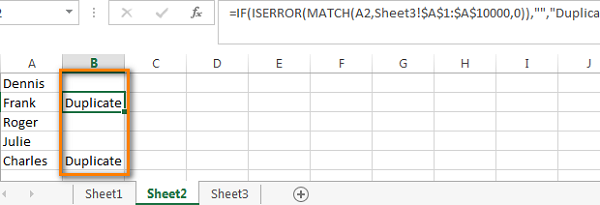 Results of cross-sheet comparison formula
Method 2: Filtering and Displaying Duplicates
Now that you have identified the duplicates with a helper column, the next step is often to isolate these records for review or deletion. Manually scrolling through thousands of rows to find cells marked “Duplicate” is inefficient. instead, use Excel’s Filter function.
Preparing the Data for Filtering
If your dataset lacks headers, it is highly recommended to add them to ensure the sorting and filtering work correctly. To insert a header row, hover over the row number “1” on the far left until the cursor becomes a black arrow.
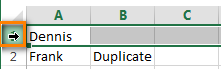 Cursor selecting the entire first row
Right-click the selected row and choose Insert. This creates a blank row at the top.
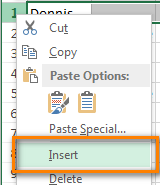 Context menu showing the Insert option
Label your columns appropriately (e.g., “Name”, “Status”). Then, navigate to the Data tab on the Ribbon and click the Filter button.
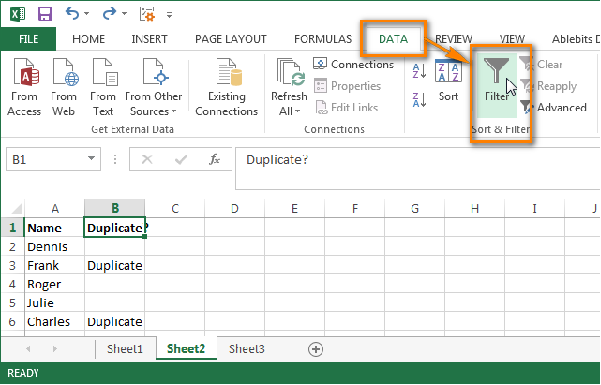 The Filter icon in the Data tab
Applying the Filter
Click the dropdown arrow that appears in the header of your helper column. You will see a list of all unique values in that column. Uncheck “Unique” (or “Select All”) and ensure only Duplicate is checked.
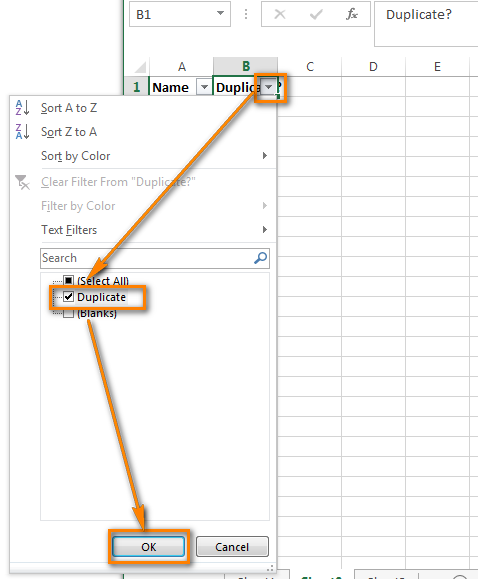 Filter dropdown menu selecting only duplicates
Click OK. Excel will hide all unique rows, leaving you with a clean list of only the entries that exist in both columns.
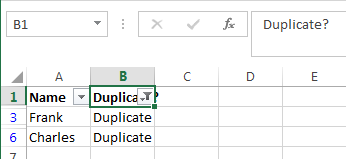 Spreadsheet displaying only the filtered duplicate rows
To return to the full view, you can simply click the filter icon again and choose Select All, or use the Clear button in the Data tab.
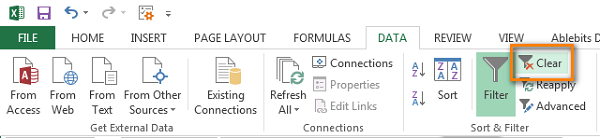 The Clear Filter icon in the Data tab
Method 3: Highlighting Duplicates with Color
Visual cues are often more effective than text labels. You might want to color-code the duplicates to make them stand out in a presentation or report.
With the filter for “Duplicate” still active (showing only the duplicates), select all the visible cells in your data range.
Press Ctrl + 1 (or Ctrl + F1 in some configurations) to open the Format Cells dialog box. Alternatively, right-click and select Format Cells. Navigate to the Fill tab.
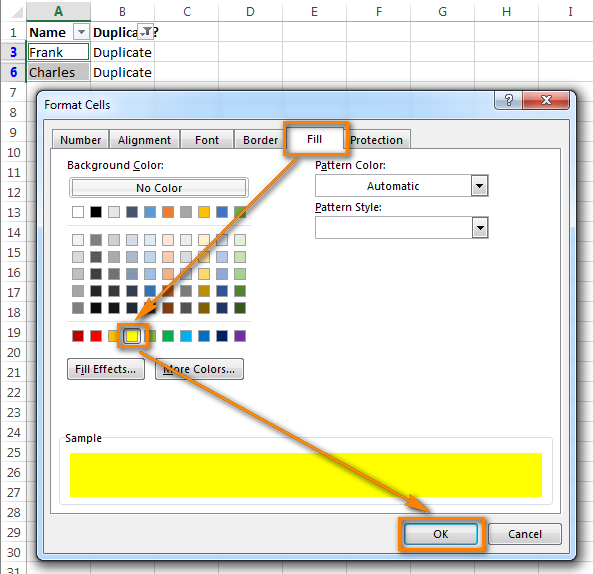 Format Cells dialog box showing Fill options
Choose a distinct color, such as bright yellow, and click OK. Because you applied this formatting while the list was filtered, only the duplicate rows will receive the color change.
When you clear the filter, your dataset will show all records, but the duplicates will be immediately recognizable by their background color.
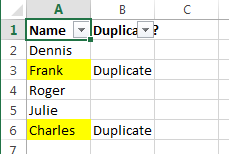 Spreadsheet showing duplicates highlighted in yellow
Method 4: removing Duplicates
The final action in data reconciliation is often the removal of redundant entries. The method you choose depends on whether you want to delete the entire row or just the cell contents.
Scenario A: Deleting Entire Rows (Best for Separate Lists)
If your goal is to completely remove the record from your list because it appears in the other list (common when merging mailing lists), use the “Delete Row” method.
- Apply the filter to show only Duplicates.
- Select all the visible rows by clicking and dragging across the row numbers on the left.
- Right-click on the selection and choose Delete Row.
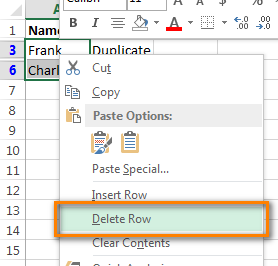 Context menu showing Delete Row option
Excel may ask for confirmation. Once confirmed, clear the filter. You will be left with a dataset containing only unique values.
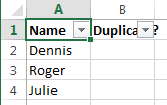 Spreadsheet showing only unique rows remaining
Scenario B: Clearing Contents (Best for Adjacent Columns)
If your columns are side-by-side on the same sheet, deleting the entire row is dangerous because it will also delete the corresponding data in Column B (the reference column). Instead, we must clear the content and sort the data.
- Filter to show Duplicates.
- Select the data cells in Column A (do not select the entire row).
- Right-click and select Clear Contents. This removes the text but keeps the cells and the adjacent Column B intact.
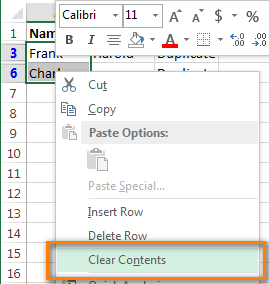 Context menu showing Clear Contents option
- Clear the filter to reveal all data. You will now see gaps (blank cells) where the duplicates used to be.
- To fix this, select Column A (from A1 to the end).
- Go to the Data tab and click the Sort A to Z button.
- Crucial Step: A warning will pop up asking if you want to expand the selection. Choose Continue with the current selection and click Sort. This ensures only Column A is sorted, pushing blank cells to the bottom.
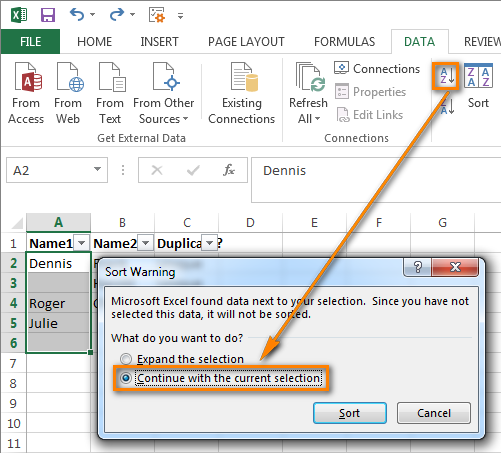 Sort Warning dialog box
Finally, you can delete the helper column. Your Column A now contains only unique values, perfectly condensed at the top of the list.
 Final result with duplicates removed and list sorted
Conclusion
Comparing two columns in Excel does not have to be a tedious manual process. By utilizing the power of the MATCH function combined with IF and ISERROR, you can accurately identify overlaps between datasets, regardless of their size or location within the workbook.
Whether you choose to simply highlight these duplicates for review or delete them to sanitize your data, these techniques ensure precision and save hours of work. Mastering these data manipulation skills is essential for anyone looking to improve their efficiency in Excel.
For more advanced Excel tutorials and in-depth courses covering everything from basic functions to VBA programming, stay tuned to our technology updates.













Discussion about this post