Thủ Thuật
  • TOP Thủ Thuật
    • Thủ Thuật Internet
    • Thủ Thuật Máy Tính
    • Thủ Thuật Tiện Ích
    • Thủ Thuật Phần Mềm
  • Chia Sẻ Kiến Thức
    • Học Excel
    • Học Word
    • Học Power Point
  • Games
  • Kênh Công Nghệ
  • Facebook
  • WordPress
  • SEO
No Result
View All Result
Thủ Thuật
  • TOP Thủ Thuật
    • Thủ Thuật Internet
    • Thủ Thuật Máy Tính
    • Thủ Thuật Tiện Ích
    • Thủ Thuật Phần Mềm
  • Chia Sẻ Kiến Thức
    • Học Excel
    • Học Word
    • Học Power Point
  • Games
  • Kênh Công Nghệ
  • Facebook
  • WordPress
  • SEO
No Result
View All Result
Thủ Thuật
No Result
View All Result
Home Chia Sẻ Kiến Thức Học Excel

Automate Bulk Emails from Excel via Outlook: A Complete VBA Guide

Automate Bulk Emails from Excel via Outlook: A Complete VBA Guide
6k
SHARES
19.5k
VIEWS
Share on Facebook

Nội Dung Bài Viết

Toggle
  • Why Automate with Excel VBA?
  • 1. Configuring the Outlook Environment
  • 2. Implementing the VBA Solution
  • 3. Structuring the Master Data Table
    • Handling Attachments
  • 4. Execution Methods
    • Method A: Manual Macro Execution
    • Method B: User Interface Button (Recommended)
  • 5. Monitoring and Logging
    • Real-time Status Updates
    • External Log Files
  • Conclusion

Sending personalized emails to hundreds of recipients manually is a tedious, error-prone task that drains productivity. For professionals managing marketing campaigns, internal notifications, or client updates, automation is the key to efficiency. By leveraging the power of Excel VBA (Visual Basic for Applications) combined with Microsoft Outlook, you can transform a simple spreadsheet into a powerful email dispatch center.

This technical guide delves into the mSendEmail VBA module—a robust solution designed to automate email distribution directly from Excel. We will cover environment configuration, data structuring, and execution methods to help you master this workflow.

Why Automate with Excel VBA?

While dedicated email marketing software exists, Excel VBA offers a cost-effective and highly customizable alternative for small to medium-scale operations. The mSendEmail module analyzed in this tutorial provides several distinct advantages for power users:

  • Dynamic Content: Personalize email bodies using Excel formulas.
  • Conditional Logic: Control which emails are sent using a “Disable” flag.
  • Attachment Handling: Easily send multiple files (images, PDFs, reports) specific to each recipient.
  • Logging: Automatically track delivery status and generate log files for auditing.

1. Configuring the Outlook Environment

Before writing any code, the prerequisite is a properly configured Microsoft Outlook client. Excel communicates with the Outlook application object, so your email profile must be active and capable of sending mail manually.

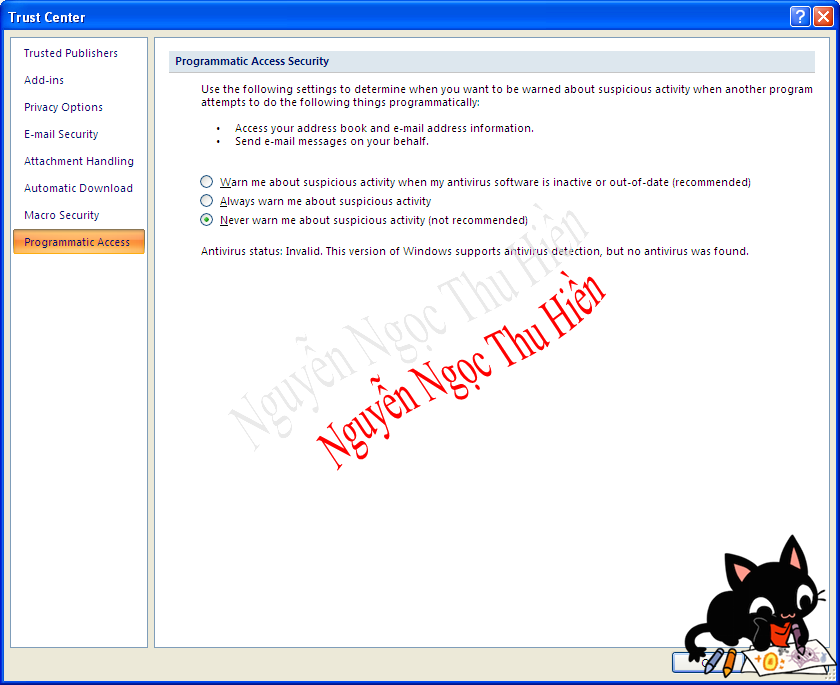
Ensure that your default account is set correctly in Outlook settings. This is the address from which all automated emails will be dispatched.

Screenshot of the Microsoft Outlook account settings window showing email configuration optionsScreenshot of the Microsoft Outlook account settings window showing email configuration options

If you are new to Outlook or setting it up for the first time on a workstation, ensure that the SMTP and IMAP/POP3 settings are verified. The automation script relies on Outlook’s internal engine, so if Outlook cannot send mail, the macro will fail.

The following animation demonstrates the standard process for verifying your profile setup within the Outlook interface.

Xem thêm:  Nâng Cao Hàm IF trong Excel: Điều Kiện Lồng Nhau, Mảng và Xử Lý Lỗi

Animated guide showing the navigation through Outlook settings to verify account detailsAnimated guide showing the navigation through Outlook settings to verify account details

2. Implementing the VBA Solution

To enable automation, we need to import the logic handler—the mSendEmail.bas module. This file contains the pre-written code that bridges Excel data with Outlook’s mailing functions.

Installation Steps:

  1. Download the mSendEmail.bas source file (Refer to the original resource or your repository).
  2. Open your Excel workbook and press Alt + F11 to access the VBA Editor.
  3. Right-click on your workbook name in the Project Explorer.
  4. Select Import File and navigate to the .bas file.

Once imported, you will see a new module named mSendEmail. This module contains the SendEmail function, which constitutes the core engine of this tool.

3. Structuring the Master Data Table

The success of this automation relies heavily on how you structure your data in Excel. The VBA script expects a specific table layout to identify recipients, subjects, and attachments correctly.

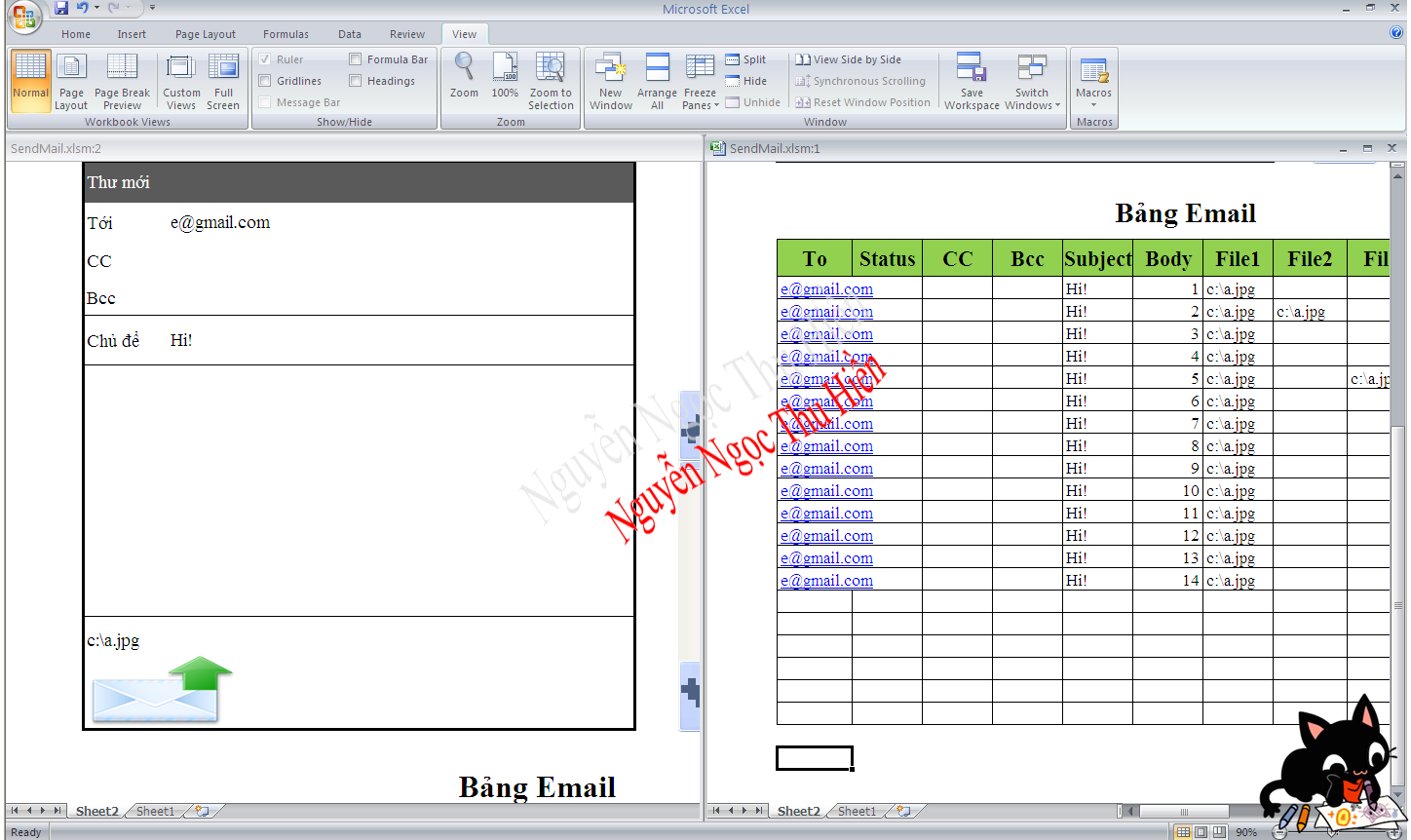
You must create a table containing specific headers. While some columns like CC or BCC are optional, the “To” (Recipient) and “Status” columns are mandatory.

  • To: The recipient’s email address.
  • Subject: The email subject line.
  • Body: The main content of the email (can be HTML or plain text).
  • Status: A critical column where the macro writes the result (e.g., specific timestamp if sent, or error message).
  • Disable: Set to True to skip a specific row during the batch process.

Excel spreadsheet displaying the required column structure for the email automation tableExcel spreadsheet displaying the required column structure for the email automation table

Handling Attachments

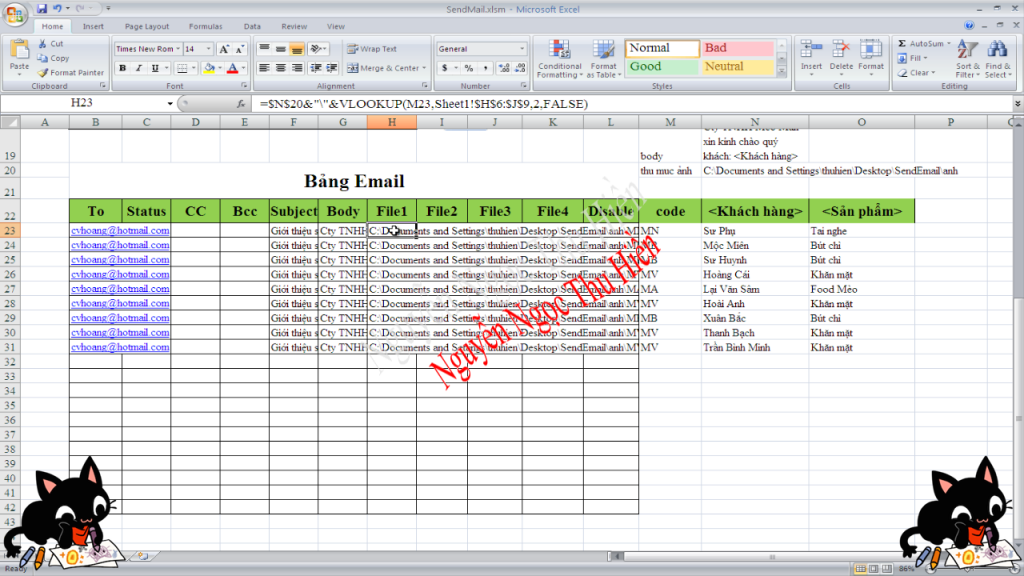
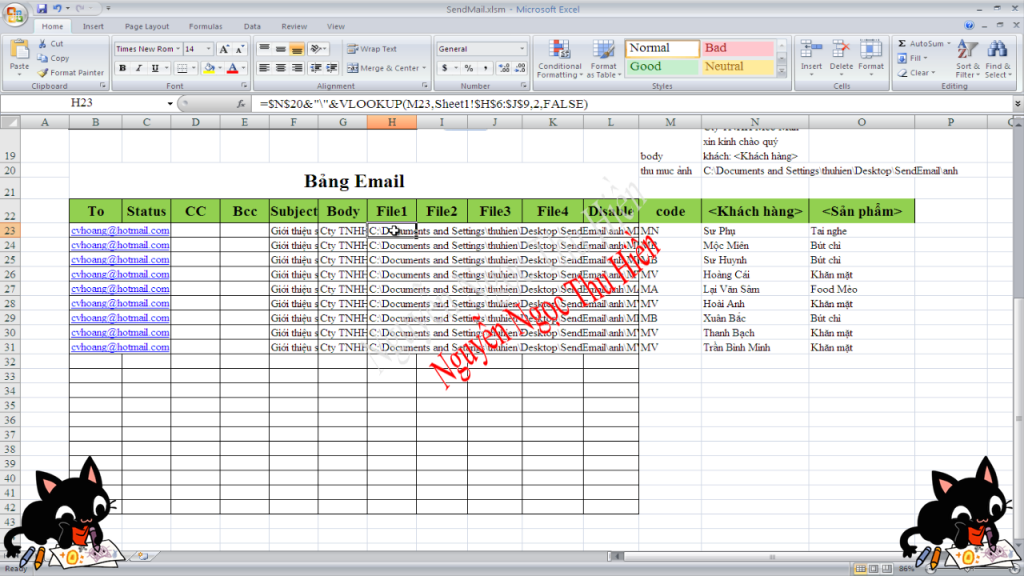
One of the most powerful features of this script is the ability to attach files dynamically. You can dedicate specific columns (e.g., File 1, File 2, File 3) for file paths.

The script is designed to read full file paths (e.g., C:ReportsInvoice_001.pdf). If you need to send multiple files from a single cell, the standard convention in this module is to separate paths using a semicolon (;).

Excel columns populated with file paths demonstrating how to attach documents to emailsExcel columns populated with file paths demonstrating how to attach documents to emails

4. Execution Methods

Once your data is prepared and the VBA code is in place, there are three primary ways to trigger the email dispatch.

Method A: Manual Macro Execution

For ad-hoc tasks, you can run the macro directly from the developer interface. This is useful for testing a small batch of emails before a full deployment.

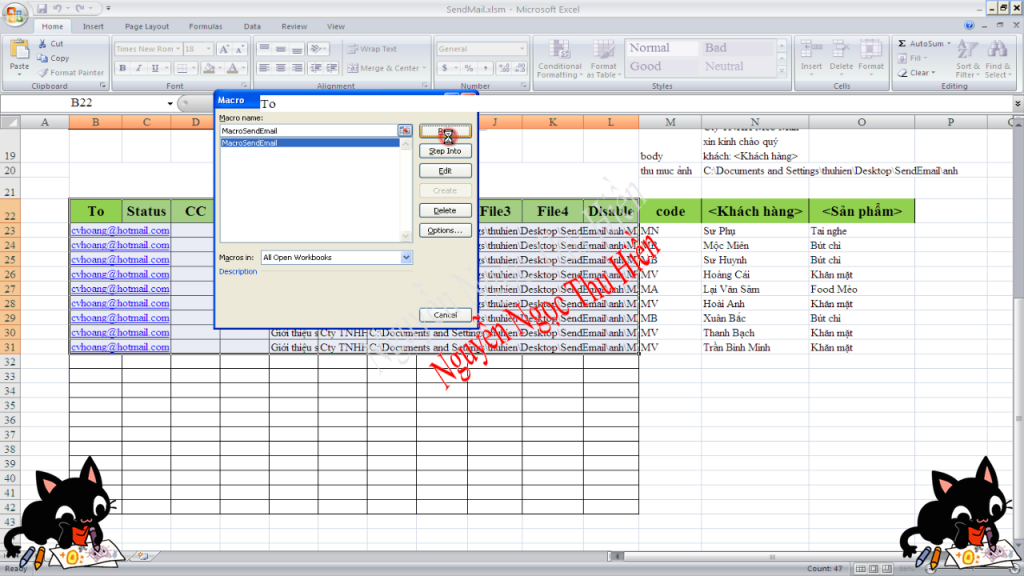
  1. Highlight your data table.
  2. Press Alt + F8 to open the Macro dialog.
  3. Select MacroSendEmail and click Run.
Xem thêm:  Cách Lọc Dữ Liệu Trùng Lặp Trong Nhiều Cột Excel

The Excel Macro dialog box with the MacroSendEmail function selected for executionThe Excel Macro dialog box with the MacroSendEmail function selected for execution

Method B: User Interface Button (Recommended)

To improve the user experience (UX), especially if you are sharing this tool with less technical colleagues, it is best to create a trigger button directly on the spreadsheet.

First, verify that your button design is clear and placed conveniently near the data table.

Excel worksheet view showing a custom shape button designed to trigger the email sending processExcel worksheet view showing a custom shape button designed to trigger the email sending process

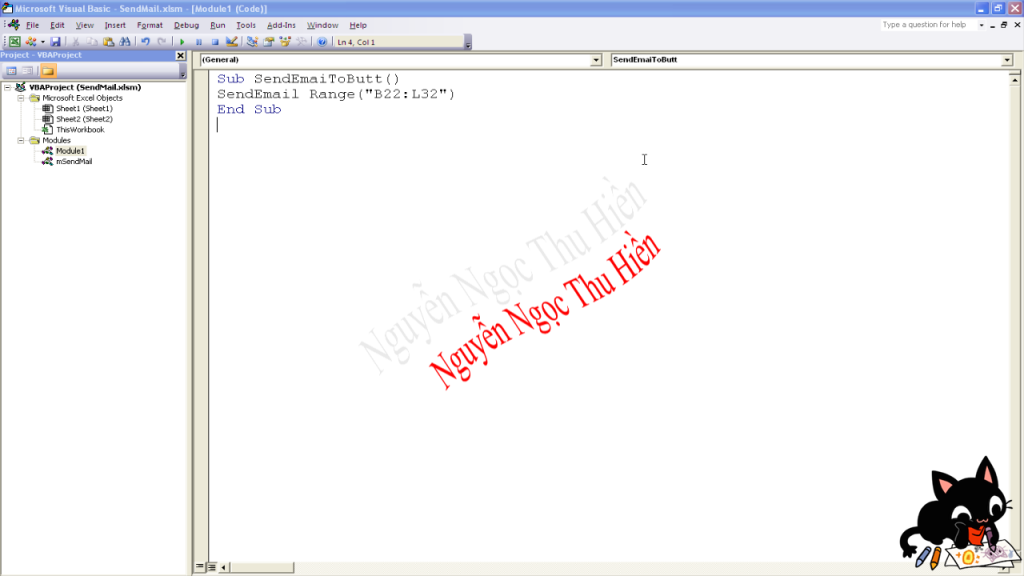
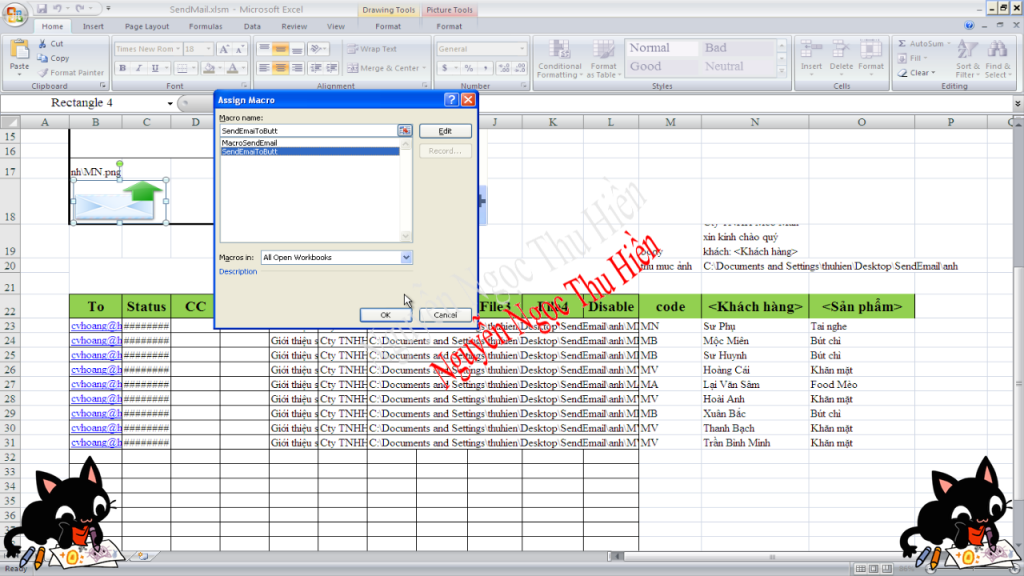
Next, right-click your button (Shape) and select Assign Macro. Link it to a wrapper sub-procedure (e.g., SendEmailToButt) that calls the main function. This prevents users from needing to access the VBA backend.

The Assign Macro dialog box linking the graphical button to the specific VBA scriptThe Assign Macro dialog box linking the graphical button to the specific VBA script

5. Monitoring and Logging

Reliability is paramount in automation. The mSendEmail module includes built-in mechanisms to verify that emails have been dispatched successfully.

Real-time Status Updates

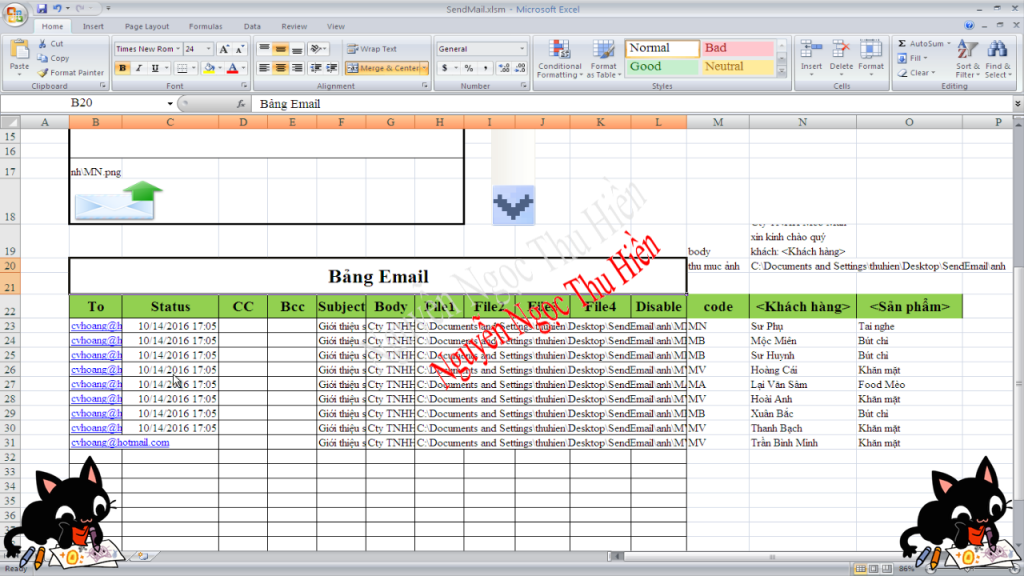
As the macro processes each row, it updates the Status column in real-time. If an email is sent successfully, it stamps the current date and time. If it fails, it records the error. This prevents duplicate sends if you need to re-run the script—you can simply filter out rows that already have a timestamp.

Excel spreadsheet showing the Status column updated with timestamps after successful executionExcel spreadsheet showing the Status column updated with timestamps after successful execution

External Log Files

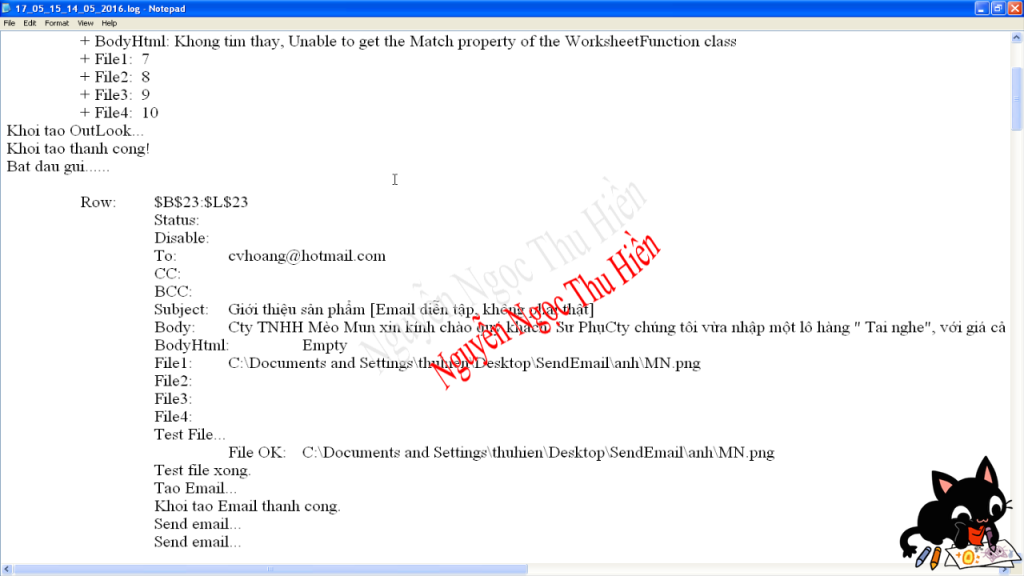
For a more permanent record, the system generates a .log file in a specified directory. This file captures the history of the execution process, providing a sequential audit trail. This is particularly useful for troubleshooting issues related to Outlook connectivity or invalid file paths.

A Notepad window displaying the contents of the generated log file detailing the sending processA Notepad window displaying the contents of the generated log file detailing the sending process

Conclusion

Automating email workflows between Excel and Outlook is a game-changer for productivity. By implementing the mSendEmail VBA module, you gain precise control over your mass communications, allowing for high-level personalization and efficient file handling.

Whether you are distributing salary slips, marketing newsletters, or project updates, this setup ensures accuracy and saves countless hours of manual work. Remember to always test with a small data set first to ensure your Outlook configuration permits high-volume sending without triggering security blocks.

Ready to automate your workflow? Download the module, set up your columns, and let VBA handle the rest.

Đánh Giá Bài Viết
Tuyết Nhi

Tuyết Nhi

Tôi là Tuyết Nhi - Nữ phóng viên trẻ đến từ Hà Nội. Với niềm đam mê công nghệ, khoa học kỹ thuật, tôi yêu thích và muốn chia sẻ đến mọi người những trải nghiệm, kinh nghiệm về các lĩnh vực công nghệ, kỹ thuật... Rất mong được quý độc giả đón nhận ❤️.

Related Posts

How to Generate Unique Random Numbers in Excel: A Comprehensive Guide
Học Excel

How to Generate Unique Random Numbers in Excel: A Comprehensive Guide

Master the Excel ERROR.TYPE Function to Categorize and Fix Formula Errors
Học Excel

Master the Excel ERROR.TYPE Function to Categorize and Fix Formula Errors

How to Print A5 Pages on A4 Paper: A Complete Guide
Học Excel

How to Print A5 Pages on A4 Paper: A Complete Guide

How to Create a Professional Plan vs. Actual Chart in Excel
Học Excel

How to Create a Professional Plan vs. Actual Chart in Excel

Discussion about this post

Trending.

Trẻ 2 Tuổi Có Nên Uống Sữa Milo Không?

Trẻ 2 Tuổi Có Nên Uống Sữa Milo Không?

Share Acc The Battle Cats Miễn Phí Mới Nhất 2025: Full Uber Rare & Cat Food

Share Acc The Battle Cats Miễn Phí Mới Nhất 2025: Full Uber Rare & Cat Food

World War 2: Strategy Games – Game Chiến Thuật Thế Chiến II Hấp Dẫn Trên Mobile

World War 2: Strategy Games – Game Chiến Thuật Thế Chiến II Hấp Dẫn Trên Mobile

Hướng Dẫn Tích Hợp Akismet Vào Contact Form 7: Giải Pháp Chống Spam “Tàng Hình” Hiệu Quả Nhất

Hướng Dẫn Tích Hợp Akismet Vào Contact Form 7: Giải Pháp Chống Spam “Tàng Hình” Hiệu Quả Nhất

Hướng dẫn Đọc Số thành Chữ trong Google Sheets với Add-on Docso

Hướng dẫn Đọc Số thành Chữ trong Google Sheets với Add-on Docso

Giới Thiệu

Thủ Thuật

➤ Website đang trong quá trình thử nghiệm AI biên tập, mọi nội dung trên website chúng tôi không chịu trách nhiệm. Bạn hãy cân nhắc thêm khi tham khảo bài viết, xin cảm ơn!

Chuyên Mục

➤ TOP Thủ Thuật

➤ Chia Sẻ Kiến Thức

➤ Kênh Công Nghệ

➤ SEO

➤ Games

Liên Kết

➤ Ketquaxskt.com

➤ TOP Restaurants

➤ Here Restaurant

➤

➤

Liên Hệ

➤ TP. Hải Phòng, Việt Nam

➤ 0931. 910. JQK

➤ Email: [email protected]

Website này cũng cần quảng cáo, không có tiền thì viết bài làm sao  ” Đen Vâu – MTP ”

DMCA.com Protection Status

© 2025 Thủ Thuật - Website chia sẻ kiến thức công nghệ hàng đầu Việt Nam

No Result
View All Result
  • TOP Thủ Thuật
    • Thủ Thuật Internet
    • Thủ Thuật Máy Tính
    • Thủ Thuật Tiện Ích
    • Thủ Thuật Phần Mềm
  • Chia Sẻ Kiến Thức
    • Học Excel
    • Học Word
    • Học Power Point
  • Games
  • Kênh Công Nghệ
  • Facebook
  • WordPress
  • SEO

© 2025 Thủ Thuật - Website chia sẻ kiến thức công nghệ hàng đầu Việt Nam