


Excel là công cụ mạnh mẽ hỗ trợ tính toán và phân tích dữ liệu. Một trong những tính năng cốt lõi của Excel chính là công thức. Bài viết này sẽ hướng dẫn bạn những điều cơ bản về tạo và sử dụng công thức trong Excel, kèm theo các ví dụ minh họa giúp bạn dễ dàng nắm bắt.
Mở Đầu Về Công Thức Excel
Trong Microsoft Excel, công thức là các phương trình thực hiện tính toán trên bảng tính. Nguyên tắc cơ bản của công thức Excel vẫn nhất quán qua các phiên bản từ 2007 đến 2016 và các phiên bản mới hơn.
Mọi công thức Excel đều bắt đầu bằng dấu bằng (=). Sau dấu bằng, bạn nhập phép tính hoặc hàm. Ví dụ, để tính tổng giá trị trong các ô từ B1 đến B5:
- Nhập trực tiếp:
=B1+B2+B3+B4+B5 - Sử dụng hàm SUM:
=SUM(B1:B5)
Cuối cùng, nhấn Enter để hoàn tất công thức.
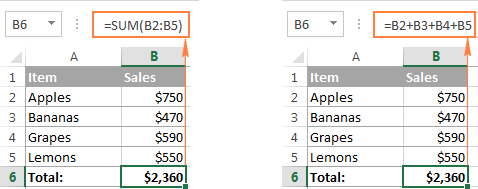 Công thức cơ bản trong Excel
Thành Phần Cấu Tạo Nên Công Thức Excel
Một công thức Excel có thể bao gồm các thành phần sau:
- Hằng số: Giá trị số hoặc văn bản nhập trực tiếp vào công thức, ví dụ:
=2*3. - Tham chiếu ô: Liên kết đến ô chứa giá trị cần sử dụng, ví dụ:
=SUM(A1, A2, B5). Tham chiếu phạm vi (ví dụ:A1:A5) dùng cho các ô liền kề. - Tên: Đặt tên cho một phạm vi ô, hằng số, bảng hoặc hàm, ví dụ:
=SUM(my_name). - Hàm: Công thức được định nghĩa sẵn trong Excel, thực hiện tính toán dựa trên các đối số, ví dụ:
=SUM(A1:A5). - Toán tử: Ký hiệu chỉ định phép tính cần thực hiện.
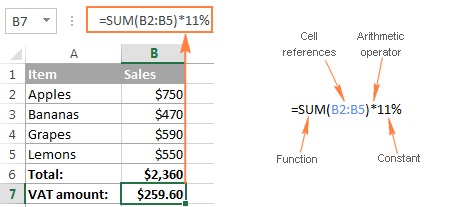 Các thành phần của công thức Excel
Các Loại Toán Tử Trong Excel
Excel hỗ trợ 4 loại toán tử:
- Số học: Thực hiện các phép tính cơ bản (+, -, *, /, %, ^).
- So sánh (logic): So sánh các giá trị (=, <>, >, <, >=, <=).
- Nối chuỗi: Kết hợp các chuỗi văn bản (&).
- Tham chiếu: Tạo phạm vi và đối số trong hàm (: , khoảng trắng).
Toán Tử Số Học Trong Công Thức Excel
| Toán tử | Ý nghĩa | Ví dụ |
|---|---|---|
| + | Cộng | =A2+B2 |
| – | Trừ | =A2-B2 |
| * | Nhân | =A2*B2 |
| / | Chia | =A2/B2 |
| % | Phần trăm | =A2*10% (10% của A2) |
| ^ | Lũy thừa | =A2^3 (A2 mũ 3) |
Ví dụ: Tính thuế VAT với giá ở A2 và tỷ lệ VAT ở B2: =A2*B2
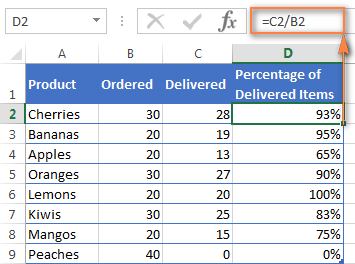 Ví dụ toán tử số học
Toán Tử So Sánh Trong Công Thức Excel
Kết quả của phép so sánh luôn là TRUE hoặc FALSE.
| Toán tử | Ý nghĩa | Ví dụ |
|---|---|---|
| = | Bằng | =A2=B2 |
| <> | Khác | =A2<>B2 |
| > | Lớn hơn | =A2>B2 |
| < | Nhỏ hơn | =A2<B2 |
| >= | Lớn hơn hoặc bằng | =A2>=B2 |
| <= | Nhỏ hơn hoặc bằng | =A2<=B2 |


Toán Tử Nối Chuỗi
Ký hiệu & dùng để nối chuỗi. Ví dụ, nối mã quốc gia (cột A) và số điện thoại (cột B): =A1&" "&B1 (thêm khoảng trắng giữa hai chuỗi).
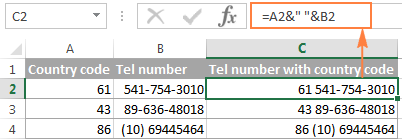 Ví dụ nối chuỗi
Hàm CONCATENATE cũng có chức năng tương tự.
Toán Tử Tham Chiếu
- Dấu hai chấm (:): Tạo phạm vi, ví dụ
A1:A100. Có thể tham chiếu cả cột (A:A) hoặc hàng (1:1). Ví dụ:=SUM(A:A)tính tổng cột A. - Dấu phẩy (,): Phân cách các đối số trong hàm. Ví dụ:
=IF(A1>0,"Tốt","Xấu"). Một số vùng dùng dấu chấm phẩy (;) thay cho dấu phẩy. - Khoảng trắng: Lấy giao điểm của hai vùng. Ví dụ:
=B3:D3 C2:C4.
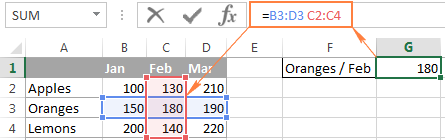 Ví dụ toán tử tham chiếu
Các Loại Công Thức Excel
- Đơn giản: Thực hiện một phép tính, ví dụ:
=10*5hoặc=SUM(A1:A10). - Phức tạp: Bao gồm nhiều phép tính, ví dụ:
=10*5+20hoặc=SUM(A1:A10)/2.
Tạo Công Thức Trong Excel
Bắt đầu bằng cách nhập dấu bằng (=) vào ô hoặc thanh công thức.
Công Thức Phức Tạp
Thứ tự ưu tiên trong công thức phức tạp:
- Dấu ngoặc đơn
- Lũy thừa
- Nhân và chia (từ trái sang phải)
- Cộng và trừ (từ trái sang phải)
Ví dụ: Tính tổng tiền và hoa hồng:
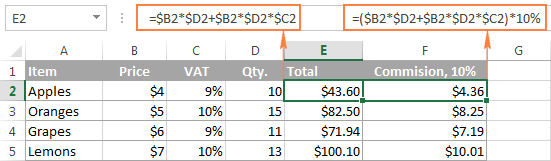 Ví dụ công thức phức tạp
Hàm Lồng Nhau
Lồng hàm là sử dụng một hàm làm đối số của hàm khác. Excel hỗ trợ tối đa 64 hàm lồng nhau.
Ví dụ: Làm tròn tổng các ô B2 đến B6: =ROUND(SUM(B2:B6),0).
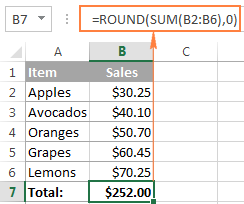 Ví dụ hàm lồng nhau
Hàm IF thường được dùng lồng nhau để xử lý nhiều điều kiện.
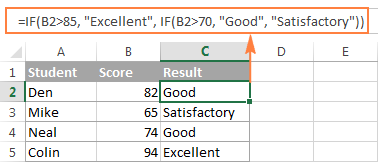 Ví dụ hàm IF lồng nhau
Công Thức Mảng
Công thức mảng thực hiện nhiều phép tính cùng lúc. Nhập công thức mảng bằng cách nhấn Ctrl + Shift + Enter.
Ví dụ: Đếm số lần cột B lớn hơn hoặc bằng cột A khi B > 0: =SUM((B2:B10>=A2:A10)*(B2:B10>0))
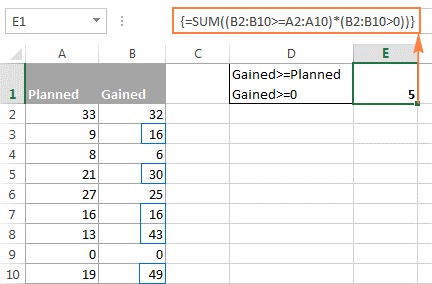 Ví dụ công thức mảng
Tham Chiếu Ô Tuyệt Đối, Tương Đối và Hỗn Hợp
- Tuyệt đối ($A$1): Tham chiếu cố định, không thay đổi khi sao chép công thức.
- Tương đối (A1): Tham chiếu thay đổi khi sao chép công thức.
- Hỗn hợp ($A1 hoặc A$1): Một phần cố định, một phần thay đổi.
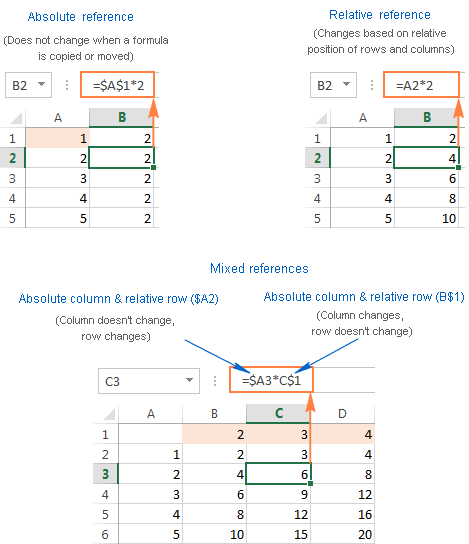 Ví dụ tham chiếu ô
Mẹo và Phím Tắt Hữu Ích
- F4: Chuyển đổi giữa các loại tham chiếu.
- Ctrl + ~: Hiển thị tất cả công thức.
- F2: Chỉnh sửa công thức.
- F9: Gỡ lỗi công thức (xem giá trị của một phần công thức).
- Double-click Fill handle: Sao chép công thức xuống cả cột.
- Ctrl + C, Shift + F10, V, Enter (hoặc Ctrl + C, Ctrl + V, Paste Values): Chuyển đổi công thức thành giá trị.
Để thành thạo Excel, hãy tìm hiểu thêm về các hàm nâng cao như SUMIFS, COUNTIFS, SUMPRODUCT, INDEX + MATCH, và các công cụ như Data Validation, Conditional Formatting, Pivot Table.













Discussion about this post