If you have ever spent hours copying and pasting data, formatting cells repeatedly, or performing the same sequence of clicks in Microsoft Excel, you have likely wished for a way to automate these mundane tasks. Enter Excel Macros—a powerful feature that transforms how you interact with spreadsheets.
A Macro is essentially a recorded sequence of commands and instructions that you group together as a single command to accomplish a task automatically. By mastering this tool, you can significantly reduce manual workload, eliminate human error, and boost your productivity. In this guide, “Thủ Thuật” will walk you through the technical foundations of Macros, how to record them, and how to manage them effectively.
Understanding the Core: Macros and VBA
Before diving into the “how-to,” it is crucial to understand the technology powering this feature. When you record a Macro, Excel tracks every keystroke and mouse click. Behind the scenes, it translates these actions into VBA (Visual Basic for Applications) code.
VBA is the programming language for Excel and other Office programs. While “Macro” refers to the automated task itself, VBA is the language in which that task is written. The beauty of the Macro Recorder is that it acts as a bridge; it writes the complex VBA code for you, meaning you do not need to be a programmer to start automating tasks. However, for advanced users, accessing the VBA code allows for deep customization beyond simple recording.
Interface of the Record Macro dialog box in Excel showing name and shortcut options
It is important to note that the recorder is extremely literal. It captures everything, including mistakes. If you click the wrong cell, then correct it, the Macro will record both the error and the correction every time it runs. Therefore, planning your steps before hitting “Record” is a vital best practice for clean automation.
Setting Up Your Environment: The Developer Tab
By default, the tools required to create and manage Macros are hidden to keep the Excel interface clean. To access them, you must enable the Developer tab.
This tab is the command center for automation. It houses the buttons to Record Macros, open the Visual Basic Editor, manage Add-ins, and insert form controls like buttons and checkboxes.
How to enable the Developer tab:
- Right-click anywhere on the Ribbon (the menu bar at the top).
- Select Customize the Ribbon.
- In the right-hand pane, check the box next to Developer.
- Click OK.
Screenshot showing the Excel Options window with the Developer checkbox selected
Once enabled, this tab will remain visible in your Excel workspace, serving as your gateway to advanced spreadsheet manipulation.
Technical Considerations Before Recording
Absolute vs. Relative References
One of the most critical technical concepts to grasp is how Excel references cells during recording.
- Absolute References (Default): If you record a macro that selects cell A1 and bolds it, the macro will always go back to cell A1, regardless of where your cursor is when you run it.
- Relative References: If you toggle “Use Relative References” in the Developer tab, the macro acts relative to the active cell. For example, it will “bold the cell to the right of the current selection,” making the macro flexible and applicable to different datasets.
Security and File Formats
Macros can contain malicious code, so Excel treats them with caution. Standard Excel files (.xlsx) cannot save Macros. To save a workbook containing a Macro, you must use the Excel Macro-Enabled Workbook (.xlsm) format. Failing to do so will result in Excel stripping all your recorded code upon saving.
Animated GIF demonstrating the Visual Basic for Applications code editor in action
Step-by-Step: How to Record a Macro
Recording a Macro is similar to recording a video of your screen, but instead of pixels, it saves logical steps. Follow this procedure to create your first automation script.
1. Preparation
Ensure your data is ready and you have rehearsed the steps you intend to perform. Efficiency is key.
2. Initiate Recording
Navigate to the Developer tab and look for the Code group. Click on Record Macro.
3. Configure Macro Settings
A dialog box will appear requiring specific inputs:
- Macro Name: Choose a descriptive name without spaces (e.g.,
FormatMonthlyReport). - Shortcut Key: You can assign a keyboard shortcut (e.g.,
Ctrl + Shift + R). Warning: Be careful not to overwrite system shortcuts likeCtrl + C(Copy) orCtrl + S(Save). - Store Macro In:
- This Workbook: The macro only works in the current file.
- Personal Macro Workbook: The macro becomes available in all Excel files you open on your computer (ideal for general utility macros).
- Description: A brief note explaining what the macro does (highly recommended for future maintenance).
Animated GIF showing a macro executing automated tasks on a spreadsheet
4. Perform the Actions
Once you click OK, Excel is recording. Perform your sequence of tasks (formatting, calculating, data entry) precisely. Remember, time is not recorded, only the actions, so you can take your time to ensure accuracy.
5. Stop Recording
When finished, return to the Developer tab and click Stop Recording. This finalizes the VBA code generation.
Managing and Running Your Macros
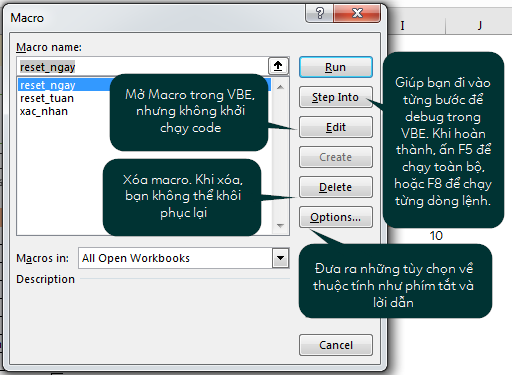
After recording, you need to know how to deploy your new tools. You can access your library of automations by clicking the Macros button in the Developer tab.
This management window allows you to:
- Run: Execute the selected macro immediately.
- Step Into: Run the macro line-by-line (useful for debugging).
- Edit: Opens the VBA Editor to manually change the code.
- Delete: Remove unwanted macros.
- Options: Change the shortcut key or description.
The Macro management window in Excel displaying a list of available macros
For frequent use, many professionals assign Macros to a button directly on the spreadsheet. To do this, go to Developer > Insert > Button (Form Control), draw the button on your sheet, and assign your macro to it. This creates a user-friendly interface for your tools.
Conclusion
Excel Macros represent a significant leap from basic spreadsheet usage to advanced data management. By automating repetitive tasks, you not only save time but also ensure consistency across your work. While the concept of VBA code might seem intimidating initially, the Macro Recorder provides an accessible entry point for any user to start “programming” their workflow without writing a single line of code.
Start by identifying the tasks you repeat daily. Record small, simple macros first, and gradually build up to complex automations. Remember to always save your files as .xlsm to preserve your work.
References
- Microsoft Support: Automate tasks with the Macro Recorder.
- Excel Easy: VBA and Macros introduction.
- TechCommunity: Best practices for Excel Automation.


Discussion about this post