Thủ Thuật
  • TOP Thủ Thuật
    • Thủ Thuật Internet
    • Thủ Thuật Máy Tính
    • Thủ Thuật Tiện Ích
    • Thủ Thuật Phần Mềm
  • Chia Sẻ Kiến Thức
    • Học Excel
    • Học Word
    • Học Power Point
  • Games
  • Kênh Công Nghệ
  • Facebook
  • WordPress
  • SEO
No Result
View All Result
Thủ Thuật
  • TOP Thủ Thuật
    • Thủ Thuật Internet
    • Thủ Thuật Máy Tính
    • Thủ Thuật Tiện Ích
    • Thủ Thuật Phần Mềm
  • Chia Sẻ Kiến Thức
    • Học Excel
    • Học Word
    • Học Power Point
  • Games
  • Kênh Công Nghệ
  • Facebook
  • WordPress
  • SEO
No Result
View All Result
Thủ Thuật
No Result
View All Result
Home Chia Sẻ Kiến Thức Học Excel

How to Create a Professional Gantt Chart in Excel for Project Management

How to Create a Professional Gantt Chart in Excel for Project Management
6k
SHARES
19.5k
VIEWS
Share on Facebook

Nội Dung Bài Viết

Toggle
  • 1. Preparing Your Project Data
  • 2. Step-by-Step Guide to Drawing the Gantt Chart
    • 2.1. Initializing the Chart
    • 2.2. Importing and Arranging Data
    • 2.3. Formatting the Task Order
    • 2.4. Creating the “Floating” Effect
    • 2.5. Adjusting the Timeline Bounds
  • 3. Advanced Feature: Tracking Completion Percentage
  • 4. Conclusion
  • References

A Gantt chart is one of the most powerful tools in a project manager’s arsenal. It provides a visual timeline of tasks, allowing teams to track progress, dependencies, and deadlines at a single glance. While specialized software like Microsoft Project or Asana exists, you can create a highly customizable and professional Gantt chart directly within Microsoft Excel without spending an extra dime.

This comprehensive guide will walk you through the process of building a dynamic Gantt chart from scratch. We will cover everything from structuring your data correctly to using advanced formatting techniques like Error Bars to track real-time project completion.

1. Preparing Your Project Data

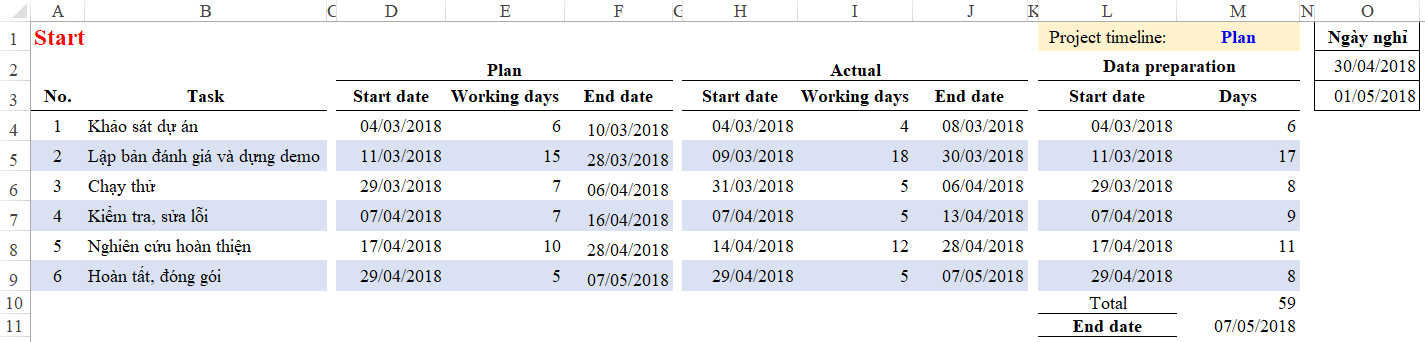
The foundation of any effective Excel chart is a well-structured dataset. Before attempting to visualize the timeline, you must organize your project parameters logically. A standard Gantt chart requires four specific data points: Task Name, Start Date, Duration (Days), and % Completion.

To begin, set up your spreadsheet columns. If you are tracking a complex project, accuracy in your data entry is crucial. You might want to use formulas like WORKDAY to calculate end dates automatically based on weekends and holidays.

Completed Gantt chart example in Excel showing project timelineCompleted Gantt chart example in Excel showing project timeline

To visualize the actual progress (the percentage complete), we need to derive a specific metric called “Days Completed.” This is calculated based on the total duration and the percentage of work finished.

You should add a helper column to your data table. The logic is simple:

  • If you are planning the baseline, the completed days might be zero.
  • For actual tracking, use the formula: Days Completed = % Completion * Days.

Animation showing how to set up the data table columnsAnimation showing how to set up the data table columns

Once your formulas are set, your final data table should look clean and organized. This table acts as the source of truth for the visualization. Ensure that your dates are formatted correctly as Date types in Excel to avoid errors later in the charting process.

Finalized Excel data table with columns for Task, Start Date, Days, and Percentage CompletionFinalized Excel data table with columns for Task, Start Date, Days, and Percentage Completion

2. Step-by-Step Guide to Drawing the Gantt Chart

Excel does not have a native “Gantt Chart” button. Instead, we utilize a Stacked Bar Chart and modify its properties to simulate the floating bars characteristic of a Gantt timeline.

2.1. Initializing the Chart

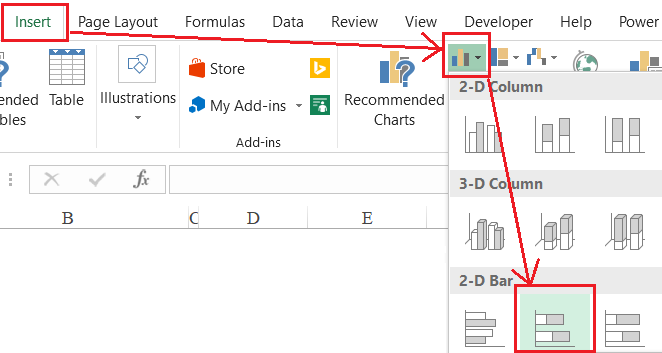
Navigate to the Insert tab on the ribbon. In the Charts group, select the Bar Chart icon and choose the Stacked Bar (2D) option. Do not select the standard Bar chart; the “Stacked” aspect is essential because it allows us to stack the “Start Date” and “Duration” to position the task bar correctly on the timeline.

Xem thêm:  Biểu đồ Cột Chồng trong Excel: Hướng dẫn Chi Tiết và Ví dụ Thực tế

Selecting the Stacked Bar Chart option from the Insert tab in ExcelSelecting the Stacked Bar Chart option from the Insert tab in Excel

2.2. Importing and Arranging Data

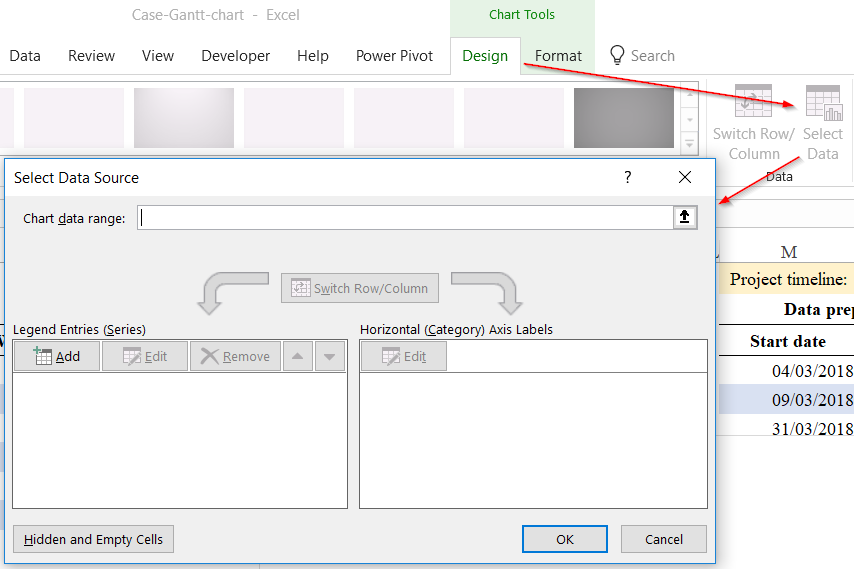
Initially, Excel might insert a blank canvas. You need to manually feed it the data. Go to the Chart Tools > Design tab (or simply Design in newer versions) and click on Select Data.

Clicking Select Data in the Chart Tools Design tabClicking Select Data in the Chart Tools Design tab

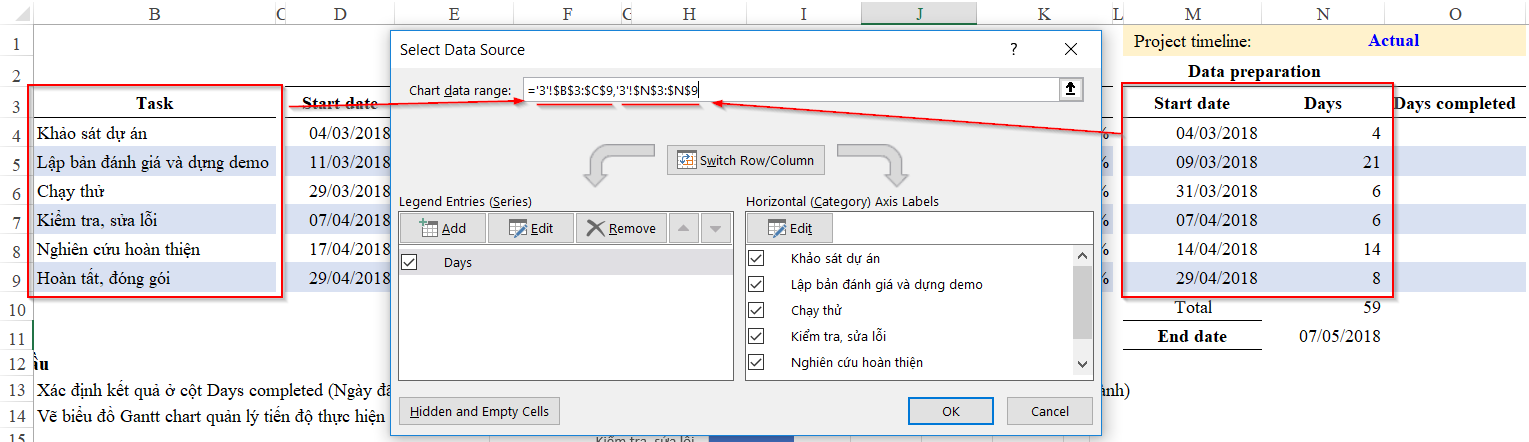
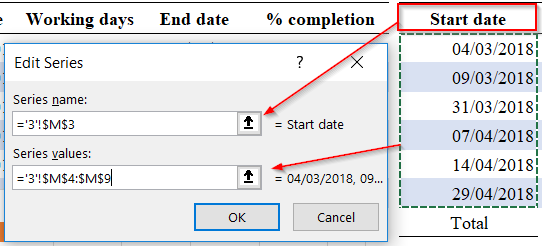
In the “Chart data range” field, select your entire table. However, to get the Gantt effect, we need to treat the “Start Date” as a data series, not just labels.

Dialog box for selecting the chart data rangeDialog box for selecting the chart data range

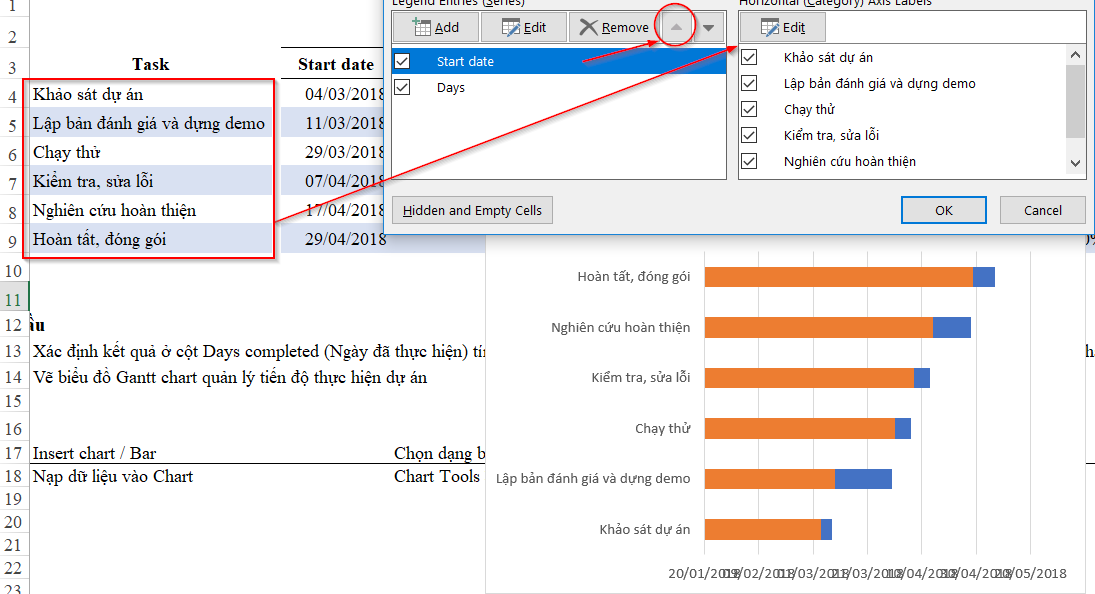
In the Legend Entries (Series) box, ensure you have added Start Date first, followed by Days (Duration). Click the “Add” button if they are not automatically populated. The order is critical: Start Date must be on top (or left) so it pushes the Duration bar to the correct starting position.

Adding the Start Date series to the chart legend entriesAdding the Start Date series to the chart legend entries

At this stage, your chart will look like a standard stacked bar chart with colors for both the starting date and the duration. It represents the data correctly but doesn’t look like a timeline yet.

Initial stacked bar chart appearance before formattingInitial stacked bar chart appearance before formatting

2.3. Formatting the Task Order

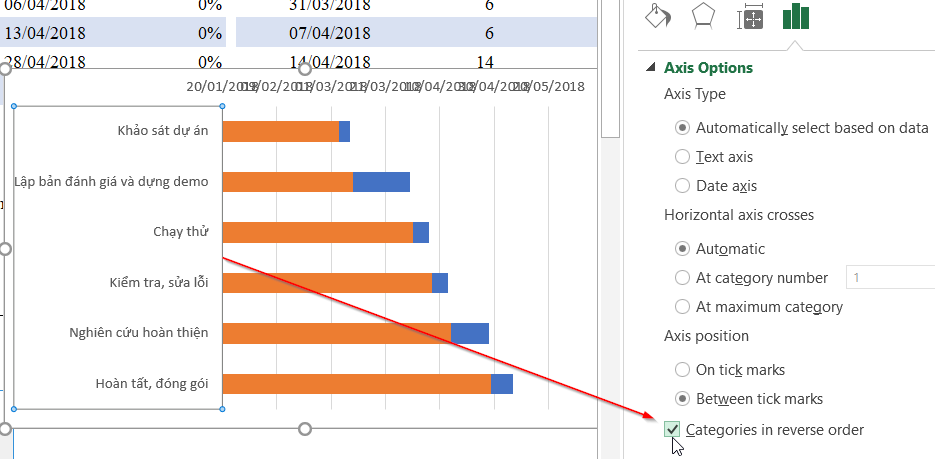
You will notice that Excel defaults to listing tasks from bottom to top (Task 1 is at the bottom). To fix this, click on the vertical axis (the task names). In the Format Axis pane, check the box labeled Categories in reverse order. This mirrors the structure of your spreadsheet.

Formatting axis options to display categories in reverse orderFormatting axis options to display categories in reverse order

2.4. Creating the “Floating” Effect

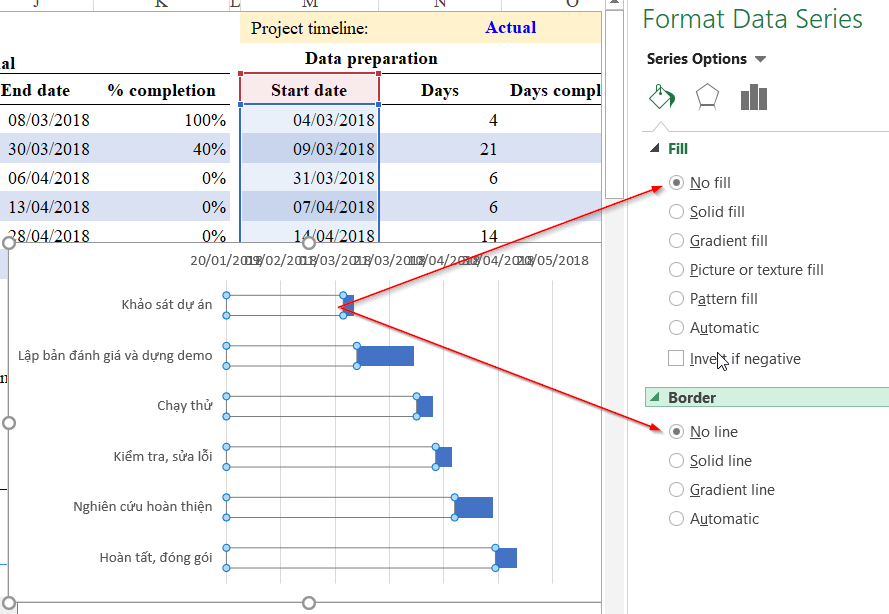
This is the most critical step. We need to hide the “Start Date” bars so that only the “Duration” bars remain visible. This creates the illusion that tasks are starting at different times.

Right-click on the first series of bars (usually blue, representing Start Date) and select Format Data Series. In the Fill & Line options bucket, select No fill and No line.

Setting Shape Fill to No Fill to hide the start date barsSetting Shape Fill to No Fill to hide the start date bars

2.5. Adjusting the Timeline Bounds

By default, Excel might start the date axis from a random date in the past (like 1900), leaving a large empty space on the left. You need to define the Minimum and Maximum bounds for the horizontal axis.

  • Find the numeric value of your project’s Start Date (Date format in Excel is actually a serial number). You can find this by copying your date to a new cell and changing the format to “General” or “Number”.
  • Right-click the horizontal axis (the dates at the top) and select Format Axis.
  • Enter that serial number into the Minimum bound field.
Xem thêm:  Hướng Dẫn Hàm VLOOKUP trong Excel Cho Người Mới Bắt Đầu

Setting minimum and maximum bounds for the horizontal axisSetting minimum and maximum bounds for the horizontal axis

3. Advanced Feature: Tracking Completion Percentage

A basic Gantt chart shows the plan. A great Gantt chart shows reality. We can visualize the % Completion inside the task bars using a clever trick with Error Bars.

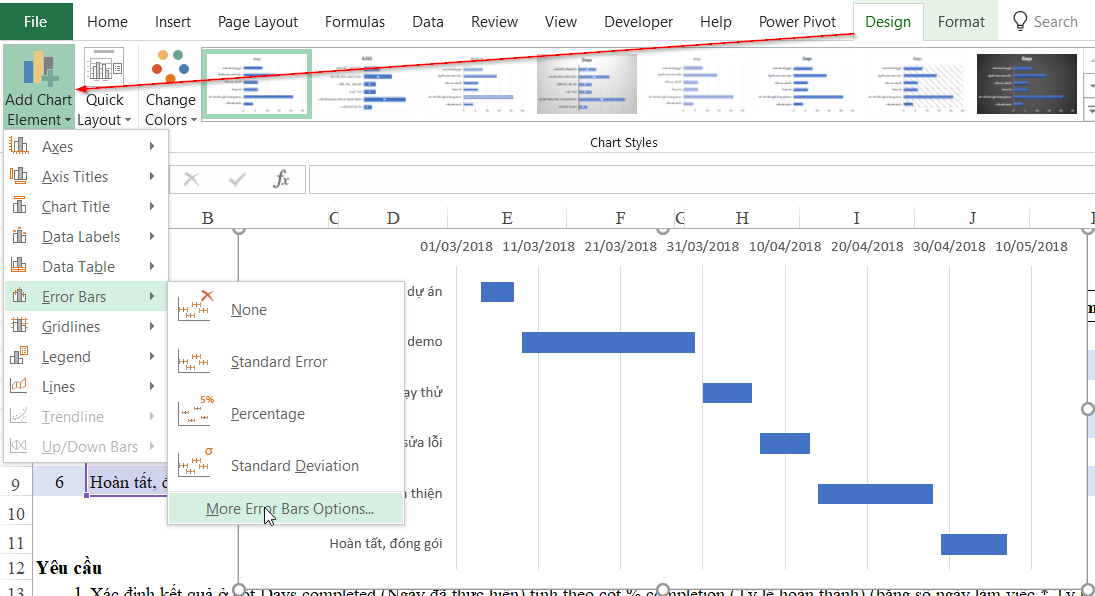
First, select your visible task bars (the Duration series). Navigate to Chart Design > Add Chart Element > Error Bars > More Error Bar Options.

Menu path to add Error Bars element to the chartMenu path to add Error Bars element to the chart

In the dialogue box that appears, ensure you are adding error bars based on the Start Date series (or the series that controls the position). We are effectively repurposing this feature to draw a line representing completed work.

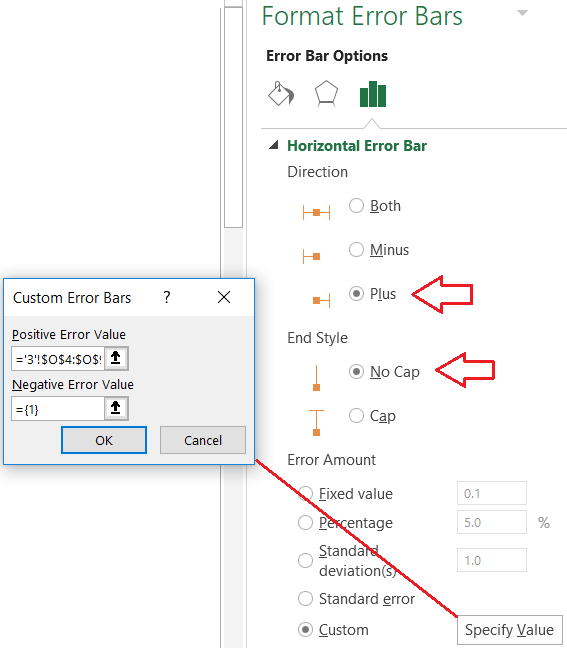
When the Format Error Bars pane opens, configure the following settings:

  • Direction: Plus (we want the bar to grow forward).
  • End Style: No Cap.
  • Error Amount: Select Custom and click Specify Value. Here, select the range of your “Days Completed” column calculated in Section 1.

Configuring error bar direction and amount settingsConfiguring error bar direction and amount settings

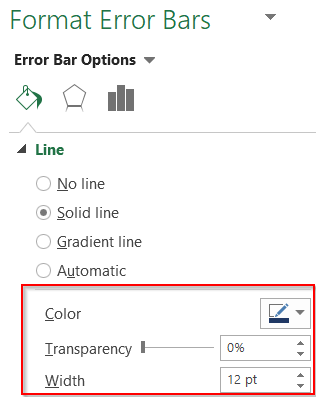
Finally, style these error bars to look like progress indicators. Increase the Width of the line so it is thick enough to be seen inside the main task bar, and choose a contrasting color (like dark green or black).

Adjusting the line width and color of the error barsAdjusting the line width and color of the error bars

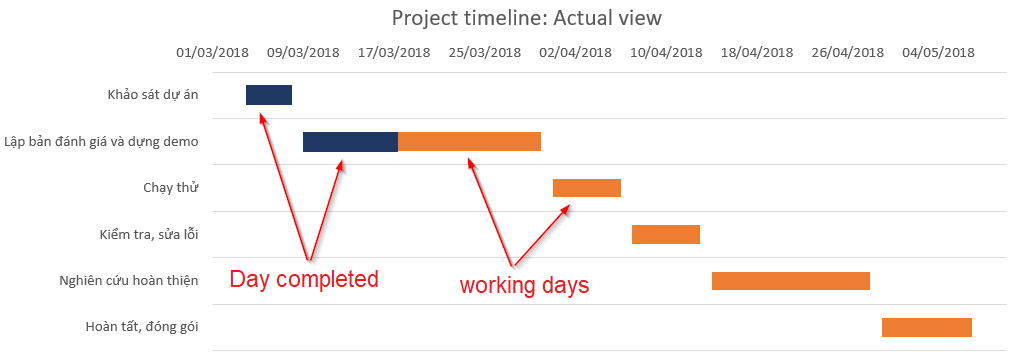
The result is a sophisticated visualization where the main bar represents the total planned time, and the inner bar represents the actual work done. This allows stakeholders to instantly spot lagging tasks.

Final Gantt chart with progress tracking bars overlayFinal Gantt chart with progress tracking bars overlay

4. Conclusion

Creating a Gantt chart in Excel is a valuable skill that bridges the gap between simple data entry and complex project management. By following these steps, you have transformed a standard stacked bar chart into a powerful tracking tool complete with progress indicators.

This method offers flexibility that rigid software cannot match. You can further customize colors, add conditional formatting, or link the data to other project sheets. Whether you are managing a small team sprint or a large construction timeline, mastering this Excel technique will significantly enhance your reporting capabilities.

References

  • Microsoft Support: Present your data in a Gantt chart in Excel.
  • TechCommunity: Visualizing project timelines using Stacked Bar Charts.
  • Thủ Thuật: Excel Tips and Tricks for Project Management.
Đánh Giá Bài Viết
Tuyết Nhi

Tuyết Nhi

Tôi là Tuyết Nhi - Nữ phóng viên trẻ đến từ Hà Nội. Với niềm đam mê công nghệ, khoa học kỹ thuật, tôi yêu thích và muốn chia sẻ đến mọi người những trải nghiệm, kinh nghiệm về các lĩnh vực công nghệ, kỹ thuật... Rất mong được quý độc giả đón nhận ❤️.

Related Posts

How to Generate Unique Random Numbers in Excel: A Comprehensive Guide
Học Excel

How to Generate Unique Random Numbers in Excel: A Comprehensive Guide

Master the Excel ERROR.TYPE Function to Categorize and Fix Formula Errors
Học Excel

Master the Excel ERROR.TYPE Function to Categorize and Fix Formula Errors

How to Print A5 Pages on A4 Paper: A Complete Guide
Học Excel

How to Print A5 Pages on A4 Paper: A Complete Guide

How to Create a Professional Plan vs. Actual Chart in Excel
Học Excel

How to Create a Professional Plan vs. Actual Chart in Excel

Discussion about this post

Trending.

Trích Xuất Dữ Liệu từ Báo Cáo Power BI Đã Xuất Bản Trên Web

Trích Xuất Dữ Liệu từ Báo Cáo Power BI Đã Xuất Bản Trên Web

Hướng Dẫn Cách Livestream Trên Facebook Bằng Điện Thoại Và Máy Tính Đơn Giản, Sắc Nét Từ A-Z

Hướng Dẫn Cách Livestream Trên Facebook Bằng Điện Thoại Và Máy Tính Đơn Giản, Sắc Nét Từ A-Z

World War 2: Strategy Games – Game Chiến Thuật Thế Chiến II Hấp Dẫn Trên Mobile

World War 2: Strategy Games – Game Chiến Thuật Thế Chiến II Hấp Dẫn Trên Mobile

Download Your Uninstaller Pro 7.5 Full Key 2025 – Giải Pháp Gỡ Cài Đặt Phần Mềm Tận Gốc

Download Your Uninstaller Pro 7.5 Full Key 2025 – Giải Pháp Gỡ Cài Đặt Phần Mềm Tận Gốc

Hướng dẫn Đọc Số thành Chữ trong Google Sheets với Add-on Docso

Hướng dẫn Đọc Số thành Chữ trong Google Sheets với Add-on Docso

Giới Thiệu

Thủ Thuật

➤ Website đang trong quá trình thử nghiệm AI biên tập, mọi nội dung trên website chúng tôi không chịu trách nhiệm. Bạn hãy cân nhắc thêm khi tham khảo bài viết, xin cảm ơn!

Chuyên Mục

➤ TOP Thủ Thuật

➤ Chia Sẻ Kiến Thức

➤ Kênh Công Nghệ

➤ SEO

➤ Games

Liên Kết

➤ Ketquaxskt.com

➤ TOP Restaurants

➤ Here Restaurant

➤

➤

Liên Hệ

➤ TP. Hải Phòng, Việt Nam

➤ 0931. 910. JQK

➤ Email: [email protected]

Website này cũng cần quảng cáo, không có tiền thì viết bài làm sao  ” Đen Vâu – MTP ”

DMCA.com Protection Status

© 2025 Thủ Thuật - Website chia sẻ kiến thức công nghệ hàng đầu Việt Nam

No Result
View All Result
  • TOP Thủ Thuật
    • Thủ Thuật Internet
    • Thủ Thuật Máy Tính
    • Thủ Thuật Tiện Ích
    • Thủ Thuật Phần Mềm
  • Chia Sẻ Kiến Thức
    • Học Excel
    • Học Word
    • Học Power Point
  • Games
  • Kênh Công Nghệ
  • Facebook
  • WordPress
  • SEO

© 2025 Thủ Thuật - Website chia sẻ kiến thức công nghệ hàng đầu Việt Nam