


Navigating through an Excel workbook with dozens of worksheets can be a productivity nightmare. Scrolling through the sheet tabs at the bottom of your screen is inefficient and prone to errors. To solve this, professional data analysts build “Index” or “Table of Contents” sheets using Hyperlinks.
In this guide, Thủ Thuật explores three distinct methods to create internal hyperlinks in Excel (versions 2010 through 2016 and Office 365). Whether you prefer using the context menu, writing formulas, or utilizing advanced mouse gestures, we have you covered. We will also address how to edit link destinations, customize visual styles, and remove links without losing data.
Method 1: Using the Context Menu (The Standard Approach)
The most common way to insert a hyperlink is through the standard Excel interface. This method is intuitive and requires no knowledge of formulas, making it ideal for general users creating a simple navigation menu.
Step 1: Highlight the specific cell where you want the link to appear.
Step 2: Right-click on the selected cell to open the context menu. From the list of options, click on Hyperlink (or “Link” in newer versions).
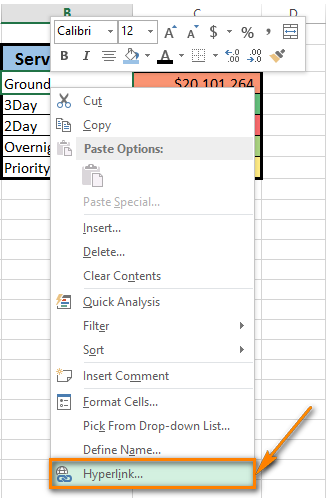 Click on Hyperlink in the context menu to open the Insert Hyperlink dialog box
Once clicked, the Insert Hyperlink dialog box will appear. This is the control center for all linking activities in Excel, allowing connections to external websites, email addresses, or locations within the current file.
Step 3: In the “Link to” panel on the left side, select Place in This Document. This filters the options to show only the sheets and named ranges within your current workbook.
Step 4: In the “Select a place in this document” tree view, click on the name of the target sheet you wish to link to.
Step 5: (Optional) If you want the link to take you to a specific cell on that target sheet (e.g., a total row at the bottom), enter the cell reference (like A1 or C50) in the Type the cell reference box.
Step 6: In the Text to display field, type the friendly name you want users to see (e.g., “Go to Sales Data”).
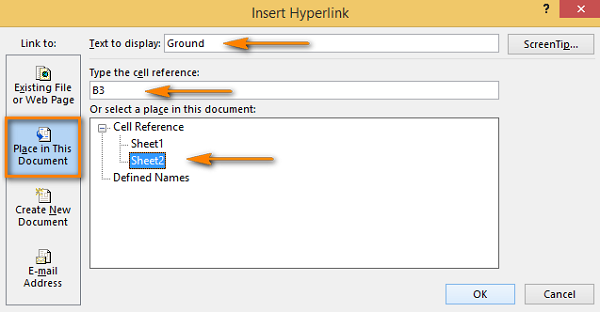 Detailed view of the Insert Hyperlink dialog box with Place in This Document selected
Using this manual method ensures that the link is robust. Even if you rename the target sheet later, Excel often updates the link automatically, preventing broken navigation paths.
 Animated banner demonstrating VBA course content
It is worth noting that mastering shortcuts can speed up this process significantly. For instance, pressing Ctrl + K opens the dialog box instantly.
 Animated banner demonstrating Excel 101 course content
Step 7: Click OK to finalize the process.
Your cell text will now be blue and underlined, indicating it is an active hyperlink. When you hover over it, the cursor changes to a hand icon. Clicking it will instantly transport you to the defined location.
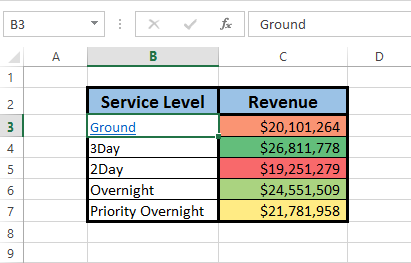 Click OK to see a hyperlink in a cell
Method 2: The HYPERLINK Function (For Dynamic Linking)
For advanced users and those who love automation, the HYPERLINK function is superior. It allows you to construct links dynamically based on cell contents, which is perfect for creating large, automated index pages.
Step 1: Select the cell where the formula will reside.
Step 2: Go to the FORMULAS tab on the ribbon, then click on Lookup & Reference. From the dropdown menu, select HYPERLINK.
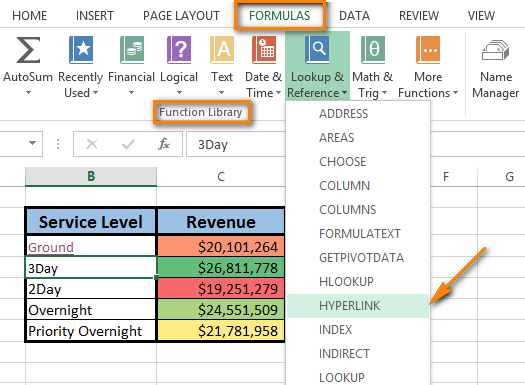 Click on HYPERLINK in the Lookup & Reference drop-down menu to start entering the formula
The standard formula syntax is =HYPERLINK(link_location, [friendly_name]).
- link_location: The path to the file or cell address.
- friendly_name: The text displayed in the cell.
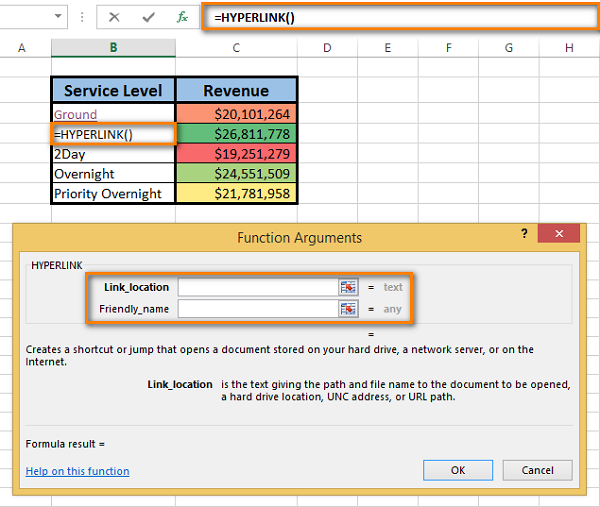 The Function Arguments dialog box for HYPERLINK
Step 3: Define the Link_location.
If you are unsure of the exact syntax, you can use the Select range icon (the small arrow) next to the input box to manually click on the destination cell.
 Click on the Select range icon to pick the destination cell
Excel will populate the address field with the path. However, there is a critical technical nuance here that often causes errors for beginners.
 Click Enter or the Select range icon again to display the address in the Link_location text box
Important Technical Note: You must manually prepend a hash symbol (#) to the address for internal workbook links. The # tells Excel that the link points to a location inside the currently open file, not an external website.
For example, if the reference is Sheet2!A1, you must enter "#Sheet2!A1" (including quotation marks). Without the #, the formula will return an error or simply not work when clicked.
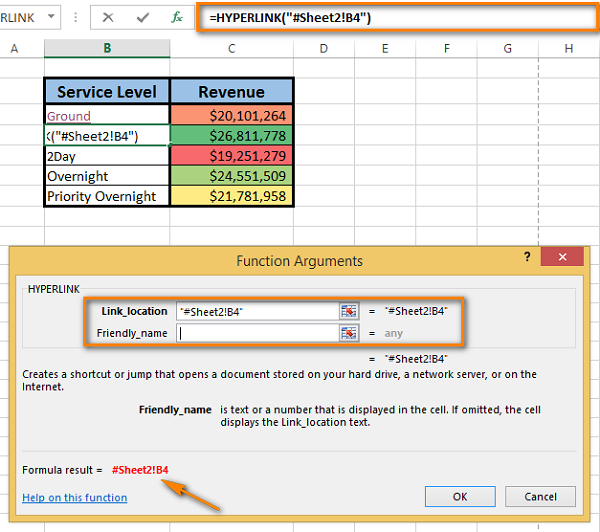 Function arguments window showing the correct syntax with the hash symbol
Step 4: In the Friendly_name field, type the text you want the user to see, such as “View Report”. You can verify the result in the preview area at the bottom left of the dialog box.
Step 5: Click OK to complete the formula.
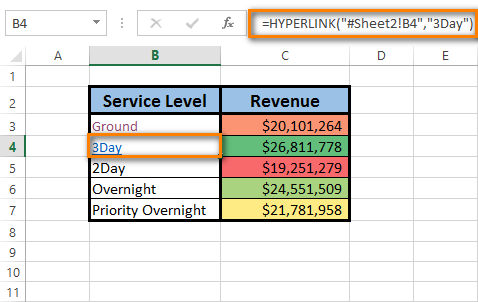 Click OK to insert a hyperlink into a cell and to see the hyperlink formula in the formula bar
Method 3: Drag and Drop (The “Pro” Trick)
This is a lesser-known feature in Excel that acts as a fantastic shortcut. It allows you to create a link between two specific sheets purely using mouse gestures, without opening any dialog boxes.
Scenario: You have a workbook with ‘Sheet 1’ and ‘Sheet 2’, and you want to link a cell in Sheet 2 back to Sheet 1.
Note: Always save your work before trying new mouse gestures to avoid accidental data movement.
Step 1: Navigate to the destination sheet (e.g., Sheet 2) and select the specific target cell.
Step 2: Hover your mouse over the border of the active cell until the cursor changes to a move icon (four arrows). Right-click and hold on the border.
Step 3: While holding the right mouse button, drag the cursor down to the sheet tabs at the bottom of the window.
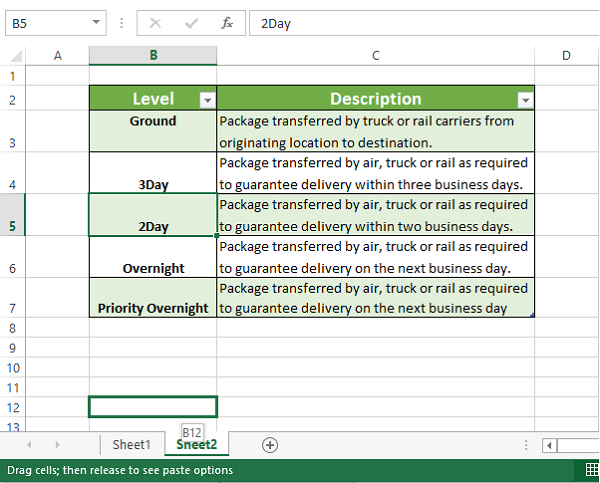 Mouse cursor hovering over sheet tabs during a drag operation
Step 4: Press and hold the Alt key on your keyboard. While holding Alt and the right mouse button, drag the cursor over the tab for ‘Sheet 1’. The Alt key forces Excel to switch the active sheet view.
Once ‘Sheet 1’ opens, you can release the Alt key, but keep holding the right mouse button.
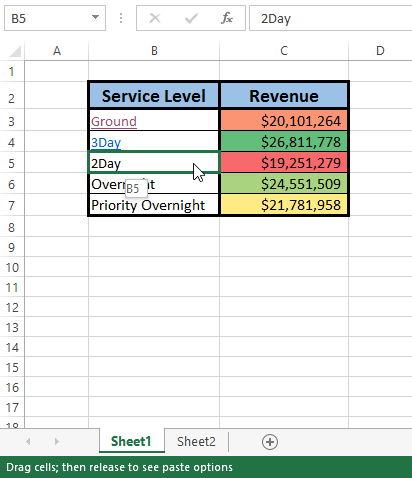 Have the Alt key pressed to switch to the other sheet
Step 5: Drag the cursor to the exact cell where you want the hyperlink to be created.
Step 6: Release the right mouse button. A context menu will instantly pop up.
Step 7: Select Create Hyperlink Here.
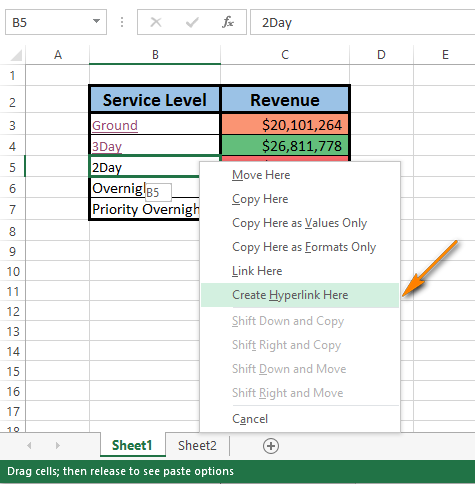 Release the right mouse button and choose Create Hyperlink Here from the popup menu
Excel instantly creates a link pointing back to the cell you originally selected in Sheet 2. This method is incredibly fast once you build the muscle memory for it.
Modifying Existing Hyperlinks
Requirements change, and you may need to update where a link points or how it looks. Excel provides flexible tools for editing these properties.
Changing the Destination
If you move your data to a new sheet, you need to update the link path.
Step 1: Right-click on the cell containing the hyperlink.
Step 2: Select Edit Hyperlink from the menu.
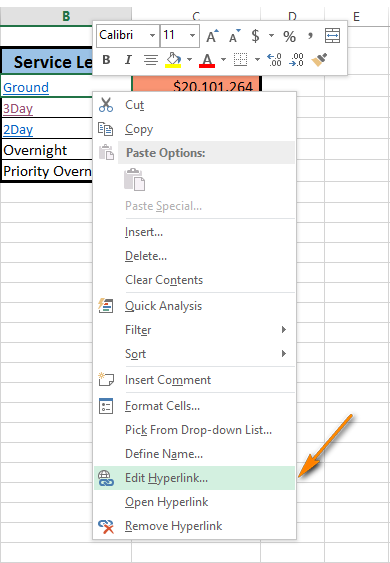 Right-click and choose Edit Hyperlink to open the Edit Hyperlink dialog box
This opens the familiar dialog box where you can select a new sheet or type a new cell reference.
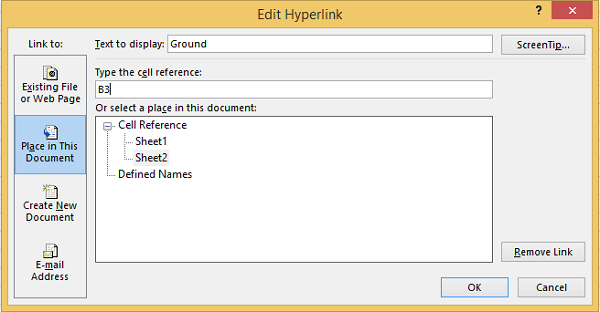 The Edit Hyperlink dialog box ready for input
Technical Tip: If you created the link using the HYPERLINK function (Method 2), you cannot use the right-click menu to change the destination. You must edit the formula directly in the Formula Bar.
Customizing the Visual Style
By default, Excel hyperlinks are blue and underlined (Times New Roman or Calibri). If this clashes with your company’s branding or your report’s color scheme, you can change it globally.
- Go to the HOME tab and find the Styles group.
- Click specifically on Cell Styles.
- Right-click on the Hyperlink style (for new links) or Followed Hyperlink (for clicked links).
- Select Modify…
- Click Format. Here you can remove the underline, change the font, or select a different color.
- Click OK to save. This will update all hyperlinks in your workbook simultaneously.
How to Remove Hyperlinks
Sometimes you need to convert a link back to plain text, or remove it entirely.
Step 1: Right-click the cell containing the link.
Step 2: Select Remove Hyperlink.
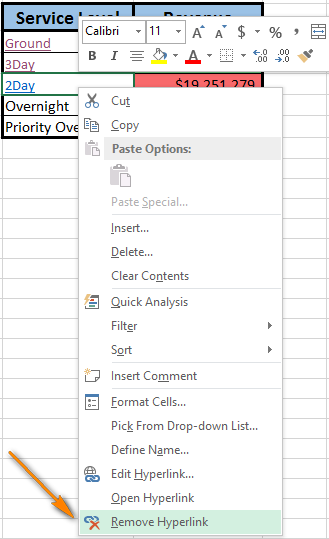 Right-click on the cell and choose Remove Hyperlink to delete the hyperlink from the worksheet
This action removes the clickable functionality and the blue formatting, leaving only the text.
Caution: If you want to remove the link and the text (making the cell blank), do not use “Remove Hyperlink.” Instead, right-click and select Clear Contents, or simply press the Delete key on your keyboard.
Conclusion
Mastering hyperlinks is a hallmark of an advanced Excel user. By implementing these navigation aids, you transform clumsy spreadsheets into professional, app-like applications. Whether you use the context menu for speed, formulas for automation, or the drag-and-drop trick for efficiency, “Thủ Thuật” encourages you to apply these techniques to improve your data workflow today.
References
- Microsoft Excel Support – Work with hyperlinks in Excel.
- TechCrunch – Advanced Spreadsheet Techniques.
- Ablebits – Excel Tips and Tricks (Source Material).













Discussion about this post