


You have likely experienced this frustration: you open an Excel spreadsheet to start your workday, but instead of a crisp, responsive interface, you are greeted by a spinning loading cursor. The file is sluggish, saving takes forever, and every calculation freezes your screen. What went wrong?
At Thủ Thuật, we often encounter users who inadvertently bloat their spreadsheets through inefficient habits. “bloated” Excel files not only waste storage space but can also cripple your productivity. In this deep dive, we will analyze the technical root causes of heavy Excel files and provide actionable solutions to “diet” your workbook and restore its speed.
1. Uncontrolled Formatting: The Silent Performance Killer
One of the most common reasons for a massive increase in file size is “uncontrolled formatting.” This occurs when formatting is applied to entire rows or columns (or the entire sheet) rather than just the specific data range.
The “White Fill” Mistake
A classic example is hiding gridlines. Gridlines are the faint gray lines that distinguish cells on a worksheet. For aesthetic reasons, many users prefer a clean white canvas. However, the method used to achieve this often leads to disaster.
Many users select the entire spreadsheet (Ctrl + A) or click the intersection of the row and column headers, and then apply a White Fill Color.
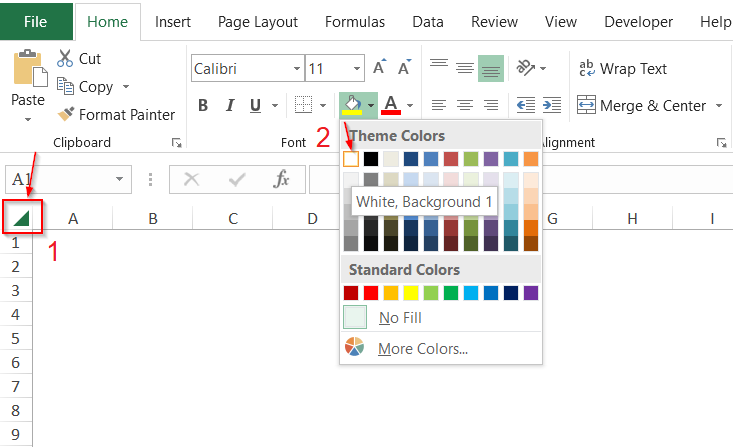 User incorrectly filling the entire Excel sheet with white color to hide gridlines
Why is this wrong?
When you fill all cells with white, Excel does not just change the visual appearance; it records format metadata for over 17 billion cells (1,048,576 rows × 16,384 columns). This forces the software to allocate memory for empty space, drastically increasing file size and processing load. This method is 100% incorrect from a technical standpoint.
The Correct Solution: View Tab Settings
To achieve a clean look without the performance penalty, you should simply toggle the visibility of the gridlines. This is a display setting, not a cell formatting change, meaning it consumes zero additional memory.
How to do it properly:
- Navigate to the View tab on the Ribbon.
- Uncheck the box labeled Gridlines.
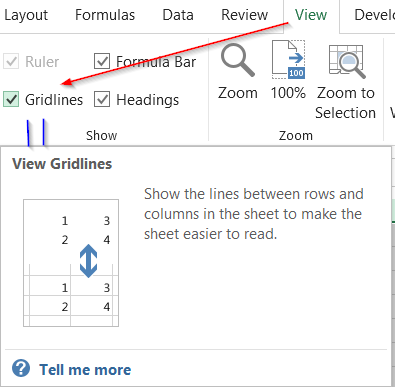 The View tab in Excel showing the Gridlines checkbox unchecked
By using this native feature, you keep your file lightweight while maintaining the professional aesthetic you desire.
 Animation demonstrating how to uncheck the Gridlines option in Excel
2. Inefficient Auto Filter Usage
The Auto Filter is a powerful tool for data analysis, but applying it incorrectly can confuse Excel’s dependency chain. A frequent mistake is clicking the Filter button without selecting the specific dataset first.
If you have scattered data or a non-continuous layout, Excel might attempt to apply the filter to the entire sheet width or guess the range incorrectly. This creates unnecessary metadata overhead and can lead to sluggish sorting performance.
 Excel warning showing filter applied to an undefined range causing errors
Best Practice:
Always highlight your specific data table (headers and content) before clicking the Filter button in the Data tab. This defines the exact boundary of operations, allowing Excel’s calculation engine to ignore the millions of empty cells surrounding your data.
3. Excessive Data Validation and Conditional Formatting
Features like Data Validation (drop-down lists) and Conditional Formatting (color scales, heat maps) are essential for interactive dashboards. However, they are computationally expensive.
Every cell with Conditional Formatting is essentially holding a volatile formula that triggers every time the screen refreshes or data changes. If you apply these rules to entire columns (e.g., Column A:A) instead of a specific range (e.g., A2:A1000), Excel must constantly evaluate rules for over a million rows, even if they are empty.
The “Just Enough” Principle
You must strictly limit these features to your actual data range.
- Do not select the whole column.
- Do estimate your maximum data growth. If you currently have 500 rows, define your Validation/Formatting up to row 1,000.
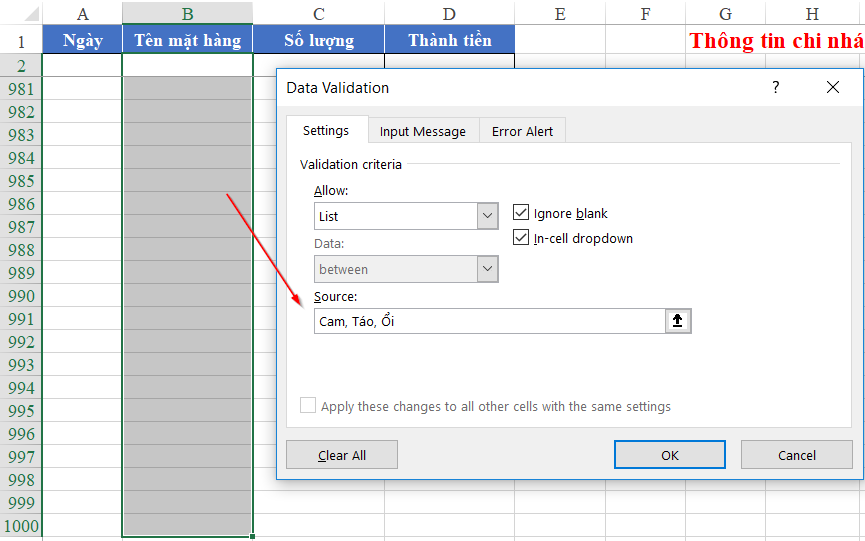 Setting up Data Validation for a specific range of cells instead of the whole column
Expanding the range later is easy, but recovering speed from a file bogged down by a million conditional formatting rules is difficult and time-consuming.
4. Legacy File Formats (.xls)
If you are still saving files with the .xls extension, you are using a technology standard from the Excel 97-2003 era.
Why avoid .xls?
- Poor Compression: The old binary format does not compress data efficiently compared to the modern XML standard.
- Feature Limitation: It does not support new functions (like XLOOKUP) or expanded grid sizes.
- Security Risk: It is more prone to corruption.
Recommended Modern Formats:
- Excel Workbook (.xlsx): The standard format. It uses XML architecture, which automatically compresses data (zipping it) when saved, resulting in much smaller file sizes.
- Excel Binary Workbook (.xlsb): For extremely large datasets or complex models,
.xlsbis the gold standard. It saves data in binary (machine code) rather than XML text, making it load and save up to 50% faster than.xlsx. - Excel Macro-Enabled Workbook (.xlsm): Essential if your file contains VBA code.
5. Volatile Formulas and Calculation Chains
The speed of your Excel file is directly tied to two factors: the quantity of formulas and their complexity.
The Danger of Volatile Functions
Certain functions—specifically INDIRECT(), OFFSET(), TODAY(), and RAND()—are “volatile.” This means they recalculate every single time any change is made anywhere in the workbook, regardless of whether the change affects them. Excessive use of these functions keeps the processor running constantly, causing the dreaded “Calculating…” lag.
Optimization Strategies:
- Hard-code Historical Data: If data from last month will never change, copy and “Paste Values” to remove the formulas.
- Avoid Array Formulas: Legacy array formulas (entered with Ctrl+Shift+Enter) are memory hogs. Use modern dynamic array functions (like
FILTER,UNIQUE) or helper columns where possible. - Use Manual Calculation: For heavy engineering or financial models, switch calculation mode to Manual (Formulas > Calculation Options > Manual). This prevents Excel from freezing while you enter data; you simply press F9 when you are ready to see the results.
6. “Phantom” Names and External Links
Named Ranges are excellent for formula readability, but they can become “digital trash” if not managed. When you copy sheets between workbooks, Named Ranges often travel with them. Over time, a file can accumulate hundreds of “phantom” names referring to external files that no longer exist (#REF!).
How to Clean Up:
- Go to Formulas > Name Manager.
- Review the list for names with reference errors (
#REF!) or links to external workbooks you don’t recognize. - Delete these broken names.
This cleans up the metadata dependency tree, ensuring Excel doesn’t waste time trying to resolve links to non-existent servers or files.
Conclusion
Excel is a robust tool, but like any sophisticated machinery, it requires proper maintenance to function at peak performance. The lagging and freezing you experience are rarely bugs in the software, but rather symptoms of resource mismanagement.
To summarize the key takeaways for a healthy, fast Excel file:
- Never use fill color to hide gridlines; use the View tab instead.
- Limit formulas, filters, and formatting to the actual used range.
- Upgrade your file extension to
.xlsxor.xlsb. - Audit your formulas and remove volatile functions where possible.
By adopting these disciplined habits, you not only reduce file size but also ensure a smoother, professional experience for anyone who opens your reports.
Has your Excel file been acting up lately? Apply these tips and let us know in the comments how much space you saved!
References
- Microsoft Support. (n.d.). Top ten ways to clean up your workbook. Retrieved from Microsoft.com
- Excel Campus. (2023). Why is my Excel file so slow?. Retrieved from ExcelCampus
- TechCommunity. (2024). Best practices for Excel performance. Retrieved from Microsoft Tech Community













Discussion about this post