


One of the most common frustrations for new Microsoft Excel users is text formatting—specifically, how to handle long strings of text within a single cell. By default, pressing Enter in Excel moves the selection to the cell below, rather than creating a line break like it does in Word or other text editors. This often leads to messy spreadsheets where text spills over into adjacent cells or gets cut off entirely.
Mastering the art of the “in-cell line break” is essential for creating professional, readable reports. Whether you are adding detailed notes, addresses, or multi-line headers, controlling exactly where your text breaks is a crucial skill. However, the method varies significantly depending on whether you are using a Windows PC or a MacBook. This comprehensive guide will walk you through every method available to master line breaks on both operating systems.
How to Create Line Breaks in Excel on Windows
For the vast majority of office users, Windows remains the primary platform for Excel. There are two distinct ways to handle line breaks here: manual breaks (for precision) and automatic wrapping (for layout).
Method 1: The Manual “Hard Return” (Alt + Enter)
The most direct way to force a line break at a specific point in your text is by using a keyboard shortcut. This is known technically as a “hard return.” It allows you to dictate exactly where the first line ends and the second begins, regardless of the column width.
Step-by-Step Instructions:
- Double-click the cell where you want to edit text (or press F2 to enter Edit Mode).
- Place your cursor exactly where you want the line break to occur.
- Press and hold the Alt key, then press Enter.
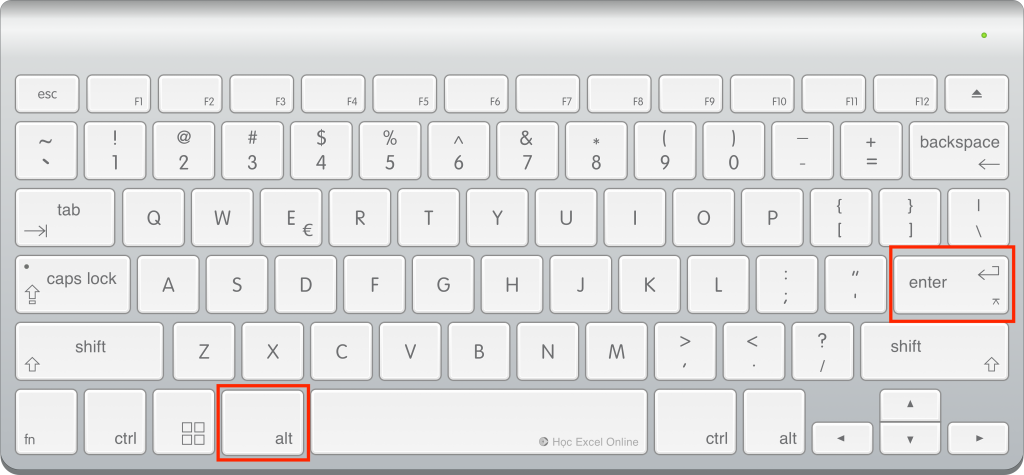 Example of using Alt plus Enter to create a manual line break in an Excel cell
As shown above, the text immediately moves to a new line within the same cell. You can repeat this process multiple times in a single cell to create lists or paragraphs. This method is ideal for addresses or specific data points that must remain separated visually.
Method 2: Automatic Formatting with Wrap Text
If you do not need to control the exact breaking point but simply want all text to be visible within the cell boundaries, the Wrap Text feature is your best ally. This method adjusts the text automatically based on the width of the column. If you widen the column, the text effectively “unwraps”; if you narrow it, the text stacks vertically.
Using the Ribbon:
- Select the cell or range of cells you wish to format.
- Navigate to the Home tab on the top ribbon.
- Locate the Alignment group and click the Wrap Text button.
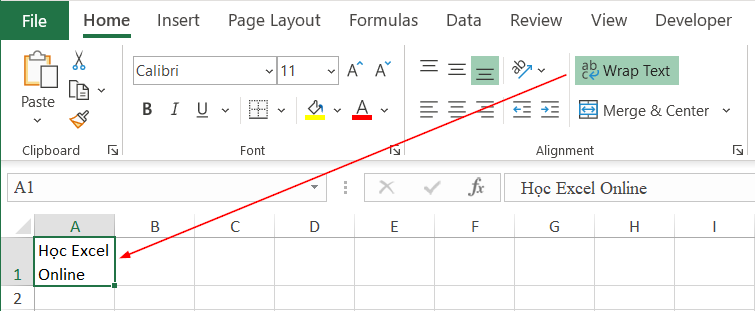 The Wrap Text button located on the Excel Home ribbon interface
Using the Format Cells Dialog:
For more precise control or when applying multiple formatting rules at once, you can use the Format Cells menu:
- Right-click the desired cell and select Format Cells (or press Ctrl + 1).
- Switch to the Alignment tab.
- Under the “Text control” section, check the box for Wrap text.
- Click OK to apply.
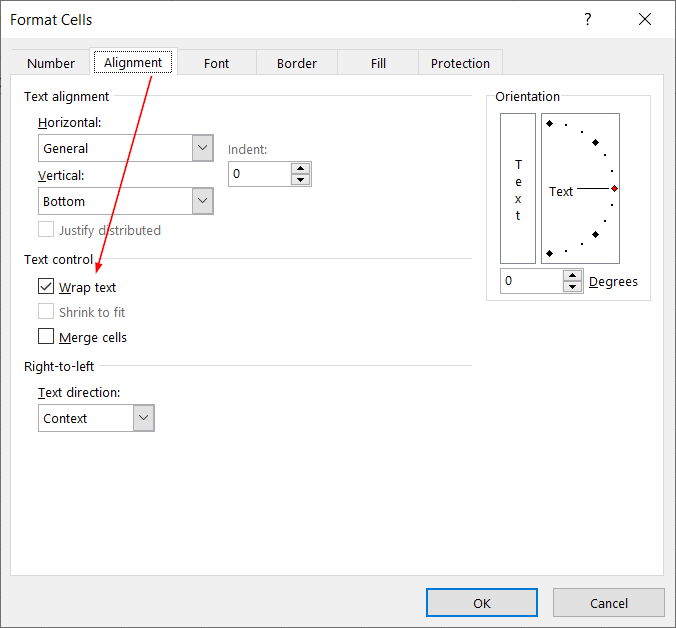 The Format Cells dialog box showing the Wrap text checkbox selected
The result is a cell that expands vertically to fit your content. Unlike the Alt + Enter method, this does not insert a specific line break character into the data string; it is purely a visual formatting change.
How to Start a New Line in Excel on macOS
Migrating from Windows to macOS often causes confusion for Excel power users because the standard Alt + Enter shortcut does not function the same way on Apple keyboards. Mac keyboards interpret the “Option” and “Command” keys differently, requiring a specific combination to achieve the same result.
Here are the specific key combinations to force a line break on a Mac.
Method 1: The Standard Shortcut (Control + Option + Enter)
This is the most common equivalent to the Windows method.
- Double-click the cell to enter Edit Mode.
- Click where you want the break.
- Press Control + Option + Enter.
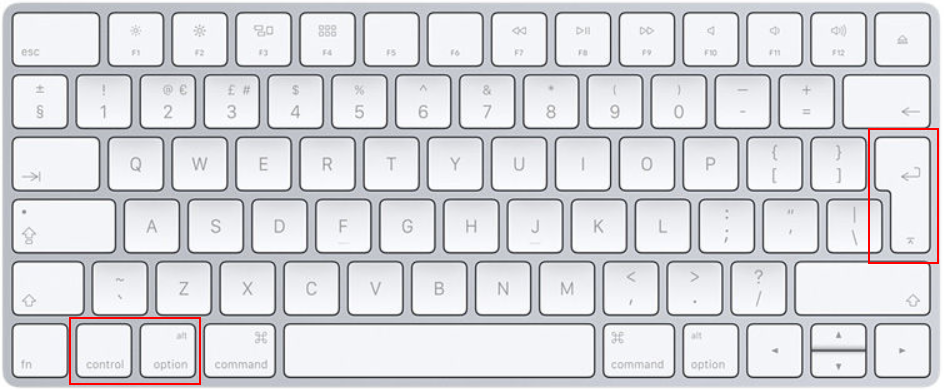 Instructional overlay showing the Control Option Enter shortcut for Mac Excel
It is important to note that simply pressing Option + Enter often works in other Mac applications, but Excel specifically requires the addition of the Control key in many versions to register the command correctly.
Method 2: The Command Alternative (Control + Command + Enter)
If the first method feels awkward for your hand positioning, or if you are using a specific keyboard layout, macOS offers an alternative combination.
Execution:
Press Control + Command + Enter.
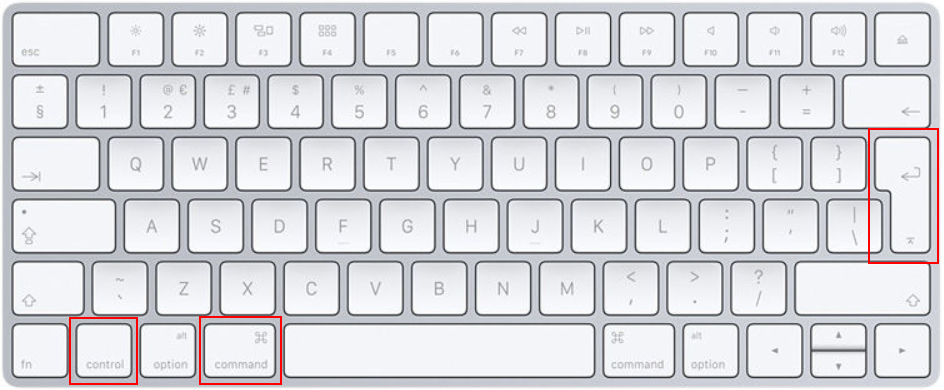 Instructional overlay showing the Control Command Enter shortcut for Mac Excel
Both methods achieve the exact same technical result: inserting a carriage return character into the cell formula.
Advanced Mac Tip: Using the Shift Key modifier
For users who want to insert a line break and strictly keep the focus within the cell (preventing any accidental cursor movement), you can add the Shift key to the combination.
Combination: Shift + Control + Command + Enter
Proper Sequence:
- Press and hold Shift.
- Press and hold Control and Command.
- Tap Enter.
This is particularly useful when editing complex formulas or large blocks of text where losing your cursor position can be disruptive.
Choosing the Right Method: Manual vs. Automatic
Understanding when to use a manual shortcut versus the Wrap Text feature can significantly improve your workflow efficiency.
Use Manual Breaks (Shortcuts) when:
- You are typing an address (Street, City, Zip code on separate lines).
- You are creating a specific list within a single cell.
- You want the line break to persist even if you change the column width.
Use Wrap Text when:
- You are dealing with long sentences or paragraphs.
- You want the row height to adjust automatically.
- You want the layout to remain flexible if you decide to widen the columns later.
 Animation demonstrating various line break techniques in Excel
Conclusion
Effective data presentation is just as important as the data itself. By mastering these simple keyboard shortcuts for Windows (Alt + Enter) and macOS (Control + Option + Enter), you can transform dense, unreadable spreadsheets into clean, organized documents.
Remember that while keyboard shortcuts give you precision, the Wrap Text feature offers flexibility. Professional Excel users often use a combination of both to achieve the perfect layout. Whether you are using a PC or a MacBook, these techniques ensure your data is displayed exactly how you intend, improving readability for anyone viewing your work.
We hope this guide has clarified the differences between platforms. Try these shortcuts on your next spreadsheet to see the immediate improvement in your data organization.













Discussion about this post