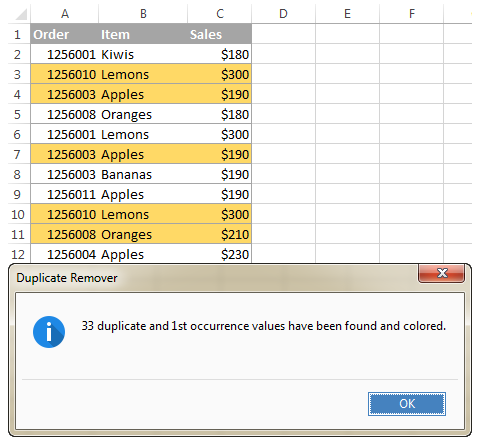
Excel is an incredibly powerful tool for data processing, but its utility depends entirely on the quality of the data entered. One of the most common issues users face is data duplication, which can skew analysis, inflate figures, and lead to incorrect decision-making. Whether you are managing a customer list, inventory, or financial records, identifying and handling duplicate values is a critical skill.
This article provides an in-depth guide on the various methods to detect, highlight, and manage duplicate data in Excel. We will explore techniques ranging from basic built-in features like Conditional Formatting to advanced formula-based solutions for complex datasets.
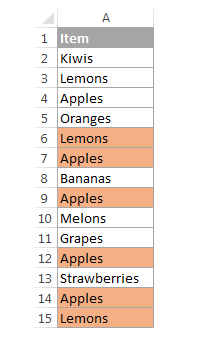
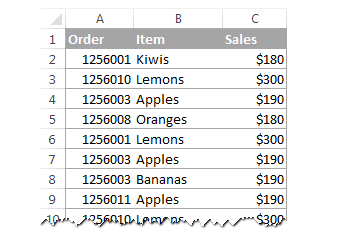
Excel spreadsheet showing a list of data with potential duplicates
Using Conditional Formatting to Find Duplicate Values
The fastest and most user-friendly method to identify duplicates in Excel is the “Conditional Formatting” feature. This tool allows you to visually flag duplicate data instantly without writing a single line of code. It is dynamic, meaning if you change a value to a duplicate later, it will automatically light up.
To apply this, follow these steps:
- Highlight the range of cells or the specific column you want to check.
- Navigate to the Home tab on the ribbon.
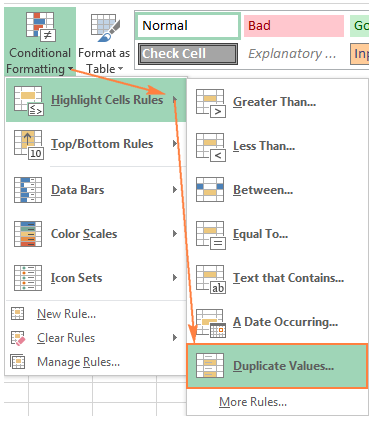
- In the Styles group, click on Conditional Formatting.
- Hover over Highlight Cells Rules and select Duplicate Values.
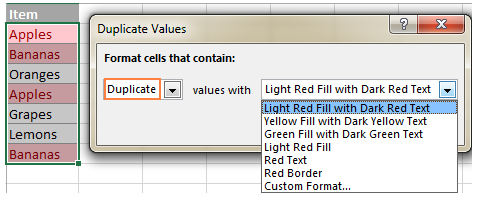
A dialog box will appear, typically defaulting to a “Light Red Fill with Dark Red Text” style. You can click OK to accept this default or use the dropdown menu to choose a Custom Format (such as a yellow fill or bold text) to make the data stand out according to your preference.
Excel Conditional Formatting menu showing Highlight Cells Rules
In the “Duplicate Values” dialog box, you also have the option to switch the rule from Duplicate to Unique. Selecting “Unique” will highlight all values that appear only once, which is useful for finding outliers.
It is important to note that this standard rule applies to each cell individually. It does not look at the row as a whole record. Furthermore, this method highlights every instance of the duplicate, including the very first original entry.
Spreadsheet showing cells highlighted in red indicating duplicate values
Finding Duplicates While Ignoring the First Occurrence
In many data cleaning scenarios, you want to keep the “original” (the first entry) clean and only flag the subsequent repetitions. The standard Conditional Formatting tool creates a visual mess by highlighting everything. To solve this, we use a formula-based rule.
You need to create a rule that counts the occurrence of a value up to the current row. If the count is greater than 1, it is a duplicate.
- Select your data range (e.g., A2:A10).
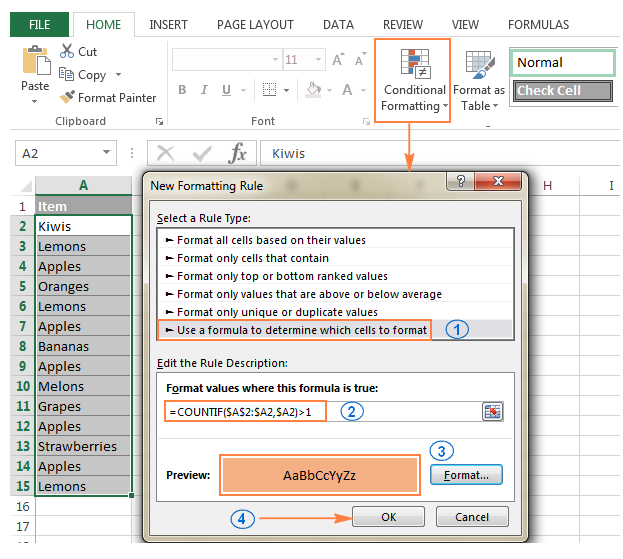
- Go to Conditional Formatting > New Rule.
- Select Use a formula to determine which cells to format.
- Enter the following formula:
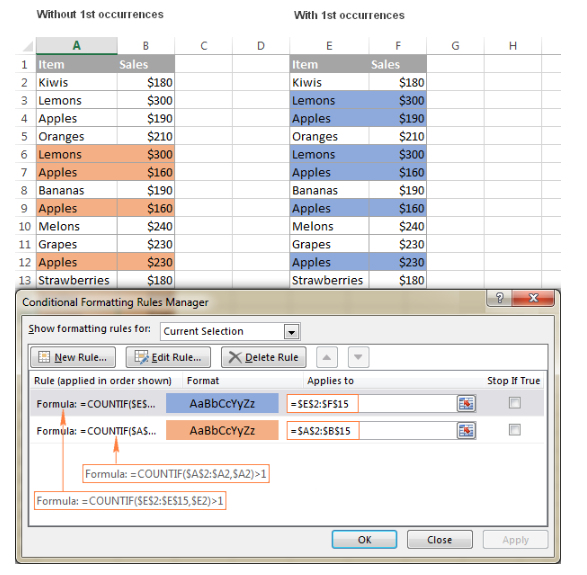
=COUNTIF($A$2:$A2,$A2)>1
Understanding the Formula:
The range $A$2:$A2 is an “expanding range.” The first part ($A$2) is absolute (locked), while the second part ($A2) is relative. As Excel checks down the column, the range grows (A2:A3, A2:A4, etc.). If the value in the current cell exists more than once in the range above it, it gets highlighted.
New Formatting Rule dialog box with COUNTIF formula entered
Once applied, you will see that the first instance of a name or number remains unformatted, while the second, third, and subsequent instances are highlighted. This makes deletion or review much easier.
Excel sheet showing only the second occurrence of duplicates highlighted
Locating the Nth Instance of a Duplicate
You can adapt the formula above to find specific occurrences. For example, if you allow a user to appear in a list twice but want to flag them if they appear a third time, you simply adjust the operator.
Using the formula =COUNTIF($A$2:$A2,$A2)>=3 will ignore the first two instances and only highlight the data starting from the third appearance onward. This provides granular control over data tolerance levels.
Identifying Duplicates Across Multiple Columns
Data often spans multiple columns. You might want to check for duplicates within a larger grid, not just a single column. There are two primary approaches to this.
Method 1: Simple Count Across a Range
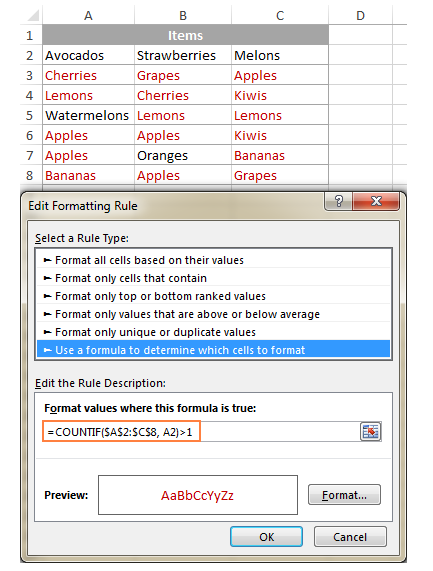
If you want to treat the entire grid (e.g., A2 to C8) as one big pool of data and find any value that repeats anywhere within it, use this formula:
=COUNTIF($A$2:$C$8,A2)>1
This checks if the value in cell A2 exists anywhere else in the block A2:C8.
Excel sheet highlighting duplicates found across multiple columns
Complex Multi-Column Duplicates (Excluding First Occurrence)
When dealing with multiple columns, you might want to highlight the second instance of a value, regardless of whether that second instance appears in the same column or a later column. This requires a more sophisticated approach involving multiple rules or a complex combined formula.
Approach A: Two Separate Rules
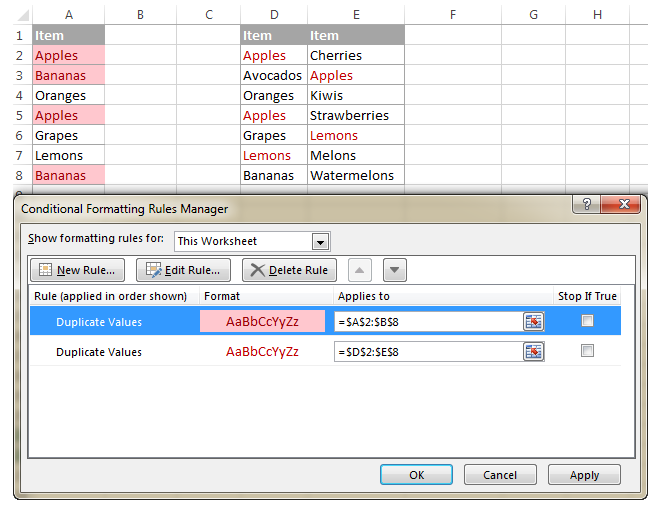
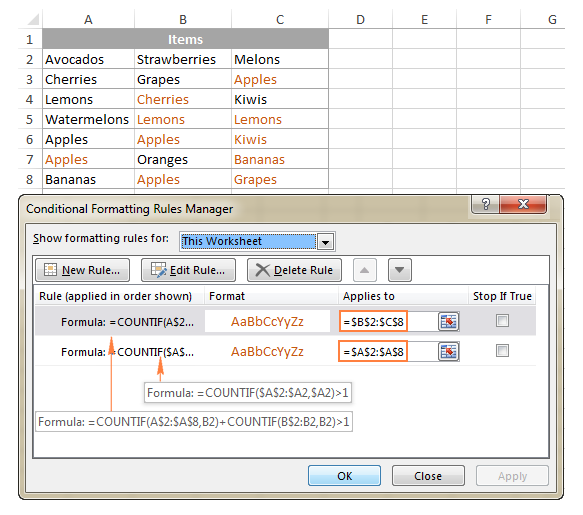
You can define the hierarchy of columns. First, check the first column against itself. Then, check subsequent columns against previous columns.
- Rule for Column A:
=COUNTIF($A$2:$A2,$A2)>1 - Rule for Column B (and others):
=COUNTIF(A$2:$A$8,B2)+COUNTIF(B$2:B2,B2)>1
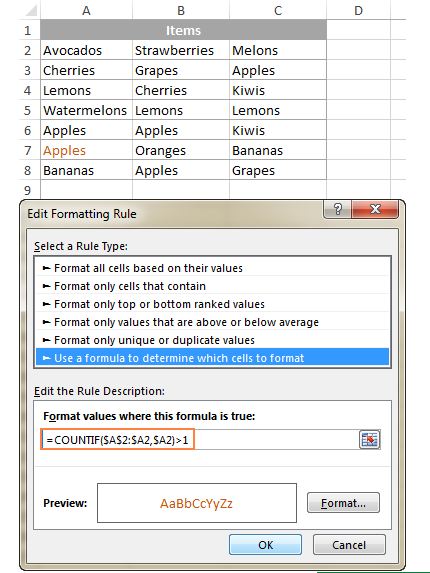
This logic checks if the value in Column B exists in Column A (full range) OR if it has already appeared in Column B (expanding range).
Advanced formatting showing duplicates in the second column based on the first
The visual result helps in tracing the flow of data duplication from left to right, which is essential for timeline-based data entry.
Complete view of multi-column duplicate highlighting
Approach B: Combined Formula
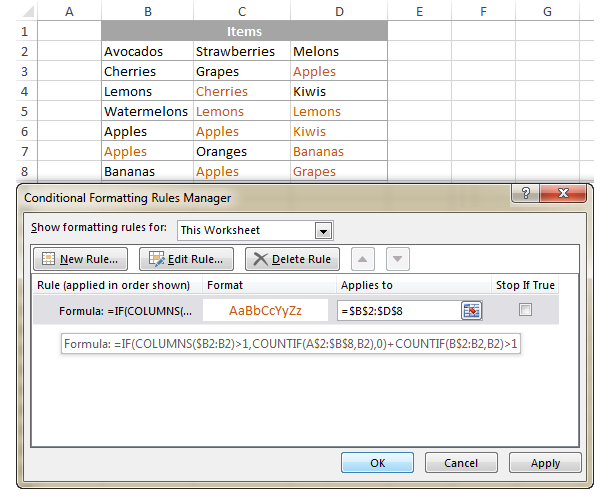
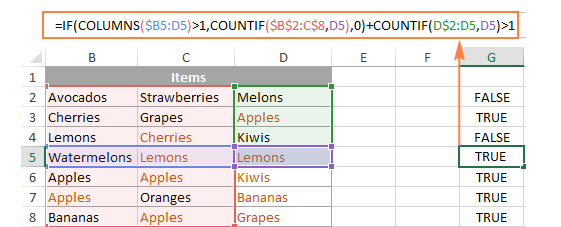
Alternatively, a single (albeit complex) formula can handle the logic if you are comfortable with the IF and COLUMNS functions.
=IF(COLUMNS($B2:B2)>1,COUNTIF(A$2:$B$8,B2),0)+COUNTIF(B$2:B2,B2)>1
This formula dynamically adjusts based on the column index to determine if a value has been seen before in any preceding column or row.
Entering a complex formula for multi-column duplicate checking
While complex to set up, this method is robust for large datasets where manual rule creation for every column is not feasible.
Result of the complex multi-column formula
Highlighting Entire Rows Based on Duplicate Cell Values
Often, highlighting a single cell isn’t enough context. If an ID number in Column A is a duplicate, you likely want to highlight the entire row (Name, Date, Amount) to review the full record.
To achieve this, select your entire dataset (e.g., A2:C15) and use a formula that locks the column reference but leaves the row relative.
Formula: =COUNTIF($A$2:$A2,$A2)>1 (Excluding first instance)
Or: =COUNTIF($A$2:$A$15,$A2)>1 (Highlighting all instances)
Crucial Step: Notice the $A2. By putting the dollar sign only before the ‘A’, we tell Excel that for every cell in that row (B2, C2, etc.), it should look back at column A to decide whether to turn red.
Entire rows highlighted in red based on duplicate values in Column A
Highlighting Rows Where Multiple Criteria Match
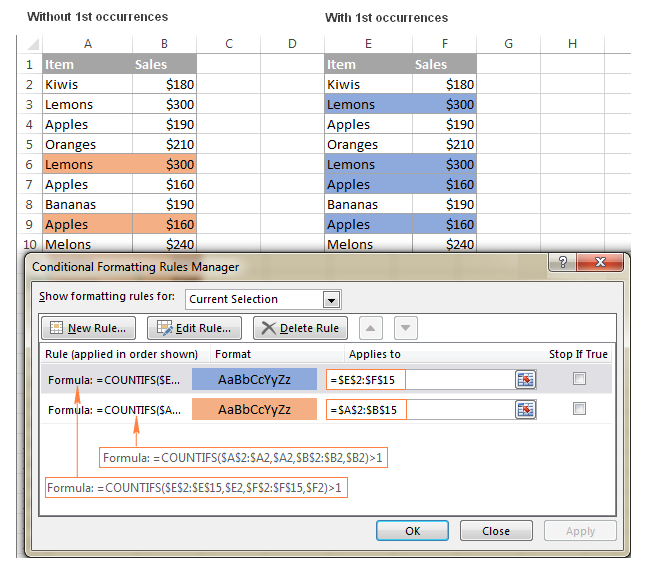
Sometimes, a “duplicate” is only a duplicate if two columns match (e.g., same Name AND same Date). If “John” appears twice but on different dates, it might be valid. If “John” appears twice on the same date, it’s a duplicate.
For this, we use the COUNTIFS function (plural), which allows for multiple criteria.
Formula:
=COUNTIFS($A$2:$A2,$A2,$B$2:$B2,$B2)>1
This formula checks if the pair (Column A value + Column B value) has appeared before in the expanding range.
Highlighting rows based on duplicates in both Column A and Column B
Identifying Consecutive Duplicates
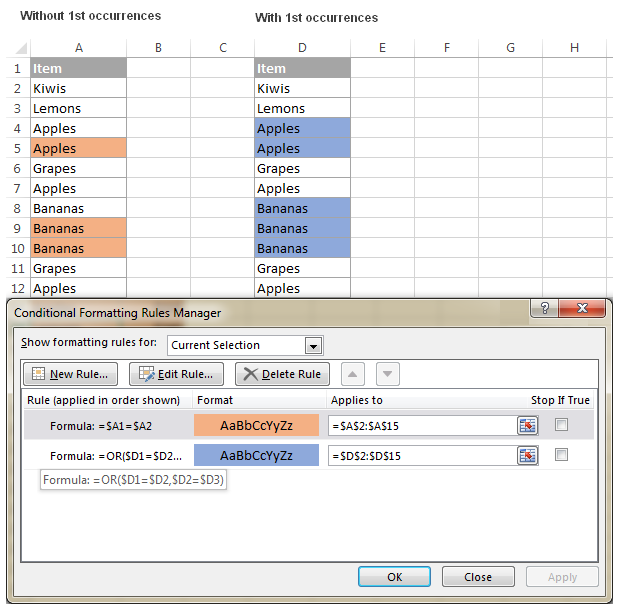
In time-series data or logs, you might only care if a value repeats immediately. If “Error 404” appears, then “OK”, then “Error 404” again, it might be fine. But if “Error 404” appears twice in a row, it indicates a persistent glitch.
To highlight a value only if it is the same as the one directly above it:
=$A1=$A2
If you want to highlight the whole block (both the first and second consecutive items), you can use the OR function:
=OR($A1=$A2,$A2=$A3)
Excel list highlighting only values that are identical to the cell above
Advanced Data Cleaning: Using Duplicate Remover Tools
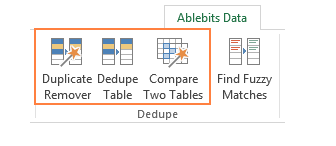
While formulas are excellent for visualization, sometimes you need to physically process the data—delete, move, or merge duplicates. While Excel has a built-in “Remove Duplicates” button on the Data tab, utilizing dedicated add-ins or “Duplicate Remover” wizards can offer significantly more power and safety, such as comparing two different lists or case-sensitive removal.
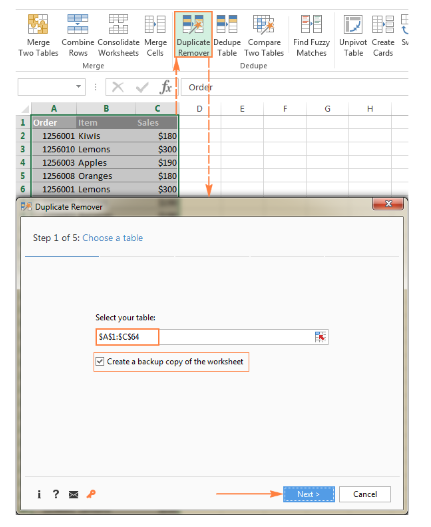
Below is a walkthrough of a typical workflow using an advanced wizard for duplicate processing.
Step 1: Launching the Tool
First, you initiate the wizard. Unlike the standard Excel feature, these tools often present a step-by-step guide to ensure you don’t accidentally delete critical data.
Interface of a Duplicate Remover Wizard tool
Step 2: Defining the Range
You must explicitly select the range of data you wish to analyze. Advanced tools will often auto-detect the used range to save time.
Selecting the data range in the wizard
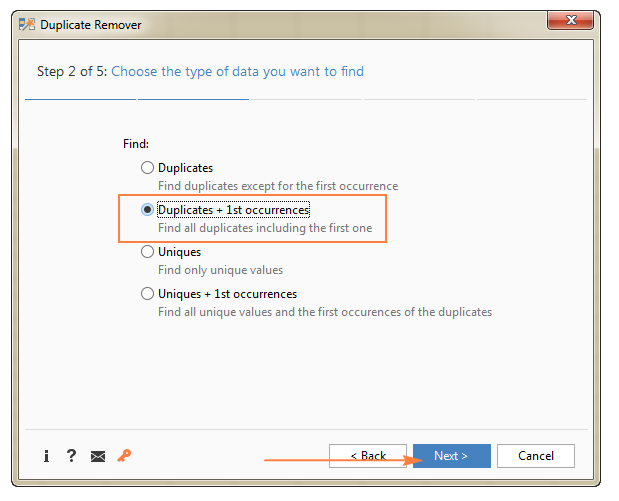
Step 3: Choosing the Comparison Type
A key advantage of third-party tools is the ability to choose how duplicates are defined. You can look for duplicates within a single list, or compare two different lists to find intersections.
Wizard step asking to find duplicates within one range
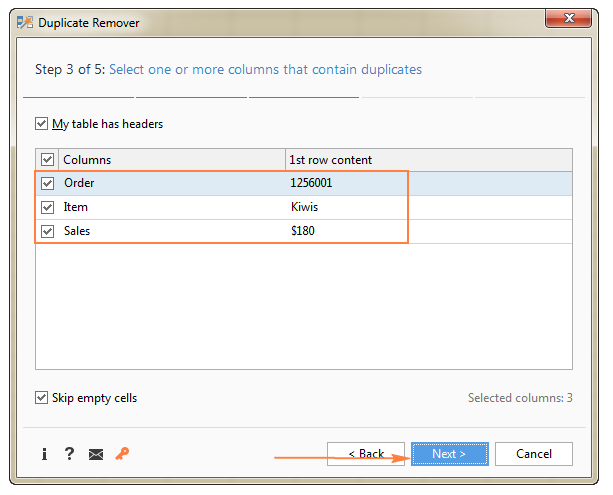
Step 4: Column Selection
Here, you select which columns constitute a “unique identifier.” You might want to check for duplicates based solely on the “Product ID” column, while ignoring the “Price” column.
Selecting specific columns to check for duplication
Step 5: Field Customization
Some tools allow for fuzzy matching or ignoring extra spaces, which is crucial when dealing with human-entered data where ” John Smith” and “John Smith” are technically different but logically the same.
Customizing field matching options
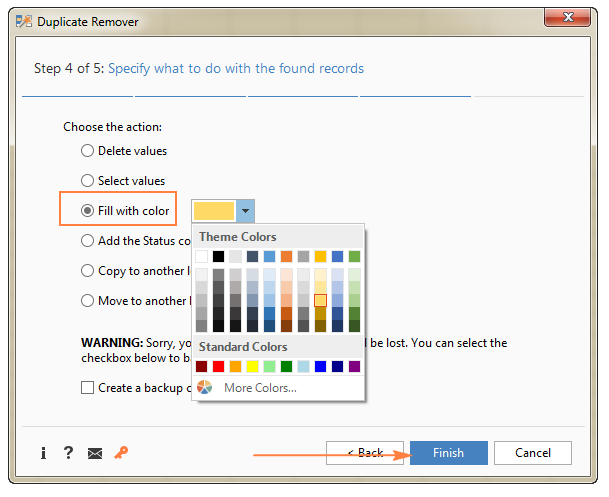
Step 6: Action Selection
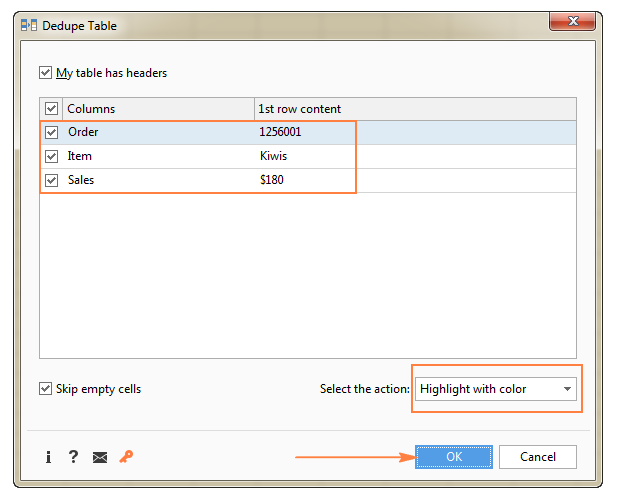
Once duplicates are identified, you don’t always want to delete them immediately. You might want to select them, change their font color, or add a background color to review them manually first.
Choosing the action to perform on found duplicates
Step 7: Confirming the Output
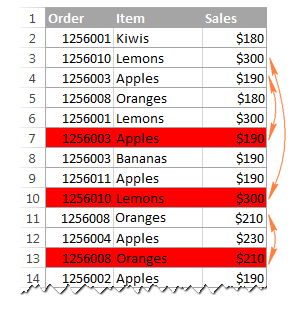
Before executing, the tool typically summarizes what will happen (e.g., “Highlighting duplicates in red”). This confirms that the correct column—Column A in this case—is being targeted.
Confirmation screen showing target columns
Step 8: Execution and Results
Upon clicking “Finish” or “Ok”, the tool processes the data. This is often faster than calculating complex array formulas on the sheet, especially for thousands of rows.
Processing the data with the selected rules
Step 9: Final Report
Good tools will provide a summary report, telling you exactly how many duplicate values were found and processed. This audit trail is vital for data integrity.
Final summary dialog showing number of duplicates found
Conclusion
Handling duplicate values is a fundamental aspect of Excel proficiency. Whether you need a quick visual check using Conditional Formatting, a robust automated solution using COUNTIF formulas, or a destructive cleanup using a Duplicate Remover tool, Excel provides a variety of ways to ensure your data remains clean and accurate.
For most daily tasks, the built-in Conditional Formatting is sufficient. However, mastering the formulas discussed in this article will give you the flexibility to handle complex reporting requirements and multi-column databases with ease.
References
- Microsoft Support: Find and remove duplicates.
- Excel Jet: Excel Conditional Formatting Formulas.
- TechCommunity: Managing Data Integrity in Excel.


Discussion about this post