Excel is arguably the most powerful tool for data processing available today, but raw data is useless if it is not legible. A common frustration for many users—from students to data analysts—is dealing with text that gets cut off or rows that consume too much white space. Properly formatting your spreadsheet is not just about aesthetics; it is about data integrity and professional presentation.
This comprehensive guide will walk you through the technical methods to precisely adjust row height and cell dimensions in Excel. We will cover everything from the basic cursor drag to utilizing AutoFit features and configuring specific measurement units for printing.
Understanding Default Row Height in Excel
Before diving into adjustments, it is crucial to understand how Excel calculates these dimensions. The default row height is dynamic and primarily determined by the default font size assigned to the workbook.
For instance, in a standard Excel environment using the Calibri font at size 11, the default row height is 12.75 points (approximately 0.4 cm or 17 pixels). In versions like Excel 2016 or 2019, this value might fluctuate slightly depending on your screen’s DPI (dots per inch) settings. Excel allows a height range anywhere from 0 (hidden) to 409 points.
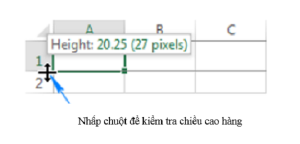
To view the current dimensions of any row, simply click and hold on the bottom border of the row header.
Cursor hovering over the row boundary in Excel to display height info
Method 1: Adjusting Row Height via Mouse Dragging
The most intuitive way to modify row height is by using the mouse. This method is best for quick visual adjustments where exact precision is not the priority.
To resize a single row, hover your cursor over the line separating two row numbers on the left-hand side until the cursor changes to a double-headed arrow with a horizontal line. Click and drag upward or downward to reach your desired height.
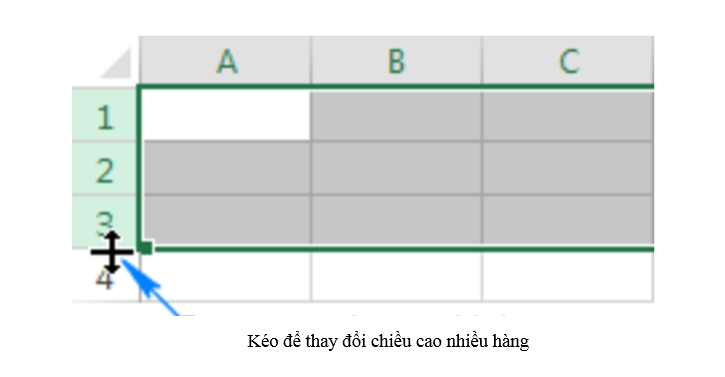
For batch processing, you can significantly speed up your workflow. Select multiple rows by clicking and dragging across the row numbers (or press Ctrl + A to select the entire sheet). When you resize one row in the selection, Excel applies that exact height to all other selected rows instantly.
Selecting multiple rows and dragging the bottom boundary to resize them all
Method 2: Setting a Precise Row Height
For professional reports or standardized forms, dragging the mouse is often too inaccurate. In these cases, you need to input a specific numerical value (measured in points).
You can achieve this through the Ribbon menu or the Context menu:
- Select the row(s) you wish to modify.
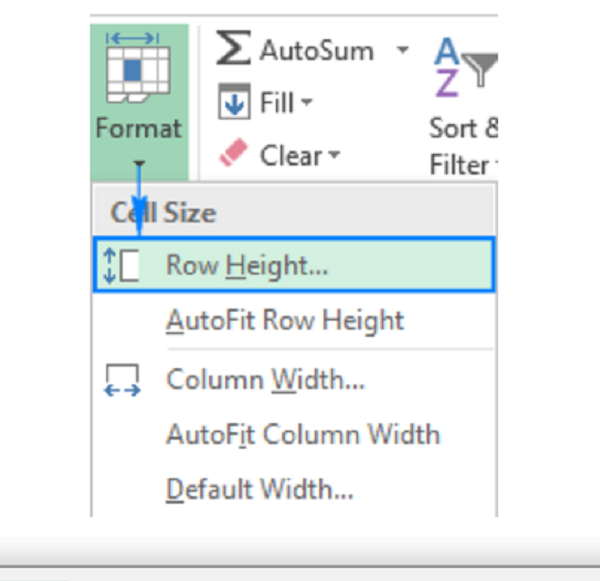
- Navigate to the Home tab on the Ribbon.
- In the Cells group, click on Format.
- Select Row Height from the dropdown list.
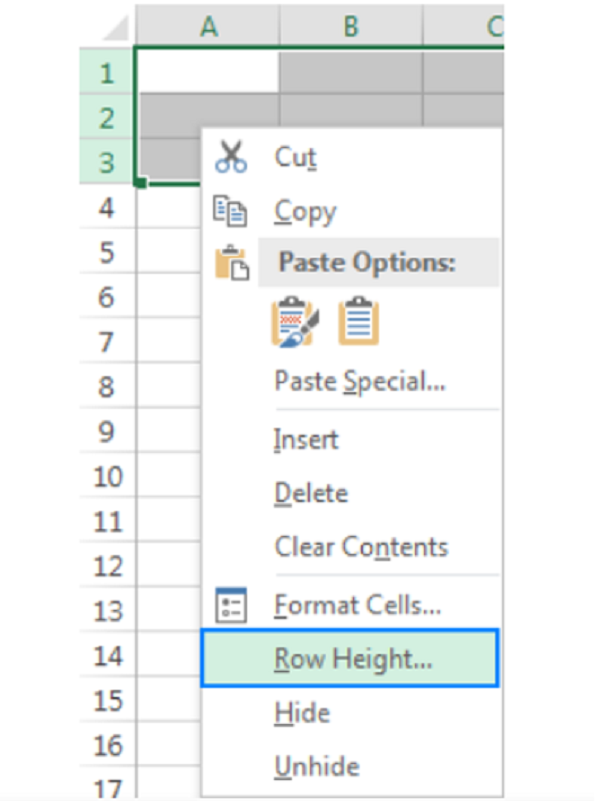
Alternatively, a faster workflow for power users is to right-click directly on the row header and choose Row Height… from the context menu.
Excel Row Height dialog box requiring a numeric value input
Enter your desired value in the dialog box (e.g., 20 or 30 points) and press OK. This ensures that every selected row has mathematically identical dimensions, providing a clean, uniform look to your dataset.
Method 3: Utilizing AutoFit for Content Visibility
One of the most efficient features in Excel is AutoFit. This function automatically calculates the height required to display the tallest content within a row without cutting off text. This is essential when dealing with wrapped text or varying font sizes within a single dataset.
There are two primary ways to trigger AutoFit:
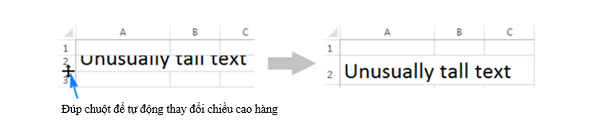
The Double-Click Shortcut:
Hover over the bottom border of the row heading until the double-headed arrow appears, then double-click the left mouse button. Excel will instantly snap the row height to fit the content perfectly.
Mouse cursor positioned to double-click the row divider for AutoFit action
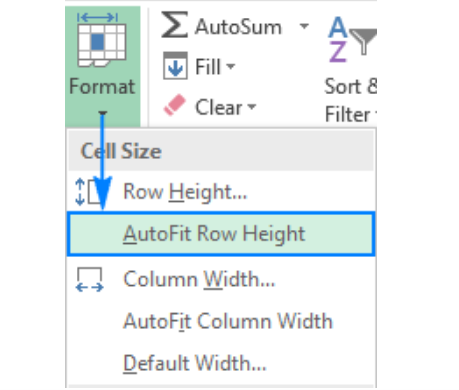
The Ribbon Command:
If you prefer using the menu or need to apply this to a large selection where double-clicking is difficult, go to Home > Format > AutoFit Row Height. This guarantees that no data is hidden in your final report.
Menu selection showing the AutoFit Row Height option in the Cells group
Method 4: Adjusting Dimensions in Inches, Centimeters, or Millimeters
By default, Excel operates in “points” for height and characters for width. However, if you are designing a document for physical printing, you might prefer working with physical measurement units like inches or centimeters.
To switch to this mode, you must change your view:
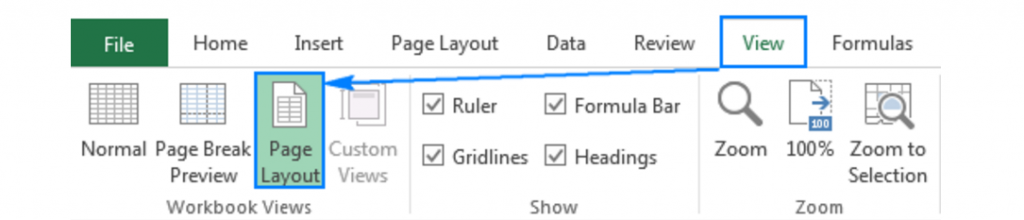
- Go to the View tab.
- In the Workbook Views group, select Page Layout.
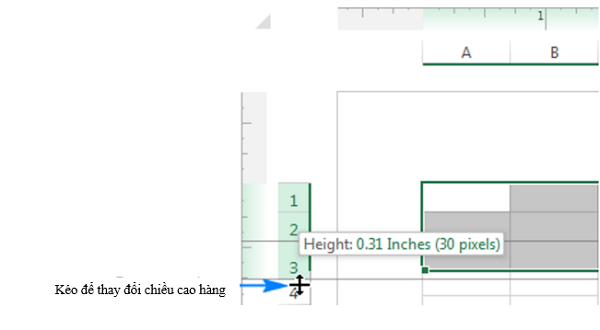
In this view, the rulers appear above and to the left of the grid. You can now adjust row heights, and Excel will display the measurement in your system’s default metric (inches or cm).
Excel Page Layout view showing rulers in centimeters or inches for adjustment
If you see inches but want centimeters (or vice versa), you can change the rule units by navigating to File > Options > Advanced. Scroll down to the Display section and change the Ruler units setting.
Dragging the row boundary while in Page Layout view to see inch measurements
Advanced: Creating Perfect Squares and Changing Defaults
Creating Square Cells
Excel cells are rectangular by default. Creating a perfect square grid is useful for specific tasks like creating graph paper templates or visual planning. To do this, you must set the column width and row height to values that result in the same physical length.
Because Excel uses different units for width (characters) and height (points), looking at the “Page Layout” view (as mentioned above) is the most reliable way to ensure both dimensions match in inches or centimeters.
Illustration of cell dimensions showing height and width
Changing the Default Row Height Globaly
If you find yourself constantly adjusting the row height for every new file, it is more efficient to change the system default. Since row height is tied to font size, you change the default row height by changing the default font.
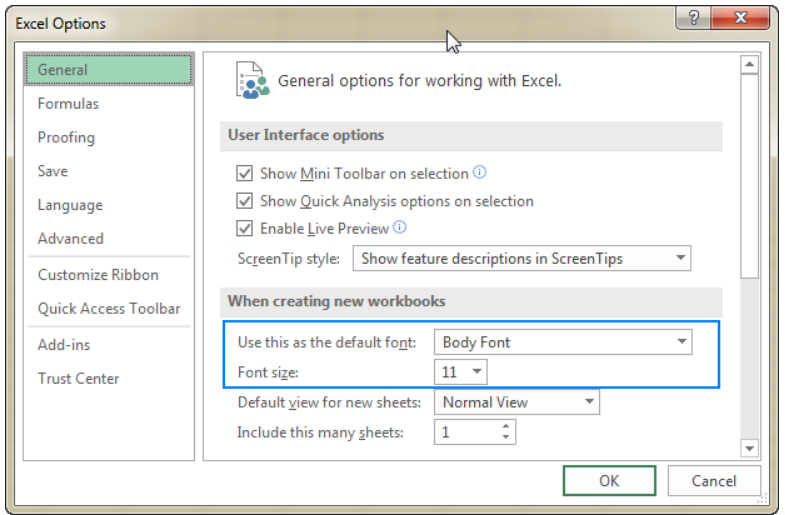
Go to File > Options > General. Under the section When creating new workbooks, adjust the Font size. A larger font will result in a taller default row height for all future workbooks.
Excel Options window for changing default font and font size
For a customized height without changing the font, consider setting up a blank spreadsheet with your desired dimensions and saving it as an Excel Template (.xltx).
Conclusion
Mastering row height and cell size adjustments in Excel is a fundamental skill that bridges the gap between raw data and actionable information. Whether you use the speed of the mouse drag, the precision of the dialog box, or the efficiency of AutoFit, choosing the right method depends on your specific goal.
By ensuring your data is fully visible and neatly spaced, you improve the readability and professionalism of your work. We hope these techniques help you optimize your spreadsheet workflow effectively.


Discussion about this post