


Adding a watermark to your Excel spreadsheets is an essential skill for professionals looking to protect their intellectual property or enhance their brand identity. Whether you need to mark a document as “Confidential,” “Draft,” or simply want to display your company logo in the background, Excel handles this differently than Microsoft Word. Unlike Word, Excel does not have a dedicated “Watermark” button. Instead, we utilize the Header & Footer feature to insert an image that sits behind your data.
In this comprehensive guide, “Thủ Thuật” will walk you through the precise steps to insert an image as a watermark and, more importantly, how to format it correctly so it doesn’t obscure your important data.
Preparation: What You Need
Before diving into the technical steps, ensure you have the necessary “ingredients” ready. This preparation ensures a smooth workflow without interruptions.
- A Watermark Image: This can be a company logo, a digital signature, or a text-based image (like “DRAFT” or “CONFIDENTIAL”). Supported formats include PNG (recommended for transparency), JPEG, or GIF.
- The Target Excel File: Open the spreadsheet where you intend to apply the branding or protection.
Part 1: Inserting the Watermark into the Spreadsheet
The process involves accessing the page layout tools to embed the image into the header section. Follow these steps to get your image onto the sheet.
Step 1: Access the Header & Footer Tools
Open your Excel workbook. Navigate to the Insert tab on the ribbon toolbar. Look for the Text group on the right side and click on Header & Footer. This action will automatically switch your view from “Normal” to “Page Layout,” allowing you to see the header areas.
 Screenshot of the Insert tab in Excel highlighting the Header & Footer option
Step 2: Insert the Picture
Once you are in the Header area, a new contextual tab called Header & Footer (or Design) will appear on the ribbon. In the Header & Footer Elements group, click on the Picture button. This command tells Excel that you want to place an image specifically in the header section, which will repeat across pages.
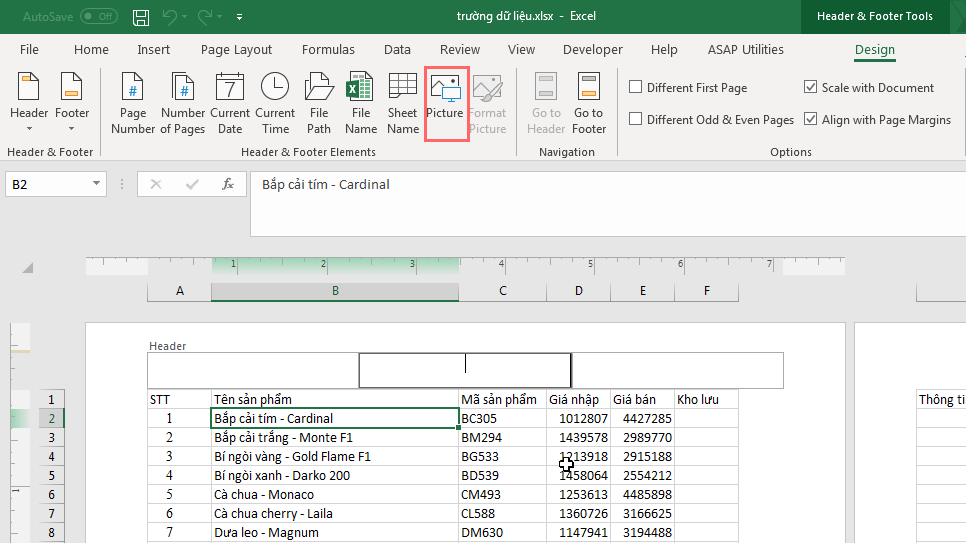 The Design tab in Excel showing the Picture button within Header & Footer Elements
The interface will prompt you to choose the source of your image. This method is efficient because it locks the image in the background relative to the print layout.
 Animated GIF demonstrating the process of clicking the Picture button in the toolbar
Step 3: Select Your Image
A dialog box will appear. Browse your computer or cloud storage to find the “ingredient” image you prepared earlier. Select the file and click Insert.
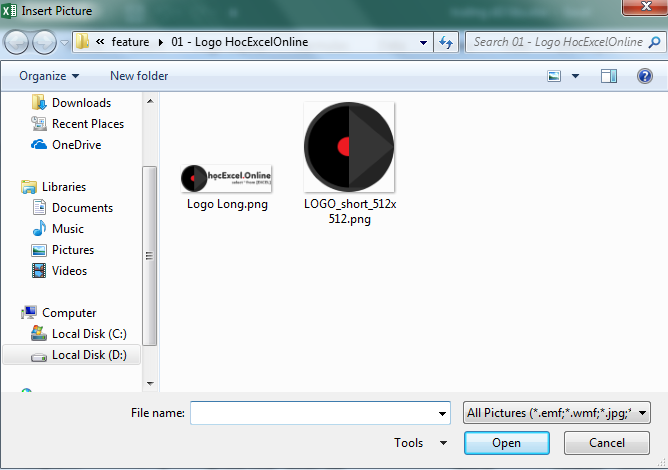 File selection dialog box showing watermark images to choose from
Result Analysis:
At first glance, you might only see a code like &[Picture] in the header box. Do not worry; this is normal. simply click on any empty cell outside the header area to render the image.
However, you will likely notice a common issue: the image appears in its full, original resolution. Often, this results in a watermark that is too dark or too large, making the spreadsheet data difficult to read. This brings us to the next crucial phase: formatting.
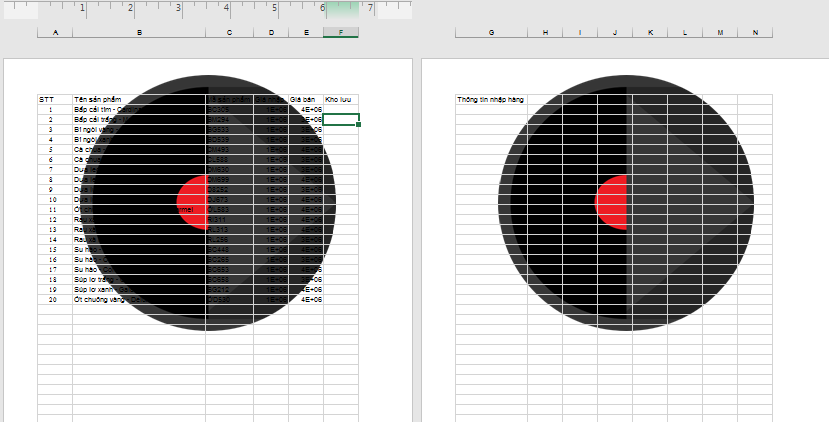 Preview of the inserted watermark appearing too dark and obscuring the data
Part 2: Professional Formatting and Optimization
A raw image inserted into the header is rarely perfect. To make it a true watermark, we need to adjust its transparency and size. We will use the Format Picture tool to ensure the branding is subtle and professional.
First, click back into the header section containing the &[Picture] text. On the Design tab, click Format Picture (this button sits right next to the Picture button you used earlier).
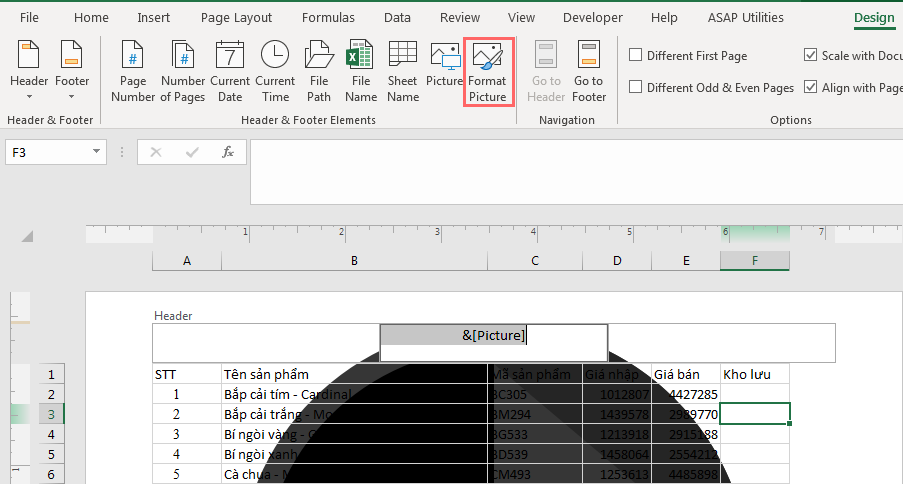 The Format Picture button located in the Header & Footer Elements group
When the Format Picture dialog box opens, focus on the two most important tabs: Size and Picture.
Optimizing Dimensions (The Size Tab)
The Size tab allows you to control the physical dimensions of your watermark.
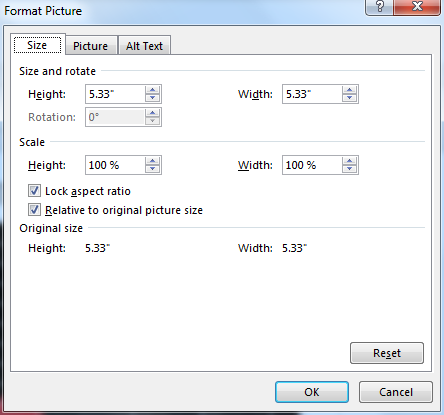 The Size tab within the Format Picture dialog box showing dimension options
Key parameters to adjust here include:
- Size and Rotate: Here you can manually input the Height and Width. If your logo is tilted, you can adjust the Rotation degrees.
- Scale: This is often easier than manual sizing. You can reduce the image to 50% or 80% of its original size.
- Lock aspect ratio: Always keep this checked. It ensures that when you change the height, the width adjusts automatically, preventing your logo from looking stretched or squashed.
- Relative to original picture: Keeps the scaling percentage accurate relative to the source file.
Adjusting Visibility (The Picture Tab)
The Picture tab is where the magic happens. This section controls how the image interacts visually with your data.
 The Picture tab in the dialog box highlighting Image Control and Crop settings
You can use the Crop settings to trim edges, but the most critical section for watermarks is Image Control:
- Color: This is the most important setting. Change the mode from Automatic to Washout. The Washout effect automatically lowers the contrast and increases brightness, making the image semi-transparent. This ensures your numbers and text remain legible on top of the logo.
- Brightness: If the Washout effect is too faint, decrease the brightness slightly. If it is still too dark, increase it.
- Contrast: Adjusts the definition between light and dark areas of the image.
Final Result:
After applying the Washout effect and resizing the image to fit the center of your page, click OK. Now, when you click out of the header, you will see a professional, subtle watermark that enhances your document without distraction.
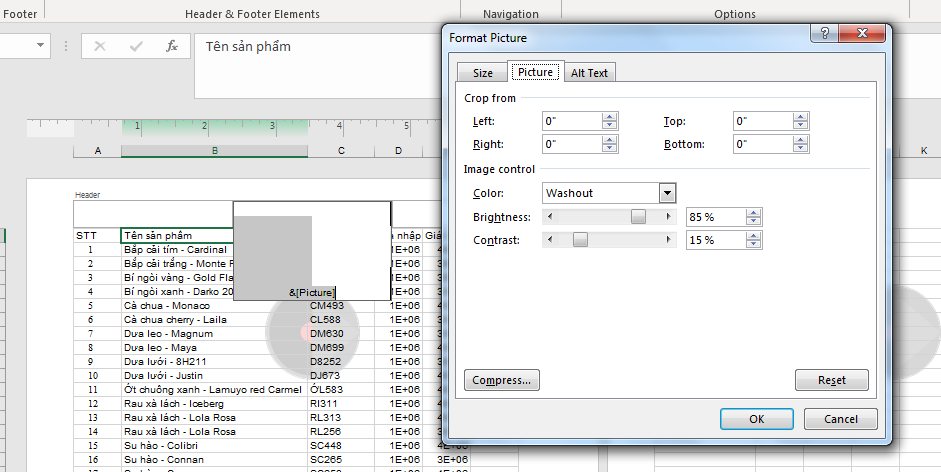 The final result showing a properly sized and washed-out watermark behind the data
Conclusion
Mastering the Header & Footer tools in Excel allows you to overcome the lack of a native watermark button. By following this guide, you can now seamlessly integrate logos and status indicators into your spreadsheets, ensuring your documents look professional and maintain their necessary security classifications.
Remember, the key to a great watermark is subtlety—it should be visible enough to convey ownership but transparent enough not to interfere with the data analysis. We hope this tutorial from “Thủ Thuật” helps you elevate your Excel reporting skills.
References:
- Microsoft Support: Add a watermark in Excel
- TechCommunity: Header and Footer tips for Excel users
- Excel Campus: Formatting background images













Discussion about this post