


In the fast-paced world of digital productivity, cloud-based tools have revolutionized how we handle documents. Google Drive stands at the forefront of this shift, offering a seamless ecosystem for creating, storing, and collaborating on files. For users transitioning from traditional desktop software or looking to optimize their workflow, understanding the fundamentals of Google Docs is essential.
This guide provides a comprehensive walkthrough on creating new documents and leveraging the power of templates within Google Drive. Whether you are drafting a simple report or designing a complex newsletter, mastering these steps will significantly enhance your productivity.
The Google Drive Ecosystem: More Than Just Storage
Before diving into the creation process, it is important to understand the versatility of Google Drive. It is not merely a storage locker; it is a dynamic workspace. Google provides a suite of office tools that rival their desktop counterparts, allowing for real-time collaboration and cloud synchronization.
Here are the core file types you can create and manage directly from your Drive:
- Google Docs: A powerful word processor similar to Microsoft Word, ideal for reports, essays, and text-based content.
- Google Sheets: A spreadsheet application comparable to Microsoft Excel, used for organizing data, calculations, and charts.
- Google Slides: A presentation tool akin to Microsoft PowerPoint, perfect for creating visual slideshows.
- Google Forms: A unique tool for creating surveys, quizzes, and collecting data efficiently.
- Google Drawings: A canvas for creating diagrams, flowcharts, and simple vector graphics.
The process for initiating any of these file types is standardized, making the learning curve incredibly gentle.
Step-by-Step: Creating a New Google Doc
Creating a new document is the most fundamental task in Google Drive. By following a structured approach, you ensure your digital workspace remains organized from the very beginning.
1. Initiating the New File
Navigate to your Google Drive homepage. On the left-hand sidebar, you will see a prominent button labeled “New”. Clicking this opens a dropdown menu containing all available file types. To start a text document, select Google Docs.
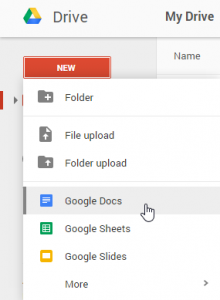 Screenshot of the Google Drive interface showing the New dropdown menu with Google Docs selected
2. Naming Your Document
Once you select Google Docs, a new tab will open in your browser displaying a blank page. By default, this file is named “Untitled document.” To ensure you can find this file later, click on the text “Untitled document” in the top-left corner.
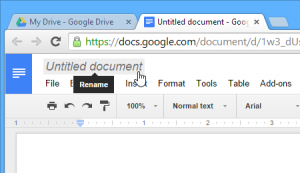 Top left corner of the Google Docs interface highlighting the Untitled Document text field
3. Renaming for Organization
A “Rename” dialog box or a highlighted text field will appear. Type a descriptive name for your file—for example, “Project Proposal 2026″—and press Enter or click OK. Proper naming conventions are crucial for effective file management in the cloud.
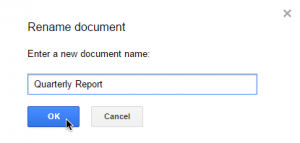 The Rename document dialog box prompting the user to enter a new file name
4. Accessing Your File Later
Once renamed, your file is immediately active. You can close the tab and return to your Google Drive dashboard at any time; the file will be listed there. To resume work, simply double-click the file name in your Drive file list.
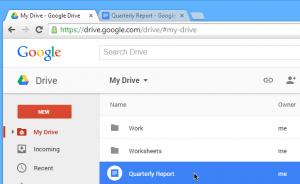 A view of the file successfully renamed and ready for editing in the Google Docs interface
Understanding the “Autosave” Feature
New users often search frantically for a “Save” button (the floppy disk icon familiar from older software). In the Google Workspace ecosystem, this button does not exist.
Google Drive utilizes a continuous Autosave feature. Every keystroke, formatting change, or image insertion is saved to the cloud instantly. You will see a notification near the top menu stating “Saved to Drive” or “Saving…” as you type. This ensures that you never lose work due to a power outage or browser crash.
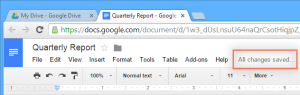 Notification area in Google Docs showing that all changes have been saved to Drive
Boosting Efficiency with Templates
Starting from a blank page can sometimes be daunting or inefficient. This is where Templates come into play. Templates are pre-designed files that include custom formatting, layouts, and styles suited for specific purposes.
Using a template can save you hours of design work. Instead of manually setting margins, fonts, and headers, you can simply fill in your information. Common use cases for templates include:
- Resumes and CVs: Professional layouts to highlight your experience.
- Newsletters: visually engaging formats for updates.
- Project Proposals: Structured documents with headings and tables.
- Brochures: Design-heavy layouts for marketing.
 Preview of various document templates available in Google Drive showing different layouts
While there are third-party templates available across the web, the Google Template Gallery is the most reliable source. Third-party templates can sometimes have formatting errors or navigation issues. Google’s official templates are optimized for performance and ease of use.
How to Use a Google Template
To access these professional designs, you need to navigate to the specific template section within Drive or Docs.
1. Access the Template Gallery
From the Google Docs home screen (docs.google.com) or via the “New > Google Docs > From a template” path in Drive, open the Template Gallery.
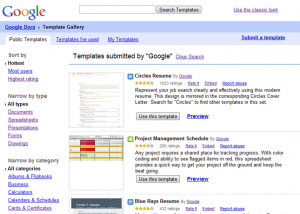 The Google Docs Template Gallery interface displaying various template categories
2. Browse by Category
You will see a wide array of options categorized by function, such as “Work,” “Personal,” or “Education.” You can scroll through these categories or use the search function to find exactly what you need.
 The search bar and category filter within the Google Docs Template Gallery
3. Preview and Select
When you find a template that fits your project, you can often preview it. To begin working, click “Use this template” (or simply click on the thumbnail in newer versions). This action creates a copy of the template in your personal Drive.
 The Use this template button allowing users to create a new file based on the design
4. Customize Your Document
A new file will launch containing the template’s design. The text provided is usually “lorem ipsum” placeholder text. You can now click on any section to replace the dummy text with your actual content while retaining the professional formatting.
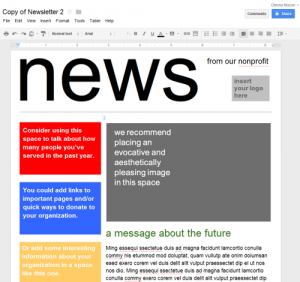 A newly created document based on a template ready for user customization
Quick Challenge: Apply What You Learned
To solidify your understanding of Google Drive and Docs, try completing this short exercise:
- Log in to your Google Account and navigate to the Google Drive Template Gallery.
- Browse the “Personal” or “Work” categories and select a template that looks interesting to you.
- Click to create a new file from that template.
- Rename the file immediately to “My Practice Doc.”
- Close the tab and return to your Google Drive dashboard to verify the new file is listed there.
- Bonus: If you are on a desktop computer, try uploading an existing Word document from your hard drive into Google Drive to see how it converts.
Conclusion
Mastering the basics of creating, renaming, and utilizing templates in Google Drive is the first step toward digital fluency. By moving away from local file storage to the cloud, you gain the ability to access your work from anywhere, collaborate instantly, and ensure your data is always backed up. Whether you are a student, a professional, or a tech enthusiast, these tools are designed to make your workflow smoother and more efficient.
Start exploring the Template Gallery today—you might be surprised at how much time you can save on your next project.
References
- Google Workspace Learning Center: Create and save a file
- TechCrunch: The evolution of Google Docs and cloud collaboration
- The Verge: How to use Google Drive for maximum productivity













Discussion about this post