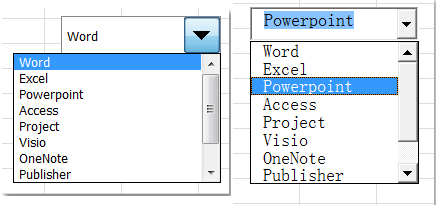
In the realm of data management and spreadsheet design, efficiency is paramount. One of the most powerful yet underutilized features in Microsoft Excel is the Combo Box. This interface element combines a text box with a list box, allowing users to select a value from a predefined dropdown list or, in some configurations, input their own.
For professionals and tech enthusiasts looking to build interactive dashboards or robust data entry forms, mastering the Combo Box is essential. It minimizes data entry errors by restricting input to valid options and significantly enhances the user experience (UX) of your spreadsheets. Excel offers two primary types of Combo Boxes: Form Controls and ActiveX Controls.
This comprehensive guide will walk you through the technical steps to implement both types, helping you decide which solution fits your specific project needs.
Visual representation of an Excel Combo Box interface
Understanding the Prerequisites: The Developer Tab
Before diving into the creation process, you must access the “Developer” tab. By default, Microsoft keeps this tab hidden to maintain a clean interface for general users. However, for advanced customization and form building, enabling this tab is the first critical step.
How to Enable the Developer Tab
Depending on your version of Excel, the path to activate this feature varies slightly.
For Excel 2010, 2013, 2016, and newer versions:
- Navigate to
File>Options. - Select
Customize Ribbonfrom the left-hand sidebar. - In the right-hand column (Main Tabs), check the box next to Developer.
- Click
OKto apply the changes.
Enabling the Developer tab in Excel 2013 settings
For Excel 2007:
- Click the Office Button in the top-left corner.
- Select
Excel Options. - Under the
Popularcategory, check the box for Show Developer tab in the Ribbon. - Click
OK.
Enabling the Developer tab in Excel 2007 settings
Method 1: Creating a Form Control Combo Box
The Form Control Combo Box is the standard, most stable option for standard worksheets. It is easier to set up, highly compatible across different Excel versions, and interacts seamlessly with worksheet cells without requiring VBA (Visual Basic for Applications) code.
Step 1: Prepare Your Data Source
Efficiency starts with organized data. Before inserting the control, list the items you want to appear in the dropdown menu in a specific column on your worksheet.
A list of values prepared in an Excel column
Step 2: Insert the Control
Once your environment is set up, you can draw the interface element directly onto your canvas.
- Go to the Developer tab.
- Click on
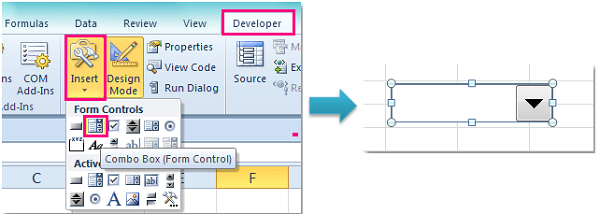
Insert. - Under the Form Controls section (the top group), click the Combo Box icon.
- Your cursor will turn into a crosshair. Click and drag on the spreadsheet to draw the Combo Box size you desire.
Selecting the Combo Box icon from the Insert menu
Step 3: Configure Control Properties
After drawing the box, it is merely an empty shell. You must link it to your data source.
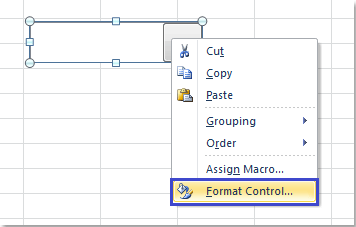
- Right-click on the newly created Combo Box.
- Select
Format Controlfrom the context menu.
Context menu showing the Format Control option
Step 4: Define Input and Cell Links
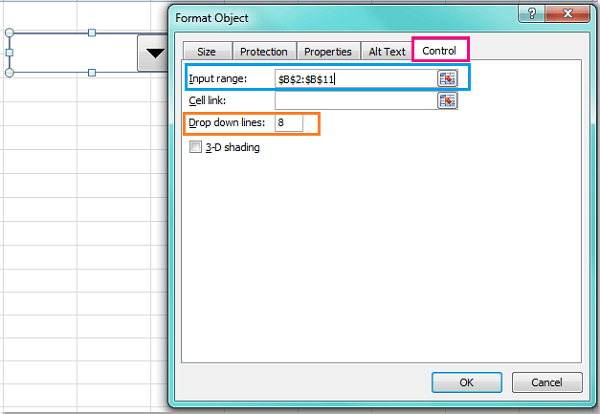
In the Format Control dialog box, navigate to the Control tab. This is where the functional logic is applied:
- Input range: Click the selection arrow and highlight the list of values you created in Step 1.
- Cell link: Select an empty cell on your sheet. This cell will display the index number of the item selected (e.g., if you pick the second item, this cell will show “2”).
- Drop down lines: Specify how many items to show before a scroll bar appears.
Setting the Input Range in the Format Control dialog
Once configured, click OK. Your Form Control Combo Box is now fully functional. Users can click the arrow to see the list and make a selection.
The fully functional Form Control Combo Box
Method 2: Creating an ActiveX Control Combo Box
For power users who require granular control over design (such as font style, size, and color) or need to trigger complex macros upon selection, the ActiveX Control Combo Box is the superior choice. However, it requires a slightly more technical setup involving properties and Named Ranges.
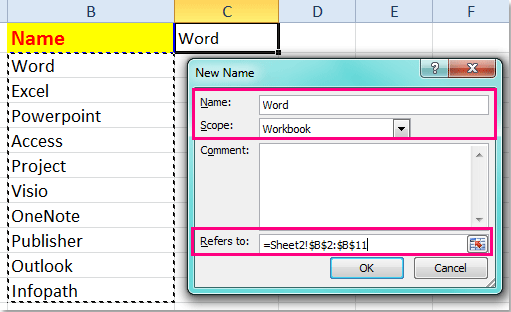
Step 1: Define a Named Range
While you can reference cells directly, ActiveX controls work best with Named Ranges. This practice ensures data integrity even if rows are moved.
- Select your list of data values.
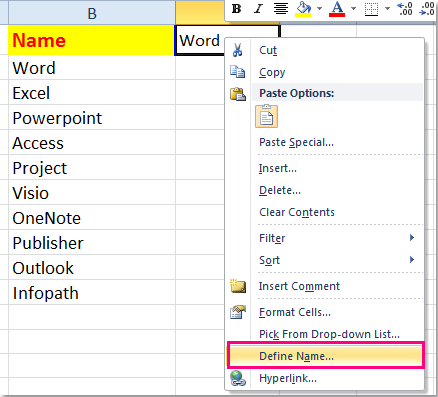
- Right-click the selection and choose
Define Name(or use the Name Box in the formula bar). - Enter a name for your list (e.g., “ProductList” or “DanhSachGiaTri”). Ensure there are no spaces in the name.
- Verify the
Refers tofield covers your data and clickOK.
Menu option for Defining a Name for a range
Using Named Ranges makes your formulas and controls easier to read and debug later.
The New Name dialog box for creating a Named Range
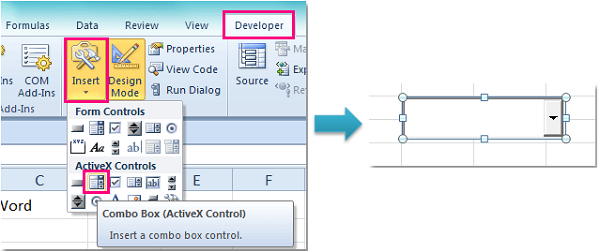
Step 2: Insert the ActiveX Control
- Navigate to
Developer>Insert. - Look at the ActiveX Controls section (the bottom group).
- Click the Combo Box icon and draw it on your worksheet.
Selecting the ActiveX Combo Box from the Insert menu
Step 3: Accessing Properties
Unlike Form Controls, ActiveX elements are customized via a Properties window, similar to a coding environment.
- Ensure Design Mode is active in the Developer tab (it should be highlighted).
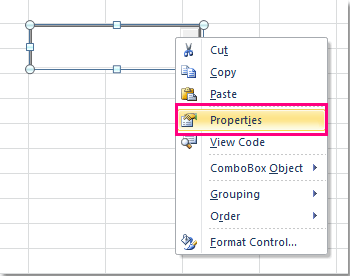
- Right-click the Combo Box and select
Properties.
Context menu showing the Properties option
Step 4: Configuring Data Binding
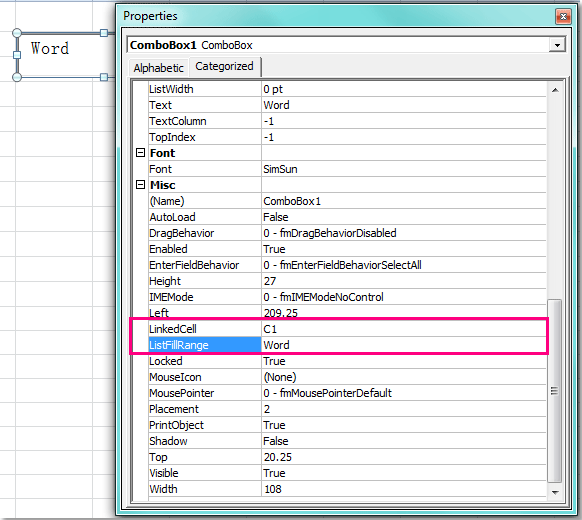
In the Properties window, locate the following fields:
- ListFillRange: Type the name of the Named Range you created in Step 1 (e.g., “DanhSachGiaTri”).
- LinkedCell: Type the cell address where you want the actual value to appear (e.g., “C1”). Note: Unlike Form Controls, ActiveX returns the text value, not the index number.
Setting the ListFillRange property
Step 5: Finalizing and Testing
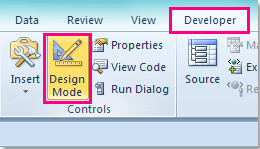
To test your new control, you must exit the editing mode. Go back to the Developer ribbon and click the Design Mode button to toggle it off.
The Design Mode button on the Developer ribbon
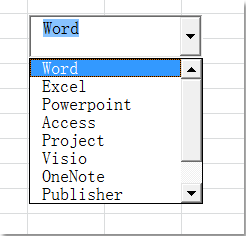
Your ActiveX Combo Box is now active. You will notice the interface might look slightly more modern or distinct compared to the Form Control version.
The operational ActiveX Combo Box
Advanced Customization: Changing Font and Size
One of the decisive advantages of the ActiveX Control is the ability to style the text. Form Controls are locked to the system default font, which can be too small for some presentation dashboards.
To change the font:
- Re-enable Design Mode.
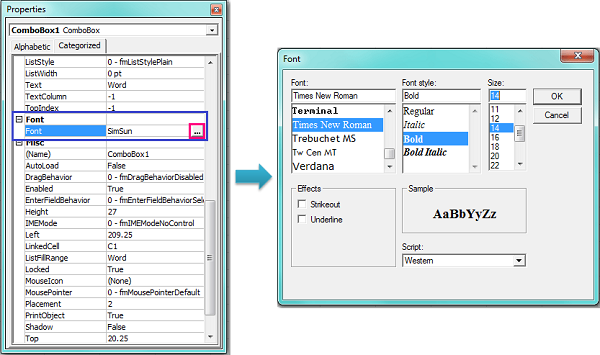
- Right-click the ActiveX Combo Box and open
Properties. - Find the
Fontproperty row. - Click the button with three dots
...next to the font name.
Selecting the Font property in the Properties window
A standard Windows Font dialog will appear. Here you can adjust the:
- Font Family: (e.g., Arial, Segoe UI)
- Font Style: (Bold, Italic)
- Size: Increase readability by setting a larger size (e.g., 12 or 14).
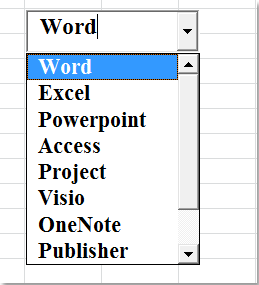
After applying the changes and exiting Design Mode, your Combo Box will display the text with the new formatting, providing a much better visual hierarchy for your data tools.
The ActiveX Combo Box with customized font settings
Conclusion
Choosing between a Form Control and an ActiveX Control depends largely on your specific requirements. If you need a quick, simple dropdown for a standard internal spreadsheet, the Form Control is robust and sufficient. However, if you are building a client-facing dashboard that requires specific branding, larger fonts for accessibility, or integration with complex VBA scripts, the ActiveX Control is the professional standard.
By mastering these tools, you elevate your Excel skills from basic data entry to application design, allowing for more controlled and user-friendly data management.
References
- Microsoft Support: Add a list box or combo box to a worksheet in Excel.
- Excel Campus: Form Controls vs. ActiveX Controls.
- TechCommunity: Best practices for Excel Dashboards.


Discussion about this post