

For accounting and administrative professionals in Vietnam, converting numeric values into written Vietnamese text is a frequent requirement. Whether you are generating invoices, contracts, or financial reports, accuracy in this conversion is paramount.
Previously, on the Thủ Thuật blog and various Excel learning hubs, we have explored several methods to achieve this. Traditional solutions often involve installing complex Add-ins, writing custom VBA (Visual Basic for Applications) scripts, or constructing intricate, multi-layered formulas directly within the spreadsheet cells. While effective, these methods come with significant drawbacks: they require technical setup, can trigger security warnings with macros, and are often difficult to transfer between different computers.
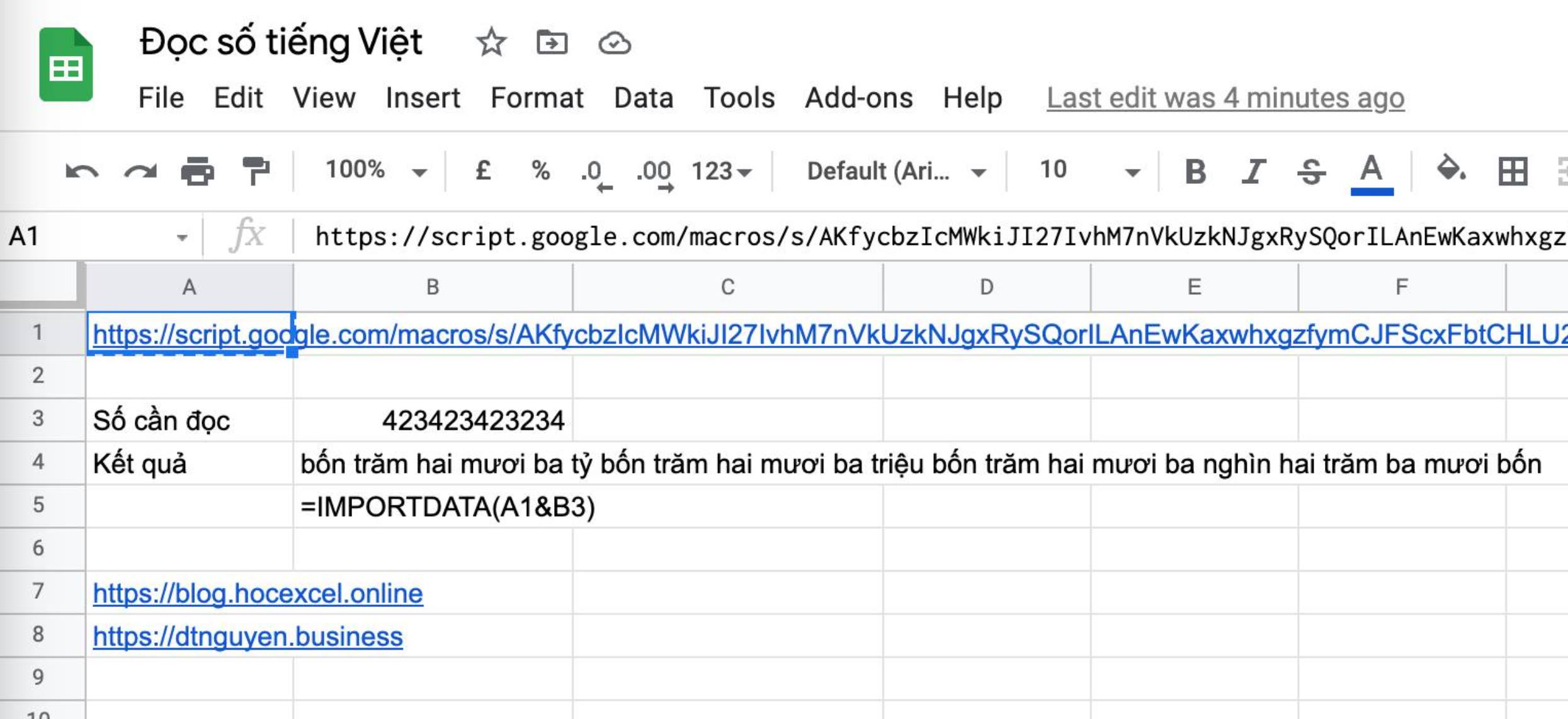
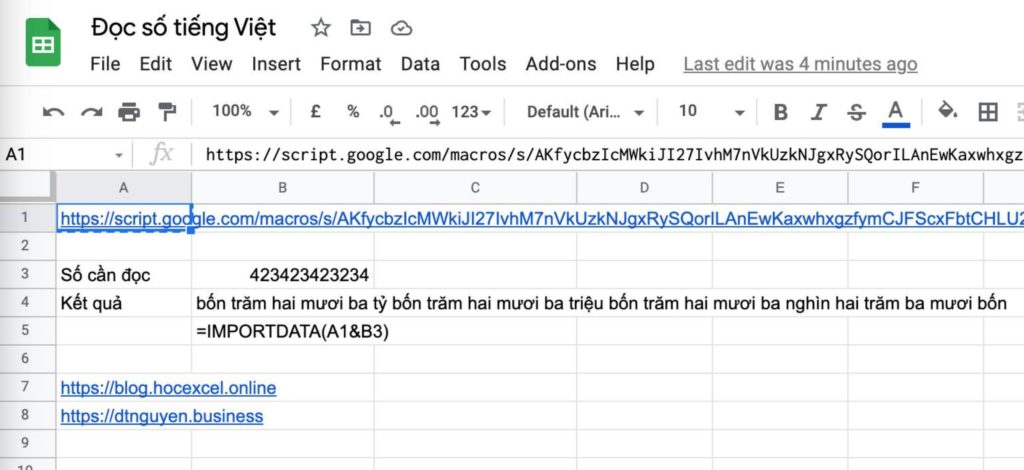 Header interface showing number to text conversion in Vietnamese
If you are looking for a streamlined, “no-code” solution that is easy to implement and maintain, this guide is for you. We will utilize a web-based script that works seamlessly across both Google Sheets and modern versions of Microsoft Excel.
1. Converting Numbers to Text in Google Sheets
Google Sheets is cloud-native, making it the perfect environment for using web-based data retrieval functions. By using the IMPORTDATA function combined with a specific API link, you can automate this translation process instantly.
Step 1: Configuration
First, you need to define the API endpoint that handles the conversion logic. Copy the following URL and paste it into a specific cell in your spreadsheet (e.g., cell A1).
To keep your workbook clean, you can create a dedicated sheet named “Config” to store this link and hide it later:
https://script.google.com/macros/s/AKfycbzIcMWkiJI27IvhM7nVkUzkNJgxRySQorILAnEwKaxwhxgzfymCJFScxFbtCHLU2MEq/exec?heo.docso=
Step 2: Implementing the Formula
Once the link is in place, you can convert any number in your sheet into Vietnamese text using a simple formula. Assuming your API link is in cell config!A1 and the number you want to read is 234 (or a cell reference containing that number), the formula is:
=IMPORTDATA( config!A1 & 234 )
In a real-world scenario, you would replace 234 with the cell address of your data (e.g., B2, C5). The function sends the number to the script and returns the text string immediately.
 Animated demonstration of entering the formula in Excel and Sheets
2. Converting Numbers to Text in Microsoft Excel
While this method relies on internet connectivity, it allows Excel users to bypass the need for .xlsm (Macro-enabled) files. Note that this method requires Excel 2013 or later (including Excel 2016, 2019, and Office 365) to support the WEBSERVICE function.
Step 1: Setup
Similar to the Google Sheets method, you need to store the API URL. You can paste the link directly into a cell, or for a cleaner approach, define it as a Named Range (e.g., name it LinkAPI).
Step 2: The WEBSERVICE Function
Excel uses a different function to fetch data from the web. Instead of IMPORTDATA, you will use WEBSERVICE. The logic remains the same: concatenate the API URL with the number you wish to convert.
Use the following syntax:
=WEBSERVICE( config!A1 & 234 )
Or, if you reference a cell containing the number (e.g., B5):
=WEBSERVICE( $A$1 & B5 )
Conclusion and Recommendations
By utilizing the IMPORTDATA and WEBSERVICE functions, you eliminate the need for complex coding or third-party software installation. This method ensures that your files remain lightweight and compatible across different devices, provided there is an active internet connection.
This approach effectively solves the “number-to-text” challenge for Vietnamese users, streamlining workflow efficiency in administrative tasks. We hope this trick helps you manage your spreadsheets more effectively. Thank you for following this tutorial on Thủ Thuật!













Discussion about this post