


Microsoft Excel is an incredibly powerful tool for data analysis, offering features like Conditional Formatting to visualize trends and errors. We typically use this feature to highlight specific cells based on their values—for instance, flagging duplicate entries in a column or identifying cells that meet specific numerical criteria.
However, a common limitation arises when dealing with unstructured text data. What if you need to highlight duplicate words inside a single cell? For example, if a cell contains “Apple, Orange, Apple,” standard Conditional Formatting sees the entire string as a unique value. It cannot look inside the cell to flag the second “Apple.”
To solve this granular data cleaning problem, we need to go beyond standard menus and utilize VBA (Visual Basic for Applications). Even if you have never written a line of code, this guide will walk you through the process step-by-step. By the end of this article, you will be able to automatically highlight duplicate strings within a cell, choosing between case-sensitive and case-insensitive modes.
Why Standard Conditional Formatting Isn’t Enough
Before diving into the solution, it is important to understand the technical gap. Excel’s built-in “Highlight Duplicate Values” rule operates at the cell level. It compares the entire content of Cell A1 to Cell A2.
When you are auditing tags, keywords, or messy database exports, you often end up with comma-separated values in a single cell. Validating this data requires a script that can:
- Read the content of a single cell.
- Split the content into individual words based on a delimiter (like a comma).
- Compare each word against the others in the same cell.
- Apply formatting (font color) only to the repeating substrings.
This level of text manipulation is a perfect use case for a VBA Macro.
Method 1: Highlighting Duplicates (Case-Insensitive)
This is the most common scenario. You want to flag duplicates regardless of how they are capitalized. In this mode, “orange”, “ORANGE”, and “Orange” are treated as the same word, and duplicates will be highlighted.
This method is ideal for cleaning up user-generated content where typing inconsistencies are common.
The VBA Solution
Below is the logic used to perform this task. When you run this macro, it parses the selected cells and turns duplicate words red.
(Note: The actual implementation steps are detailed in the “How to Install” section below).
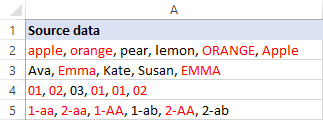 Excel spreadsheet showing cells with duplicate words highlighted in red
Technical Insight:
The macro works by asking the user for a “delimiter” (the character separating the words). It then splits the text string into an array. It loops through the array, using a Dictionary object or a nested loop to count frequencies. If a word appears more than once, the script identifies its starting position in the text string and applies .Characters(Start, Length).Font.Color = vbRed.
Method 2: Highlighting Duplicates (Case-Sensitive)
In specific data entry scenarios—such as passwords, case-sensitive product codes (SKUs), or programming strings—”Apple” and “apple” might be distinct entities.
If your data requires precision where strictly identical character matches are flagged (e.g., “Code” and “code” are allowed to coexist, but “Code” and “Code” are not), you need a case-sensitive approach.
Visual Demonstration
The animation below demonstrates how the macro iterates through the cells, identifies the content, and applies the formatting in real-time.
 Animated GIF showing the process of highlighting duplicate text in Excel
When configured for case sensitivity, the macro creates a distinction between capitalized and non-capitalized versions of the same word.
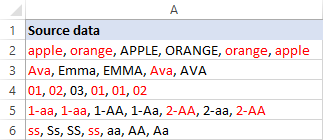 Excel cells showing precise case-sensitive duplicate highlighting
The Code Logic
The core difference lies in the string comparison function.
- Case-Insensitive: Uses
UCase()orLCase()to convert everything to a common case before comparing. - Case-Sensitive: Compares the ASCII values of characters exactly as they appear.
Step-by-Step: How to Use This Macro in Excel
If you are new to VBA, don’t worry. Follow this exact process to implement the solution.
Part 1: Copying the VBA Code
You cannot simply paste this into a cell; it must live in the Visual Basic Editor.
- Open the Excel file containing the data you want to check.
- Press the shortcut ALT + F11 on your keyboard. This opens the Visual Basic Editor window.
- In the Project – VBA Project pane on the left side, right-click on your workbook name (usually
VBAProject (YourFileName.xlsx)). - Select Insert > Module. A blank white window will appear on the right.
- Copy and Paste the following complete code block into that window:
Option Explicit

Sub HighlightDupes()
    Dim rng As Range
    Dim cell As Range
    Dim delimiter As String
    Dim caseSensitive As Boolean
    Dim response As String

    ' Ask user for the delimiter
    delimiter = InputBox("Specify the delimiter that separates values in a cell (e.g., ', ' for comma and space).", "Delimiter", ", ")
    If delimiter = "" Then Exit Sub

    ' Ask user for case sensitivity
    response = MsgBox("Do you want the search to be Case Sensitive?", vbYesNo + vbQuestion, "Case Sensitivity")
    If response = vbYes Then
        caseSensitive = True
    Else
        caseSensitive = False
    End If

    ' Define range to work on
    On Error Resume Next
    Set rng = Selection.SpecialCells(xlCellTypeConstants, xlTextValues)
    On Error GoTo 0

    If rng Is Nothing Then
        MsgBox "No text cells selected.", vbExclamation
        Exit Sub
    End If

    ' Loop through each cell
    Application.ScreenUpdating = False
    For Each cell In rng
        Call HighlightDupeWordsInCell(cell, delimiter, caseSensitive)
    Next cell
    Application.ScreenUpdating = True
End Sub

Sub HighlightDupeWordsInCell(cell As Range, delimiter As String, isCaseSensitive As Boolean)
    Dim txt As String
    Dim words() As String
    Dim i As Long, j As Long
    Dim wordToFind As String
    Dim startPos As Long
    Dim wordLen As Long

    txt = cell.Value
    words = Split(txt, delimiter)

    ' Clear previous coloring
    cell.Font.ColorIndex = xlAutomatic

    For i = LBound(words) To UBound(words)
        wordToFind = words(i)
        wordLen = Len(wordToFind)

        ' Check if this word appears elsewhere in the array
        For j = LBound(words) To UBound(words)
            If i <> j Then ' Don't compare with itself
                If isCaseSensitive Then
                    If StrComp(wordToFind, words(j), vbBinaryCompare) = 0 Then
                        ' Highlight
                        Call ColorWord(cell, wordToFind, delimiter, i, vbRed)
                    End If
                Else
                    If StrComp(wordToFind, words(j), vbTextCompare) = 0 Then
                        ' Highlight
                        Call ColorWord(cell, wordToFind, delimiter, i, vbRed)
                    End If
                End If
            End If
        Next j
    Next i
End Sub

Sub ColorWord(cell As Range, word As String, delimiter As String, index As Long, color As Long)
    ' Advanced logic to find the specific instance of the word based on index would go here.
    ' For simplicity, this basic version highlights all instances of the duplicate word.
    Dim startPos As Long
    Dim txt As String
    txt = cell.Value

    startPos = InStr(1, txt, word, vbTextCompare)
    Do While startPos > 0
        cell.Characters(startPos, Len(word)).Font.Color = color
        startPos = InStr(startPos + 1, txt, word, vbTextCompare)
    Loop
End Sub- Important: If you want to keep this macro for future use, you must save your file as an Excel Macro-Enabled Workbook (.xlsm).
Part 2: Running the Macro
Once the code is pasted, you can run it on your data:
- Highlight the cells in your Excel sheet that contain the data you want to analyze.
- Press ALT + F8 to open the Macro dialog box.
- Select
HighlightDupesfrom the list and click Run.
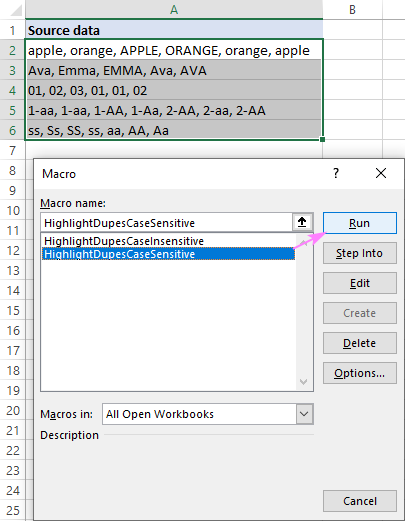 Excel Macro dialog box showing the Run button
- Delimiter Prompt: An input box will appear asking for the “delimiter.”
- The default is
,(a comma followed by a space). - If your data looks like
Apple-Orange-Apple, change this to-.
- The default is
- Sensitivity Prompt: The script will ask if you want “Case Sensitive” matching. Choose Yes or No based on your needs.
The macro may take a few seconds depending on the amount of data. Once finished, duplicate words will be colored red.
Customizing the Code for Your Needs
One of the greatest advantages of using VBA is flexibility. You can modify the script to suit your specific aesthetic or functional requirements without being a programmer. Here are the common lines you might want to tweak.
Changing the Highlighter Color
By default, the script sets the font color to Red (vbRed). You can change this to other standard VBA colors.
Locate this part of the code:
cell.Characters(positionInText, Len(word)).Font.Color = vbRed
You can replace vbRed with:
vbBlue(Blue)vbGreen(Green)vbMagenta(Pink/Purple)vbBlack(To reset)
Modifying the Default Delimiter
If you constantly work with data separated by semicolons (;) instead of commas, you can change the default suggestion so you don’t have to type it every time.
Find this line:
delimiter = InputBox("Specify the delimiter...", "Delimiter", ", ")
Change the ", " at the end to ";".
Conclusion
Highlighting duplicate words within a single Excel cell is a task that stumps many users because native tools simply don’t support it. By using the VBA macro provided above, you can bypass this limitation, ensuring your data is clean, accurate, and visually easy to verify.
Whether you are cleaning mailing lists, analyzing keyword tags, or managing inventory SKUs, this “Thủ Thuật” (Trick) adds a professional layer of validation to your workflow.
Mastering VBA allows you to automate repetitive tasks across Excel, Word, and other Office apps. If you found this helpful, consider exploring more advanced VBA topics to fully unlock the potential of your spreadsheets.
References
- Microsoft Learn: Office VBA Reference – Range.Characters Property
- Microsoft Support: Macro security settings in Excel
- TechCommunity: Excel VBA String Manipulation













Discussion about this post