


Excel is a powerhouse when it comes to data management. We are all familiar with the standard Remove Duplicates feature found in the Data tab, or the modern UNIQUE function in Office 365. These tools are fantastic for cleaning up lists where duplicates exist across different rows. However, a common frustration arises when the duplication isn’t across rows, but inside a single cell.
Imagine a cell containing “Apple, Orange, Apple, Banana”. Standard Excel tools cannot simply look inside that cell and clean it up to read “Apple, Orange, Banana”. Because Excel lacks a native button for this specific task, we turn to the most powerful tool in the Excel arsenal: VBA (Visual Basic for Applications).
In this guide, we will walk you through creating a custom solution to scrub duplicate words and characters from your cells, ensuring your data is pristine and professional.
The Challenge: In-Cell Data Duplication
Data imported from external systems, CSV files, or merged from multiple columns often results in redundant text strings. You might face a situation where a product description repeats keywords, or a list of email addresses in a single cell contains the same address twice.
Manually editing these cells is time-consuming and prone to error. Since Excel does not offer a built-in formula for this specific type of cleaning, we need to create a User-Defined Function (UDF). This allows us to build our own formula that acts just like standard Excel functions (like SUM or VLOOKUP), but specifically tailored to delete duplicates within a text string.
 Comparison of Excel data before and after removing duplicate values within a single cell
Solution 1: Removing Duplicate Words with VBA
The most common requirement is removing duplicate words separated by a delimiter (like a comma or space). To do this, we will write a script that takes the text, splits it into individual pieces, filters out the repeats, and joins them back together.
Step 1: Accessing the Visual Basic Editor
To implement this solution, you do not need to be a programmer. You simply need to know how to copy and paste code into Excel’s backend.
- Open the Excel file containing the data you wish to clean.
- Press the keyboard shortcut ALT + F11. This opens the Visual Basic Editor, the engine room of Excel.
- In the Project – VBA Project window on the left, right-click on ThisWorkbook (or your filename).
- Select Insert > Module from the context menu.
- A blank white window will appear. This is where your code lives.
 Animation showing how to insert a new Module in the Visual Basic Editor
Note: If you plan to use this code frequently, remember to save your file as an Excel Macro-Enabled Workbook (.xlsm) or an Excel Binary Workbook (.xlsb). Standard .xlsx files cannot save these macros.
Step 2: The RemoveDupeWords Code
Copy the following code into the Module you just created. This script creates a function named RemoveDupeWords.
Function RemoveDupeWords(text As String, Optional delimiter As String = " ") As String
    Dim dictionary As Object
    Dim items As Variant
    Dim item As Variant
    Dim result As String

    ' Create a Dictionary object to hold unique values
    Set dictionary = CreateObject("Scripting.Dictionary")
    dictionary.CompareMode = 1 ' Case insensitive

    ' Split the text by the delimiter
    items = Split(text, delimiter)

    ' Loop through items and add unique ones to dictionary
    For Each item In items
        item = Trim(item)
        If item <> "" And Not dictionary.Exists(item) Then
            dictionary.Add item, Nothing
        End If
    Next item

    ' Join the unique items back together
    RemoveDupeWords = Join(dictionary.Keys, delimiter)
End Function
Step 3: Using Your New Function
Congratulations! You have effectively extended Excel’s capabilities. Now, let’s use this function directly in your spreadsheet.
The syntax for the function is:
=RemoveDupeWords(text, [delimiter])
- text (Required): The cell containing the duplicate data.
- delimiter (Optional): The character separating your words. If you omit this, the function assumes a space (” “) is the separator.
When you type the formula into a cell, Excel will recognize it just like any other native function.
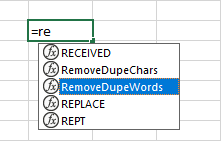 Excel autocomplete suggestion showing the custom RemoveDupeWords function
Practical Example 1: Comma-Separated Lists
Suppose you have data in cell A2 that looks like this: Red, Blue, Red, Green. The words are separated by a comma and a space. To clean this, you would use the following formula in cell B2:
=RemoveDupeWords(A2, ", ")
By specifying ", " as the delimiter, the code effectively identifies each item correctly and removes the duplicates, leaving you with a clean list.
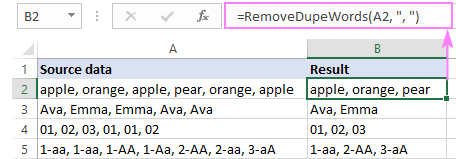 Excel spreadsheet showing the removal of duplicate words separated by commas
Practical Example 2: Space-Separated Text
If your data is simpler, such as a sentence or list of codes separated only by spaces (e.g., A001 A002 A001), the formula is even easier. You can omit the second argument entirely:
=RemoveDupeWords(A2)
This is particularly useful for cleaning up tags or keyword lists exported from SEO tools or databases.
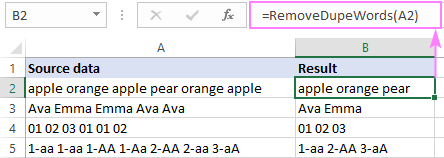 Excel spreadsheet showing the removal of duplicate text separated by spaces
Solution 2: Bulk Removal with a Macro
The function method above is dynamic—if the original data changes, the result updates. However, sometimes you want to permanently clean a range of cells without creating a helper column with formulas. For this, we use a Macro.
A Macro performs an action on selected cells. You can add the following sub-routine to the same Module window where you placed the function earlier:
Sub CleanSelectedCells()
    Dim cell As Range
    ' Loop through every cell currently selected by the user
    For Each cell In Selection
        If Not IsEmpty(cell) Then
            ' Apply the RemoveDupeWords logic to the cell value directly
            ' Change ", " to " " if your data uses spaces
            cell.Value = RemoveDupeWords(cell.Value, ", ")
        End If
    Next cell
End Sub
How to Run the Macro
- Highlight the range of cells you want to clean.
- Press ALT + F8 on your keyboard to open the Macro dialog box.
- Select CleanSelectedCells from the list.
- Click Run.
The macro will instantly loop through every selected cell, strip out the duplicates, and replace the original content with the clean version.
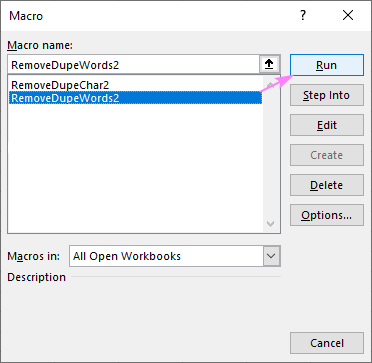 The Macro dialog box in Excel showing the option to run the cleaning script
Solution 3: Removing Duplicate Characters
Sometimes, the problem isn’t duplicate words, but duplicate characters. This often happens with glitched data entries, where “Apple” becomes “Appppple” or a serial number has repeating digits like “112233” that should be “123”.
We need a slightly different logic here. We need to look at every individual letter in the string.
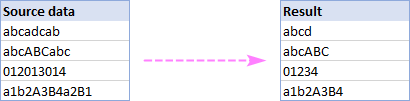 Example of text strings with repeating characters being cleaned
The RemoveDupeChars Code
Add this second function to your VBA Module:
Function RemoveDupeChars(text As String) As String
    Dim i As Long
    Dim char As String
    Dim result As String

    result = ""

    ' Loop through each character in the string
    For i = 1 To Len(text)
        char = Mid(text, i, 1)
        ' If the character is not already in the result, add it
        If InStr(result, char) = 0 Then
            result = result & char
        End If
    Next i

    RemoveDupeChars = result
End Function
Using the Character Removal Function
The syntax is very straightforward:
=RemoveDupeChars(text)
This function takes the content of a cell and returns a string where every character appears only once. It is case-sensitive by nature of the InStr function, but can be modified for case insensitivity if required.
For example, if cell A2 contains the messy string aaabbbccc, typing =RemoveDupeChars(A2) into cell B2 will result in abc.
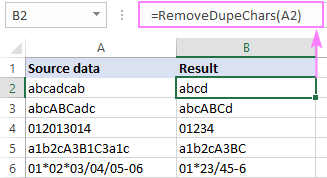 Excel formula bar showing the usage of the RemoveDupeChars function
Pro Tip: If you have a cell that has both duplicate words and duplicate characters, you should prioritize your workflow. Usually, it is best to remove duplicate words first using RemoveDupeWords, and then handle character issues if they persist.
Conclusion
Excel is a versatile tool, but it doesn’t have a button for everything. By leveraging a small amount of VBA, you can solve complex data cleaning problems that standard features simply cannot handle. Whether you are dealing with repeated tags in a marketing list or glitched character entries in a database export, the two functions we discussed—RemoveDupeWords and RemoveDupeChars—will save you hours of manual editing.
Remember, mastering these small scripts is the first step toward true Excel automation. Instead of fighting with your data, let the code do the heavy lifting for you. We encourage you to try these codes on a sample file and see how much time they can save in your daily workflow.
If you found this technical guide helpful, please share your experience in the comments or suggest other Excel challenges you face!












Discussion about this post