


Working with large datasets in Microsoft Excel often presents a common challenge: as soon as you scroll down or across to view more data, your headers disappear. This forces you to constantly scroll back and forth to remember what each column or row represents, significantly slowing down your workflow.
Fortunately, Excel offers a powerful feature called Freeze Panes (often referred to as locking rows or columns). Whether you are using Excel 2019, 2016, 2013, or earlier versions, this function allows you to keep specific rows or columns visible at all times while the rest of the worksheet scrolls.
In this guide, we will explore the technical nuances of locking headers, freezing multiple panes simultaneously, and troubleshooting common interface issues.
Understanding Freeze Panes in Excel
Before diving into the “how-to,” it is essential to understand the three primary modes available within the Excel View tab. Excel does not essentially “lock” the cells in terms of editing; it merely pins them visually to the viewport.
- Freeze Panes: This is the custom option. It locks rows and columns based on the current selection of the active cell.
- Freeze Top Row: A quick-access feature that instantly locks only the very first visible row (Row 1).
- Freeze First Column: A quick-access feature that locks the leftmost visible column (Column A).
Part 1: How to Freeze Rows in Excel
The most frequent use case for data analysts is keeping the header row visible. However, depending on your data structure, you might need to lock just the top row or several rows containing sub-headers.
1. Locking the Top Row Only
If your dataset follows a standard format where Row 1 contains your headers (Name, Date, ID, etc.), this is the fastest method.
- Open your worksheet.
- Navigate to the View tab on the Ribbon.
- Click on the Freeze Panes dropdown menu.
- Select Freeze Top Row.
Microsoft Excel visually indicates a locked area by placing a slightly darker, thicker line beneath the frozen row. When you scroll down, Row 1 will remain fixed at the top of your screen.
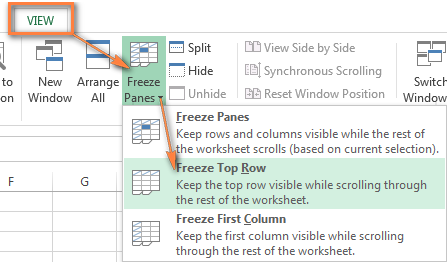 Excel Freeze Panes menu showing the Freeze Top Row option
Pro Tip for Excel Tables: If you format your data range as an official Excel Table (Ctrl + T), you do not need to use Freeze Panes. Excel automatically promotes the table headers to the column letter bar (A, B, C…) when you scroll down.
2. Freezing Multiple Rows
In complex reports, your header might span two or three rows, or you might want to keep a “Total” row visible at the top. To freeze multiple rows, the selection point is crucial.
The Rule of the “Row Below”: To freeze a set of rows, you must select the row immediately below the last row you want to lock.
Step-by-Step:
- Identify the rows you want to lock (e.g., Rows 1 through 3).
- Select the entire Row 4 (or click cell A4).
- Go to View > Freeze Panes.
- Select the first option: Freeze Panes.
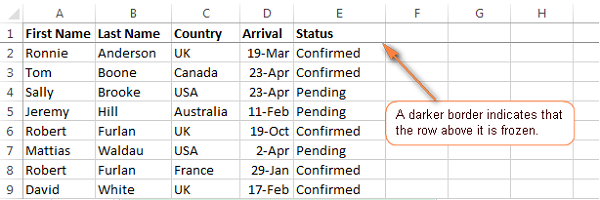 Visual indication of a locked row in Excel with a dark dividing line
Once activated, everything above your selection is pinned. This method provides flexibility for dashboards where the top section contains key metrics that must remain visible while users scroll through detailed line items below.
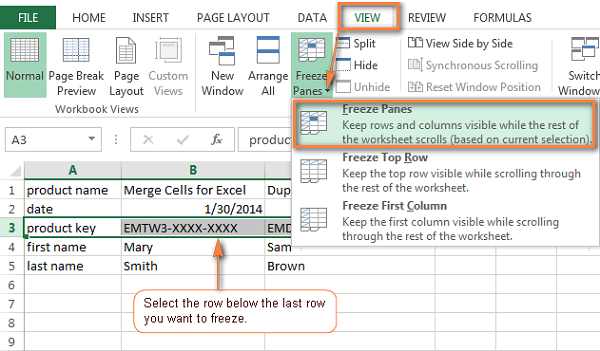 Menu selection for freezing multiple panes based on active cell
If done correctly, scrolling down will move Row 5 upwards, but Rows 1-3 will stay fixed. This is particularly useful for financial statements where the fiscal year and category headers occupy several rows.
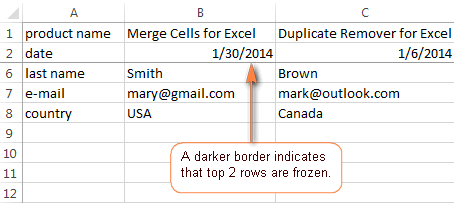 Result of freezing the top two rows in an Excel spreadsheet
Part 2: How to Freeze Columns in Excel
Just as you lock rows for vertical scrolling, locking columns is essential for horizontal scrolling. This is vital when working with wide datasets requiring cross-referencing, such as comparing Q1 sales (Column B) with Q4 sales (Column Z) while keeping the Product Name (Column A) visible.
1. Locking the First Column
To ensure the identifier column (usually Column A) never disappears:
- Navigate to View > Freeze Panes.
- Select Freeze First Column.
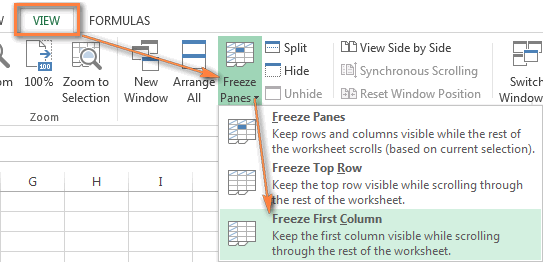 Menu selection for freezing the first column in Excel
A distinct vertical line will appear to the right of Column A, indicating it is now locked.
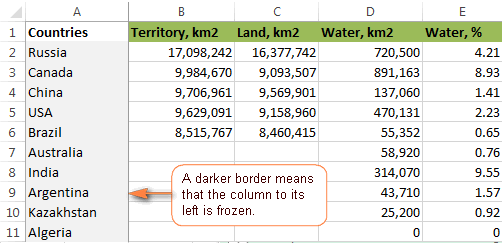 Visual confirmation of a frozen first column with a dark vertical line
2. Freezing Multiple Columns
If your unique identifier spans multiple columns (e.g., First Name, Last Name, and Employee ID in Columns A, B, and C), locking only the first one is insufficient.
The Rule of the “Column to the Right”: To freeze multiple columns, select the column immediately to the right of the last column you want to lock.
Example: To lock Columns A, B, and C:
- Select the entire Column D (or cell D1).
- Go to View > Freeze Panes > Freeze Panes.
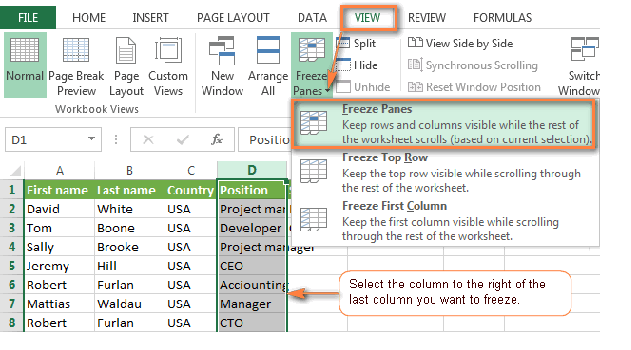 Menu showing the freeze panes operation for multiple columns
Important Note: You can only freeze columns starting from the left side (Column A). You cannot freeze a column in the middle of the sheet (e.g., Column G) while allowing Columns A-F to scroll.
3. Alternative: Using the Split Feature
Aside from Freeze Panes, Excel offers a Split feature. While Freeze Panes locks an area, Split divides the window into scrollable quadrants. This allows you to view two distant parts of the same worksheet simultaneously.
To use this, place your cursor where you want the split to occur, then go to View > Split.
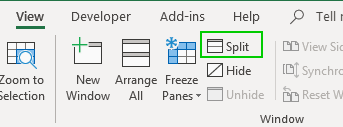 Illustration of the Split command in the View tab
This creates adjustable bars that divide your sheet. Unlike Freeze Panes, which are static, Split bars can be dragged and resized, offering a dynamic way to compare data.
 The result of using the Split feature to divide the worksheet
Part 3: Freezing Both Rows and Columns Simultaneously
The most advanced application of this tool is locking both rows and columns at the same time. This creates a fixed “corner” at the top-left of your screen.
The “Magic Intersection” Method:
To lock both rows and columns, you must select the single cell that represents the intersection immediately below the rows and to the right of the columns you wish to freeze.
Example: You want to freeze the top header (Row 1) and the first column (Column A).
- Select cell B2.
- Click View > Freeze Panes > Freeze Panes.
If you want to freeze the top 3 rows and the first 2 columns:
- Count down 3 rows (Row 4 is your boundary).
- Count across 2 columns (Column C is your boundary).
- Select cell C4.
- Apply Freeze Panes.
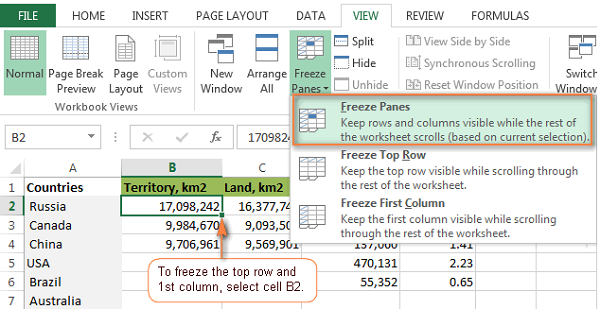 Menu showing Freeze Panes selection for both rows and columns
This technique effectively creates a non-scrollable zone in the top-left, ensuring your headers and row labels are always visible regardless of navigation.
Part 4: How to Unfreeze Panes
When you no longer need the locked view, or if you have made a mistake in your selection, removing the freeze is simple.
- Go to the View tab.
- Click Freeze Panes.
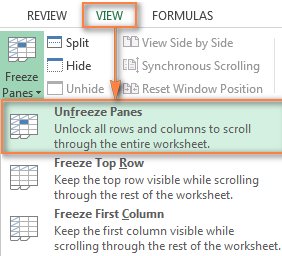
- Select Unfreeze Panes.
Note that this option only appears if panes are currently frozen. It resets the view to the default scrollable state.
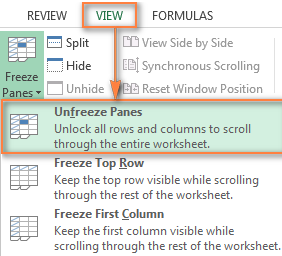 The Unfreeze Panes option in the Excel dropdown menu
Common Pitfalls and Pro Tips
While the feature seems straightforward, users often encounter specific behavioral quirks in Excel that can be frustrating.
1. The “Hidden Rows” Trap
A common mistake occurs when users apply Freeze Panes while some rows are scrolled out of view. Excel freezes based on the visible area, not the absolute row numbers.
Scenario: You scroll down so that Row 10 is at the top of your screen. You select Row 11 and click “Freeze Panes.”
Result: Excel freezes everything above Row 11. However, since Rows 1-9 were scrolled off-screen, they are now permanently hidden in the frozen section. You cannot scroll up to see them.
Solution: Always scroll to the very top (A1) before applying Freeze Panes to ensure all intended data is included in the locked area.
 Visual representation of the hidden rows error in Excel
2. Unexpected Freezing Behavior
If you select a cell far down the sheet and apply Freeze Panes, Excel will lock the screen at that exact point. For example, selecting cell H20 and freezing will lock everything above Row 20 and left of Column H. This effectively cuts your screen in half, leaving a massive static area that leaves little room for working.
Always verify your active cell selection before clicking the freeze button.
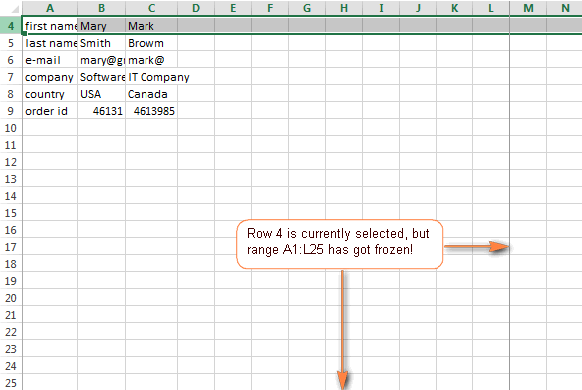 Example of an incorrectly frozen spreadsheet dividing the screen awkwardly
3. Aesthetic Tip: Masking the Freeze Line
Some users find the dark grey line that Excel adds to frozen panes distracting or aesthetically unpleasing for presentation dashboards. While you cannot natively remove this line, you can mask it using drawing shapes or careful border formatting, although this is a purely cosmetic workaround.
 Detailed view of the freeze pane line separator
Troubleshooting: Why Can’t I Freeze Panes?
There are instances where the Freeze Panes button is greyed out, missing, or functioning incorrectly. Here is how to resolve these issues.
1. The Freeze Panes Button is Missing or Unresponsive
If clicking the button does nothing, or the menu doesn’t appear:
- Restart Excel: Sometimes, the interface glitches. Saving and reopening the file often clears the memory cache causing the issue.
- Check Workbook Protection: If the workbook structure is protected (Review > Protect Workbook), you cannot freeze panes. Unprotect the workbook first.
- Page Layout View: Freeze Panes is disabled in “Page Layout” view. Switch back to “Normal” view via the bottom right status bar or the View tab.
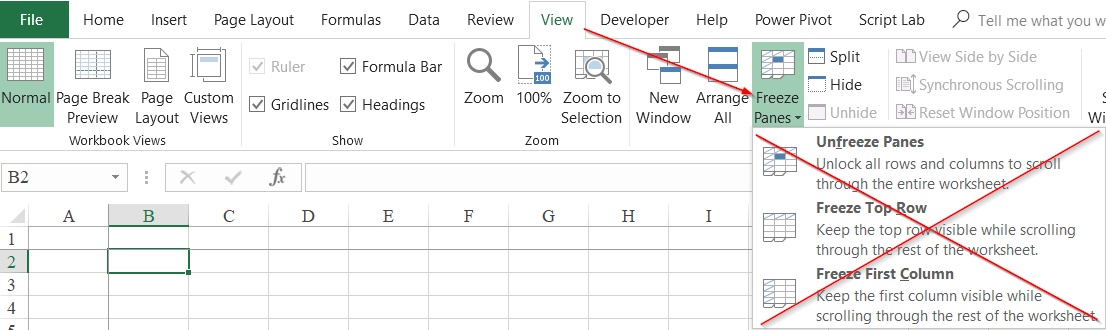 Screenshot of the Freeze Panes button appearing unresponsive
2. The “Middle of the Table” Header Problem
Sometimes, your data table starts on Row 10, not Row 1. You want to freeze Row 10, but scrolling causes Rows 1-9 to remain visible and take up screen space.
The Solution: Use Excel Tables
Freeze Panes always locks from the top of the window. It cannot natively “hide” Rows 1-9 while locking Row 10. However, using the Format as Table feature solves this elegantly.
- Select your data range (e.g., A10:F50).
- Press Ctrl + T to convert it to a Table.
- Scroll down.
Excel will automatically replace the column letters (A, B, C) with your Table Headers as long as you are scrolling within the table area. This eliminates the need for Freeze Panes entirely.
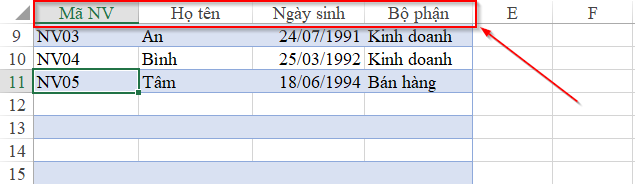 Excel Table behavior replacing column letters with headers
By mastering these techniques, you can navigate massive spreadsheets with ease, ensuring that critical context—like headers and identifiers—is never lost. Whether you are performing complex financial analysis or managing simple inventory lists, Freeze Panes is a fundamental skill for efficient Excel usage.
References
- Microsoft Support: Freeze panes to lock rows and columns.
- TechCrunch: Productivity tips for Data Analysts.
- ExcelJet: Advanced view settings and keyboard shortcuts.













Discussion about this post