


For years, data analysts and Excel enthusiasts relied heavily on tools like AutoFilter, Advanced Filter, or complex legacy array formulas (CSE) to extract specific datasets. While effective, these methods often required repetitive manual steps, tedious VBA scripting, or formulas so convoluted they were nearly impossible to debug. The introduction of Dynamic Arrays in Microsoft 365 changed the game entirely. Among these new powerful tools, the FILTER function stands out as an essential utility for modern data manipulation.
If you have ever wished for a formula that could automatically extract rows based on specific criteria and instantly update when your source data changes, the FILTER function is the solution you have been waiting for. In this comprehensive guide, we will explore the syntax, practical applications, and distinct advantages of this function, solidifying your expertise in Excel data management.
Understanding the FILTER Function Syntax
The FILTER function allows you to filter a range of data based on criteria you define and returns the results to a spill range. Unlike the old “Advanced Filter” feature, this function is dynamic—meaning if your source data changes, the filtered result updates specifically without any need to re-apply the filter.
The Formula Structure
The syntax is straightforward and easier to read than legacy index-match combinations:
=FILTER(array, include, [if_empty])- array (Required): The range of cells or array containing the data you want to filter. Note that this does not necessarily need to include the headers, just the raw data.
- include (Required): A Boolean array (True/False) that indicates which items to include. The height (or width) of this array must match the array argument. This is where you define your logic (e.g., check if a column equals “Apple”).
- if_empty (Optional): The value to return if no items meet the criteria. If omitted and no data is found, Excel will return a
#CALC!error.
Key Characteristics of Dynamic Arrays
Before diving into examples, it is crucial to understand how this function behaves differently from standard formulas:
- Spill Behavior: The function returns a dynamic array. It will automatically “spill” into neighboring cells based on the number of rows and columns in the result.
- Format Independence: The results carry over the values but not the cell formatting (colors, borders) of the original data.
- Header Independence: The function processes data; it does not automatically copy headers. You usually need to set up your headers in the destination range manually.
 Animation demonstrating the dynamic update of the FILTER function when data changes
Practical Applications and Examples
To truly master the FILTER function, we must move beyond theory into real-world scenarios. Let’s assume we have a sales dataset containing Product Names, Regions, and Quantities.
1. Basic Filtering with Single Condition
Suppose you want to extract a list of all transactions involving “Apples” from a dataset located in the range B5:D13. You want the result to appear starting at cell G5.
The formula would look like this:
=FILTER(B5:D13, B5:B13="Apples", "No results found")In this scenario, Excel scans column B for the text “Apples”. For every match found, it extracts the corresponding row from the range B5:D13.
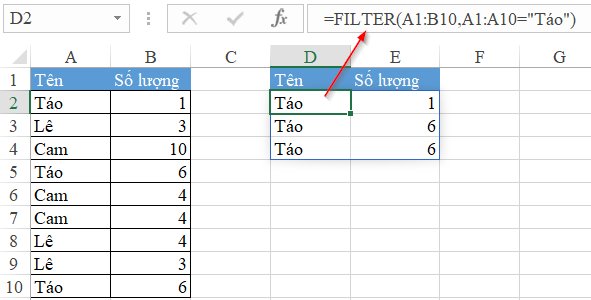 Excel spreadsheet showing the result of filtering 'Apples' from a sales list
Best Practice Tip: Avoid hardcoding criteria like “Apples” directly into the formula. Instead, reference a specific cell (e.g., H2). This allows you to change the filter criteria dynamically without editing the formula itself:
=FILTER(B5:D13, B5:B13=H2, "No Data")
2. Advanced Filtering with Multiple Conditions
Real-world data often requires more complex logic. What if you need to filter data based on two or more criteria simultaneously? The FILTER function handles this using Boolean logic operations.
- *AND Logic (Multiplication ``):** Both conditions must be true.
- OR Logic (Addition
+): At least one condition must be true.
Example: You need to find all records where the Product is “Red” (Column D) AND the Quantity is greater than or equal to 80 (Column C).
The formula structure uses the asterisk symbol to multiply the condition arrays:
=FILTER(B5:D13, (D5:D13="Red") * (C5:C13>=80), "No matches")Here, Excel evaluates (D5:D13="Red") returning an array of True/False (1/0), and multiplies it by the result of (C5:C13>=80). Only rows where both equate to 1 (True) are returned.
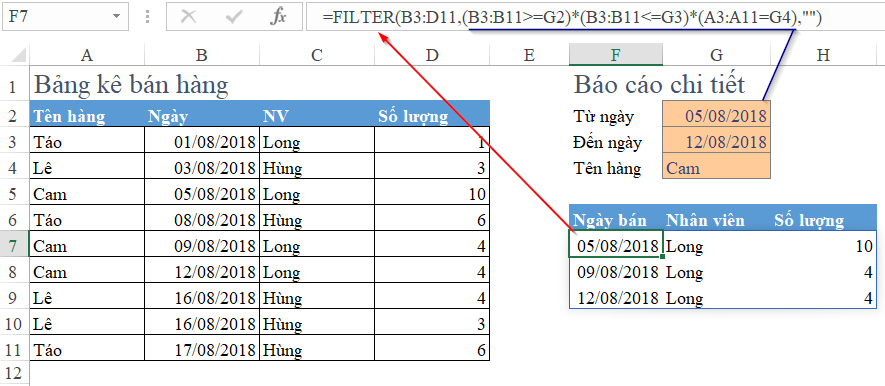 Excel dataset filtered by multiple criteria including product type and quantity
Troubleshooting Common Errors
Working with Dynamic Arrays introduces specific error types that might be unfamiliar to users accustomed to legacy Excel versions. Recognizing these immediately saves significant debugging time.
The #CALC! Error
This error typically occurs when the filter finds no matching data, and you have not provided a value for the [if_empty] argument.
If you search for “Bananas” but your list only contains Apples and Oranges, Excel calculates an empty array, which it cannot display, resulting in #CALC!.
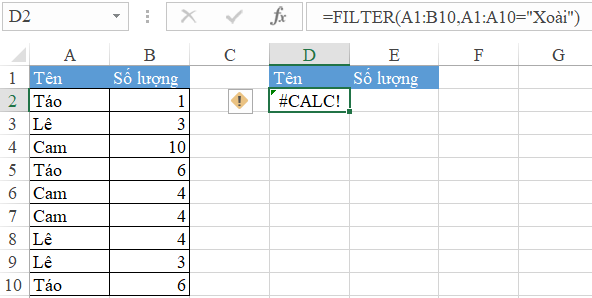 Excel cell displaying #CALC! error when the FILTER function finds no matching data
Solution: Always utilize the third argument of the function. For example, use "" (double quotes) to return a blank cell, or a text string like “Not Found” to make the report user-friendly.
The #SPILL! Error
Since the FILTER function requires space to populate its results, it needs a completely empty range of cells below and to the right of the formula. If there is any existing data (even a whitespace character) blocking this path, Excel returns a #SPILL! error.
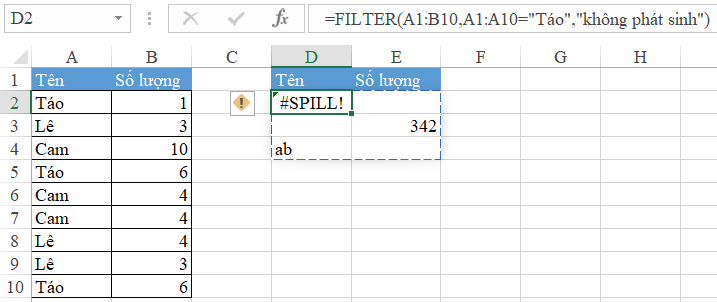 Excel spreadsheet showing a #SPILL! error caused by existing data blocking the spill range
Solution: Clear the cells in the destination range. You can usually click the error icon to see exactly which cell is obstructing the spill range.
Why FILTER is Superior to Traditional Methods
For tech professionals and data analysts, efficiency is paramount. The transition to the FILTER function is not just about using a new feature; it represents a significant upgrade in workflow optimization.
Versus AutoFilter
AutoFilter is excellent for quick, ad-hoc analysis. However, it alters the view of your source data, hiding rows you might still need to see.
- FILTER Function Advantage: It extracts data to a new location, leaving your original dataset intact. It also allows you to build dashboards where the source data remains hidden or on a separate sheet.
Versus Advanced Filter
Advanced Filter was the go-to tool for complex extractions, but it had major limitations:
- Static Results: It required manual re-execution or VBA macros to update results when data changed.
- Complexity: It relied on setting up specific “Criteria Ranges” which could be confusing to manage.
- FILTER Function Advantage: It is fully dynamic. No VBA is required. As soon as you correct a typo in your source data, your report updates instantly.
Versus Legacy Array Formulas
Before Office 365, achieving similar results required complex formulas combining INDEX, SMALL, IF, and ROW, entered with Ctrl+Shift+Enter.
- FILTER Function Advantage: The syntax is readable by humans. It reduces the processing load on Excel compared to volatile offset-based array formulas, and it eliminates the risk of forgetting to press CSE (Ctrl+Shift+Enter).
Conclusion
The FILTER function in Excel is more than just a formula; it is a fundamental shift in how we approach data extraction. By replacing manual copy-paste routines and complex VBA scripts with a single, elegant function, you can create robust, dynamic dashboards that respond instantly to data changes.
Whether you are building financial reports, inventory logs, or performance trackers, mastering Dynamic Arrays like FILTER, UNIQUE, and SORT is mandatory for modern data proficiency. We encourage you to open Excel, try the examples provided above, and experience the efficiency firsthand.
References:
- Microsoft Support: FILTER function documentation.
- TechCommunity: Dynamic Arrays and the future of Excel.
- Excel User Voice: Community feedback on Spill behaviors.













Discussion about this post