


Have you ever spent hours perfecting an Excel spreadsheet, only to hit “Print” and discover that your carefully organized data is scattered across multiple pages in a chaotic mess? Perhaps a single column has spilled over onto a second page, or a crucial summary row is orphaned at the top of a new sheet. This is a common frustration for professionals and students alike. The solution lies in mastering Excel Page Breaks. By taking control of where one page ends and the next begins, you ensure your reports look as professional on paper (or PDF) as they do on your screen.
In this comprehensive guide, we will explore the nuances of managing page breaks in Excel versions 2010 through 2019 and Office 365. You will learn how to manually insert breaks for precision, use conditional formatting tricks for automated layouts, and clean up unwanted breaks that disrupt your workflow. Whether you are preparing a financial report or a simple inventory list, these techniques are essential for optimal data presentation.
How to Manually Insert Page Breaks in Excel
The most direct way to control your print layout is by manually inserting page breaks. Excel attempts to do this automatically based on paper size and margins, but its logic rarely matches human intent. To take control, you should first switch to the Page Break Preview mode. This view gives you a bird’s-eye perspective of how your data will be distributed across pages.
To access this mode, navigate to the View tab on the Ribbon and select Page Break Preview within the Workbook Views group. This immediately changes your interface, showing watermark page numbers and blue lines indicating break positions.
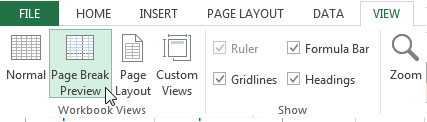 Screenshot of the View tab in Excel highlighting the Page Break Preview button
For a faster workflow, experienced users often utilize the status bar shortcuts. Look at the bottom right corner of your Excel window, next to the zoom slider, and click the specific icon for Page Break Preview.
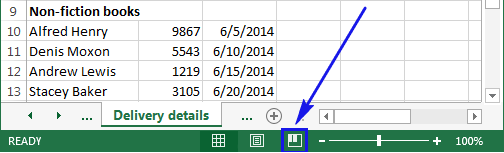 Close up of the Excel status bar showing the Page Break Preview shortcut icon
Once inside this view, you will see your active data region surrounded by thick blue borders, with page breaks indicated by lines. Solid blue lines represent manual breaks you have set, while dashed blue lines represent automatic breaks calculated by Excel.
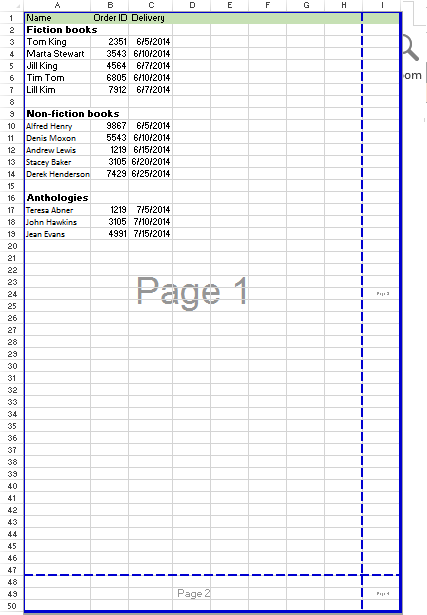 Full view of an Excel spreadsheet in Page Break Preview mode showing data boundaries
If this is your first time using this feature, you might see a “Welcome to Page Break Preview” dialog box. You can simply click “OK” and check the box to “Do not show this dialog again” to streamline future tasks.
Inserting a Horizontal Page Break
To split your data horizontally—for example, to ensure a new department’s data starts on a fresh page—you need to select the correct row. Click on the row number below where you want the break to occur.
Right-click on the selected row number to open the context menu, then select Insert Page Break. A solid blue line will appear above your selected row, indicating the start of a new page.
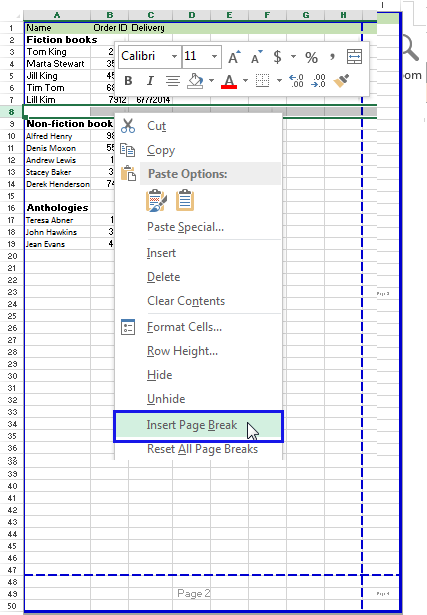 Right click context menu in Excel showing the Insert Page Break option selected
Inserting a Vertical Page Break
Sometimes your data is too wide, and you want to force a specific column to start on a new sheet. To do this, select the column header immediately to the right of where you want the break. Right-click the column header and choose Insert Page Break.
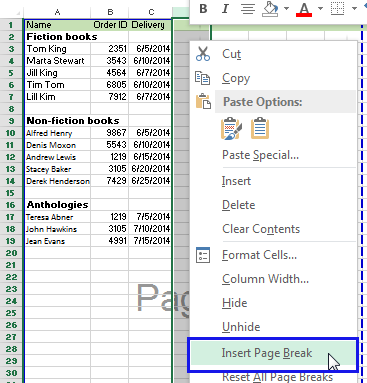 Right click context menu on a column header showing the Insert Page Break option
Using the Page Layout Tab
Alternatively, you can perform these actions without right-clicking by using the main Ribbon. Navigate to the Page Layout tab. In the Page Setup group, click on the Breaks button. From the dropdown menu, select Insert Page Break. This method works exactly the same way: select the row below or the column to the right of your desired break point before clicking the button.
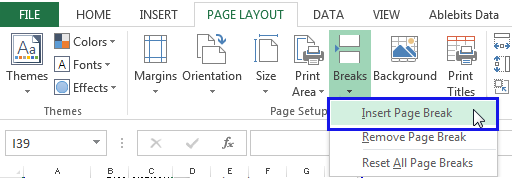 The Breaks dropdown menu in the Page Layout tab displaying Insert and Remove options
Once you have inserted your breaks, the Page Break Preview will update to reflect the new layout. In the example below, multiple horizontal breaks have been added to separate data blocks into distinct pages. When you run a Print Preview, each section separated by a blue line will appear on its own sheet.
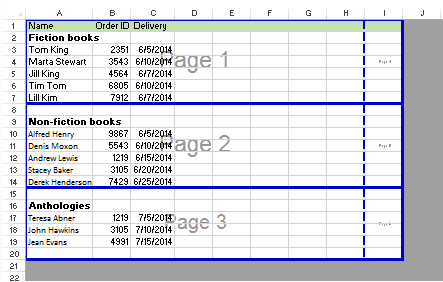 Spreadsheet view showing multiple solid blue horizontal lines indicating manual page breaks
Troubleshooting Tip: If your manual page breaks seem to be ignored, check your “Scale to Fit” settings in the Page Layout tab. If the Width or Height is set to “1 Page” instead of “Automatic,” Excel will override your manual breaks to force the content to fit.
Advanced Techniques: Conditional Page Breaks
For users dealing with massive datasets, manually inserting breaks for every category change is tedious and prone to error. Imagine a sales report with 50 different product categories; you wouldn’t want to manually insert 50 page breaks. While Excel doesn’t have a direct “Break on Change” button, we can utilize the Subtotal feature to achieve this automatically.
First, ensure your data is sorted by the column you want to group by (e.g., “Category”).
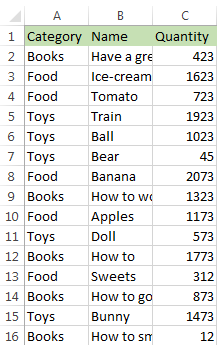 Example dataset in Excel sorted by category suitable for conditional page breaks
Using Subtotals to Force Breaks
- Prepare Data: Ensure your table has headers (e.g., Category, Product, Sales).
- Sort: Go to Data > Sort and sort by your grouping column (e.g., Category).
- Apply Subtotal: Select any cell in your data, go to the Data tab, and click Subtotal.
- Configure Settings:
- At each change in: Select your grouping column (Category).
- Use function: Select a function like Count or Sum (you can hide this later if not needed).
- Add subtotal to: Select a column to calculate.
- Crucial Step: Check the box that says Page break between groups.
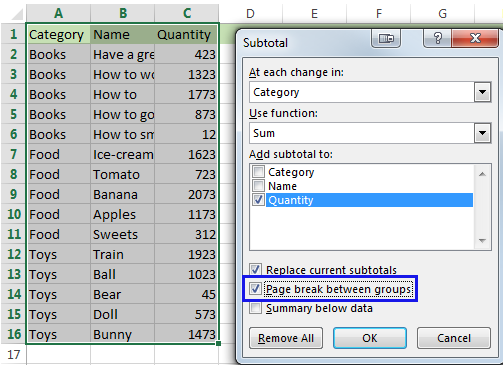 The Subtotal dialog box with Page break between groups option checked
Click OK. Excel will automatically insert a page break every time the value in the “Category” column changes. This is a massive time-saver for generating extensive reports.
 Animated demonstration of an Excel VBA process for advanced automation
For those comfortable with coding, VBA Macros offer even more flexibility. You can write scripts to insert breaks based on complex logic, such as specific keywords or value thresholds. Two common macro logic types are InsertPageBreaksIfValueChanged (similar to the Subtotal method) and InsertPageBreaksByKeyphrase.
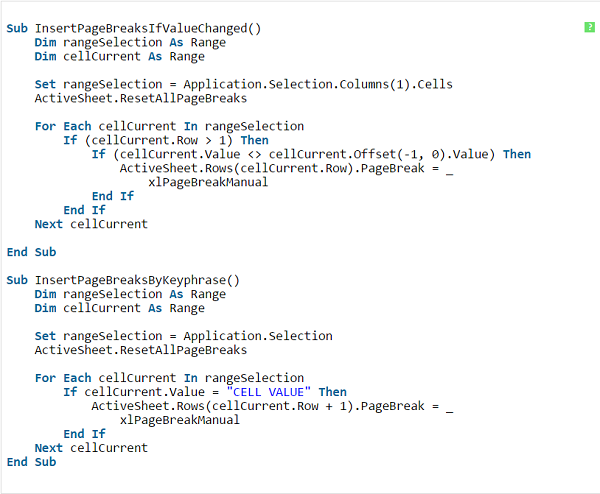 Visual representation of VBA code logic for inserting page breaks based on cell values
How to Remove Page Breaks in Excel
Over time, a spreadsheet can become cluttered with unnecessary page breaks, especially if copied from other sources or edited by multiple users. Knowing how to remove them is just as important as inserting them.
Removing Individual Breaks
If you only want to delete a specific break:
- Return to Page Break Preview.
- For a vertical break: Select the column immediately to the right of the blue line you want to remove.
- For a horizontal break: Select the row immediately below the blue line.
- Right-click and select Remove Page Break.
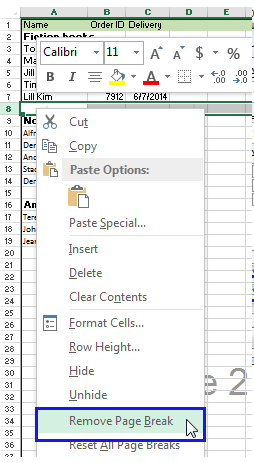 Context menu showing the Remove Page Break option selected after right clicking a cell
Alternatively, you can simply click on the blue line and drag it outside of the print area to delete it.
Resetting All Page Breaks
If your print layout is completely broken and you want to start fresh, you don’t need to delete breaks one by one. You can wipe the slate clean:
- Go to the Page Layout tab.
- Click on Breaks.
- Select Reset All Page Breaks.
This returns the sheet to Excel’s default automatic page break settings.
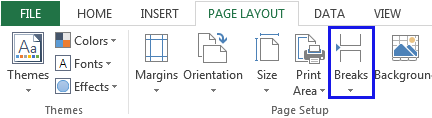 Dropdown menu in Page Layout showing the Reset All Page Breaks option
Moving and Adjusting Page Breaks
Often, the automatic break is almost perfect but cuts off one row too early or too late. You can easily adjust this visually.
In Page Break Preview mode, hover your mouse over any blue line (solid or dashed) until the cursor turns into a two-headed arrow. Click and drag the line to the exact position where you want the page to end.
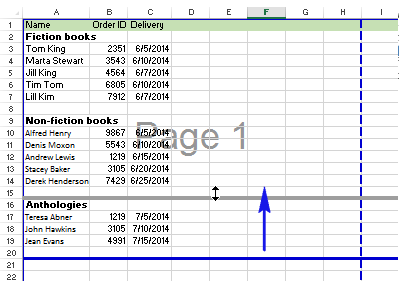 Mouse cursor dragging a blue page break line to a new position in the spreadsheet
Note: When you manually move a dashed automatic page break, it turns into a solid manual page break. Excel will no longer automatically adjust that specific boundary if you change row heights or font sizes later, so remember to check it before printing.
 Another animated example showing Excel interface interactions for learning purposes
Managing Page Break Visibility in Normal View
After you have finished setting up your print area, you might switch back to Normal View to continue entering data. However, you may notice faint dotted lines appearing on your grid, indicating where the page breaks are. Some users find these helpful; others find them distracting.
To hide (or show) these page break indicators in Normal View:
- Click on the File tab and select Options.
- Go to the Advanced category in the left pane.
- Scroll down to the Display options for this worksheet section.
- Check or uncheck the box labeled Show page breaks.
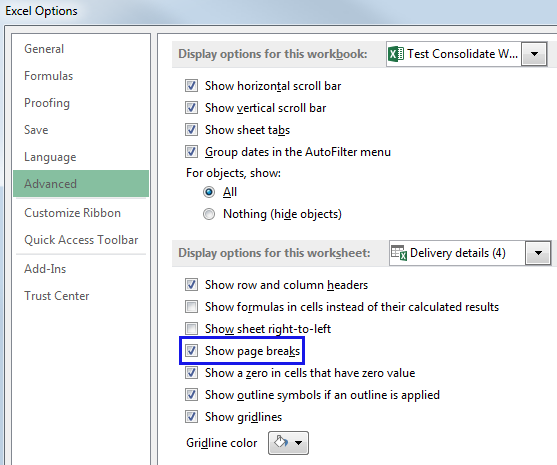 Excel Options window specifically the Advanced tab focusing on Show page breaks checkbox
Once you are satisfied with your layout, you can easily return to the standard editing mode. Navigate to the View tab and click Normal.
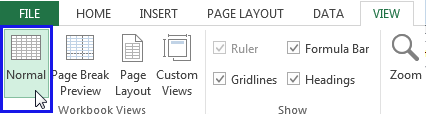 Ribbon toolbar showing the Normal view button selected in the Workbook Views group
Or, use the quick toggle in the status bar at the bottom right of the window.
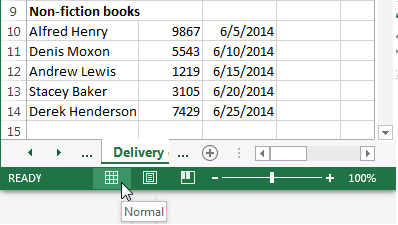 Status bar highlighting the Normal view icon located next to the zoom slider
Conclusion
Mastering page breaks is the difference between a spreadsheet that looks amateurish and one that commands professional respect. By utilizing Page Break Preview, understanding the difference between manual and automatic breaks, and leveraging tools like Subtotals for conditional formatting, you can ensure your data is always presented clearly.
Remember that print settings are saved with the workbook. It is always a good practice to do a final “Print Preview” before sending a document to a physical printer or exporting it to PDF to verify that your manual adjustments have remained in place.
References
- Microsoft Support: Insert, move, or delete page breaks in a worksheet.
- TechCrunch: Enterprise Software Productivity Tips.
- Ablebits: Excel Page Breaks Guide.
- HocExcel Online: Advanced Excel Training Resources.












Discussion about this post