


Printing documents is a daily task in many offices and schools, but it isn’t always straightforward. While standard A4 paper is the universal default, there are times when you need to print content formatted for A5 size (half the size of A4). This is common for creating flyers, invitations, booklets, or simply saving paper. However, most printers are loaded with A4 trays, and you might not have A5 paper handy.
Fortunately, Microsoft Word offers built-in features that allow you to easily print A5 documents directly onto A4 paper. You can choose to print a single A5 page or, more efficiently, fit two A5 pages onto a single sheet of A4. In this guide, “Thủ Thuật” will walk you through the precise steps to achieve this.
Preparation Before Printing
Before diving into the software settings, ensure your hardware is ready. Whether you are using a desktop PC or a laptop, a stable connection to the printer is essential.
For desktop computers, check the physical USB or Ethernet cable connection. For laptop users, verify that your device is connected wirelessly via the Printers and scanners menu in your system Settings. Once the connection is confirmed, open the document you wish to print.
Step 1: Access the Print Interface
To begin the configuration process, you need to open the print dialog box in Microsoft Word. There are two simple ways to do this:
- Via the Ribbon: Click on the File tab in the top left corner and select Print.
- Keyboard Shortcut: Press Ctrl + P on your keyboard for instant access.
Step 2: Configure Paper Size
Once in the print menu, you need to ensure the document understands the target size. Although we are printing on A4 paper physically, we are formatting the content logic for A5.
In the Page Setup or Printer Properties, ensure you are looking at the paper size options. This tells the printer how to scale the content.
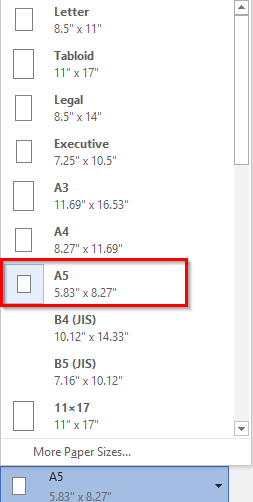 Microsoft Word Page Setup dialog showing paper size selection
Step 3: Setting Up “2 Pages Per Sheet”
This is the most critical step for printing two A5 pages side-by-side on a single A4 sheet. This method effectively turns your A4 paper into two A5 flyers or book pages.
- Open Page Setup.
- Navigate to the Margins tab (or the main setup tab depending on your Word version).
- Orientation: Change this to Landscape. This is vital because two A5 pages standing vertically fit perfectly onto one A4 page turned horizontally.
- Multiple pages: In the dropdown menu, select 2 pages per sheet.
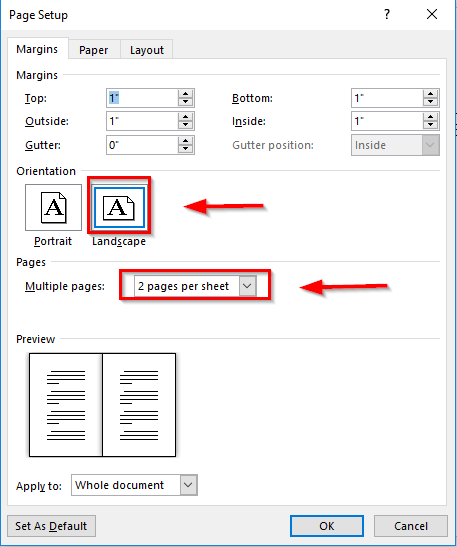 Selecting 2 pages per sheet in the Multiple pages dropdown menu
By selecting this option, Word automatically shrinks the content of two consecutive pages to fit onto one side of the physical paper.
Step 4: Final Adjustments and Printing
If you only need to print a single A5 page (centered or scaled) rather than two, you would stick to Portrait orientation and keep the Multiple pages setting to Normal. However, for the efficiency of the “2-up” method described above, verify your preview looks correct.
Check the following standard settings before hitting the final button:
- Print All Pages: Decide if you are printing the whole document or specific ranges.
- Print One Sided / Both Sides: If you have a duplex printer, printing on both sides creates a neat booklet effect.
- Margins: Ensure your text isn’t getting cut off by the printer’s non-printable area.
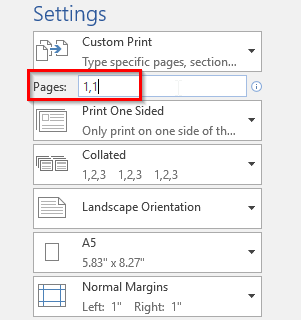 Final confirmation of print settings in the Page Setup window
Once you have verified that the orientation is Landscape and the “2 pages per sheet” option is active, click the large Print button. Your printer will now output your A5 content perfectly arranged on the A4 sheet.
Conclusion
Printing A5 content on A4 paper is a valuable skill that saves resources and allows for more creative document formatting. By mastering the Page Setup and Multiple pages features in Microsoft Word, you can easily create professional-looking handouts or booklets without needing specialized paper sizes.
We hope this tutorial helps you handle document formatting more confidently. For more office productivity tips and tech tricks, keep following “Thủ Thuật”.
References
- Microsoft Support: Print multiple pages on a single sheet of paper.
- TechCrunch: Office productivity software trends.





![[Course Review] Building a Smart Production Management System with Google Sheets, Apps Script, and QR Codes](https://thuthuat.com.vn/wp-content/uploads/2025/04/khoa-hoc-quan-ly-san-xuat.png "[Course Review] Building a Smart Production Management System with Google Sheets, Apps Script, and QR Codes")







Discussion about this post