


Navigating through a Microsoft Excel spreadsheet only to find data hidden behind hash marks (#######) or cut-off sentences can be incredibly frustrating. Whether you are a student compiling data or a professional analyst, presentation matters. The most efficient way to solve these formatting issues is not by manually dragging borders pixel by pixel, but by mastering the Excel AutoFit feature.
In this comprehensive guide, Thủ Thuật will walk you through the mechanics of automatically adjusting column widths and row heights. We will explore the technical limits of Excel cells, three distinct methods to apply AutoFit, and expert troubleshooting tips for when the feature doesn’t behave as expected.
Understanding the Fundamentals of Excel AutoFit
Before diving into the “how-to,” it is crucial to understand what AutoFit actually does. In essence, this feature instructs Excel to analyze the content within a column or row and resize the cell boundary to fit the longest entry exactly. This eliminates wasted white space and ensures all data is visible without manual intervention.
There are two primary operations:
- AutoFit Column Width: This expands or contracts the column width to accommodate the longest string of text or the largest number in that specific column.
- AutoFit Row Height: This adjusts the vertical height of a row to fit the font size or wrapped text contained within the cells.
While Excel is smart, it operates within strict technical boundaries. Knowing these limits can help you design better spreadsheets:
- Column Width Limits: A column can hold a maximum of 255 characters based on the standard font size. The default width is usually 8.43 characters. If you use a larger font, bold styling, or italics, the visible character count decreases.
- Row Height Limits: Rows have a maximum height of 409 points. To put this in perspective, 1 point is approximately 1/72 of an inch (or about 0.035 cm). The default height ranges from 15 points (at 100% DPI) to 14.3 points depending on your screen resolution.
If you set a column width or row height to 0, Excel effectively “hides” that column or row from view.
 Animation showing Excel columns automatically resizing to fit data
Method 1: The Mouse Double-Click (Quickest Method)
For most users, the mouse double-click method is the most intuitive way to adjust cell sizes. It requires no menu navigation and provides instant results. This method is particularly useful for quick edits during data entry.
Here is how to apply it effectively:
- Single Column Adjustment: Hover your mouse cursor over the right border of the column header (e.g., the line between column A and B). The cursor will change into a double-headed arrow. Double-click the left mouse button, and the column will snap to the width of the longest cell entry.
- Single Row Adjustment: Similarly, hover over the bottom border of a row header (e.g., the line between row 1 and 2). When the double arrow appears, double-click to adjust the height.
- Multiple Columns/Rows: Click and drag to highlight the headers of multiple columns or rows. Double-click on any one of the boundaries within the selection to AutoFit all of them simultaneously.
- The Entire Worksheet: To resize every cell in the document, click the “Select All” button (the triangle icon in the top-left corner where headers meet) or press
Ctrl + A. Once everything is selected, double-click any column or row boundary to standardize the entire sheet.
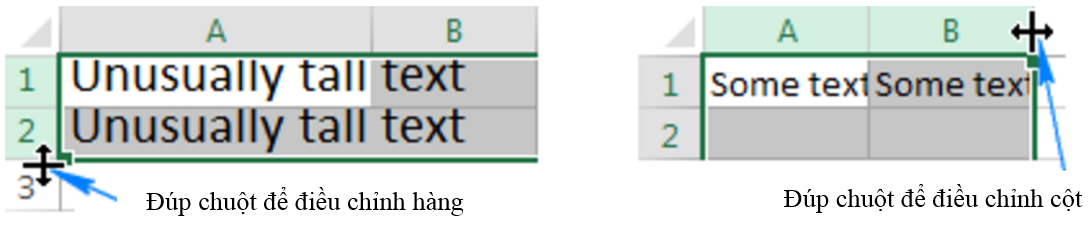 Cursor positioned between column headers to activate AutoFit by double-clicking
Method 2: Using the Ribbon Menu (The Visual Approach)
If you prefer navigating through the command ribbon or need to teach a beginner who isn’t comfortable with mouse precision, the Ribbon menu offers a clear, labeled path to these settings. This method is also excellent when you want to ensure you are selecting the exact command without accidental clicks.
Follow these steps:
- Select the columns or rows you wish to modify.
- Navigate to the Home tab on the top ribbon.
- Locate the Cells group (usually towards the right side).
- Click on the Format button.
- In the dropdown menu, select either AutoFit Column Width or AutoFit Row Height.
This method is particularly reliable when working on tablets or touch-screen devices where double-clicking specific borders can be difficult.
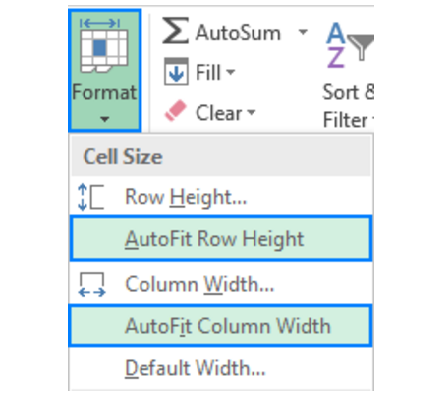 Excel Ribbon menu showing the Format dropdown with AutoFit options highlighted
Method 3: Keyboard Shortcuts (For Power Users)
For data analysts and Excel professionals, moving hands from the keyboard to the mouse breaks concentration and slows down workflow. Mastering keyboard shortcuts (Hotkeys) is a hallmark of Excel proficiency. While there is no single simultaneous key press for AutoFit, you can use the “Alt” key sequences to trigger the ribbon commands.
Note: Do not press these keys all at once. Press them in sequence, one after the other.
To AutoFit Column Width:
Press Alt $rightarrow$ H $rightarrow$ O $rightarrow$ I
- Alt: Activates the shortcut mode.
- H: Selects the Home tab.
- O: Opens the Format menu.
- I: Triggers “AutoFit Column Width”.
To AutoFit Row Height:
Press Alt $rightarrow$ H $rightarrow$ O $rightarrow$ A
- A: Triggers “AutoFit Row Height”.
If you struggle to memorize the full sequence, simply pressing Alt + H will display the shortcut letters over the ribbon, guiding you visually to the Format menu (O) and the subsequent options.
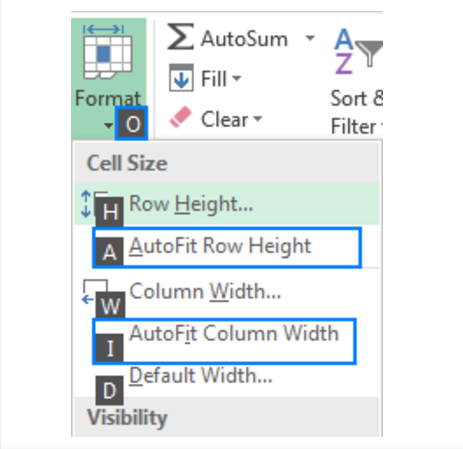 Detailed view of the Excel Format menu showing shortcut keys for AutoFit
Troubleshooting: When AutoFit Doesn’t Work
While AutoFit is a powerful tool, it is not bug-free. You may encounter scenarios where you double-click or use the shortcut, but the row height refuses to change, leaving text cut off. This issue frequently occurs when utilizing the Wrap Text feature.
Here is a common scenario: You set a specific column width, enable “Wrap Text,” and then expect the row height to expand automatically to fit the multi-line text. Sometimes, Excel “locks” the row height if it was previously manually adjusted.
How to fix stubborn rows:
- Select the Entire Sheet: Press
Ctrl + Ato ensure you are targeting the problematic areas. - Reset Widths: Drag a column boundary slightly to force a refresh of the widths.
- Force Row Reset: Double-click a row boundary separator.
- Force Column Reset: Double-click a column boundary separator.
Important Note on Merged Cells:
One of the biggest limitations of Excel is that AutoFit does not work on merged cells. If you have merged cells A1 to C1 and typed a long sentence with “Wrap Text” on, AutoFit Row Height will not adjust the row automatically. You must either adjust it manually or use “Center Across Selection” instead of “Merge & Center” for better formatting compatibility.
Alternatives and Best Practices
AutoFit is designed to make all data visible, but that isn’t always the best design choice. If a column contains a 200-character description, AutoFit will make that column incredibly wide, forcing the user to scroll horizontally to see other data. This creates a poor user experience.
Better alternatives for long text:
- Wrap Text: Keep the column width fixed (e.g., at 20 or 30 width) and enable “Wrap Text”. Then apply AutoFit to the Row Height. This keeps the spreadsheet compact while making text readable.
- Fixed Widths: For standardized reports, consistency is key. Manually setting columns to a fixed width (e.g., all date columns at width 12) looks more professional than having jagged, auto-fitted widths.
Conclusion
Mastering AutoFit in Excel is a fundamental skill that separates novices from efficient users. Whether you choose the speed of the double-click, the precision of the Ribbon menu, or the professionalism of keyboard shortcuts, ensuring your data is fully visible is crucial for accurate data analysis and reporting.
Remember that while AutoFit is a robust feature, it works best when combined with smart formatting decisions like Text Wrapping. We hope this guide helps you manage your spreadsheets more effectively.
Thủ Thuật is dedicated to bringing you the most practical and in-depth tech insights. If you found this article helpful, please share it with your colleagues and check out our other guides on mastering Microsoft Office.
References
- Microsoft Support. (n.d.). Change the column width and row height.
- TechCommunity. (2024). Excel Formatting Best Practices.
- ExcelJet. (n.d.). Excel Shortcut Keys for AutoFit.













Discussion about this post