


In the realm of Excel VBA (Visual Basic for Applications), automation usually involves calculating numbers or formatting cells. However, there is a lesser-known but highly engaging feature that brings your spreadsheets to life: the Speech property. This built-in capability allows your computer to vocalize text directly from your code or worksheet cells in English.
Whether you are looking to create audio alerts for your data models, build accessibility tools for visually impaired users, or simply want to have some fun with programming, the Speech object is a powerful tool. In this guide, “Thủ Thuật” will walk you through the fundamentals of making Excel speak.
Getting Started: The Basic Speech Property
The primary method for text-to-speech synthesis in Excel is located within the Application object. To activate this feature, you do not need complex installations; you simply need to invoke the .Speak command.
To test this out, open your VBA Editor (press Alt + F11), insert a new Module, and copy the following code snippet:
Sub HelloWorldSpeech()
    Application.Speech.Speak "Hello World"
End Sub
Once you have pasted the code, you can run the subroutine by pressing the F5 key or clicking the “Run” button in the toolbar. Immediately, your computer’s default system voice will articulate the phrase “Hello World.” This confirms that the connection between VBA and your system’s audio output is functioning correctly.
Speaking Dynamic Data from Cells
Hardcoding text strings like “Hello World” is excellent for testing, but the real power of VBA lies in interacting with spreadsheet data. You can easily direct the Speech property to read the contents of specific cells.
This method is particularly useful for verifying data entry without looking at the screen or creating auditory dashboards. Instead of typing the text directly into the code, you simply reference the target cell range.
 VBA code editor window showing the syntax for the Speech property in Excel
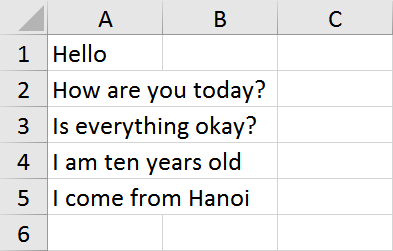
For example, if you have important data in cell A2 that you want Excel to read aloud, you would modify your code as follows:
Sub GreetingsSpeech()
    Application.Speech.Speak Range("A2").Value
End Sub
By running this macro, Excel will dynamically fetch whatever value is currently stored in cell A2 and convert it to speech. This simple command opens up numerous possibilities for interactive spreadsheets.
Advanced Control: Changing Voice Characteristics
While Application.Speech.Speak is straightforward, it utilizes the default system voice settings. For developers seeking more control—such as switching between male and female voices or adjusting speaking rates—we can leverage the Microsoft Speech Object Library (SAPI).
Using the SAPI.SpVoice object allows for a more customized audio experience. This is an advanced technique that bypasses the standard Excel Speech method in favor of the Windows OS speech engine directly.
 Animation illustrating the flow of VBA automation tasks
To implement voice selection, you would typically iterate through the available voices installed on your operating system and assign a specific index to the voice object. This ensures that your application sounds exactly the way you intend, adding a layer of professional polish to your projects.
Conclusion
Integrating text-to-speech functionality into Excel VBA is a straightforward process that adds significant value to your applications. From simple alerts using Application.Speech.Speak to more complex voice manipulation using the SAPI library, these tools enhance user interaction and accessibility.
We encourage you to experiment with these codes and apply them to your daily tasks. Try using speech to read out financial totals or to confirm that a long macro has finished running.
Have you used the Speech property in your Excel projects? Share your experiences and creative uses in the comments below!













Discussion about this post