


Microsoft Excel offers several built-in tools for data retrieval, such as the classic Find & Replace (Ctrl + F) or the standard AutoFilter feature. However, these native tools often require multiple clicks and repetitive actions to achieve a simple result. For power users managing large datasets—like a customer list with over 800 entries—navigating through pop-up menus can kill productivity.
What if you could create a “Google-like” search bar directly inside your spreadsheet? By leveraging Excel VBA (Visual Basic for Applications), we can engineer a flexible, high-speed search function that filters data instantly as you type. In this guide, “Thủ Thuật” will walk you through two distinct methods to build this tool, enhancing your workflow and data management capabilities.
The Problem: Why Standard Search Isn’t Enough
In a professional environment, data management is daily routine. Imagine you are managing a database of suppliers and clients containing nearly 1,000 rows. When you need to find a specific partner, the traditional workflow involves:
- Pressing
Ctrl + F. - Typing the keyword.
- Clicking “Find Next” repeatedly.
- Or, applying a filter, deselecting all, searching, and re-selecting.
This process is slow and disruptive. A VBA-based solution allows you to type a keyword into a specific cell (e.g., C3), and the spreadsheet automatically updates to show only relevant matches. This not only saves time but also improves the user experience for anyone else using your file.
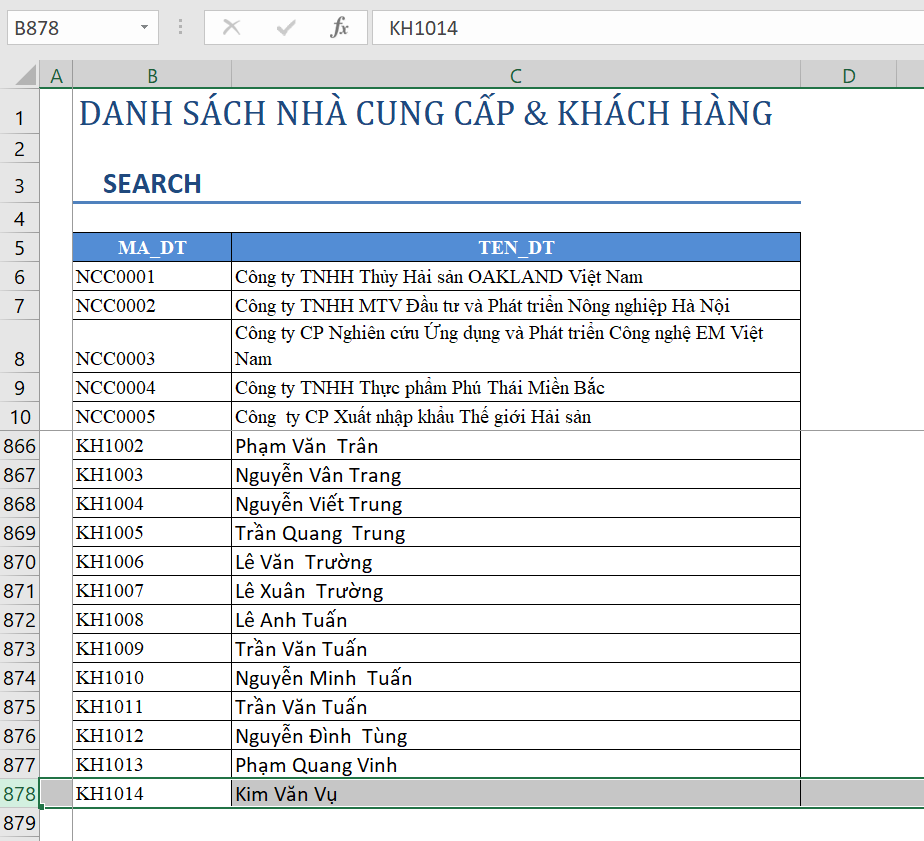 Excel spreadsheet layout featuring a search input cell and a list of customer names
Method 1: Combining VBA with Excel AutoFilter (Recommended for Speed)
The first and most efficient method utilizes Excel’s native AutoFilter capability but controls it via VBA. This approach is generally faster because it leverages Excel’s built-in calculation engine rather than looping through individual cells.
How It Works
The concept is simple: We write a script that takes the value from a specific input cell (let’s say C3) and applies it as a filter criteria to your data range (specifically the TEN_DT column).
When the code runs, it tells Excel to:
- Look at the value in cell C3.
- Apply an AutoFilter to the data column.
- Use a “Contains” operator (using wildcards
*) to find partial matches.
For example, if you type “CO PHAN” into cell C3, the macro will instantly filter the list to display only the rows where the Customer Name includes “CO PHAN”. This mimics the behavior of a search engine.
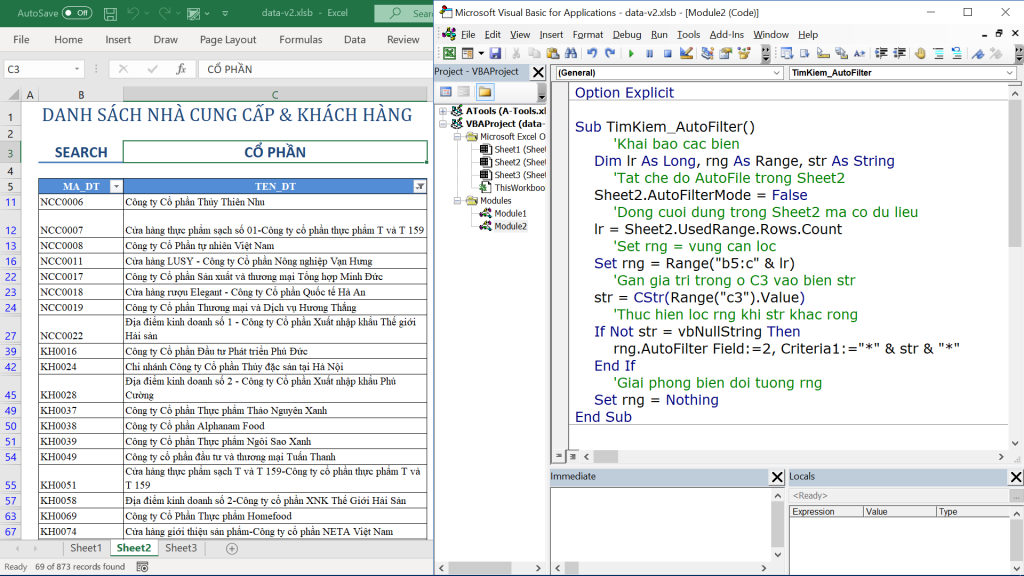 Filtered Excel list showing only rows containing the keyword CO PHAN
Why use this method?
- Performance: It handles large datasets (thousands of rows) very quickly.
- Simplicity: The code is concise and easy to maintain.
- Familiarity: The result looks like a standard filtered list, which users are used to.
Visualizing the Automation
To make this truly effective, we don’t want to manually run the macro every time. We want it to happen automatically. Below is a demonstration of how a dynamic search box functions in real-time. Notice how the list updates immediately as the search criteria changes.
 Animation demonstrating the real-time filtering process in Excel as data is typed
Method 2: The Loop and Hide Approach
The second method provides more granular control but operates differently under the hood. Instead of using the filter tool, this VBA script iterates (loops) through every single row in your dataset to check if the cell content matches your search keyword.
The Logic Behind the Code
- Unhide All: First, the code ensures all rows are visible to reset the view.
- Loop: It runs a
For...Nextloop starting from the first row of data to the last. - Condition Check: Inside the loop, it checks if the value in the Name column contains the string typed in cell C3.
- Action: If the search string is not found (
InStrfunction returns 0), the code sets theEntireRow.Hiddenproperty toTrue.
This method essentially “manually” hides rows that don’t belong.
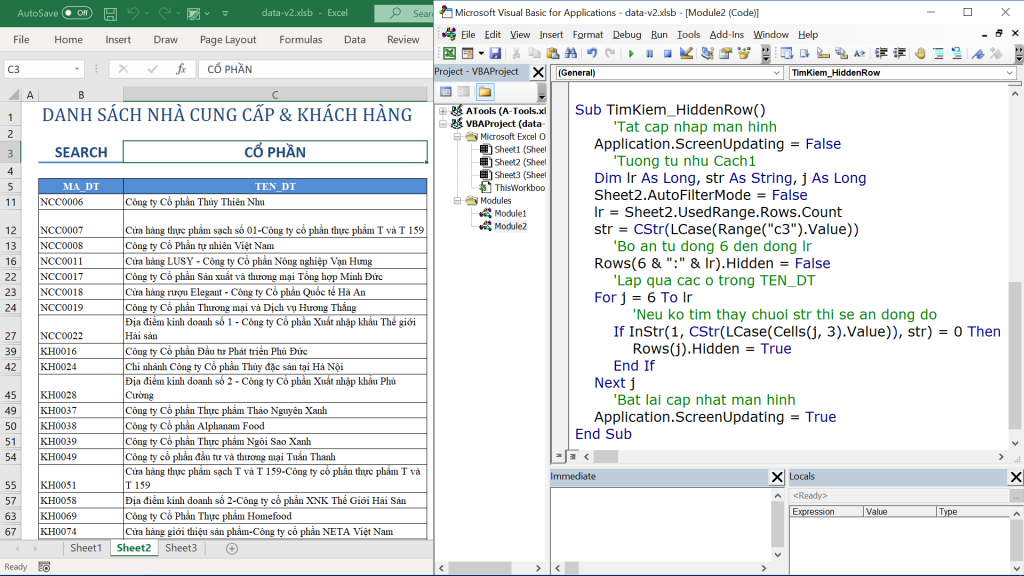 VBA code window displaying the loop logic used to hide rows based on search criteria
Pros and Cons:
- Pros: Highly customizable. You can add complex logic (e.g., highlight rows instead of hiding them, or search across multiple columns simultaneously).
- Cons: Slower performance on very large datasets compared to AutoFilter.
Automating the Search: The Worksheet_Change Event
Regardless of whether you choose Method 1 or Method 2, you need the search to trigger automatically. You don’t want to press a button every time you type a letter.
To achieve “live” searching, we use the Worksheet_Change event. This is a special type of VBA subroutine that triggers whenever a cell’s value is modified.
Implementation Steps:
- Open the VBA Editor (
Alt + F11). - Double-click the specific Sheet containing your data (e.g., Sheet1) in the Project Explorer. Do not put this in a standard Module.
- Select
Worksheetfrom the left dropdown andChangefrom the right dropdown. - Write code to check if the changed cell is your search box (C3). If it is, call your filter macro.
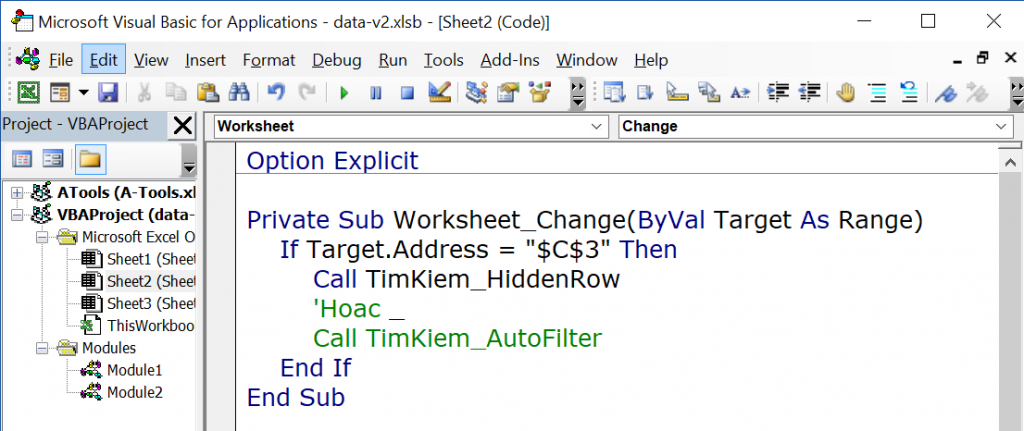 VBA editor showing the Worksheet_Change event code to trigger automation
By wrapping your code in this event, Excel monitors cell C3. The moment you hit Enter after typing “Hanoi”, the macro fires, and your list is instantly refined.
Conclusion and Expert Advice
Creating a custom search tool in Excel using VBA is a game-changer for data efficiency. While standard tools are sufficient for occasional use, building a dedicated search interface elevates the professionalism of your spreadsheets and saves significant time.
Which method should you choose?
- Choose Method 1 (AutoFilter) if you prioritize speed and are working with datasets larger than 1,000 rows. It is the most robust and standard-compliant way to handle data filtering.
- Choose Method 2 (Hiding Rows) if you need complex, custom logic that standard filters cannot handle, and your dataset is relatively small (under 500 rows).
At Thủ Thuật, we encourage you to go beyond the basics. Try expanding this code to search across multiple columns or use it to generate dynamic reports. Mastering these VBA techniques allows you to transform Excel from a simple spreadsheet into a powerful application.
Start coding today and experience the difference in your daily workflow!













Discussion about this post