


In the realm of data analysis, accuracy is paramount. Whether you are managing inventory lists, analyzing survey responses, or cleaning up customer databases, one of the most common challenges Excel users face is handling duplicates. Specifically, the need often arises to differentiate between counting items that appear exactly once versus counting the total number of different categories available.
While modern versions of Excel offer dynamic array functions like UNIQUE, many professional environments still rely on robust, backward-compatible formulas to ensure data integrity across different software versions. This guide provides a deep dive into the mathematical logic and practical application of formulas to count unique and count distinct values. We will explore how to manipulate strings, numbers, and even case-sensitive data to extract the precise insights you need from your spreadsheets.
Understanding the Terminology: Unique vs. Distinct
Before writing complex formulas, it is crucial to clarify the specific definitions used in data logic, as they are often used interchangeably but mean very different things in Excel.
- Unique Values: These are items that appear exactly once in your dataset. If an entry is duplicated even once, it is no longer considered unique in this context.
- Distinct Values: This represents the list of all different items found in the range. It includes the unique items plus the first instance of any duplicated items. essentially answering, “How many types of things are in this list?”
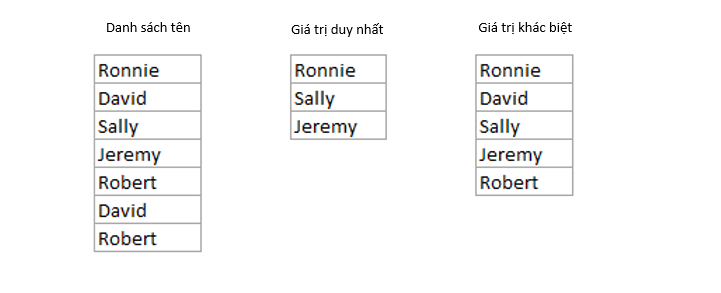 Diagram clearly comparing unique values versus distinct values in a dataset
Part 1: How to Count Unique Values
Counting unique values allows you to identify outliers or singular occurrences in your data. This is particularly useful for finding one-off transactions or identifying ID numbers that have not been replicated.
1. Counting Unique Items in a Column
To count items that appear only once in a range (e.g., A2:A10), we rely on a combination of SUM and COUNTIF. This approach checks every item against the entire list.
The Formula:
=SUM(IF(COUNTIF(A2:A10,A2:A10)=1,1,0))Note: If you are not using Excel 365 or Excel 2021, this is an Array Formula. You must press Ctrl + Shift + Enter to activate it. Curly braces {} will appear around the formula.
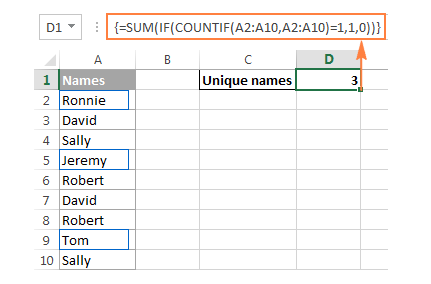 Excel spreadsheet showing the formula to count unique names in a list
The Logic Behind the Math:
COUNTIF(A2:A10, A2:A10): This part generates an array of counts for each item. If “Apple” appears twice, its position in the array will hold the number 2.IF(...=1, 1, 0): The formula checks the array. If the count is exactly 1 (meaning it is unique), it returns a 1. If it is 2 or more (a duplicate), it returns 0.SUM(...): Finally, it sums up all the 1s, giving you the total count of unique items.
 Animation demonstrating the step-by-step evaluation of the Excel unique count formula
2. Counting Only Unique Text Values
In messy datasets containing mixed data types (numbers, text, and errors), you might want to isolate only the text entries. We add the ISTEXT function to filter the logic.
The Formula:
=SUM(IF(ISTEXT(A2:A10)*COUNTIF(A2:A10,A2:A10)=1,1,0))Here, the multiplication symbol * acts as an AND logic gate. The item must be text AND have a count of 1 to return true.
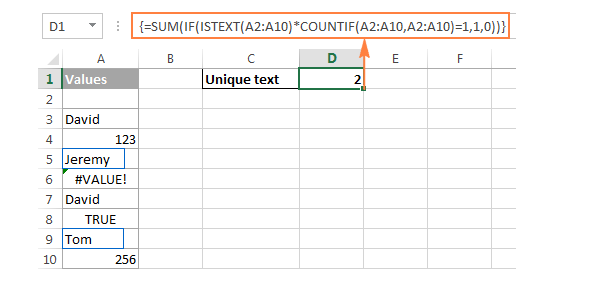 Formula result for counting only unique text strings in a list
3. Counting Only Unique Numeric Values
Conversely, if you are analyzing financial figures or serial numbers, you may want to ignore text annotations and count only unique numbers.
The Formula:
=SUM(IF(ISNUMBER(A2:A10)*COUNTIF(A2:A10,A2:A10)=1,1,0))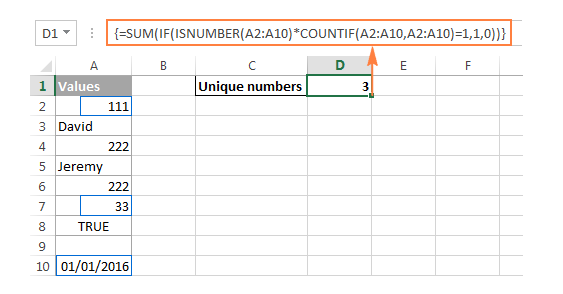 Excel sheet displaying the count of unique numeric values
4. Case-Sensitive Unique Counts
By default, Excel’s COUNTIF is case-insensitive (it treats “Apple” and “apple” as the same). To perform a strict, case-sensitive count, we cannot rely on COUNTIF alone. We use the EXACT function.
Step 1: Create a Helper Column
Enter this array formula in column B (e.g., B2):
=IF(SUM((--EXACT($A$2:$A$10,A2)))=1,"Unique","Dupe")Remember to use Ctrl + Shift + Enter.
Step 2: Count the Flags
Once your helper column flags the items, simply count them:
=COUNTIF(B2:B10, "unique")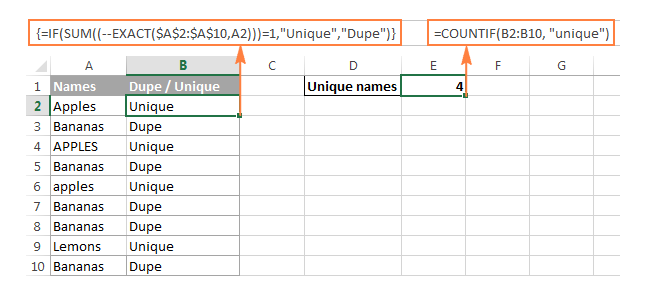 Case-sensitive unique value count using helper columns in Excel
Part 2: How to Count Distinct Values
Counting distinct values is generally more common in business reporting. For instance, knowing how many different products were sold, regardless of how many times each was processed.
1. The Reciprocal Method
The most elegant solution for legacy Excel versions uses a mathematical reciprocal method using SUMPRODUCT or SUM.
The Formula:
=SUMPRODUCT(1/COUNTIF(A2:A10,A2:A10))Why This Works:
Imagine the name “John” appears 4 times in your list.
COUNTIFcalculates the count as 4 for each instance of “John”.- The division
1/4converts each instance into 0.25. - When you
SUMthe four instances of 0.25 (0.25 + 0.25 + 0.25 + 0.25), the result is 1. - This effectively counts the group of “Johns” as a single distinct entity.
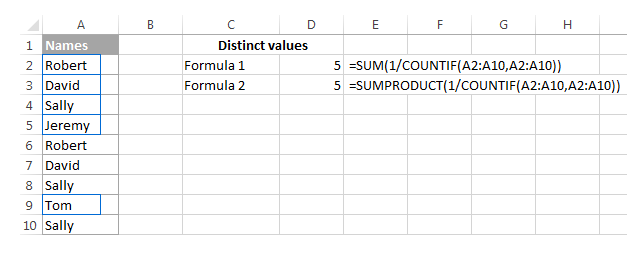 Excel formula example calculating the total number of distinct entries
2. Handling Blank Cells
The basic reciprocal formula above will return a #DIV/0! error if your range contains empty cells (because you cannot divide by zero). To fix this, we filter out blanks using an IF statement.
The Formula:
=SUM(IF(A2:A10<>"",1/COUNTIF(A2:A10,A2:A10),0))Note: This requires Ctrl + Shift + Enter.
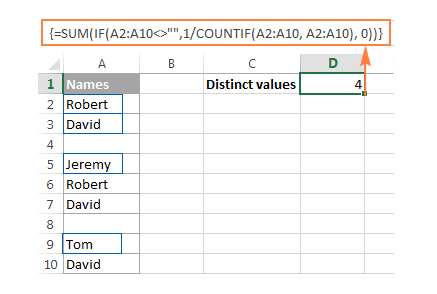 Excel formula to count distinct values while ignoring blank cells
3. Distinct Text and Numbers
Similar to the unique counts, you can combine ISTEXT or ISNUMBER with the reciprocal logic to target specific data types.
Distinct Text Only:
=SUM(IF(ISTEXT(A2:A10),1/COUNTIF(A2:A10,A2:A10),""))Distinct Numbers Only:
=SUM(IF(ISNUMBER(A2:A10),1/COUNTIF(A2:A10,A2:A10),""))
4. Case-Sensitive Distinct Counts
For a distinct count that respects letter casing (treating “CodeA” and “CODEA” as different types), we again utilize a helper column with the EXACT function, but the logic changes slightly to identify the first occurrence.
Helper Column Formula:
=IF(SUM((--EXACT($A$2:$A2,$A2)))=1,"Distinct","")Note: The range $A$2:$A2 expands as you drag the formula down, creating a running total.
Final Count:
=COUNTIF(B2:B10,"distinct")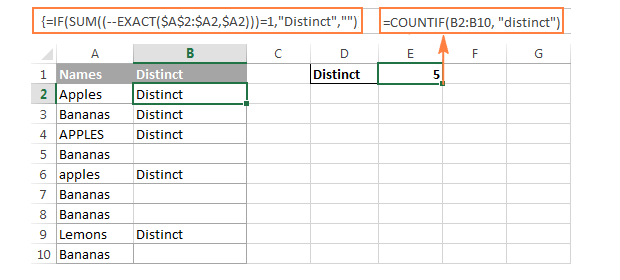 Distinct count method that distinguishes between uppercase and lowercase text
Part 3: Counting Unique and Distinct Rows
Sometimes, a “value” isn’t just one cell, but a combination of two columns (e.g., First Name + Last Name). To treat a whole row as a single entity, we upgrade from COUNTIF to COUNTIFS.
Counting Unique Rows:
=SUM(IF(COUNTIFS(A2:A10,A2:A10,B2:B10,B2:B10)=1,1,0))Counting Distinct Rows:
=SUM(1/COUNTIFS(A2:A10,A2:A10,B2:B10,B2:B10))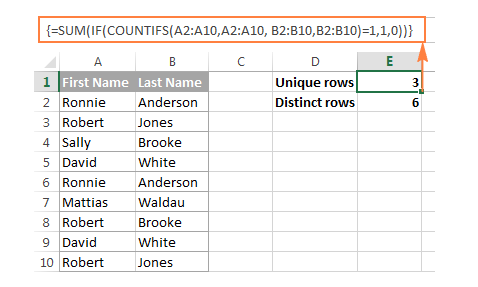 Counting unique and distinct rows across multiple columns in Excel
Conclusion
Mastering the distinction between unique and distinct values allows you to extract precise metrics from your datasets. While modern Excel functions like UNIQUE have simplified this process, understanding the underlying SUMPRODUCT and COUNTIF array formulas gives you the power to work across any version of Excel and handle complex, custom criteria.
By applying the formulas detailed above, you can confidently report on inventory variety, customer diversity, and data anomalies, ensuring your analysis is always based on accurate counts.
References
- Microsoft Support: Count unique values among duplicates.
- Excel Jet: Formula to count unique values.
- TechCommunity: Distinct vs Unique definitions in Data Analysis.












Discussion about this post