


In the fast-paced world of data management, keeping track of deadlines, schedules, and timelines is crucial. Excel offers a robust set of tools to visualize this data, and among them, Conditional Formatting stands out as an essential feature for power users. While basic formatting can change fonts or colors, conditional formatting allows your spreadsheet to react dynamically to the data it holds.
This guide delves deep into applying conditional formatting specifically for dates. We will move beyond the basic presets to explore advanced formulas that can highlight weekends, flag public holidays, and visualize upcoming project milestones using the TODAY and WEEKDAY functions.
Built-in Conditional Formatting Rules for Dates
For many users, Excel’s built-in presets provide a quick and effective solution. These pre-configured rules allow you to highlight dates relative to the current day without writing a single line of code. This is particularly useful for dashboards that require daily monitoring.
To access these features, navigate to Home > Conditional Formatting > Highlight Cell Rules > A Date Occurring…
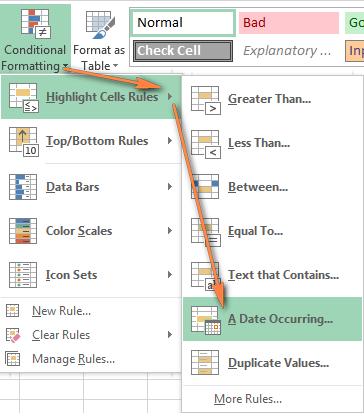 Excel menu showing the path to Conditional Formatting for dates
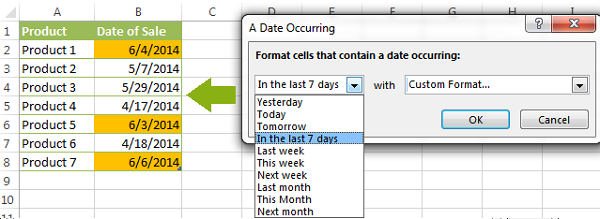
Once the dialog box appears, you can select from a variety of dynamic options such as “Yesterday,” “Today,” “Tomorrow,” “In the last 7 days,” or “Next month.” This immediacy makes it perfect for quick audits of your data.
 Dropdown menu selecting specific date criteria like Yesterday or Today
While these built-in rules are convenient, they are limited to comparisons against the current system date. They cannot, for example, compare two different date columns in your spreadsheet or account for non-working days. For those requirements, we need to access the advanced rule management system.
 Icon representing the dialog box launcher for advanced formatting options
Advanced Formatting with Formulas
To unlock the full potential of Excel, you can define your own formatting triggers using logical formulas. This approach gives you complete control over the logic, allowing for complex scenarios like highlighting expiration dates that fall on a weekend.
Automatically Highlighting Weekends
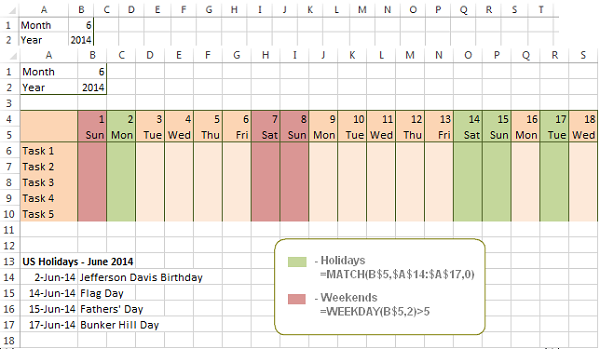
Project managers often need to distinguish between working days and weekends. By using the WEEKDAY function, we can automatically color-code Saturdays and Sundays.
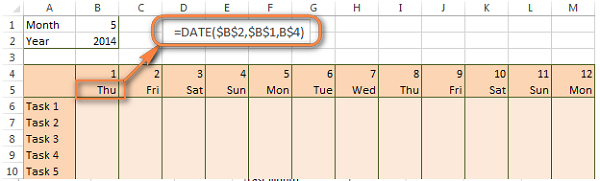
The syntax for the function is =WEEKDAY(serial_number, [return_type]). By setting the return_type to 2, Monday becomes 1 and Sunday becomes 7. Therefore, any value greater than 5 represents a weekend.
 Small icon indicating the formatting rule manager interface
Steps to highlight weekends:
- Select the range of dates you wish to format (e.g.,
$B$4:$AE$10). - Go to Conditional Formatting > New Rule.
- Select Use a formula to determine which cells to format.
- Enter the formula:
=WEEKDAY(B$5, 2) > 5.
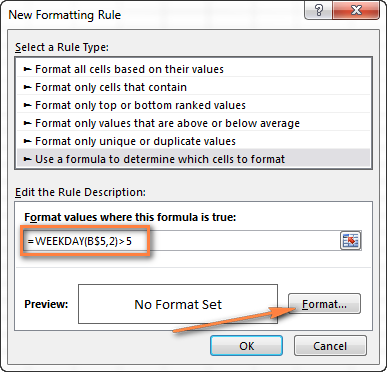 Excel New Formatting Rule window showing the WEEKDAY formula
After applying the format, Excel will check every cell in the selection. If the date falls on a Saturday or Sunday, the custom formatting (such as a red fill) will be applied.
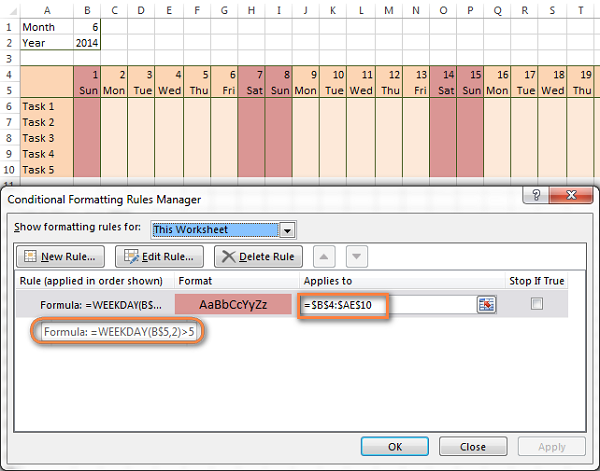 Interface icon showing additional formatting settings
This method is incredibly useful for Gantt charts or shift rosters where visual distinction of non-working days is mandatory.
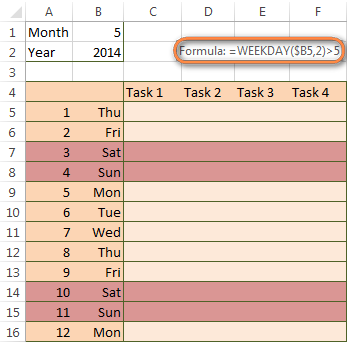 A vertical calendar column with weekends highlighted in orange
highlighting Public Holidays
Unlike weekends, public holidays do not follow a strict mathematical pattern. To handle these, you must create a list of holidays in your workbook and reference them. We can use the COUNTIF or MATCH functions to check if a specific date exists in your holiday list.
Formula examples:
- Using COUNTIF:
=COUNTIF($A$14:$A$17, B$5) > 0 - Using MATCH:
=MATCH(B$5, $A$14:$A$17, 0)
First, ensure you have a dedicated range where your holidays are listed.
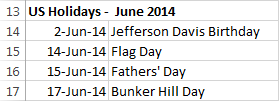 Spreadsheet list showing US federal holidays for reference
By combining the Weekend and Holiday rules, you can create a comprehensive “Non-working Day” alert system in your timesheets.
 Dialog launcher icon used to access further rule details
Technical Validation of Date Formats
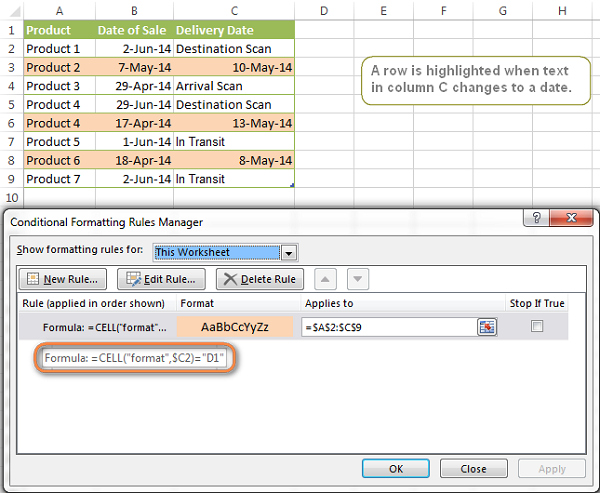
Sometimes, data imported from other systems (like CSV or ERP exports) may look like a date but is actually stored as text. Conditional formatting can help debug these issues.
You can use the CELL function to verify the format of a cell. The formula =CELL("format", $A2)="D1" checks if the cell currently carries a standard date format. This is a quality assurance step to ensure your subsequent date calculations are accurate.
 Icon for formatting options in the rule manager
Highlighting Rows Based on Specific Dates
In Excel, dates are stored as serial numbers (e.g., “41772”). When you want to highlight an entire row based on a specific date, you must ensure you are comparing the correct data types.
You can compare a cell directly to a serial number, or more commonly, use the DATEVALUE function to convert a text string into a readable date for the formula.
Formula: =$C2=DATEVALUE("5/13/2014")
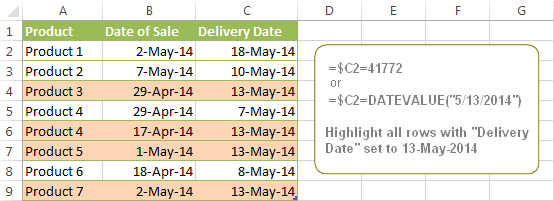 Spreadsheet showing specific rows highlighted in green based on date criteria
To understand how Excel sees dates, you can temporarily change a cell’s format to “General,” revealing the underlying serial number.
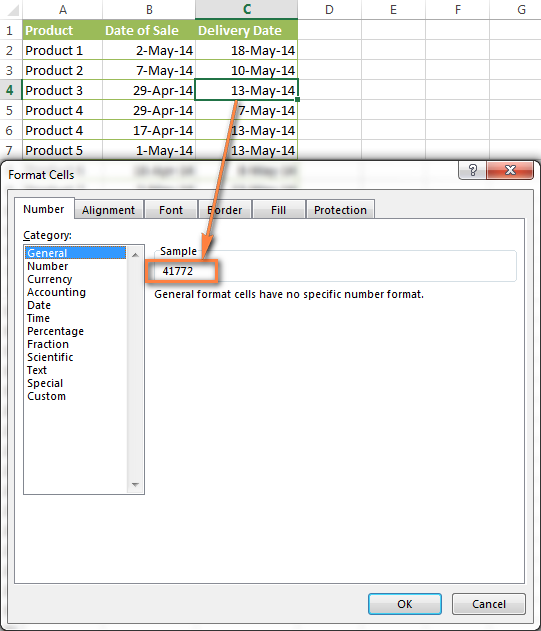 Example showing the numerical serial value of a date in Excel
Dynamic Tracking with the TODAY Function
For project management, static dates are less useful than dynamic ones. The =TODAY() function is volatile, meaning it updates every time the worksheet recalculates. This allows for “Rolling” conditional formatting.
Tracking Deadlines Relative to Now
You can create rules to alert you when a deadline has passed, is due today, or is coming up in the future.
- Overdue:
=$B2 < TODAY() - Due Today:
=$B2 = TODAY() - Future:
=$B2 > TODAY()
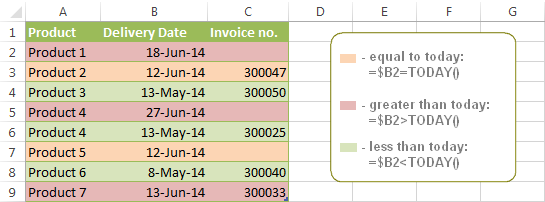 Table showing overdue, today, and future dates highlighted differently
This setup acts as an automated traffic light system for your tasks. Green can represent future tasks, yellow for today, and red for overdue items.
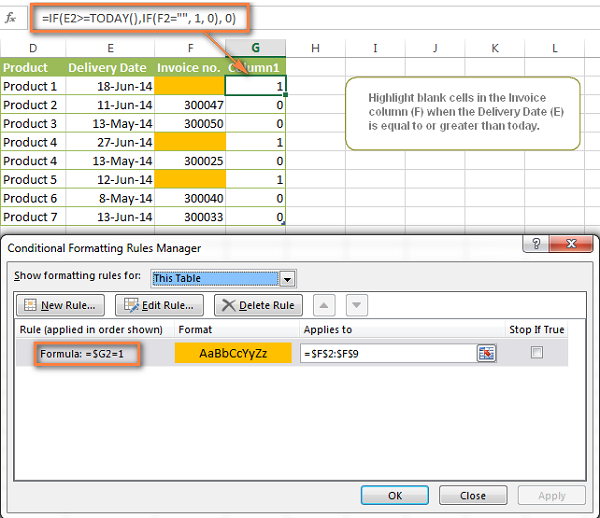 Small interface icon for formatting rule settings
Calculating End Dates and Ranges
You can also use formulas to highlight a range of time, such as “Tasks due within the next 7 days.” The formula would look like:
AND($B2 >= TODAY(), $B2 <= TODAY() + 7)
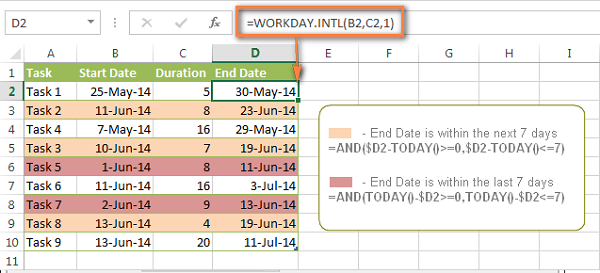 Another interface icon for advanced Excel settings
Furthermore, if you have a Start Date and a Duration, you can calculate the End Date directly within the conditional formatting logic or in a helper column to visualize the project timeline.
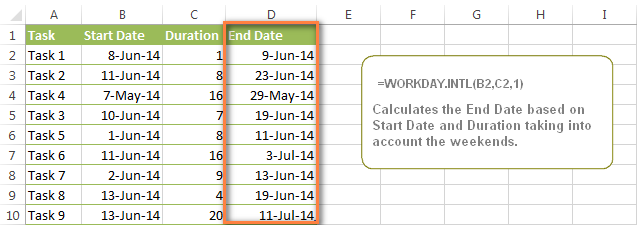 Spreadsheet showing calculated end dates based on duration
By visualizing these ranges, you ensure that no upcoming task slips through the cracks.
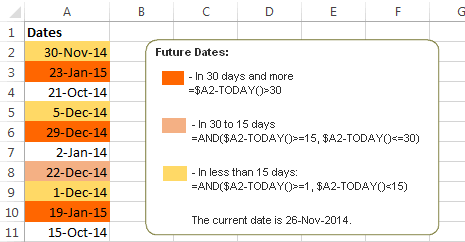 Spreadsheet highlighting dates that fall in the future
Advanced Visualization: Color Scales
For a more gradient-based approach, you can use the DATEDIF function combined with Color Scales. This creates a heatmap effect, where dates further in the future might appear in a deeper shade of green, while imminent dates turn red.
The DATEDIF function calculates the interval between two dates (Years, Months, or Days), providing a numerical value that Excel’s color scale feature can interpret.
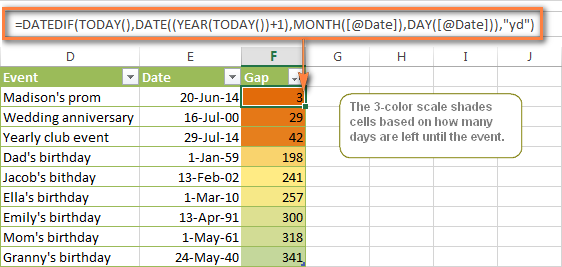 Excel table using color scales to visualize time intervals
Conclusion
Mastering conditional formatting for dates transforms Excel from a simple spreadsheet into a dynamic dashboard. Whether you are using the simple built-in highlights for a quick check or deploying complex WEEKDAY and COUNTIF formulas for professional reporting, these tools enhance data readability and decision-making speed.
By automating the visual cues for deadlines and schedules, you reduce the cognitive load of processing raw data, allowing you to focus on the actual work at hand. We encourage you to experiment with these formulas to find the combination that best suits your workflow.
References
- Microsoft Support: Use formulas with conditional formatting.
- TechCommunity: Excel Date and Time functions.
- ExcelJet: Advanced Conditional Formatting criteria.













Discussion about this post