


Excel is a powerful tool for organizing data and generating detailed reports. However, one of the most frustrating aspects of spreadsheet management is printing. It is a common scenario: you have a beautifully formatted table, but when you send it to the printer, the last column spills over onto a second page, or the rows break awkwardly.
For large datasets or complex reports, manually adjusting column widths to fit a standard A4 sheet can be incredibly time-consuming. Fortunately, Excel offers built-in features to automate this process. This guide will demonstrate how to configure your Page Setup to ensure your data always fits perfectly on a single A4 page. These steps apply to almost all modern versions of Excel, including 2007, 2010, 2013, 2016, and Office 365.
Accessing the Page Setup Menu
The first step to controlling your print output is accessing the detailed Page Setup options. While the quick print menu offers some settings, the full dialog box provides the precision needed for specific scaling.
To begin, navigate to the Page Layout tab on the ribbon. Look for the “Page Setup” group. In the bottom-right corner of this group, you will see a small arrow icon (the dialog launcher). Click this icon to open the full configuration window.
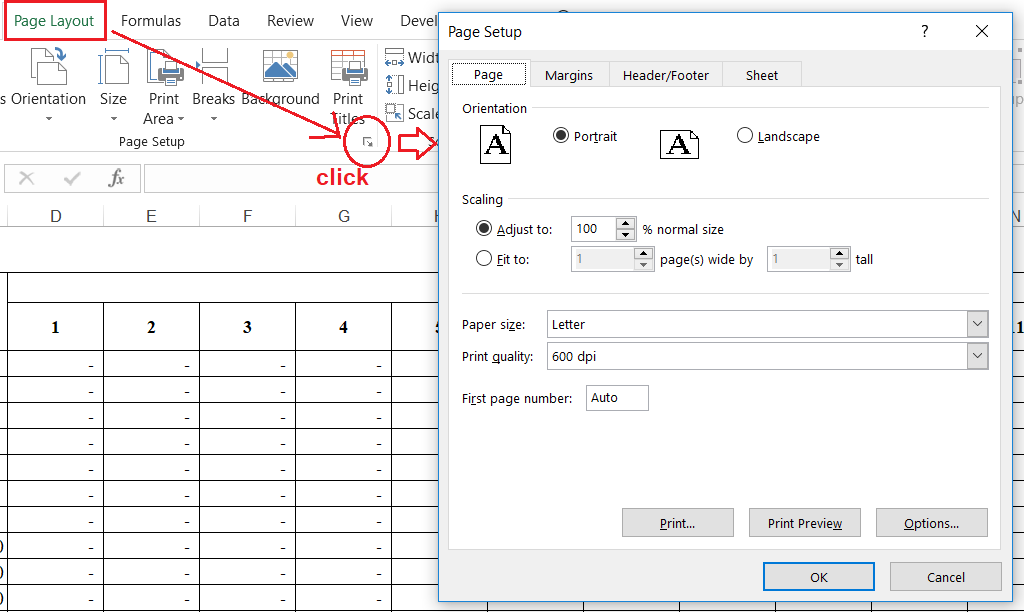 Page Layout tab in Excel showing the arrow to open the Page Setup dialog box
Setting the Standard Paper Size
Before attempting to scale your data, you must define the physical canvas you are working with. In many regions, including Vietnam and Europe, A4 is the standard document size. However, Excel may default to “Letter” size depending on your system’s regional settings.
Inside the Page Setup window, ensure you are on the Page tab. Locate the Paper size dropdown menu and select A4. This ensures that all subsequent scaling calculations are based on the correct dimensions of your paper.
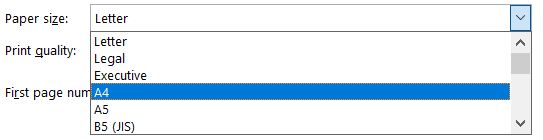 Selecting A4 from the Paper size dropdown menu in Excel Page Setup
Optimizing Layout and Margins
Simply selecting the paper size is often not enough. You must also optimize the printable area to accommodate your data.
Orientation:
Decide between Portrait (vertical) or Landscape (horizontal).
- Use Portrait for datasets with many rows but few columns.
- Use Landscape for wide tables with many columns. This is often the best choice for fitting complex reports onto one page.
Margins:
Navigate to the Margins tab within the Page Setup window. Adjusting margins is crucial before scaling. By reducing the margins (Top, Bottom, Left, Right) to a smaller value, you increase the available whitespace for your data. This means Excel won’t have to shrink the text as much to make it fit.
Once you have configured the orientation and margins, check your spreadsheet view. You might see dotted lines indicating where the page breaks currently fall.
 Animation showing navigation through Excel interface and menus
The “Fit to Page” Scaling Trick
If you have adjusted the paper size and margins but your content still spills over to a new page, you need to use the Scaling feature. This is the most critical step in the process.
Return to the Page tab in the Page Setup window. Under the Scaling section, you will see an option labeled Fit to.
- Click the radio button for Fit to.
- Set the values to: 1 page(s) wide by 1 tall.
By selecting this, you are forcing Excel to mathematically calculate the reduction percentage required to squeeze all your active data onto a single sheet of paper.
Important Note: You should only apply this setting after you have selected the paper size, orientation, and margins. If you skip the previous steps, the scaling might result in text that is too small to read.
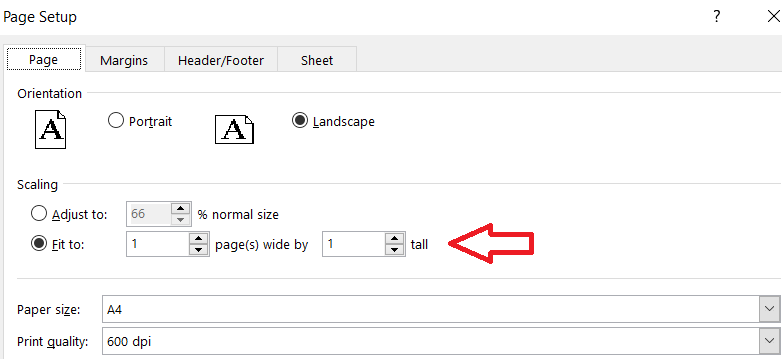 Excel Page Setup window showing the Scaling option set to Fit to 1 page wide by 1 tall
Final Review and Considerations
After applying the “Fit to 1 page” setting, it is mandatory to use the Print Preview function before sending the document to the printer.
Because Excel is automatically shrinking the content, a very large dataset (e.g., 50 columns and 200 rows) might become microscopic when forced onto a single A4 sheet. In such cases, you might consider fitting it to 1 page wide by (blank) tall. This forces the width to fit on one page (preventing orphaned columns) but allows the rows to spill over to subsequent pages naturally, maintaining readability.
Mastering these printing techniques is essential for creating professional reports. It ensures that your hard work in data organization is presented clearly and concisely on paper.
Animated banner for an advanced Excel course showing data manipulation
References
- Microsoft Support: Scale a worksheet
- Excel Easy: Page Setup
- TechRepublic: Excel Printing Tips













Discussion about this post