


In the realm of digital accounting, the ability to create dynamic, automated reports is a skill that separates the novice from the professional. Today, Thủ Thuật dives deep into the technical construction of a “Cash Book” (Sổ quỹ tiền mặt) and a “Detailed Cash Accounting Book” (Sổ kế toán chi tiết quỹ tiền mặt) using standard Excel functions.
This guide will demonstrate how to build a system that automatically updates data based on a changing time range, a crucial feature for financial reporting. While we will reference the standard Vietnamese accounting form S07-DN, the logic and formulas applied here are universal and can be adapted to any financial tracking system globally.
Understanding the Core Accounting Models
Before writing formulas, it is essential to understand the structure of the documents we are automating.
The Cash Book (Form S07-DN) is utilized by treasurers or cash accountants to reflect the status of receipts, expenditures, and the remaining balance of the cash fund. Typically, each fund utilizes a specific book or set of pages.
Parallel to this, the Detailed Cash Accounting Book (Form S07a-DN) is maintained. This version requires an additional layer of complexity: the “Reciprocal Account” (Tài khoản đối ứng) column. This column reflects the account number corresponding to each Debit or Credit entry of the Cash Account (Account 111), providing a granular view of where money is coming from or going to.
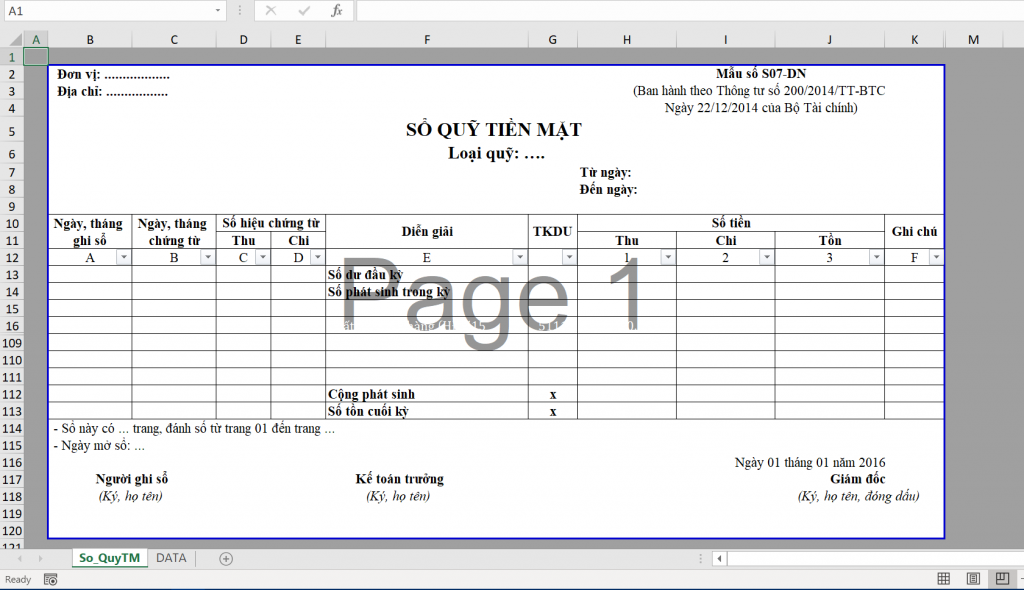 Standard layout of the Cash Book Form S07-DN in Excel
Preparing the Data Source
To automate the report, we first need a robust database. In our example, we utilize a sheet named DATA. This sheet records every transaction chronologically.
A well-structured data source should include:
- Date: The specific day of the transaction.
- Voucher Number: To track receipts and payment slips.
- Description: Details of the transaction.
- Debit/Credit Accounts: Defining the flow of money.
- Amount: The financial value of the transaction.
The image below illustrates a sample dataset spanning from December 31, 2015, to January 13, 2016.
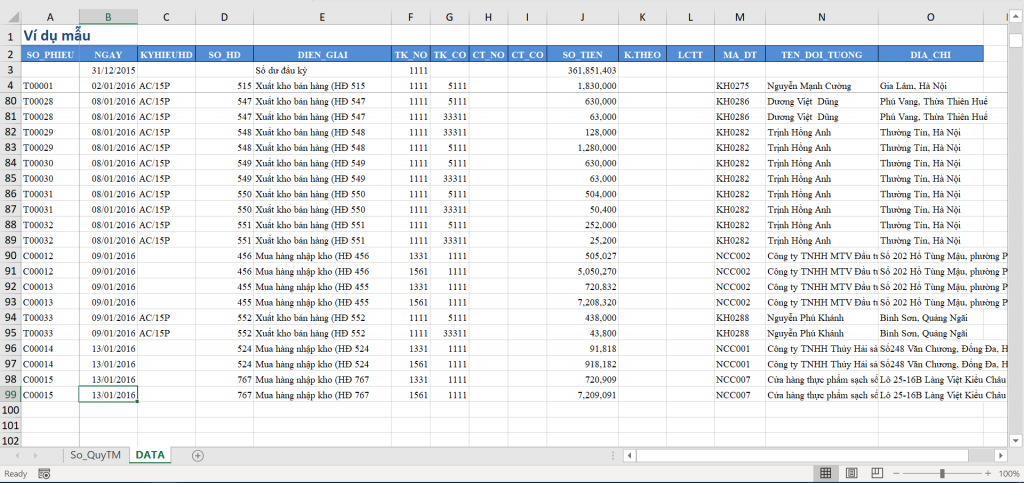 Raw data input sheet containing accounting transactions
Essential Excel Functions for Financial Reporting
To transform raw data into a dynamic report, we will rely on a specific set of logical and arithmetic functions. If you are already familiar with the Excel ecosystem, these will be recognizable tools. However, the power lies in how they are combined.
We will use:
- SUMIFS: To calculate the opening balance based on multiple criteria (dates and account numbers).
- IF & AND: To filter transactions that fall specifically within the selected reporting period.
- SUM: To calculate the running balance (Closing Balance) row by row.
Mastering these functions is critical. Even with modern accounting software, the flexibility of Excel remains unmatched for ad-hoc analysis.
 Animation demonstrating basic Excel interface interactions
Understanding how data moves between sheets is key. The “DATA” sheet feeds the “REPORT” sheet. When you change the date range in the report, the formulas recalculate instantly.
 Advanced Excel macro and VBA visualization
For those looking to deepen their understanding of how these sheets interact, visualize the flow of data as a pipeline. The formulas act as valves that only let specific information (dates, accounts) pass through to your final report.
Repeated visualization of Excel skills for emphasis
Step-by-Step Implementation Guide
Once you have your template set up (as shown in the first image), the goal is to make the data populate automatically based on the “From Date” and “To Date” cells.
1. Calculating the Opening Balance
The Opening Balance is the amount of money remaining in the fund before the start of your selected date range. For example, if you are reporting for January, the opening balance is the accumulated total up to December 31st.
We use the SUMIFS function for this calculation. The logic is:
- Sum of all Debits (Receipts) occurring before the start date.
- Minus the sum of all Credits (Payments) occurring before the start date.
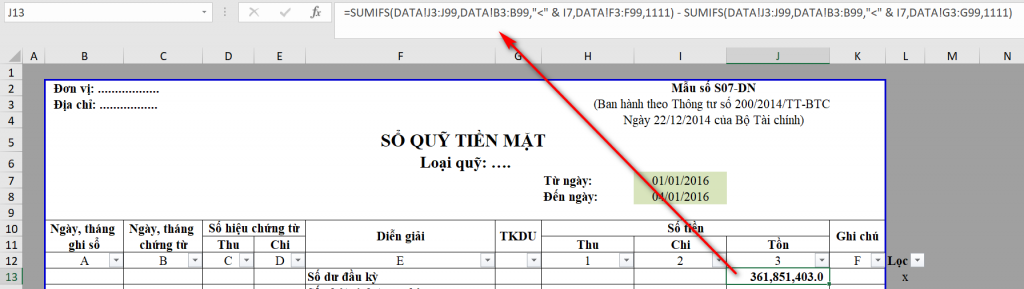 Formula bar showing SUMIFS calculation for opening balance
The formula structure at cell J13:
=SUMIFS(DATA!Amount_Col, DATA!Date_Col, "<"&Start_Date, DATA!Debit_Account, "1111")
- SUMIFS(DATA!Amount_Col, DATA!Date_Col, "<"&Start_Date, DATA!Credit_Account, "1111")
Breakdown:
- First SUMIFS: Sums total money where the date is less than the “From Date” (Cell J7) and the Debit Account is 1111 (Cash).
- Second SUMIFS: Sums total money where the date is less than the “From Date” (Cell J7) and the Credit Account is 1111.
- Result: The net cash available at the beginning of the period.
 Close up of the opening balance result in the Excel sheet
2. Fetching Transaction Details
This is the most complex part of the automation. We need to pull specific rows from the DATA sheet that match our time criteria. We use a combination of IF and AND.
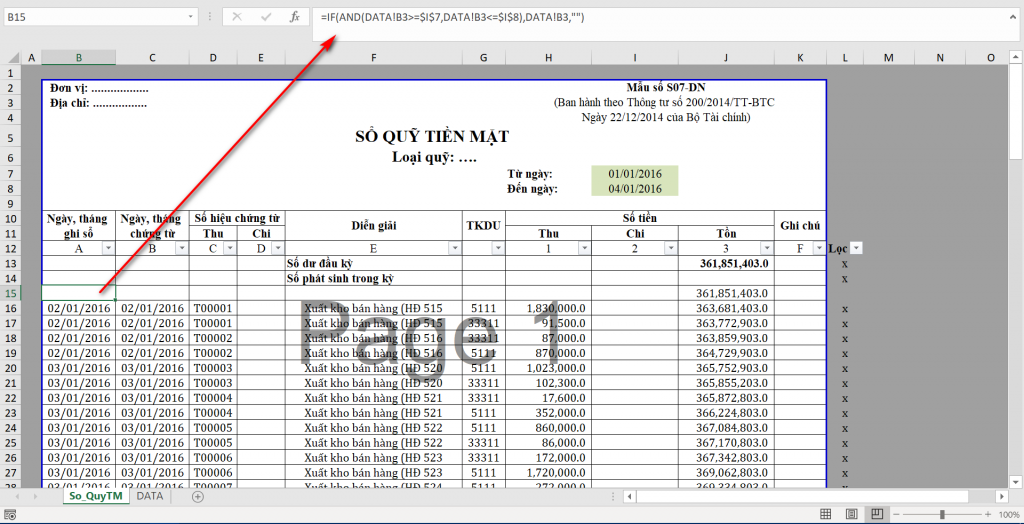 Excel formula logic for filtering data by date range
The Logic at Cell B15:
We compare the transaction date in the DATA sheet against our report’s date range.
- Is
DATA!Date>=Report!From_Date? - AND, is
DATA!Date<=Report!To_Date?
If both are true, we display the data; otherwise, we leave the cell blank.
3. Handling Reciprocal Accounts (The “Detailed” Book)
To upgrade a standard “Cash Book” to a “Detailed Cash Accounting Book,” we must populate the Reciprocal Account (TKDU) column. This identifies the counter-party account.
- If money comes in (Debit 111), the Reciprocal Account is the Credit account (where money came from).
- If money goes out (Credit 111), the Reciprocal Account is the Debit account (where money went).
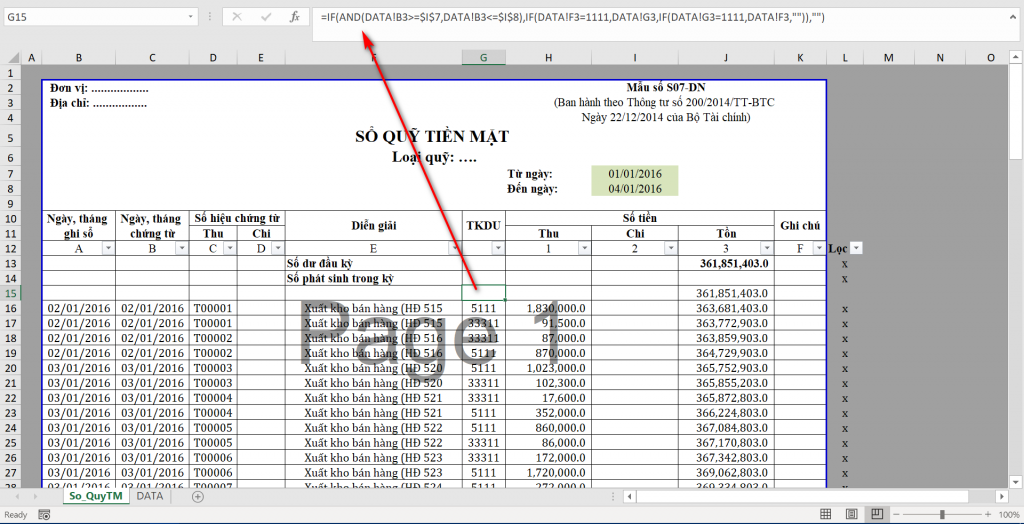 Formula setup for determining reciprocal accounts
The Formula at Cell G15:
=IF(AND(Date_Check), IF(Debit_Account="1111", Credit_Account, Debit_Account), "")This nested IF statement first checks if the date is valid. If it is, it checks the transaction direction. If the Debit column contains “1111”, it returns the value from the Credit column, and vice versa. This ensures the ledger accurately reflects the flow of funds.
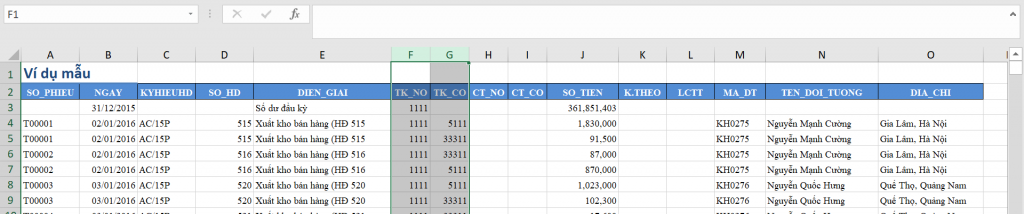 Result of the reciprocal account formula in the spreadsheet
By implementing this, you satisfy the requirements for the S07a-DN form.
4. Calculating the Running (Closing) Balance
Finally, we need to calculate the balance after every single transaction. This is done using a basic mathematical principle:
New Balance = Opening Balance + Total Receipts – Total Payments
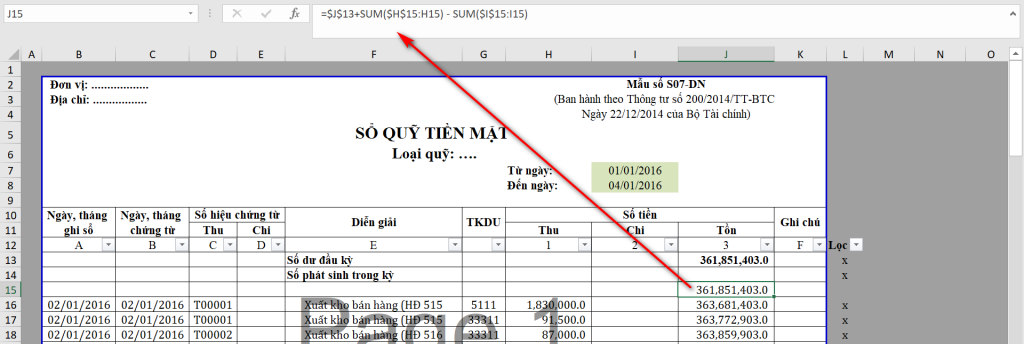 Running balance calculation using mixed reference SUM formula
The Formula at Cell J15:
=$J$13 + SUM($H$15:H15) - SUM($I$15:I15)Technical Note:
- $J$13: This is the absolute reference to the Opening Balance. It remains constant.
- SUM($H$15:H15): This creates a “running total” or cumulative sum. As you drag this formula down to row 16, it becomes
SUM($H$15:H16). It sums all receipts from the first row up to the current row. - SUM($I$15:I15): Similarly, this calculates the cumulative payments.
5. Print Optimization with Helper Columns
A common issue with Excel templates is that you might have formulas extending down 100 rows, but only 10 rows of data. Printing 90 blank rows is unprofessional.
To solve this, we create a “Helper Column” (Column L in this example) to identify rows that contain actual data.
The Formula at Cell L15:
=IF(AND(DATA!Date >= From_Date, DATA!Date <= To_Date), "x", "")Fill this formula down for as many rows as you expect to have data (e.g., 500 rows). Any row matching the date criteria will show an “x”.
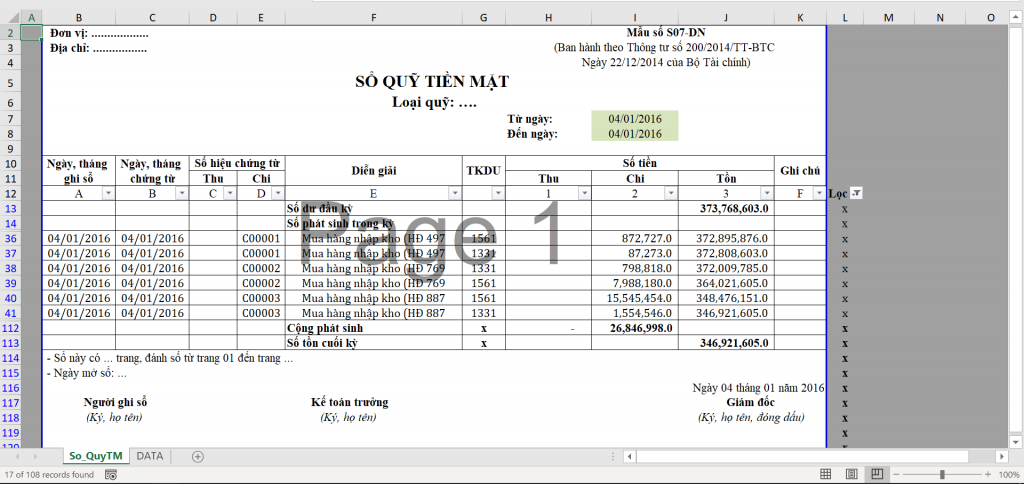 Preview of the print layout with helper column filtering
When it is time to print, simply apply a Filter to Column L and select only the “x” values. This hides all empty rows, resulting in a clean, professional “Cash Book” ready for signature.
Important Technical Considerations
While this method is highly effective for small to medium-sized businesses, keep the following performance factors in mind:
- Data Volume: The structure relies on the template having as many rows as your potential data output. If your DATA sheet has 5,000 transactions, your Report sheet needs formulas dragged down 5,000 rows.
- Calculation Speed: Using thousands of array-like formulas (SUMIFS inside IFs) can slow down Excel.
- Scalability: For enterprise-level data, this logic is better implemented using Pivot Tables, Power Query, or VBA/SQL. However, for most accountants requiring a quick, flexible S07-DN form, the formula method described above is the most accessible solution.
Conclusion
By combining SUMIFS, IF, and cumulative SUM logic, you have successfully transformed a static spreadsheet into a dynamic financial tool. You can now generate a Cash Book or Detailed Cash Accounting Book for any specific date range instantly.
This approach not only saves time but also ensures accuracy by eliminating manual calculation errors. Whether you are managing a petty cash fund or a larger corporate account, these Excel techniques are foundational to efficient financial management.
We encourage you to practice these formulas and adapt the column structures to fit your specific organizational needs.
References:
- Excel Functions Documentation – Microsoft Support
- Vietnamese Accounting Standards – Ministry of Finance (Form S07-DN, S07a-DN)
- Thủ Thuật Tech Archives













Discussion about this post