

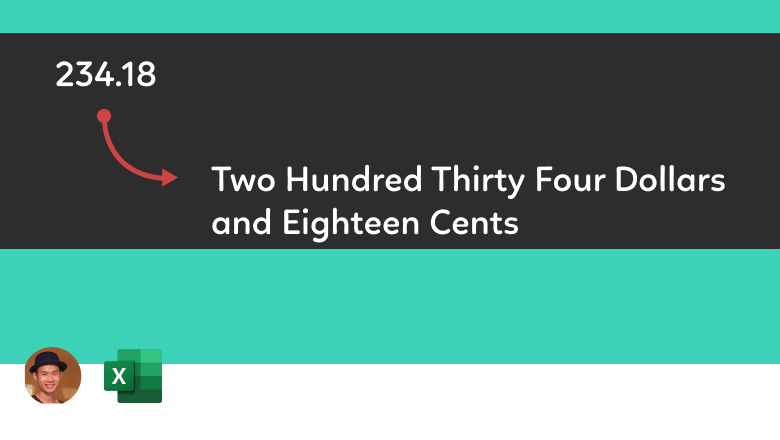
Microsoft Excel is undeniably the most powerful tool for data management and financial reporting, yet it surprisingly lacks a built-in function to convert numeric values into English words. For professionals dealing with invoices, checks, or financial contracts where writing out amounts like “$1,234.50” as “One Thousand Two Hundred Thirty-Four Dollars and Fifty Cents” is mandatory, this limitation can be frustrating.
Fortunately, you do not need to wait for a Microsoft update to solve this. By utilizing Visual Basic for Applications (VBA), you can create a custom function—often referred to as SpellNumber—to automate this process instantly. This guide will walk you through the precise steps to implement this feature, ensuring your financial documents look professional and accurate without manual entry.
Setting Up the VBA Environment
To create a custom function in Excel, we must access the “backstage” of the software known as the Visual Basic Editor (VBE). You do not need to be a programmer to do this; simply follow these navigational steps.
Step 1: Open the Visual Basic Editor
First, open the Excel workbook where you need the conversion. Press the shortcut keys ALT + F11 on your keyboard. This command opens the VBE window, a separate interface for managing macros and scripts.
Step 2: Insert a New Module
Once inside the VBE, you need a space to paste the code. Look for the menu bar at the top:
- Click on Insert.
- Select Module from the dropdown list.
This action creates a blank white window on the right side of the screen, which is your workspace for the code.
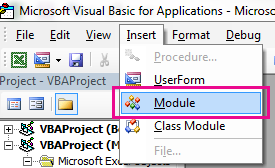 Menu selection for inserting a new module in the Excel VBA editor
The SpellNumber VBA Code
Now that your module is ready, copy the entire block of code below. This script is designed to handle currency (Dollars and Cents) and large numbers up to trillions. It breaks down the number into text strings and reconstructs them grammatically.
Paste the following code into the Module window you just opened:
Option Explicit

'Main Function
Function SpellNumber(ByVal MyNumber)
    Dim Dollars, Cents, Temp
    Dim DecimalPlace, Count
    ReDim Place(9) As String

    Place(2) = " Thousand "
    Place(3) = " Million "
    Place(4) = " Billion "
    Place(5) = " Trillion "

    ' String representation of amount.
    MyNumber = Trim(Str(MyNumber))

    ' Position of decimal place 0 if none.
    DecimalPlace = InStr(MyNumber, ".")

    ' Convert cents and set MyNumber to dollar amount.
    If DecimalPlace > 0 Then
        Cents = GetTens(Left(Mid(MyNumber, DecimalPlace + 1) & "00", 2))
        MyNumber = Trim(Left(MyNumber, DecimalPlace - 1))
    End If

    Count = 1
    Do While MyNumber <> ""
        Temp = GetHundreds(Right(MyNumber, 3))
        If Temp <> "" Then Dollars = Temp & Place(Count) & Dollars
        If Len(MyNumber) > 3 Then
            MyNumber = Left(MyNumber, Len(MyNumber) - 3)
        Else
            MyNumber = ""
        End If
        Count = Count + 1
    Loop

    Select Case Dollars
        Case ""
            Dollars = "No Dollars"
        Case "One"
            Dollars = "One Dollar"
        Case Else
            Dollars = Dollars & " Dollars"
    End Select

    Select Case Cents
        Case ""
            Cents = " And No Cents"
        Case "One"
            Cents = " And One Cent"
        Case Else
            Cents = " And " & Cents & " Cents"
    End Select

    SpellNumber = Dollars & Cents
End Function

' Converts a number from 100-999 into text
Function GetHundreds(ByVal MyNumber)
    Dim Result As String
    If Val(MyNumber) = 0 Then Exit Function
    MyNumber = Right("000" & MyNumber, 3)

    ' Convert the hundreds place.
    If Mid(MyNumber, 1, 1) <> "0" Then
        Result = GetDigit(Mid(MyNumber, 1, 1)) & " Hundred "
    End If

    ' Convert the tens and ones place.
    If Mid(MyNumber, 2, 1) <> "0" Then
        Result = Result & GetTens(Mid(MyNumber, 2))
    Else
        Result = Result & GetDigit(Mid(MyNumber, 3))
    End If

    GetHundreds = Result
End Function

' Converts a number from 10 to 99 into text.
Function GetTens(TensText)
    Dim Result As String
    Result = "" ' Null out the temporary function value.
    If Val(Left(TensText, 1)) = 1 Then ' If value between 10-19...
        Select Case Val(TensText)
            Case 10: Result = "Ten"
            Case 11: Result = "Eleven"
            Case 12: Result = "Twelve"
            Case 13: Result = "Thirteen"
            Case 14: Result = "Fourteen"
            Case 15: Result = "Fifteen"
            Case 16: Result = "Sixteen"
            Case 17: Result = "Seventeen"
            Case 18: Result = "Eighteen"
            Case 19: Result = "Nineteen"
            Case Else
        End Select
    Else ' If value between 20-99...
        Select Case Val(Left(TensText, 1))
            Case 2: Result = "Twenty "
            Case 3: Result = "Thirty "
            Case 4: Result = "Forty "
            Case 5: Result = "Fifty "
            Case 6: Result = "Sixty "
            Case 7: Result = "Seventy "
            Case 8: Result = "Eighty "
            Case 9: Result = "Ninety "
            Case Else
        End Select
        Result = Result & GetDigit(Right(TensText, 1))
    End If
    GetTens = Result
End Function

' Converts a number from 1 to 9 into text.
Function GetDigit(Digit)
    Select Case Val(Digit)
        Case 1: GetDigit = "One"
        Case 2: GetDigit = "Two"
        Case 3: GetDigit = "Three"
        Case 4: GetDigit = "Four"
        Case 5: GetDigit = "Five"
        Case 6: GetDigit = "Six"
        Case 7: GetDigit = "Seven"
        Case 8: GetDigit = "Eight"
        Case 9: GetDigit = "Nine"
        Case Else: GetDigit = ""
    End Select
End Function
After pasting the code, ensure there are no red lines indicating syntax errors. Once verified, press Alt + Q to save the VBA changes and close the editor, returning you to your standard Excel interface.
Applying the Function in Excel
Now that the backend work is done, using the function is as simple as using standard Excel formulas like SUM or AVERAGE.
- Select the cell where you want the text to appear.
- Type the formula:
=SpellNumber(A1)(Note: Replace
A1with the cell reference containing the number you wish to convert). - Press Enter.
For example, if cell A1 contains 25.50, the result will display as “Twenty Five Dollars And Fifty Cents”. This output is dynamic; if you change the value in A1, the text will update automatically.
Important: Saving Your Workbook
This step is critical. Because you have added a VBA macro to your file, you cannot save it as a standard Excel Workbook (.xlsx). Doing so will strip the code you just added.
You must save the file as an Excel Macro-Enabled Workbook (.xlsm):
- Go to File > Save As.
- In the “Save as type” dropdown menu, select *Excel Macro-Enabled Workbook (.xlsm)**.
- Click Save.
 Animated illustration representing the execution of VBA macros in Excel
Making the Function Available Globally
By default, the SpellNumber function only exists in the specific workbook where you added the module. If you want this function to be available in every Excel file you open (so you don’t have to copy the code every time), you should save the macro in your Personal Macro Workbook. This is a hidden workbook that opens whenever you start Excel, making your custom functions universally available on your computer.
Customizing the Code for Other Currencies
While the provided code uses “Dollars” and “Cents,” it is highly customizable. If you are working with different currencies or simple whole numbers, you can modify the text strings within the code:
- To change currency: Find the lines
Dollars = " Dollars"andCents = " Cents"in the code and replace the text with “Euros”, “Pounds”, or “Dong”. - To remove currency: If you only want to convert a number (e.g., for statistics) without monetary values, remove the references to “Dollars” and “Cents” in the
Select Casesections.
Conclusion
Mastering the SpellNumber function via VBA elevates your Excel proficiency, allowing you to bridge the gap between numerical data and professional linguistic presentation. While it requires a few initial setup steps, the ability to automate number-to-text conversion saves significant time and eliminates human error in financial documentation. Whether you are generating invoices, pay slips, or legal contracts, this simple VBA module is an essential addition to your Excel toolkit.
References
- Microsoft Support. (n.d.). Convert numbers into words. Retrieved from Microsoft.com
- Excel VBA Documentation. (n.d.). VBA Function Reference. Retrieved from Learn.microsoft.com












Discussion about this post