


Data management in Excel is a vast field requiring various processing methods to handle different data types effectively. One of the most common yet challenging tasks for analysts and office workers is counting unique values within a list. While simple counting is easy, excluding duplicates requires a deeper understanding of Excel logic.
In this article, “Thủ Thuật” will guide you through the technical intricacies of counting unique items, exploring why this task can be tricky and how to solve it efficiently using both basic and advanced methods.
Understanding the Problem: Unique vs. Total Count
Before diving into the solutions, let’s look at a typical scenario. Imagine you manage a dataset containing sales records or employee attendance.
 Initial Excel dataset showing columns for staff, date, and product names
The requirement is straightforward: You need to determine how many distinct employees are in the “Staff” column, how many unique days are recorded in the “Date” column, or how many specific product types exist. The key constraint is that you must not count duplicate values.
If an employee’s name appears five times, it should only contribute “1” to the final count. Standard functions like COUNTA will give you the total number of rows, which is incorrect for this specific goal. We need more robust solutions.
Method 1: The Helper Column Approach (Using COUNTIF)
For users who prefer a step-by-step logical flow without complex array formulas, utilizing a helper column combined with the COUNTIF function is the most accessible method.
The Concept
The strategy here is to identify the first occurrence of a value. If a value appears for the first time, we mark it. If it appears again, we distinguish it so it can be excluded from the final sum.
Implementation
Let’s take the “Date” column (Column C) as an example. We will create a helper column (Column F) to calculate the occurrence index.
The formula used in cell F2 would be:
=COUNTIF($C$2:C2, C2)
Technical Breakdown:
- Range ($C$2:C2): This is an expanding range. The first part
$C$2is an absolute reference, locking the starting point. The second partC2is a relative reference. As you drag the formula down, the range grows (e.g.,$C$2:C3,$C$2:C4). - Criteria (C2): This checks the value in the current row against the expanding range above it.
This logic results in a sequence of numbers. A result of “1” means the value is appearing for the first time. A result of “2” or higher indicates a duplicate.
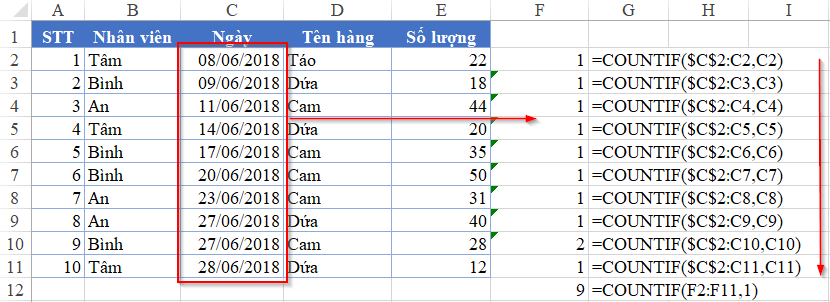 Excel spreadsheet showing the result of the COUNTIF helper column method
To get the final count of unique values, you simply count how many cells in the helper column contain the value 1.
Result: In our example, the count is 9.
Pros and Cons
- Pros: Easy to understand, debug, and audit. You can visually verify which rows are duplicates.
- Cons: Manual and cumbersome. It requires modifying the dataset structure (adding columns). For datasets with thousands of rows, adding a calculation to every row can significantly increase file size and calculation time.
Method 2: Advanced Array Formula (SUMPRODUCT + FREQUENCY)
For advanced users or situations where you cannot alter the dataset structure, formulas involving SUMPRODUCT and FREQUENCY offer a powerful, professional solution. This method treats data as arrays, allowing for complex calculations within a single cell.
Understanding the FREQUENCY Function
The FREQUENCY function calculates how often values occur within a range of values, and then returns a vertical array of numbers. Its syntax is:
=FREQUENCY(data_array, bins_array)
The principle here is to count how many times values in the bins_array appear in the data_array. To adapt this for unique counting, we need to transform our text or date data into numerical positions that FREQUENCY can process.
Step 1: Digitizing Data with MATCH
Since FREQUENCY works with numbers, we first use the MATCH function to convert our dates or names into numerical indices.
The formula structure looks like this:
=MATCH(C2:C11, C2:C11, 0)
 Using the MATCH function in Excel to find the position of items
How it works:
The MATCH function looks at the array C2:C11 and returns the relative position of each item. If “27/06/2018” appears at position 7 and again at position 9, MATCH returns “7” for both instances because it always finds the first match.
If you inspect the formula result (using F9 in the formula bar), you obtain an array like {1, 2, 3, 4, 5, 6, 7, 7, 9...}. Note that duplicates result in repeated numbers.
 Result of combining FREQUENCY and MATCH functions in Excel
Step 2: Applying FREQUENCY
We now feed this array into the FREQUENCY function.
- data_array: The result of the MATCH function (positions of our values).
- bins_array: A sequential list of row numbers (1, 2, 3… corresponding to the rows of data).
When FREQUENCY processes this, it returns a count for each “bin”. Crucially, it returns the count only at the first occurrence of that number in the bin list and returns 0 for subsequent duplicates.
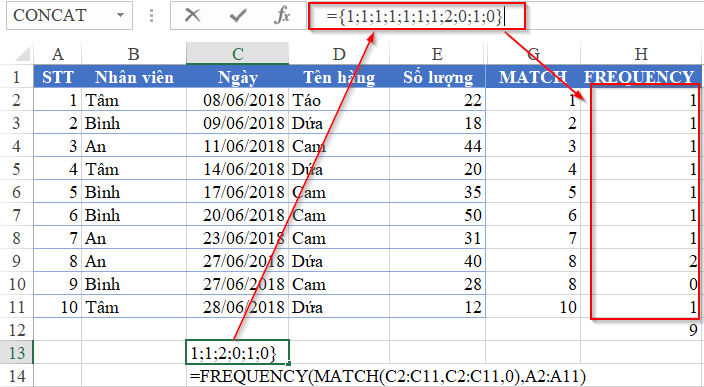 Result of combining FREQUENCY and MATCH functions in Excel
Step 3: Wrapping with SUMPRODUCT
The FREQUENCY function returns an array containing numbers greater than 0 (for unique items) and 0s (for duplicates/empty bins). To get the final count, we need to count how many values in this resulting array are greater than 0.
We use SUMPRODUCT to handle the array summation without requiring Ctrl+Shift+Enter (in most versions).
The logic involves:
- Checking if the Frequency result is
>0. This returnsTRUEorFALSE. - Converting
TRUE/FALSEinto1/0using the double negative operator (--). - Summing the result.
 Final result using SUMPRODUCT to count unique values
Final Formula:
=SUMPRODUCT(--(FREQUENCY(MATCH(Range, Range, 0), Row_Array)>0))
Result: The calculation returns 9, matching the result from Method 1.
Advantages of the Array Method
- Efficiency: No helper columns are required.
- Professionalism: Keeps the dataset clean and demonstrates a high level of Excel proficiency.
- Scalability: Can be easily adapted for dynamic named ranges or Excel Tables.
Comparison and Conclusion
Both methods effectively solve the problem of counting unique values, but they serve different user needs.
The Helper Column (COUNTIF) method is ideal for ad-hoc analysis or for users who are comfortable with basic logic but intimidated by array formulas. It provides transparency, allowing you to filter and inspect duplicates manually.
The Array Formula (SUMPRODUCT + FREQUENCY) method represents a more advanced, “cleaner” approach. It is the preferred method for building dashboards or professional reports where adding extra columns is messy or prohibited. It requires a solid grasp of how Excel handles data arrays and Boolean logic.
Moving Forward
Mastering these techniques not only solves the immediate problem of counting unique entries but also sharpens your overall data processing mindset. Understanding how to manipulate arrays with FREQUENCY and MATCH opens the door to solving complex data extraction problems, such as creating dynamic lists of unique values.
For those dealing with varying dataset sizes where a fixed “Row_Array” (Bin) isn’t feasible, you can explore dynamic array functions like UNIQUE (available in Office 365) or use mathematical logic to generate the bin array automatically within the formula.
References
- Microsoft Support: Count unique values among duplicates.
- TechCrunch: Advanced Excel Data Analysis Techniques.
- ExcelJet: usage of FREQUENCY and MATCH for unique counts.













Discussion about this post