


Have you ever faced a situation where you need to plot two vastly different types of data on a single Excel chart? For instance, you might have sales figures in the millions and profit margins in small percentages. If you attempt to plot these on a standard bar chart, the percentage bars become microscopic and invisible against the large sales numbers.
The solution lies in creating a Combo Chart (Combination Chart). This powerful visualization tool allows you to combine a column chart (for absolute values) with a line chart (for percentages) using a Secondary Axis. This guide will walk you through the professional workflow of preparing your data and generating a dual-axis chart in Excel, ensuring your reports are both accurate and visually compelling.
Case Study: Analyzing Employee Sales Performance
Let’s consider a practical scenario. You are an analyst with a dataset containing sales records for various employees.
 Raw Excel dataset showing sales figures by employee with duplicate names
The Objective: Create a chart that visualizes the total sales volume for each employee while simultaneously tracking their contribution percentage to the company’s total revenue.
Phase 1: Data Analysis and Preparation
Before diving into chart creation, data preparation is the most critical step. A common mistake among beginners is attempting to visualize raw data. To ensure accuracy, the data must be aggregated and structured correctly.
Looking at the raw example above, we identify two main issues:
- Duplicate Entries: Employee names appear multiple times. We need unique identifiers for the report.
- Missing Metrics: The percentage data does not exist yet and requires calculation.
Here is the step-by-step technical process to clean and prepare this data:
Step 1: Remove Duplicate Values
To generate a summary report, we first need a unique list of employees.
- Copy the Employee column (Column A) to a new empty column (e.g., Column D).
- Select the new list.
- Navigate to the Data tab on the Ribbon and click Remove Duplicates.
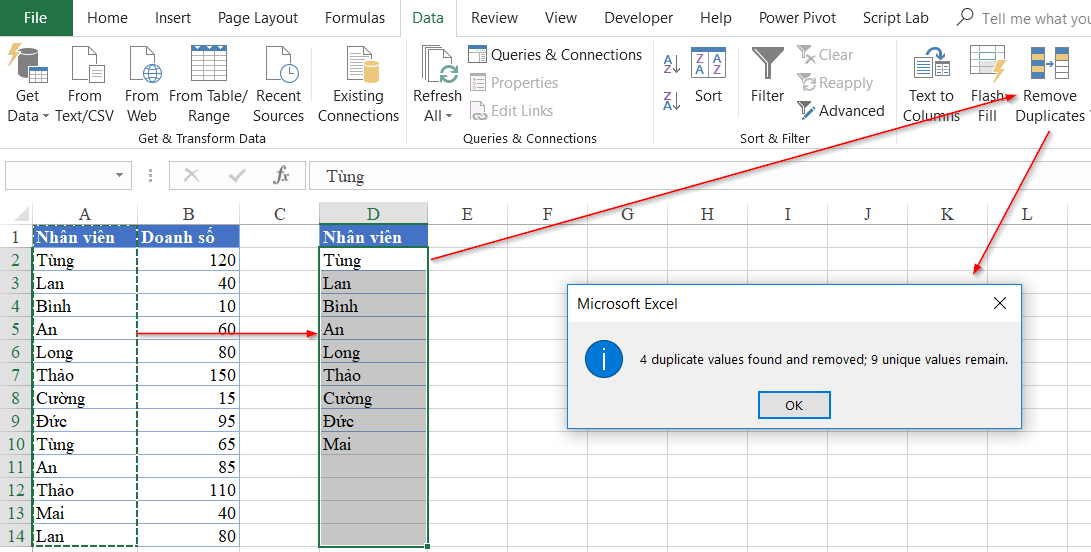 Excel Remove Duplicates dialog box selected for the Employee column
After executing this command, Excel will delete repeated entries, leaving you with a unique list of personnel. This forms the X-axis basis for your chart.
 Animation showing the process of removing duplicate values in Excel
Step 2: Aggregate Sales Data Using SUMIF
With a unique list of employees, we now need to calculate the total sales for each person. Since the original data is scattered, the SUMIF function is the most efficient tool for this conditional summation.
Syntax: =SUMIF(range, criteria, sum_range)
- range: The column containing the criteria to be evaluated (Column A – Original Employee Names).
- criteria: The specific condition (Column D – The unique employee name).
- sum_range: The cells to add up (Column B – Sales figures).
Applying this formula gives us a consolidated sales table:
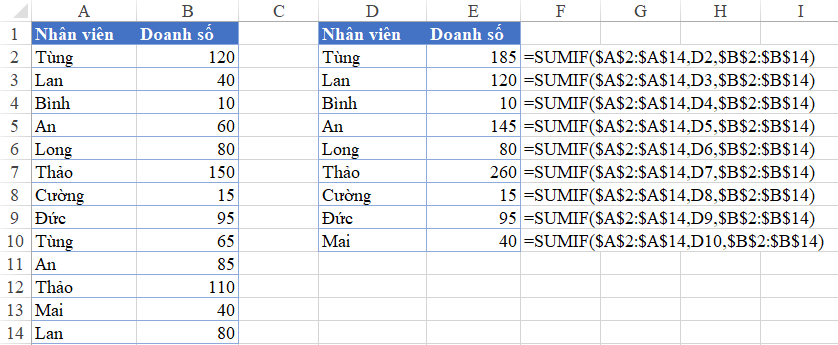 Aggregated sales data table using SUMIF function
Step 3: Optimization via Sorting
Data visualization experts recommend sorting data to create a logical visual hierarchy. A chart is much easier to read when bars are arranged in descending or ascending order rather than randomly.
- Select your aggregated data table (including headers).
- Go to the Data tab and click Sort.
- Set the “Sort by” to Sales, and the “Order” to Largest to Smallest.
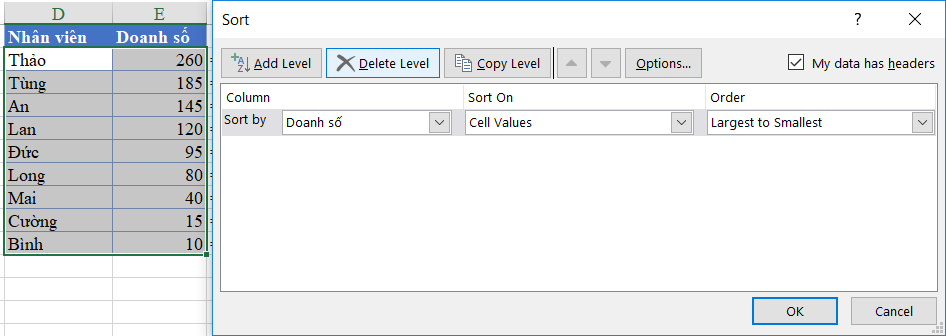 Excel Sort dialog box configuring sales data from largest to smallest
Step 4: Calculate Percentage Contribution
To visualize the contribution rate, we must calculate the percentage of total sales each employee represents.
Formula logic: Percentage = Individual Sales / Total Company Sales
Create a new column named “Ratio” (or Percentage) and apply the formula. Ensure you format this column as Percentage (%), ideally with two decimal places for precision.
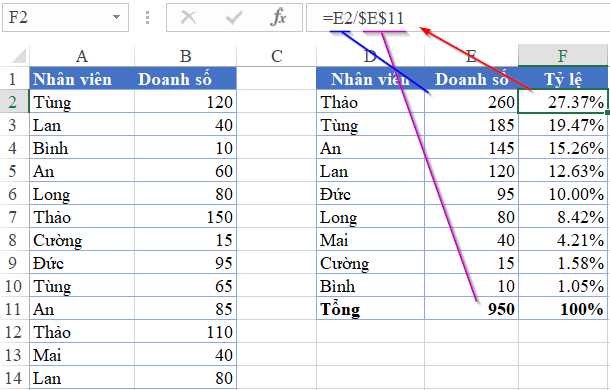 Excel table with a new column calculating percentage contribution
Phase 2: Constructing the Combo Chart
Once the data is structured—containing both absolute numbers (Sales) and relative numbers (Percentage)—we can proceed to visualization. In Excel, the specific chart type required is often referred to as a Combo Chart.
Understanding the Dual-Axis Concept
This chart type is analogous to climate graphs used in geography, where temperature (line) and rainfall (bars) are plotted together. In Excel, this is achieved by assigning one data series to the Primary Axis (left) and the other to a Secondary Axis (right).
To begin, navigate to the Insert tab, locate the Charts group, and look for the Insert Combo Chart icon.
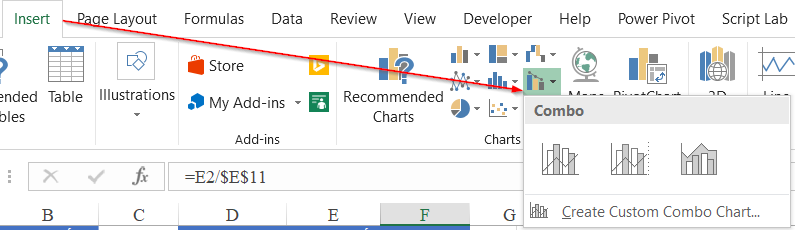 Insert Chart menu in Excel showing the Combo Chart option
There are two primary methods to create this chart.
Method 1: The Direct Combo Chart (Excel 2013 and later)
Modern versions of Excel allow you to select the “Clustered Column – Line on Secondary Axis” preset directly from the menu shown above. This is the fastest route. However, for users on older versions or those requiring specific customization, Method 2 provides a deeper understanding of the mechanics.
Method 2: Customizing a Standard Column Chart
This method works on all Excel versions and gives you full control over the chart elements.
Step 1: Select your data range (excluding the total row) and insert a standard Clustered Column Chart.
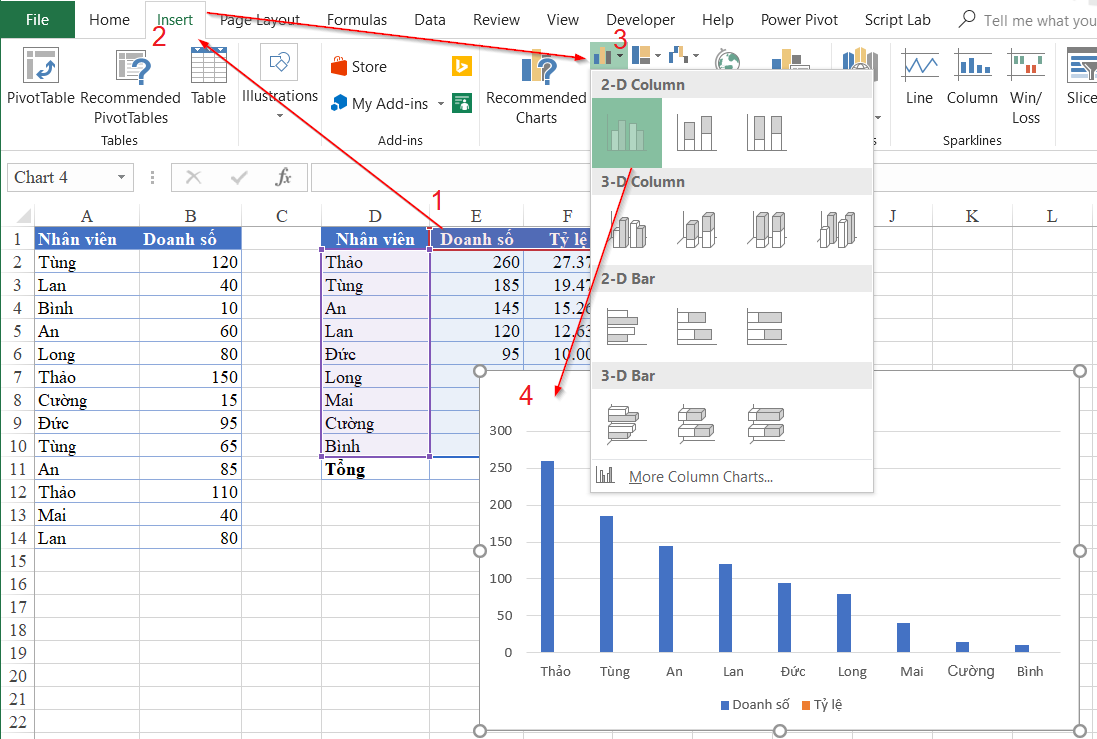 Standard column chart created from the dataset
Step 2: Analyze the initial result. You will notice a problem immediately:
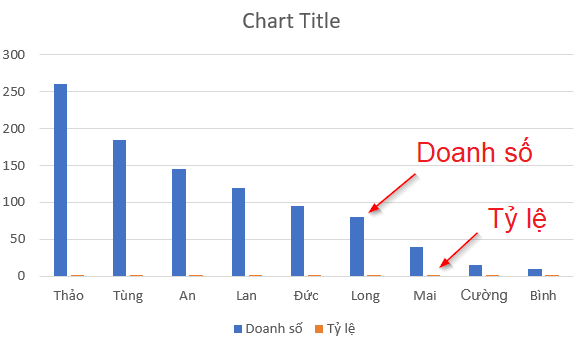 Column chart where percentage values are too small to be visible
Because the sales figures are in the hundreds (e.g., 260) and the percentages are less than 1 (e.g., 30% is 0.3), the percentage columns are so small they appear flat against the baseline.
Step 3: Activate the Secondary Axis.
To fix the scaling issue, we need to move the percentage data series to a secondary axis.
- Select the chart.
- Click on any data column to select the series. Since the percentage columns are invisible, you can select the Sales column and press the Up Arrow or Down Arrow key on your keyboard to cycle through chart elements until the “Ratio” series is selected.
- Right-click and select Change Series Chart Type.
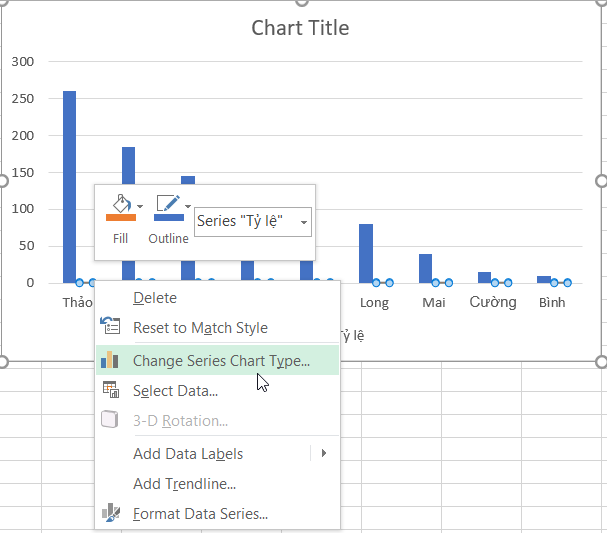 Context menu in Excel selecting Change Series Chart Type
Step 4: Configure the Combo Settings.
In the dialog box that appears, you will see a list of your data series. Configure them as follows:
- Sales: Set Chart Type to Clustered Column.
- Ratio: Set Chart Type to Line with Markers (this adds points to the line for better visibility).
- Secondary Axis: Check the box next to the Ratio series.
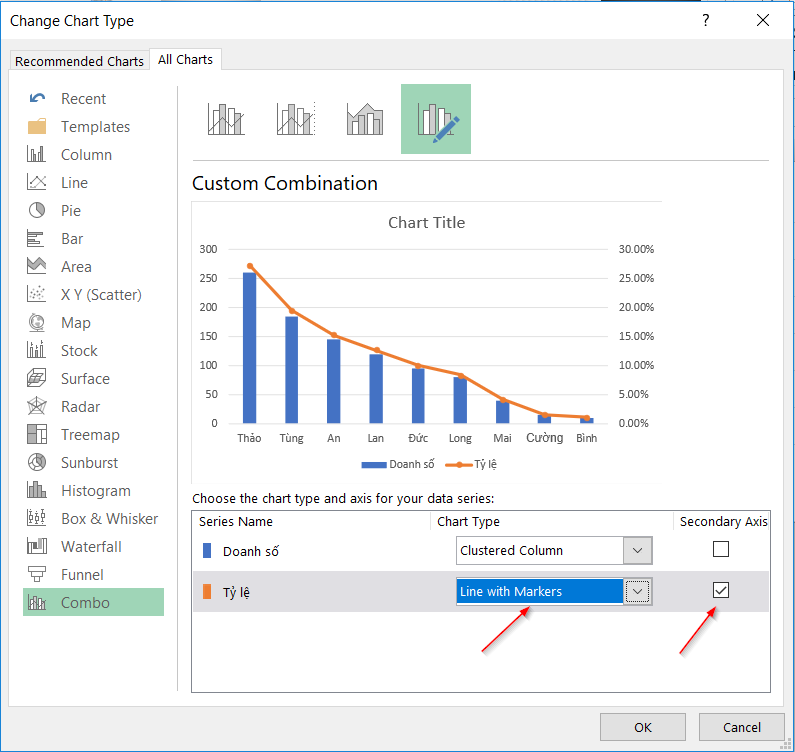 Change Chart Type dialog enabling Secondary Axis for the percentage series
Checking the “Secondary Axis” box creates a new vertical axis on the right side of the chart specifically for the percentage values, allowing the line to scale independently of the sales columns.
Step 5: Finalize.
Click OK. You now have a professional chart combining bars and lines.
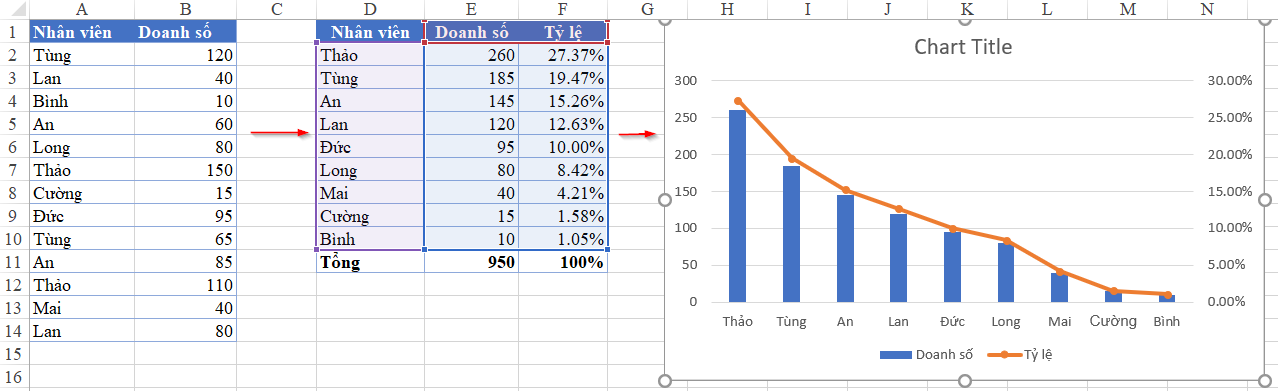 Final Combo Chart displaying sales columns and percentage line simultaneously
Conclusion
Mastering the Combo Chart in Excel is an essential skill for data analysts and business professionals. It allows you to present complex, multi-dimensional data in a clean and understandable format. By following the process of cleaning your data with Remove Duplicates, aggregating with SUMIF, and utilizing the Secondary Axis feature, you can transform raw numbers into actionable insights.
Whether you are tracking sales vs. profit margins, or web traffic vs. conversion rates, this visualization technique ensures your audience grasps both the magnitude and the efficiency metrics in a single view.
References
- Microsoft Support: Create a combo chart with a secondary axis.
- TechCrunch: Data visualization best practices.
- The Verge: Excel tips for power users.












Discussion about this post