

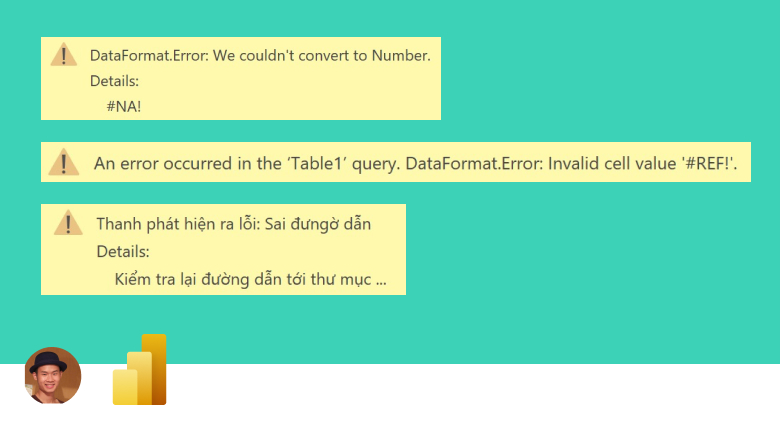
Data transformation is rarely a seamless process. When working with large datasets in Power BI or Excel via Power Query, encountering data type mismatches or format errors is almost inevitable. A common frustration for data analysts is the generic error notification provided by the interface. You might see a yellow bar stating there are errors, or see “Error” written in specific cells, but getting a comprehensive view of what went wrong and where can be tedious.
Typically, to understand the nature of an error, a user must click on the specific cell containing the “Error” hyperlink (without clicking the cell background) to see the detail message at the bottom of the screen. In a dataset with thousands of rows, this manual inspection is inefficient. This guide will demonstrate expert techniques to force Power Query to display detailed error messages—including the error reason and description—directly in the row context. This allows for bulk debugging and faster data remediation in both Excel and Power BI.
Preparing the Data Scenario
To understand how to capture and display these errors effectively, we first need to replicate a common failure scenario. Errors frequently occur during the “Changed Type” step, such as when non-numeric characters are forced into a generic integer column.
Let’s start with a simple dataset in Excel. This table contains a mix of valid numbers and text strings that will cause issues during conversion.
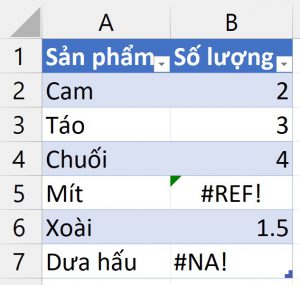 Excel spreadsheet containing sample data with mixed text and numbers in the Quantity column
Once the data is ready, we load it into the Power Query Editor. In Excel, navigate to the Data tab and select From Table/Range (or From Sheet in newer versions). This initiates the ETL (Extract, Transform, Load) process.
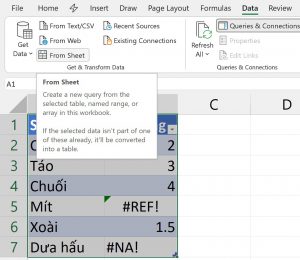 Selecting the From Sheet option in the Excel Data tab to launch Power Query
Upon loading, Power Query may attempt to automatically detect types, or you may view the raw data as text initially. The interface provides a preview of the query as shown below.
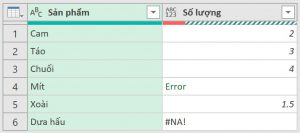 Power Query Editor interface displaying the initial loaded dataset
The critical moment happens when we enforce a data type change. For instance, if we convert the “Quantity” (Số lượng) column to a Whole Number data type, Power Query cannot interpret text values like “abc”. Consequently, it replaces those values with an Error object.
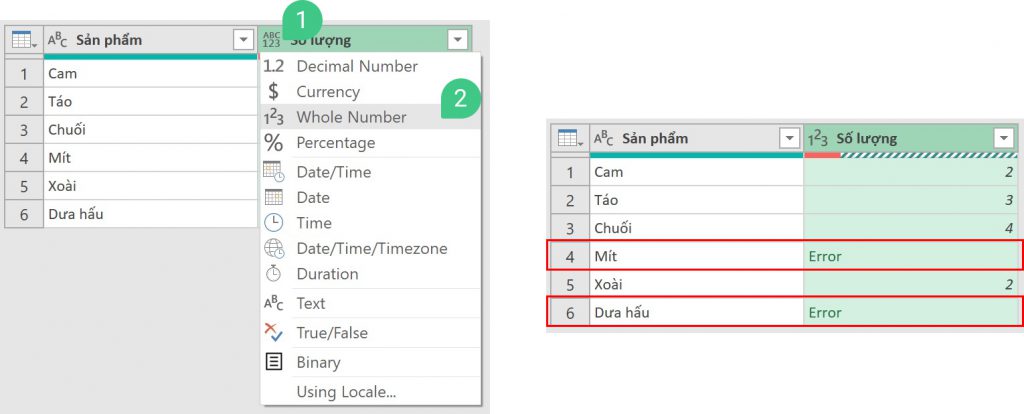 Data table showing Error values in rows 4 and 6 after changing data type
At this stage, we have a problem: we know errors exist, but we cannot see the details without individual inspection. To streamline the debugging process, we need to extract the metadata hidden within these error objects.
Method 1: Viewing Detailed Errors in Excel
Excel offers a built-in feature to isolate errors, which acts as a great starting point before we apply custom logic. If you load the query and errors occur, Excel usually warns you in the Queries & Connections pane.
Isolating the Error Rows
If you look at the task pane on the right side of your Excel window, you will often see a hyperlink indicating the number of errors (e.g., “2 errors”). If you do not see this pane, verify that you are on the Data tab and have toggled on Queries & Connections.
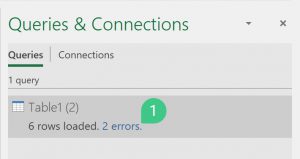 The Queries and Connections pane in Excel highlighting the error count link
Clicking this link triggers Power Query to create a new query specifically filtering for the rows that failed to load. This automated step is helpful, but it often just shows the rows with the “Error” value, still requiring manual checking to understand the reason.
 A new query window generated by Excel showing only the rows containing errors
Implementing the ‘Try’ Logic
To display the actual error message (e.g., “We couldn’t convert to Number”) directly in a column, we utilize the Power Query M language keyword: try.
In the Power Query Editor, go to the Add Column tab and select Custom Column. We will create a formula that attempts to process the column causing the issue. The syntax is:
= try [ColumnName]In our specific example, the formula is = try [Số lượng].
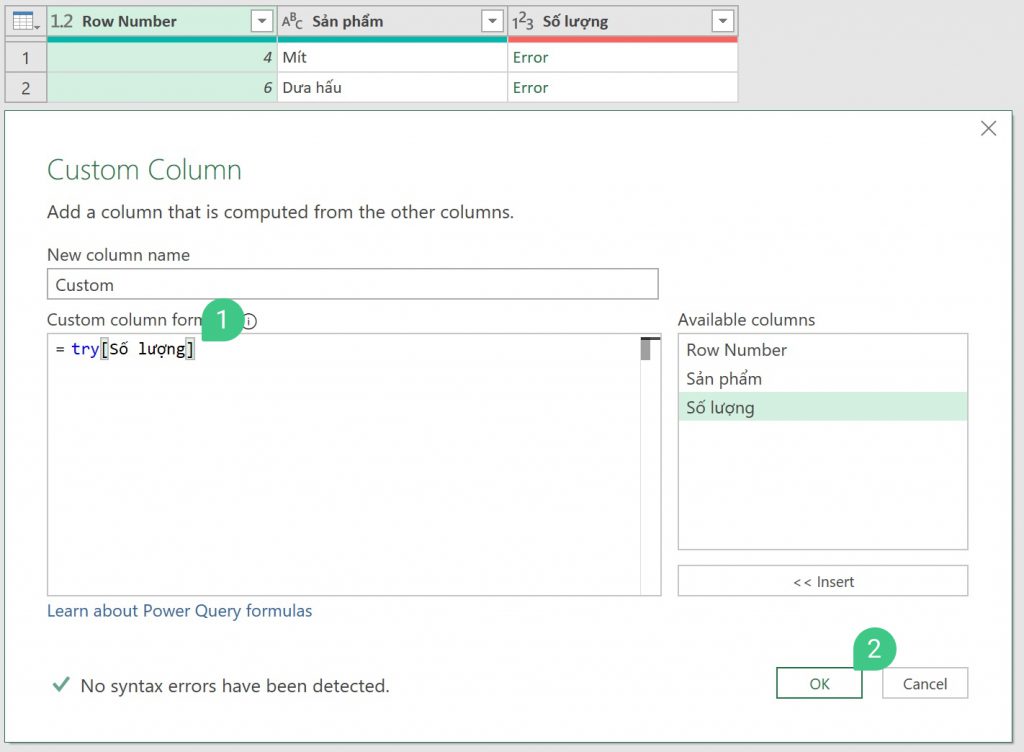 Custom Column dialog box in Power Query showing the try formula input
The try keyword returns a Record type. This record contains two fields:
- HasError: A boolean (True/False).
- Error (if HasError is true) or Value (if HasError is false).
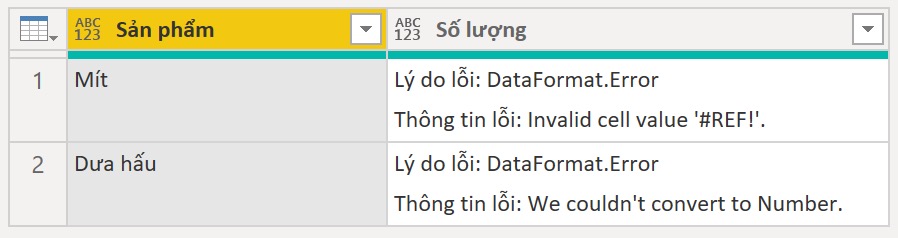
By clicking the Expand icon (the two diverging arrows) in the header of this new Custom column, you can extract the error details. Select the Error field to expand. Inside the Error record, you will find three valuable components:
- Reason: The classification of the error (e.g.,
DataFormat.Error). - Message: The human-readable description.
- Detail: The specific value that caused the failure.
 Expanded custom column showing detailed error reasons messages and details
This method transforms “Error” cells into readable text, allowing you to filter, sort, or export the specific reasons why your data load failed.
Method 2: Advanced Error Extraction in Power BI
While the Excel method above relies partly on the “Queries & Connections” pane to isolate rows initially, Power BI does not have the exact same interface for clicking “2 errors” to auto-generate a fix. In Power BI, we need a more robust, reusable approach to handle errors across an entire table dynamically.
We can achieve this by creating a Custom Function in M. This function iterates through a table, identifies cells with errors, and replaces them with a detailed text string explaining the error.
The Custom M Function
To use this, create a blank query in Power BI (Home > New Source > Blank Query), open the Advanced Editor, and paste the following code:
(table as table) as table =>
    let
        // Function to extract error or value
        errorExtract = (value as any) as any =>
            if value[HasError] = true then
                value[Error]
            else
                value[Value],

        // Function to format the error record into text
        errorToText = (errorRec as any) as any =>
            if Type.Is(Value.Type(errorRec), Record.Type) then
                "Error Reason: " & errorRec[Reason] &
                "#(lf)Error Message: " & errorRec[Message]
            else
                errorRec,

        // Function to iterate columns in a row
        recsToErrors = (rec as record) as any =>
            List.Accumulate( Record.FieldNames(rec), [],
                (s,c) =>
                    Record.AddField(
                        s,
                        c,
                        errorToText(
                            errorExtract(try Record.Field(rec, c))
                        )
                    )
            ),

        // Main logic to select error rows and transform them
        #"Error Table" = Table.FromList(
            List.Transform(
                Table.ToRecords(
                    Table.SelectRowsWithErrors(table)),
                    each recsToErrors(_)),
                    Record.FieldValues,
                    Table.ColumnNames(table)
                )
    in
        #"Error Table"
Applying the Function
Once this function is saved (let’s name it FnGetErrorDetails), you can apply it to your dataset.
- Select the query containing your data.
- Go to Add Column > Invoke Custom Function.
- Select
FnGetErrorDetailsand pass your current table as the parameter.
Alternatively, you can use it directly in the Advanced Editor of your main query. The result is a clean table containing only the problematic rows, with the actual values replaced by their error descriptions.
 Power BI data table showing detailed error messages generated by the custom function
This technique is particularly powerful for building “Data Quality Reports.” You can load this resulting table into your Power BI model to visualize data quality issues—for example, creating a card that shows “50 rows failed due to DataFormat errors.”
Conclusion
Handling errors effectively is a hallmark of professional data engineering. By moving beyond the generic “Error” indicator and implementing row-level detail extraction, you gain transparency into your data pipeline. Whether you use the manual try column method in Excel for quick checks or the robust Custom M Function in Power BI for automated reporting, these techniques ensure that bad data never slips through unnoticed.
Having this level of detail allows you to categorize errors (e.g., distinguishing between formatting issues and missing data) and communicate necessary fixes to data owners more accurately.
References
- Microsoft Learn: Power Query M Formula Language Reference
- Microsoft Support: Handle errors in Power Query
- Thủ Thuật: Original technique and workflow demonstration













Discussion about this post